> ## Documentation Index
> Fetch the complete documentation index at: https://docs.begin.eu/llms.txt
> Use this file to discover all available pages before exploring further.
# Download your personal data
> Download the data your account and current workspace hold about you.

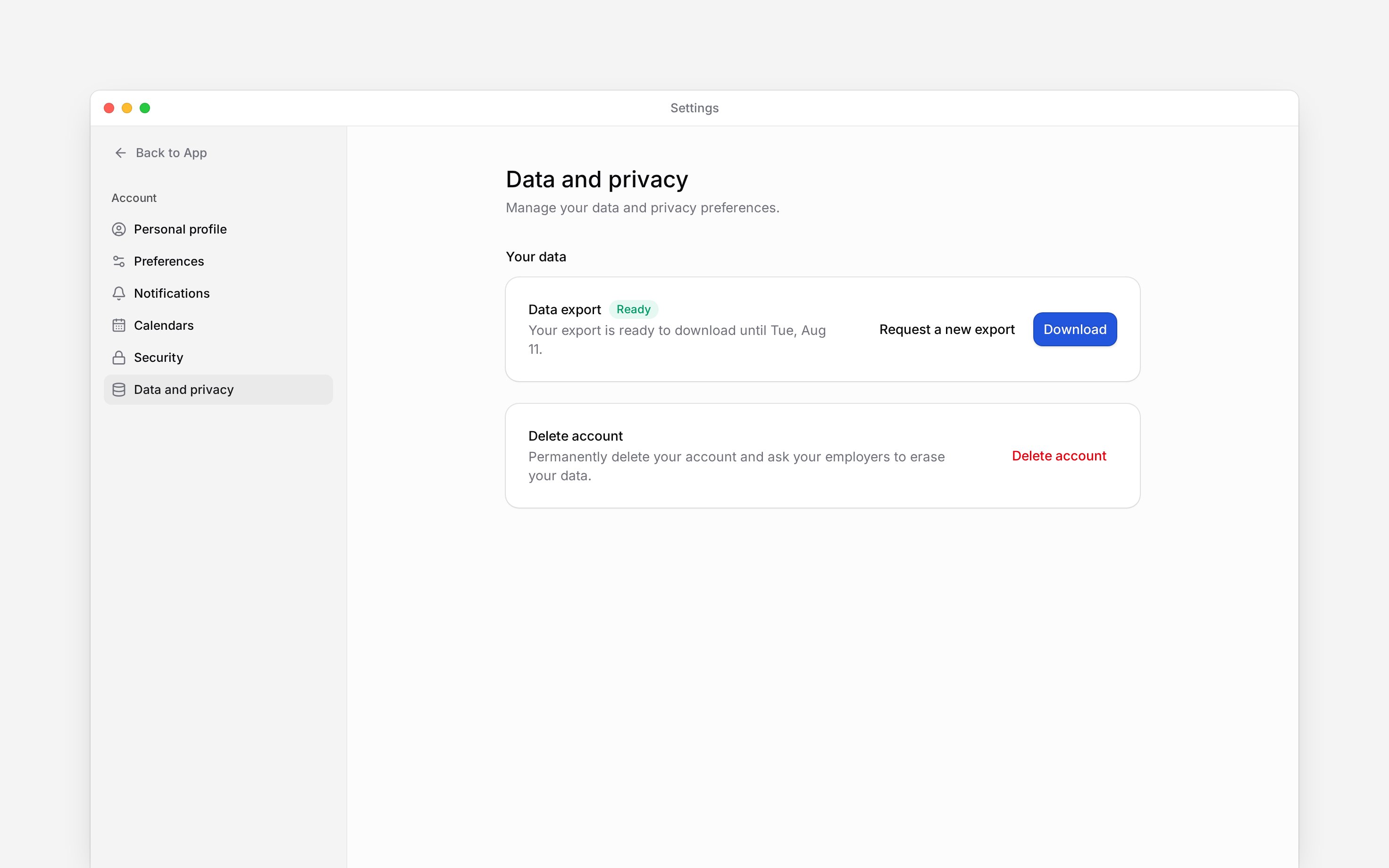
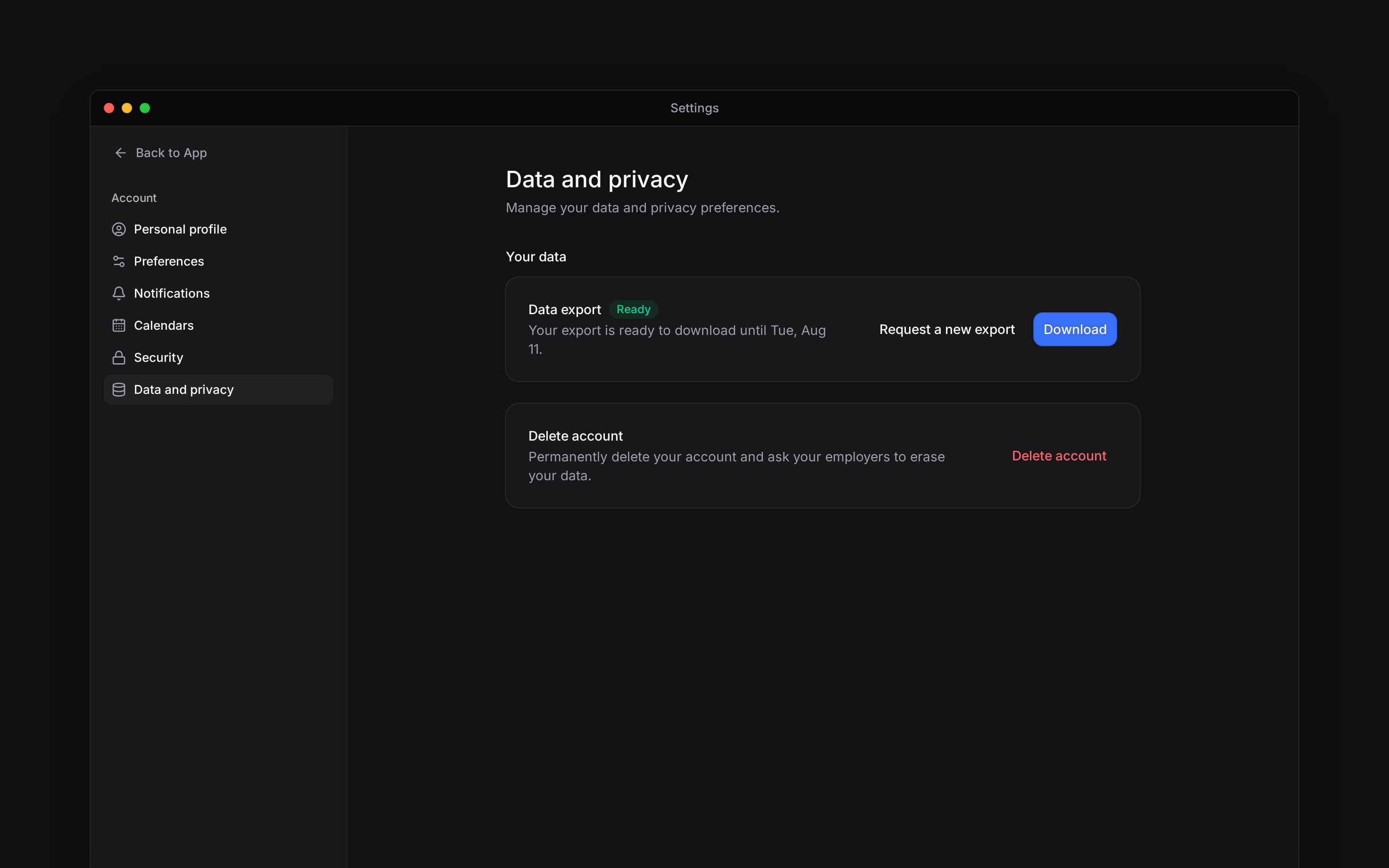
 Download a copy of what your Begin account and the current workspace hold about you from **Settings → Data and privacy**. On a phone, open **More → Profile & settings → Personal profile**, then use the top-left settings navigation button and choose **Data and privacy**. The export is for your own data, even if you manage other people.
 ## Request and download the file
Switch to the workspace whose personal records you want to download.
Open **Settings → Data and privacy**. Under **Your data**, choose **Request export**.
Begin gathers the data. You can leave the page while it says **Preparing** and return later.
When the export is **Ready**, choose **Download** before the expiry date shown. The ZIP contains
JSON and CSV files.
Download the archive before leaving the workspace or deleting your account, while you still have access. Keep the downloaded file somewhere private.
## Resolve an expired or failed export
A ready export expires after seven days. If it says **Expired** or **Failed**, choose **Request a new export**. You can also request a fresh copy after a completed export if your records have changed.
Only one export can be prepared at a time. If the request or download keeps failing, contact support and name the workspace and status you see.
## Understand what this exports
This is your personal bundle for the selected workspace, not a download of everyone’s records or a full history across all your employers. Repeat the request in another workspace if you need its records too. Your manager’s workspace export is a different action with different access rules. Downloading a copy does not erase or change the original records.
The export query and request resolve the subject from the authenticated user and active membership. They accept no target member parameter. Ready download URLs require current authorisation; a retained link is not a replacement for membership. Archive expiry and a new request do not delete source records.
## Next
Leave one workspace after saving your records.
Understand permanent account deletion.
## Still need help?
Email the Begin team and we'll get back to you.
Open the AI assistant and get instant answers based on these docs.
## Request and download the file
Switch to the workspace whose personal records you want to download.
Open **Settings → Data and privacy**. Under **Your data**, choose **Request export**.
Begin gathers the data. You can leave the page while it says **Preparing** and return later.
When the export is **Ready**, choose **Download** before the expiry date shown. The ZIP contains
JSON and CSV files.
Download the archive before leaving the workspace or deleting your account, while you still have access. Keep the downloaded file somewhere private.
## Resolve an expired or failed export
A ready export expires after seven days. If it says **Expired** or **Failed**, choose **Request a new export**. You can also request a fresh copy after a completed export if your records have changed.
Only one export can be prepared at a time. If the request or download keeps failing, contact support and name the workspace and status you see.
## Understand what this exports
This is your personal bundle for the selected workspace, not a download of everyone’s records or a full history across all your employers. Repeat the request in another workspace if you need its records too. Your manager’s workspace export is a different action with different access rules. Downloading a copy does not erase or change the original records.
The export query and request resolve the subject from the authenticated user and active membership. They accept no target member parameter. Ready download URLs require current authorisation; a retained link is not a replacement for membership. Archive expiry and a new request do not delete source records.
## Next
Leave one workspace after saving your records.
Understand permanent account deletion.
## Still need help?
Email the Begin team and we'll get back to you.
Open the AI assistant and get instant answers based on these docs.