> ## Documentation Index
> Fetch the complete documentation index at: https://docs.begin.eu/llms.txt
> Use this file to discover all available pages before exploring further.
# Completing starter details
> Save your personal, address, bank and emergency-contact details before your first day.
export const BetaCallout = ({children}) => ;

 Use the starter-details link your employer sent to complete the form in your browser. The details go to your employer’s record for you. If the page opens on an offer, [answer it first](/for-employees/getting-started/reviewing-your-offer).
Guided onboarding is rolling out gradually. You need a link from your employer; this form is
separate from signing in to Begin.
## Complete and save each section
Enter or correct the information shown, including your email and phone. Use an email you can
receive messages at. Check any date of birth or gender filled from your personal identification
number.
Choose **Save**. The section gains a completion mark and the next incomplete section opens.
Work through **Home address**, **Bank details** and **Emergency contact**. If **A few more
details** appears, complete the additional fields your employer asks for.
Use the starter-details link your employer sent to complete the form in your browser. The details go to your employer’s record for you. If the page opens on an offer, [answer it first](/for-employees/getting-started/reviewing-your-offer).
Guided onboarding is rolling out gradually. You need a link from your employer; this form is
separate from signing in to Begin.
## Complete and save each section
Enter or correct the information shown, including your email and phone. Use an email you can
receive messages at. Check any date of birth or gender filled from your personal identification
number.
Choose **Save**. The section gains a completion mark and the next incomplete section opens.
Work through **Home address**, **Bank details** and **Emergency contact**. If **A few more
details** appears, complete the additional fields your employer asks for.
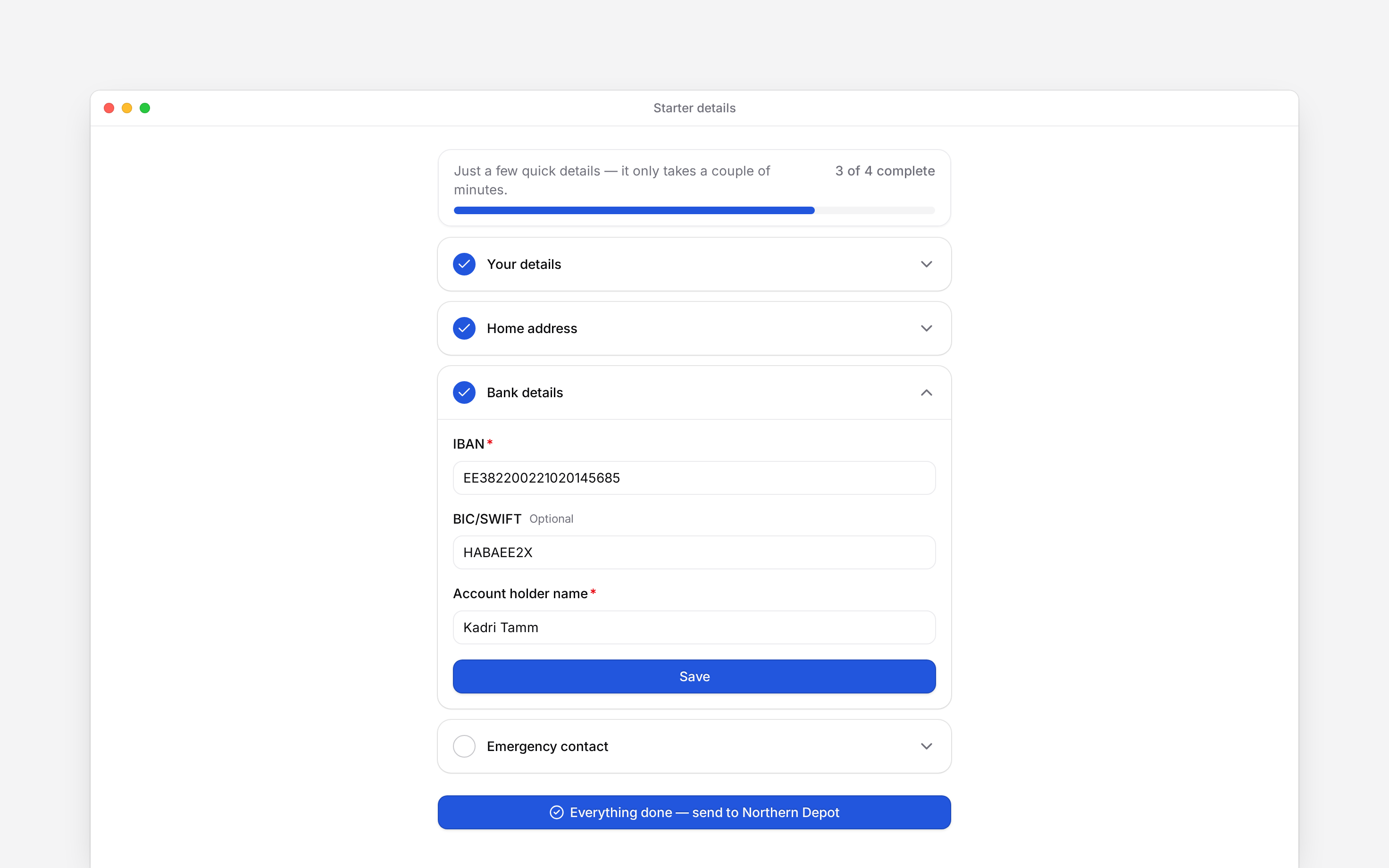
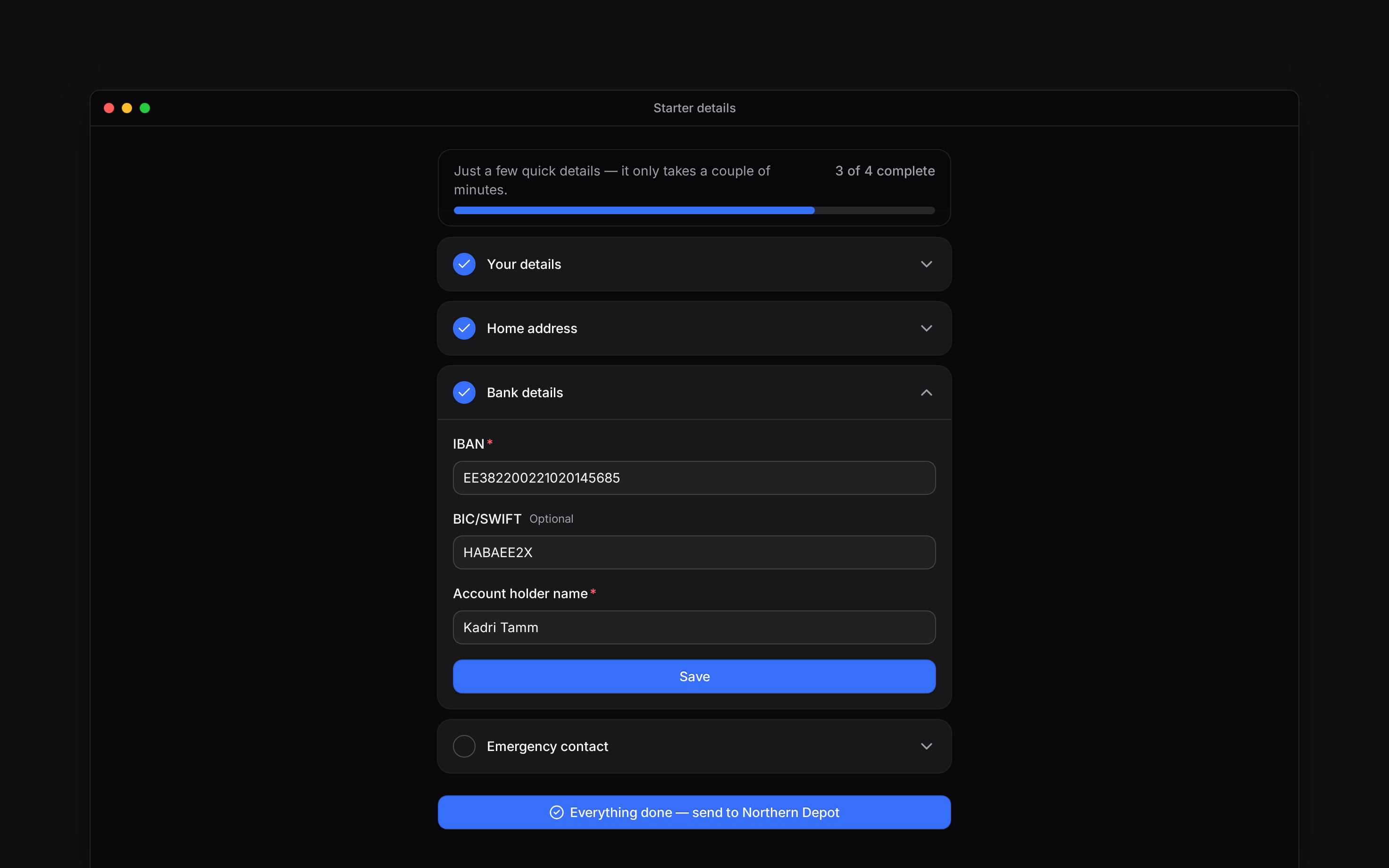 The progress counter shows how many sections are complete. You can reopen a saved section to check it before sending. Saving one section keeps that section’s answers; do not close the page with unsaved changes.
## Send the completed form
Once every required field is complete, choose the button beginning **Everything done** at the bottom of the form. The thank-you page confirms that your details have been sent to your manager. A first-day date appears when your employer has provided one.
Saving the sections is not the final submission. Use the button at the bottom and wait for the
thank-you page.
## If something stops you
Correct the field named in an error, such as an invalid IBAN or an email already used by another person. If you do not know a required answer, ask your employer rather than inventing one.
**This link is no longer valid** means you need to contact your manager for a new link. After submission, ask them about corrections. Your invitation to join Begin can arrive separately after your details or contract are ready.
The public form saves sections independently to the member record. Completion is checked on the server and can reopen sections when data changed elsewhere. Returning to the tab refreshes its state. Optional custom fields only appear when the workspace requests them. A submitted form is a completed milestone, not an app invitation or signed contract.
## Next
Accept the separate invitation to Begin.
Complete a document-signing request when one arrives.
## Still need help?
Email the Begin team and we'll get back to you.
Open the AI assistant and get instant answers based on these docs.
The progress counter shows how many sections are complete. You can reopen a saved section to check it before sending. Saving one section keeps that section’s answers; do not close the page with unsaved changes.
## Send the completed form
Once every required field is complete, choose the button beginning **Everything done** at the bottom of the form. The thank-you page confirms that your details have been sent to your manager. A first-day date appears when your employer has provided one.
Saving the sections is not the final submission. Use the button at the bottom and wait for the
thank-you page.
## If something stops you
Correct the field named in an error, such as an invalid IBAN or an email already used by another person. If you do not know a required answer, ask your employer rather than inventing one.
**This link is no longer valid** means you need to contact your manager for a new link. After submission, ask them about corrections. Your invitation to join Begin can arrive separately after your details or contract are ready.
The public form saves sections independently to the member record. Completion is checked on the server and can reopen sections when data changed elsewhere. Returning to the tab refreshes its state. Optional custom fields only appear when the workspace requests them. A submitted form is a completed milestone, not an app invitation or signed contract.
## Next
Accept the separate invitation to Begin.
Complete a document-signing request when one arrives.
## Still need help?
Email the Begin team and we'll get back to you.
Open the AI assistant and get instant answers based on these docs.