> ## Documentation Index
> Fetch the complete documentation index at: https://docs.begin.eu/llms.txt
> Use this file to discover all available pages before exploring further.
# Finding your way
> Find your next shift, clock, messages and employee records on a phone or computer.

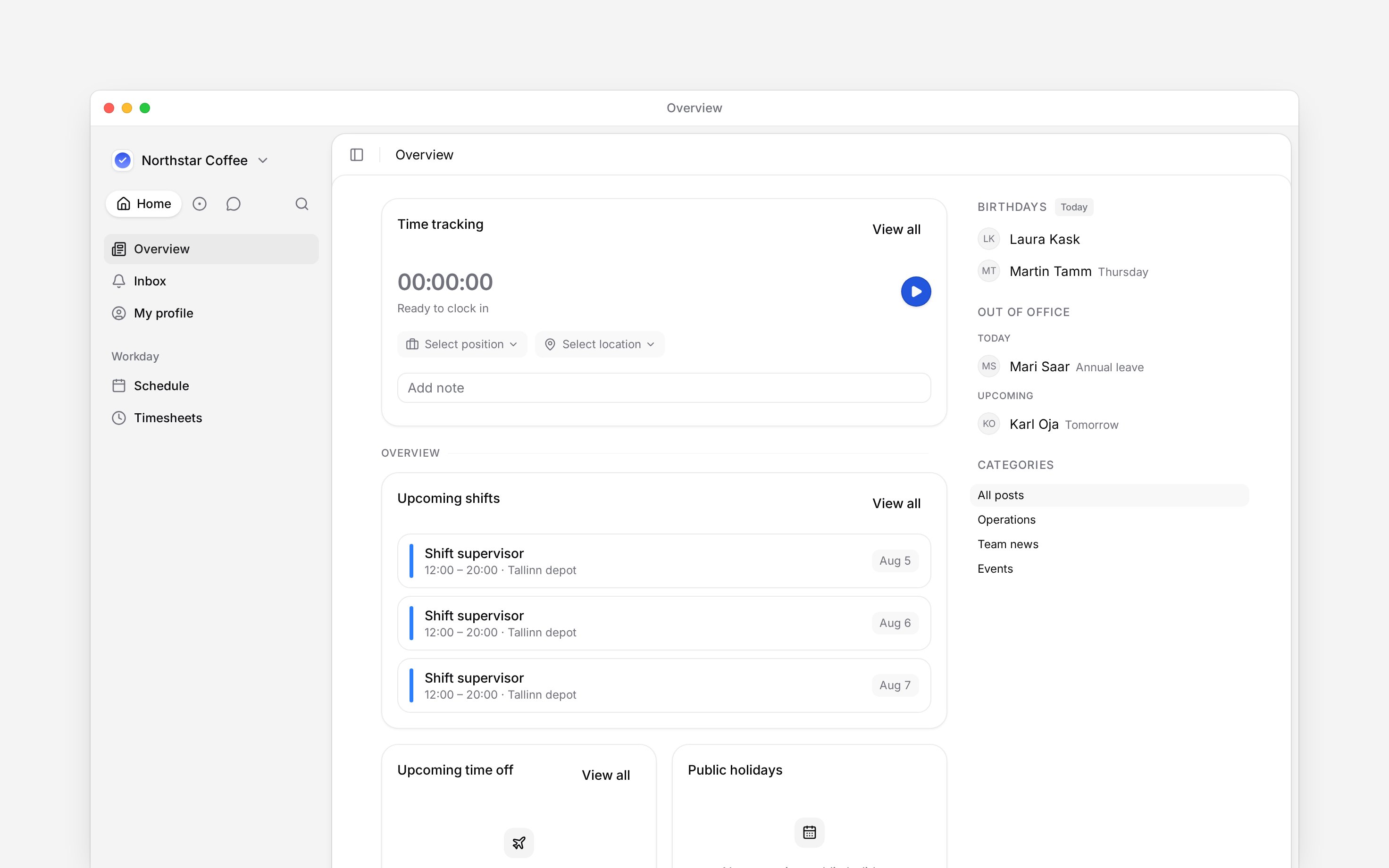
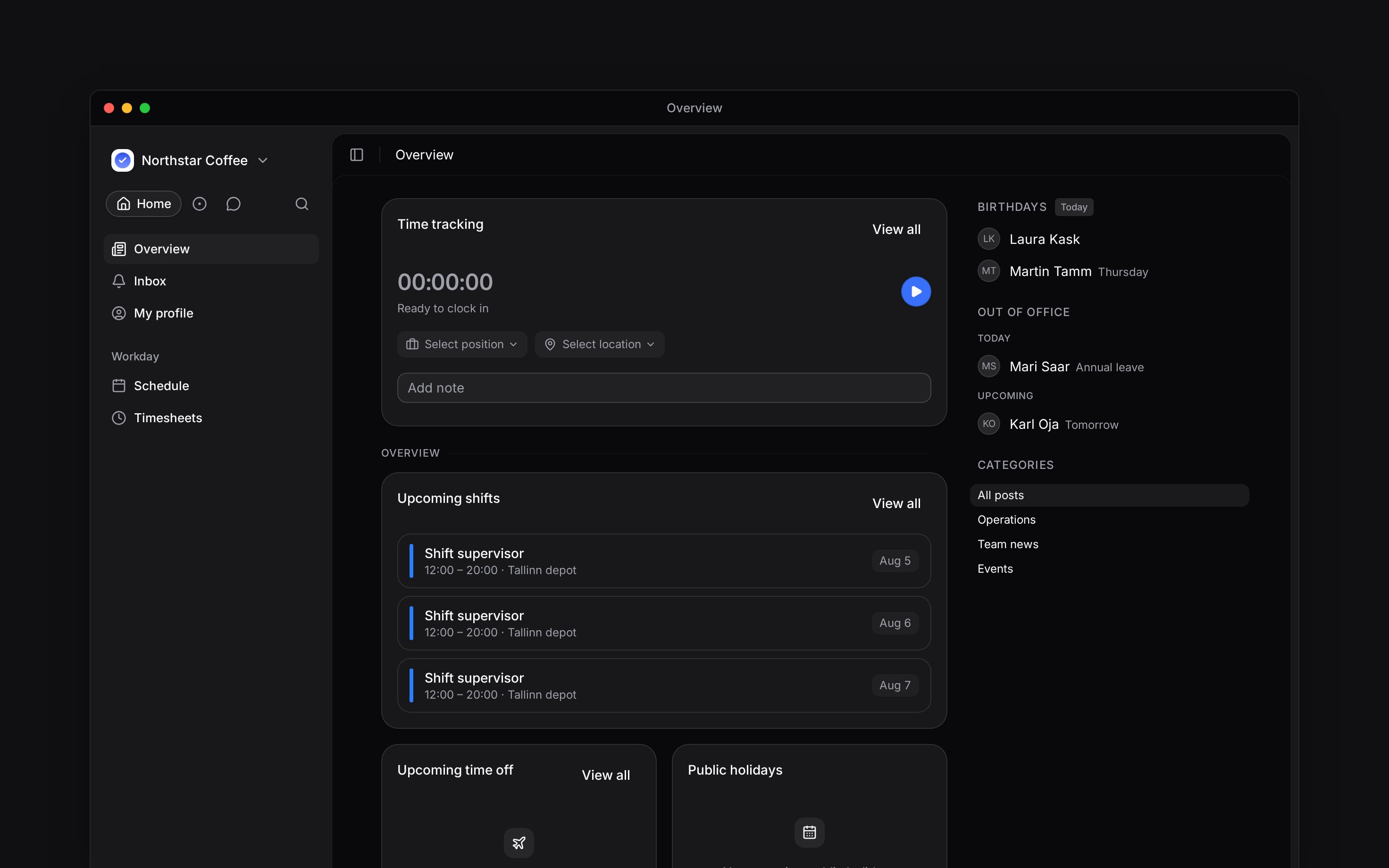
 Start with the job you need to do. On your phone, the main tabs keep daily work close; **More** opens the remaining pages. On a computer, use the sidebar. What you can open depends on your role and the features your employer uses.
## Find the page for your task
| I need to… | Open |
| ------------------------------------------------- | ------------------------------------------------------------ |
| Check what is happening today | **Home** on your phone, or **Overview** on a computer |
| Find my next shift or a colleague working with me | **Schedule** |
| Clock in or check recorded hours | **Timesheet** on your phone, or **Timesheets** on a computer |
| Talk to my team | **Messages** |
| Read a shift update or answer an offer | **Inbox**, under **More** on your phone |
| Check my details, job, leave or documents | **My profile**, under **More** on your phone |
Start with the job you need to do. On your phone, the main tabs keep daily work close; **More** opens the remaining pages. On a computer, use the sidebar. What you can open depends on your role and the features your employer uses.
## Find the page for your task
| I need to… | Open |
| ------------------------------------------------- | ------------------------------------------------------------ |
| Check what is happening today | **Home** on your phone, or **Overview** on a computer |
| Find my next shift or a colleague working with me | **Schedule** |
| Clock in or check recorded hours | **Timesheet** on your phone, or **Timesheets** on a computer |
| Talk to my team | **Messages** |
| Read a shift update or answer an offer | **Inbox**, under **More** on your phone |
| Check my details, job, leave or documents | **My profile**, under **More** on your phone |
 ## Search when you cannot find it
On your phone, choose **More → Search**. On a computer, press Cmd / Ctrl + K. Type the page, person, document or action you need, then select a result you can access.
If a page or action is missing, check that you selected the right workspace. Ask your manager about access or features your team does not use. Hiding a navigation item in your preferences is separate from losing permission to open it.
## Keep each workplace separate
Use the workspace menu to switch employers if you belong to more than one. Check its name before requesting leave or recording time. Your shifts, hours and employment records belong to the selected workspace; your account’s sign-in details follow you between them.
For your account name, photo and sign-in details, use **More → Profile & settings → Personal profile** on your phone, or **Settings → Personal profile** on a computer. Choose **Preferences** in the same menu for your language. For the information your employer holds about you, open **My profile**.
Mobile navigation labels come from the native navigation surface; My profile and Inbox are accessible from More. Command search respects permissions and discoverability gates. The default employee does not receive manager actions simply by opening a search result. Personal sidebar preferences can hide otherwise accessible destinations.
## Next
Find when and where you are working.
Find your employment details, documents and leave.
## Still need help?
Email the Begin team and we'll get back to you.
Open the AI assistant and get instant answers based on these docs.
## Search when you cannot find it
On your phone, choose **More → Search**. On a computer, press Cmd / Ctrl + K. Type the page, person, document or action you need, then select a result you can access.
If a page or action is missing, check that you selected the right workspace. Ask your manager about access or features your team does not use. Hiding a navigation item in your preferences is separate from losing permission to open it.
## Keep each workplace separate
Use the workspace menu to switch employers if you belong to more than one. Check its name before requesting leave or recording time. Your shifts, hours and employment records belong to the selected workspace; your account’s sign-in details follow you between them.
For your account name, photo and sign-in details, use **More → Profile & settings → Personal profile** on your phone, or **Settings → Personal profile** on a computer. Choose **Preferences** in the same menu for your language. For the information your employer holds about you, open **My profile**.
Mobile navigation labels come from the native navigation surface; My profile and Inbox are accessible from More. Command search respects permissions and discoverability gates. The default employee does not receive manager actions simply by opening a search result. Personal sidebar preferences can hide otherwise accessible destinations.
## Next
Find when and where you are working.
Find your employment details, documents and leave.
## Still need help?
Email the Begin team and we'll get back to you.
Open the AI assistant and get instant answers based on these docs.