> ## Documentation Index
> Fetch the complete documentation index at: https://docs.begin.eu/llms.txt
> Use this file to discover all available pages before exploring further.
# Reading and responding
> Understand a notification and use its action to follow up on your work.

 Open an Inbox item to see what happened and the record it concerns. Read the dates and current status before responding, especially when the notification is about a change to your shift or request.
## Open the update
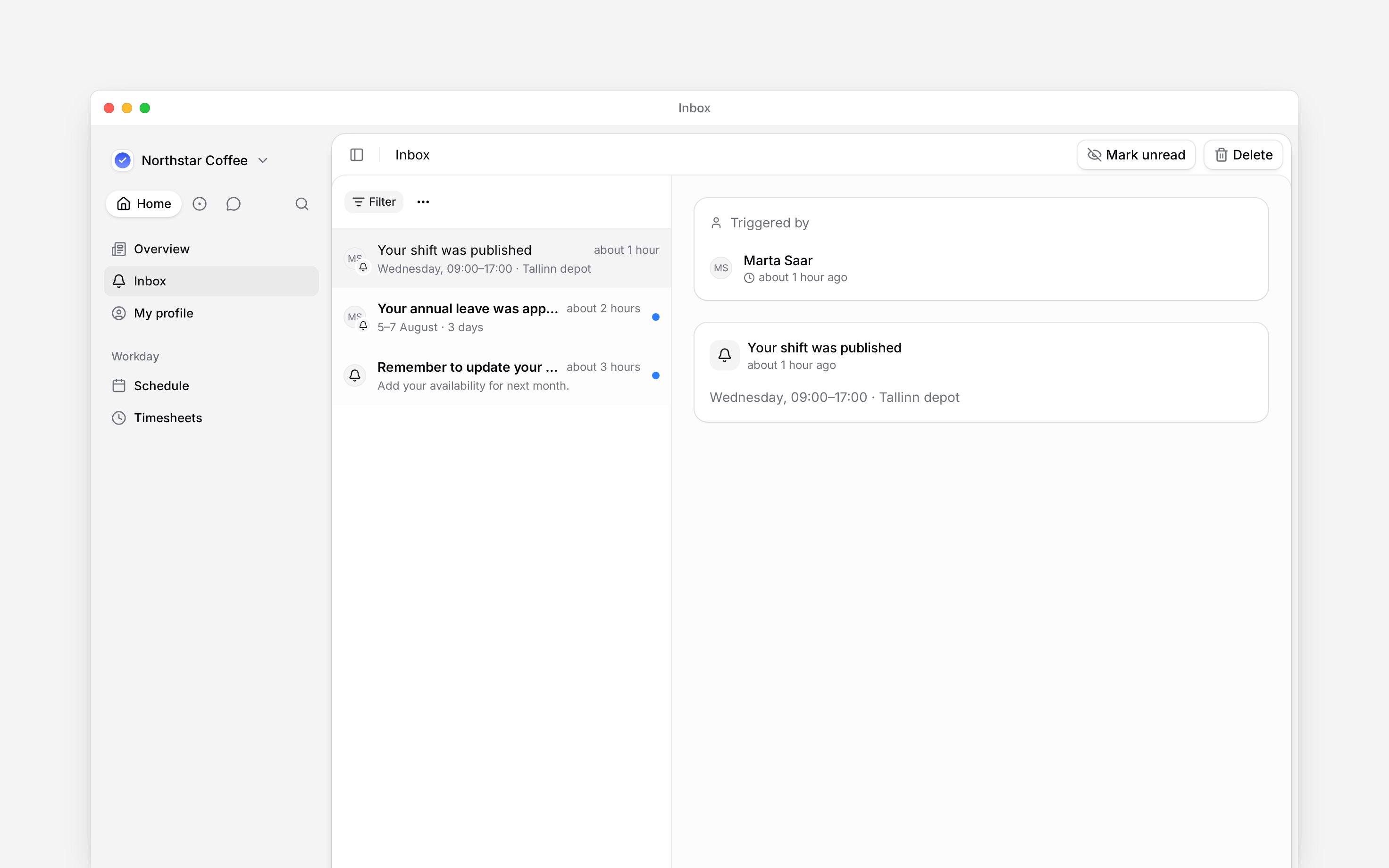
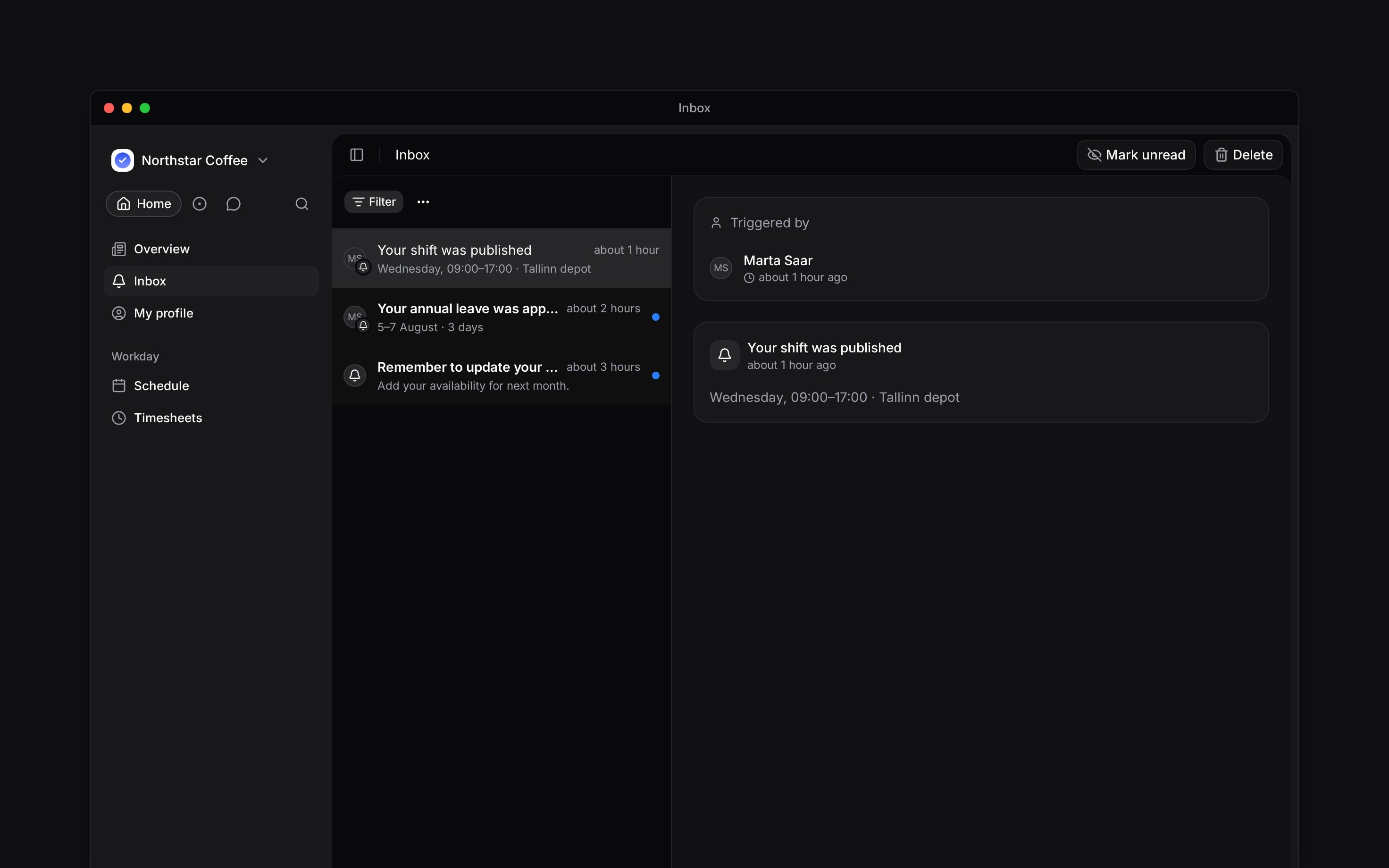
Open **Inbox** and tap a row. On a phone, the detail replaces the list; on a computer it opens
beside it.
Check who triggered the update and the affected dates. If one notification contains several
shifts, select the shift you need.
Use the card's action or link. On a phone, use the back arrow to return to the Inbox list.
The item becomes read as you open it. You still need to complete any response it asks for.
Open an Inbox item to see what happened and the record it concerns. Read the dates and current status before responding, especially when the notification is about a change to your shift or request.
## Open the update
Open **Inbox** and tap a row. On a phone, the detail replaces the list; on a computer it opens
beside it.
Check who triggered the update and the affected dates. If one notification contains several
shifts, select the shift you need.
Use the card's action or link. On a phone, use the back arrow to return to the Inbox list.
The item becomes read as you open it. You still need to complete any response it asks for.
 ## Choose the next action
| The update concerns… | What to check |
| ---------------------------------- | -------------------------------------------------------------------------------------- |
| A published or changed shift | Read its date, time and location; compare changed values where shown. |
| Your time-off or timesheet request | Read the outcome and any review note, then open your record if a correction is needed. |
| A company post | Open the post to read, comment or answer a question. |
| A document | Open the document and complete the acknowledgement or signature requested there. |
Shift details can have changed again since the notification arrived. The linked record shows the current information. A deleted shift no longer has a live record to open.
## When you need help
Ask your manager if a change is unclear or a required correction is unavailable. Receiving a notification does not grant permission to edit its record. Use **Mark as unread** or **Snooze** to keep a reminder while you wait.
**Context for employee notification details.** The Inbox exposes different cards for different subjects. Comment notifications carry their discussion context; they do not confer approval rights. An open-shift offer, when enabled, is the recipient's own response and differs from a manager approving a claim. Reading a notification never submits that response. Deleted subjects and revoked document access can make old links unavailable.
## Next
Keep an item for later or clear it.
Find files and records shared with you.
## Still need help?
Email the Begin team and we'll get back to you.
Open the AI assistant and get instant answers based on these docs.
## Choose the next action
| The update concerns… | What to check |
| ---------------------------------- | -------------------------------------------------------------------------------------- |
| A published or changed shift | Read its date, time and location; compare changed values where shown. |
| Your time-off or timesheet request | Read the outcome and any review note, then open your record if a correction is needed. |
| A company post | Open the post to read, comment or answer a question. |
| A document | Open the document and complete the acknowledgement or signature requested there. |
Shift details can have changed again since the notification arrived. The linked record shows the current information. A deleted shift no longer has a live record to open.
## When you need help
Ask your manager if a change is unclear or a required correction is unavailable. Receiving a notification does not grant permission to edit its record. Use **Mark as unread** or **Snooze** to keep a reminder while you wait.
**Context for employee notification details.** The Inbox exposes different cards for different subjects. Comment notifications carry their discussion context; they do not confer approval rights. An open-shift offer, when enabled, is the recipient's own response and differs from a manager approving a claim. Reading a notification never submits that response. Deleted subjects and revoked document access can make old links unavailable.
## Next
Keep an item for later or clear it.
Find files and records shared with you.
## Still need help?
Email the Begin team and we'll get back to you.
Open the AI assistant and get instant answers based on these docs.