> ## Documentation Index
> Fetch the complete documentation index at: https://docs.begin.eu/llms.txt
> Use this file to discover all available pages before exploring further.
# Begin MCP
> Connect Claude or ChatGPT to your Begin account and ask about your schedule, hours, and shifts.
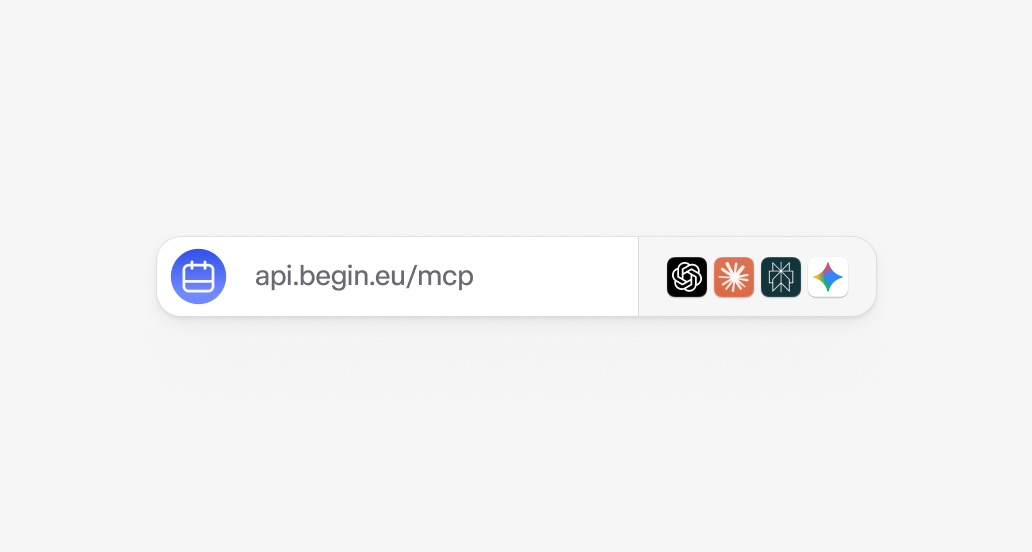
 Begin exposes a Model Context Protocol (MCP) server, so you can ask Claude or ChatGPT about your schedule, your hours, and anything else in your workspace — without leaving the chat. The connection signs in with your Begin account and uses the same permissions you already have.
## What you can do
Once connected, your AI client can answer questions about everything you can see in the web app: your schedule, your hours, the team's schedule for your locations, time-off requests, and messages. Read tools answer immediately.
Your MCP connection has the same access as your account in Begin. It can't do anything you can't
already do in the web app — if you don't have permission for something, you'll see a clear
"Permission denied" response.
## Example prompts
When's my next shift?
How many hours did I work this week?
Who else is working at our downtown location on Friday?
Show me my pending time-off requests.
What's my schedule for next week?
## Connect Claude
The path is the same on Claude on the web (claude.ai) and Claude Desktop.
In Claude, go to **Settings → Connectors → Add custom connector**.
Use `https://api.begin.eu/mcp`.
Claude opens a browser tab. Use your normal sign-in method: phone OTP, email OTP, passkey, or
Google.
Confirm the connection to finish.
Custom connectors are available on Claude Free, Pro, Max, Team, and Enterprise. Free is capped at one custom connector.
## Connect Claude Code
If you use Claude Code in your terminal, register Begin as a remote MCP server with one command.
```bash theme={null}
claude mcp add --transport http begin https://api.begin.eu/mcp
```
Then run `/mcp` inside Claude Code to authenticate. Claude Code opens a browser window to sign in to Begin and approve the connection. Subsequent sessions reuse the cached token.
## Connect ChatGPT
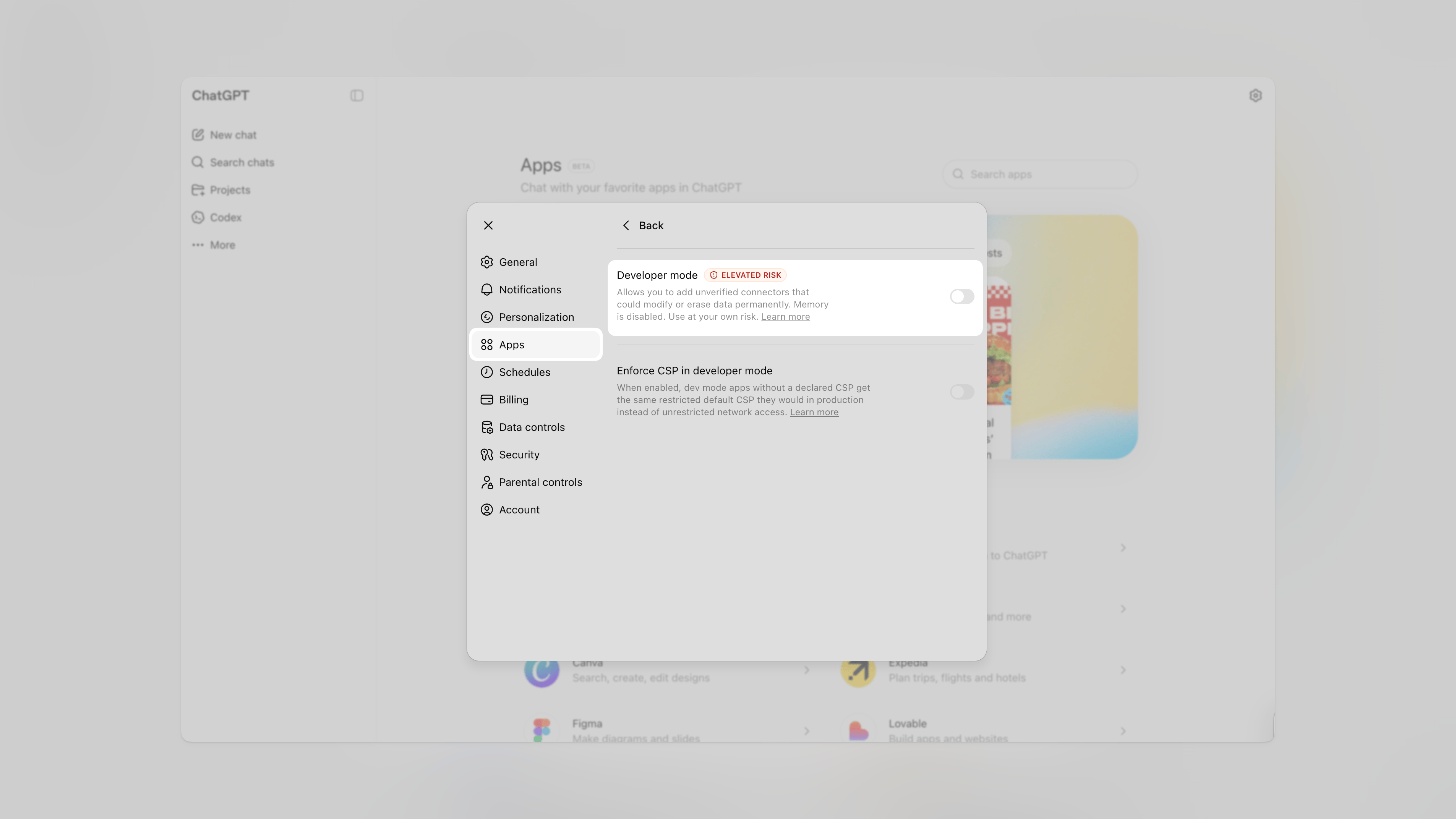
ChatGPT requires turning on Developer mode before you can create an app.
In ChatGPT, click your profile picture and go to **Settings → Apps → Advanced settings**.
Toggle **Developer mode** on.
Begin exposes a Model Context Protocol (MCP) server, so you can ask Claude or ChatGPT about your schedule, your hours, and anything else in your workspace — without leaving the chat. The connection signs in with your Begin account and uses the same permissions you already have.
## What you can do
Once connected, your AI client can answer questions about everything you can see in the web app: your schedule, your hours, the team's schedule for your locations, time-off requests, and messages. Read tools answer immediately.
Your MCP connection has the same access as your account in Begin. It can't do anything you can't
already do in the web app — if you don't have permission for something, you'll see a clear
"Permission denied" response.
## Example prompts
When's my next shift?
How many hours did I work this week?
Who else is working at our downtown location on Friday?
Show me my pending time-off requests.
What's my schedule for next week?
## Connect Claude
The path is the same on Claude on the web (claude.ai) and Claude Desktop.
In Claude, go to **Settings → Connectors → Add custom connector**.
Use `https://api.begin.eu/mcp`.
Claude opens a browser tab. Use your normal sign-in method: phone OTP, email OTP, passkey, or
Google.
Confirm the connection to finish.
Custom connectors are available on Claude Free, Pro, Max, Team, and Enterprise. Free is capped at one custom connector.
## Connect Claude Code
If you use Claude Code in your terminal, register Begin as a remote MCP server with one command.
```bash theme={null}
claude mcp add --transport http begin https://api.begin.eu/mcp
```
Then run `/mcp` inside Claude Code to authenticate. Claude Code opens a browser window to sign in to Begin and approve the connection. Subsequent sessions reuse the cached token.
## Connect ChatGPT
ChatGPT requires turning on Developer mode before you can create an app.
In ChatGPT, click your profile picture and go to **Settings → Apps → Advanced settings**.
Toggle **Developer mode** on.
 The button appears next to **Advanced settings** once Developer mode is on.
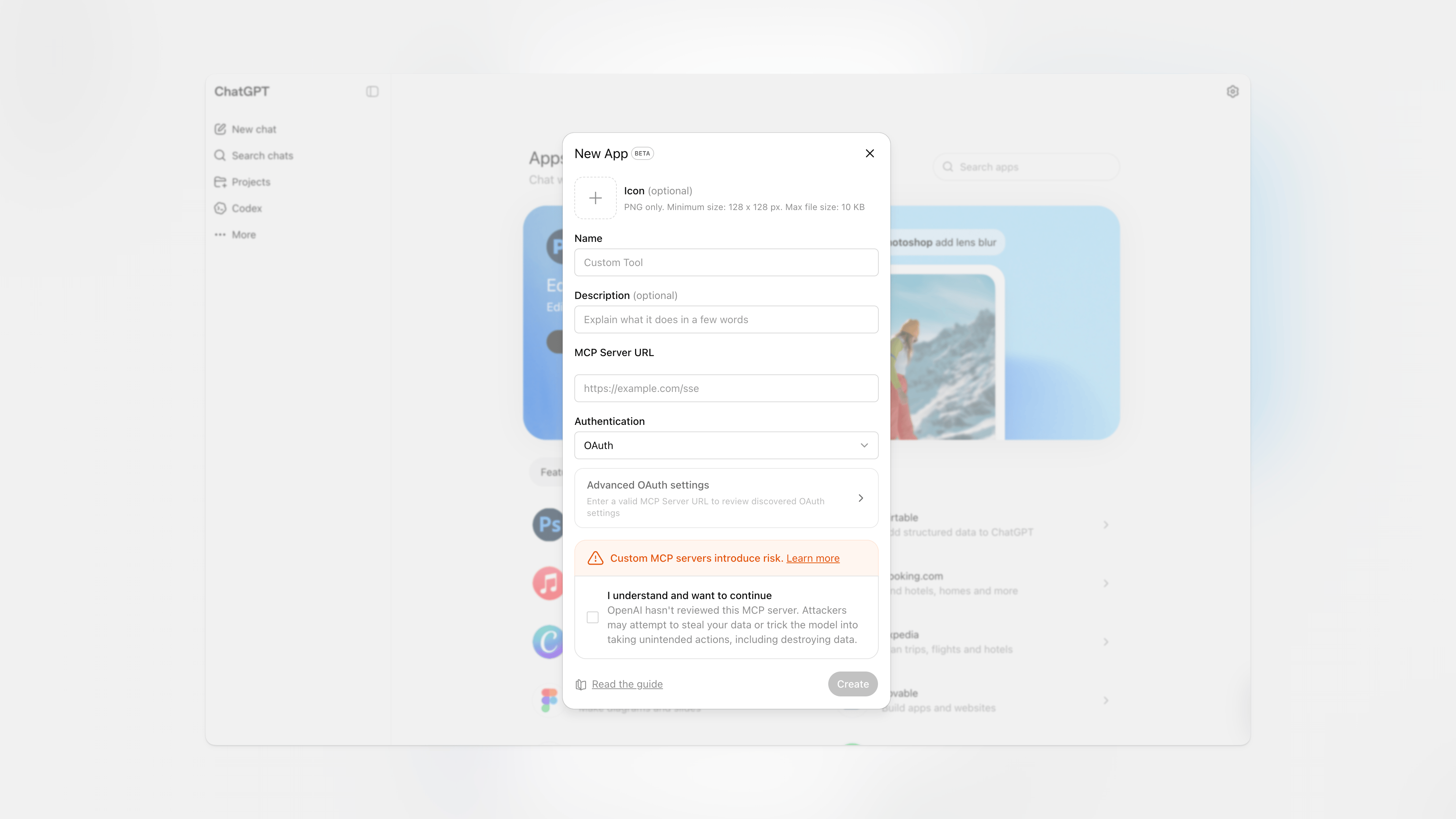
Use `https://api.begin.eu/mcp` as the MCP server URL, plus a name and short description.
The button appears next to **Advanced settings** once Developer mode is on.
Use `https://api.begin.eu/mcp` as the MCP server URL, plus a name and short description.
 In the popup, sign in and approve the consent screen.
Custom apps are available on ChatGPT Pro, Plus, Business, Enterprise, and Education. They aren't
available on Free. On Business, Enterprise, and Education, your workspace admin needs to enable
Developer mode for you.
## Workspace pinning
If you belong to more than one Begin workspace, your MCP connection is **pinned to whichever workspace is active the first time your client uses the connection**. Once pinned, switching workspace in the web app does not change the workspace your MCP client uses.
To switch:
In the Begin web app, set the target workspace as active.
In **Settings → Security → Connected MCP clients**, revoke the current pin.
Your next request pins to the new workspace.
## Manage connected clients
**Settings → Security → Connected MCP clients** shows every MCP client you've authorized, the workspace each is pinned to, and when each was last active. Revoke a client anytime.
## Permissions and security
* Your MCP connection has the same permissions as your account. Never more.
* Connections are scoped to one workspace at a time.
* Tokens are short-lived (1 hour) with refresh-token rotation; clients refresh them silently.
* Every action is written to the workspace audit log under your name.
In the popup, sign in and approve the consent screen.
Custom apps are available on ChatGPT Pro, Plus, Business, Enterprise, and Education. They aren't
available on Free. On Business, Enterprise, and Education, your workspace admin needs to enable
Developer mode for you.
## Workspace pinning
If you belong to more than one Begin workspace, your MCP connection is **pinned to whichever workspace is active the first time your client uses the connection**. Once pinned, switching workspace in the web app does not change the workspace your MCP client uses.
To switch:
In the Begin web app, set the target workspace as active.
In **Settings → Security → Connected MCP clients**, revoke the current pin.
Your next request pins to the new workspace.
## Manage connected clients
**Settings → Security → Connected MCP clients** shows every MCP client you've authorized, the workspace each is pinned to, and when each was last active. Revoke a client anytime.
## Permissions and security
* Your MCP connection has the same permissions as your account. Never more.
* Connections are scoped to one workspace at a time.
* Tokens are short-lived (1 hour) with refresh-token rotation; clients refresh them silently.
* Every action is written to the workspace audit log under your name.