> ## Documentation Index
> Fetch the complete documentation index at: https://docs.begin.eu/llms.txt
> Use this file to discover all available pages before exploring further.
# Viewing job and pay
> Check your job, pay rate, contracted hours and recorded changes.

 Open **My profile → Job & pay** to read the employment terms your employer has recorded for you. On your phone, open **My profile** from **More**, then choose **Job & pay**.
## Check your current terms
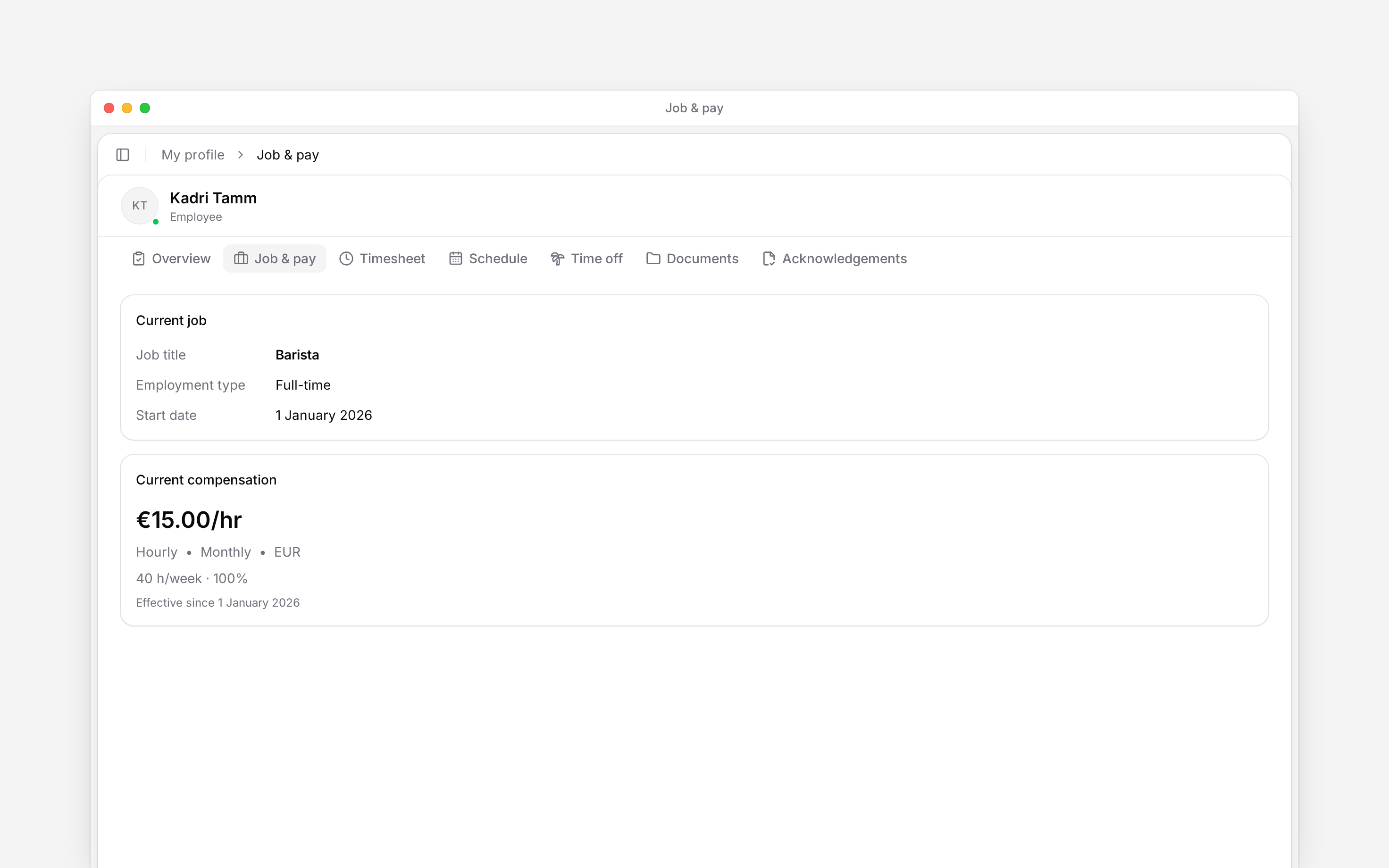
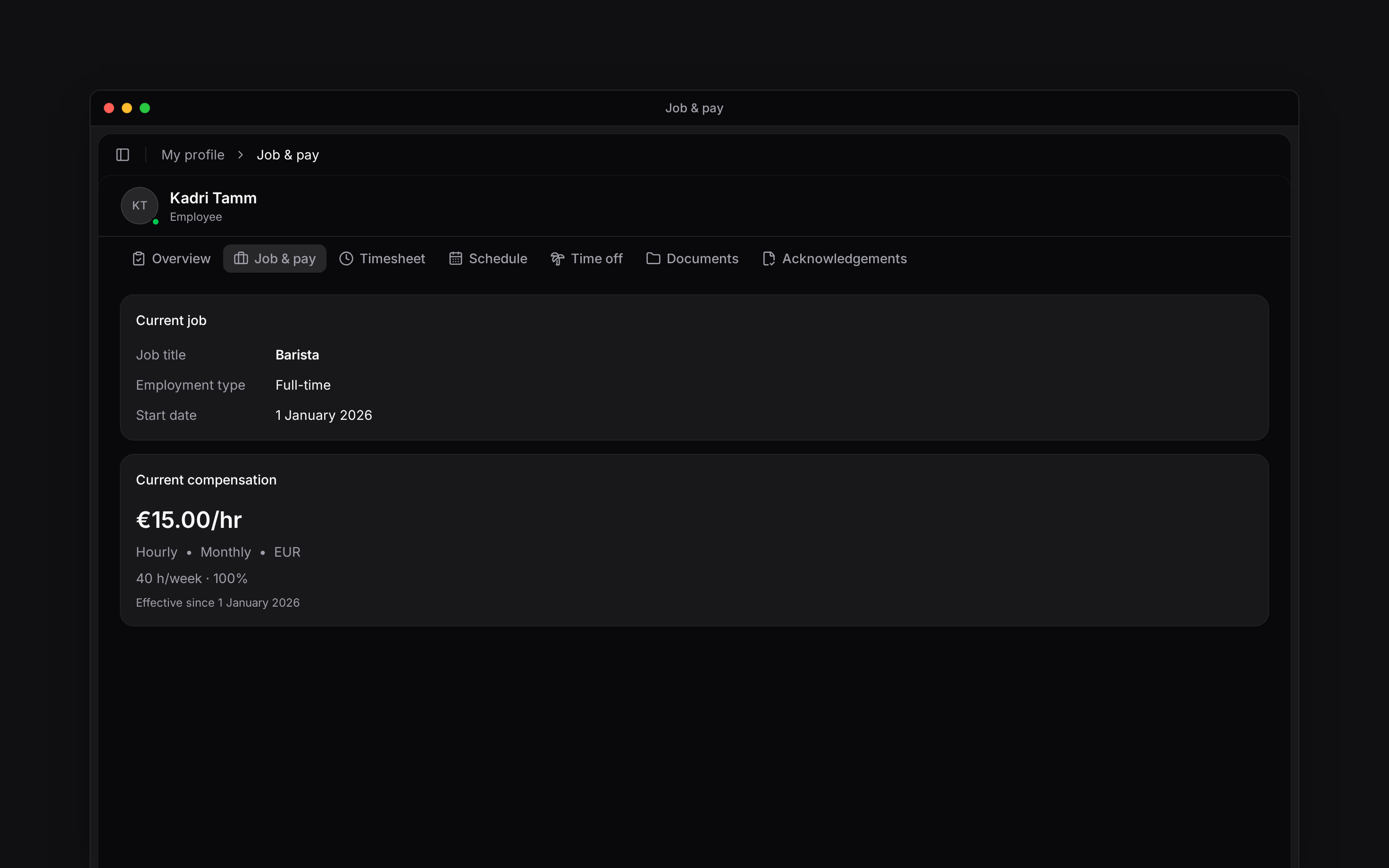
**Current job** shows your job title, employment type, start date and reporting manager when recorded. A fixed end date appears when your employer has entered one.
**Current compensation** shows your pay rate and currency, payment frequency and contracted hours when provided. Check its effective date. A future change can appear below the current rate with the date it takes effect.
Open **My profile → Job & pay** to read the employment terms your employer has recorded for you. On your phone, open **My profile** from **More**, then choose **Job & pay**.
## Check your current terms
**Current job** shows your job title, employment type, start date and reporting manager when recorded. A fixed end date appears when your employer has entered one.
**Current compensation** shows your pay rate and currency, payment frequency and contracted hours when provided. Check its effective date. A future change can appear below the current rate with the date it takes effect.
 This page records agreed terms. It is not a payslip or a calculation of what will arrive in your
bank account. Use [Timesheets](/for-employees/timesheets/viewing-hours) to check recorded hours
and ask your employer about payroll.
## Look back at changes
**Compensation history** lists recorded rates and their effective dates. **Job history** keeps previous employment periods. A date shown as **Unknown** means it was not recorded; do not read it as today’s date.
## Ask for a correction
You cannot edit your job or pay here. Tell your manager which record, value and date look wrong. If the page has no job or pay details yet, ask them whether those records have been entered.
A job record and a signed contract are separate records. Open [your documents](/for-employees/my-profile/finding-documents-and-records) when you need the agreement itself.
The self-profile Job & pay query returns the caller’s active job, current and upcoming compensation, compensation history and previous jobs. The UI is read-only and does not expose manager pay mutations. Unknown imported effective dates use a dedicated display state. Employment terms do not establish that a contract document has been signed.
## Next
Find the agreement behind your employment terms.
Check recorded work and its approval status.
## Still need help?
Email the Begin team and we'll get back to you.
Open the AI assistant and get instant answers based on these docs.
This page records agreed terms. It is not a payslip or a calculation of what will arrive in your
bank account. Use [Timesheets](/for-employees/timesheets/viewing-hours) to check recorded hours
and ask your employer about payroll.
## Look back at changes
**Compensation history** lists recorded rates and their effective dates. **Job history** keeps previous employment periods. A date shown as **Unknown** means it was not recorded; do not read it as today’s date.
## Ask for a correction
You cannot edit your job or pay here. Tell your manager which record, value and date look wrong. If the page has no job or pay details yet, ask them whether those records have been entered.
A job record and a signed contract are separate records. Open [your documents](/for-employees/my-profile/finding-documents-and-records) when you need the agreement itself.
The self-profile Job & pay query returns the caller’s active job, current and upcoming compensation, compensation history and previous jobs. The UI is read-only and does not expose manager pay mutations. Unknown imported effective dates use a dedicated display state. Employment terms do not establish that a contract document has been signed.
## Next
Find the agreement behind your employment terms.
Check recorded work and its approval status.
## Still need help?
Email the Begin team and we'll get back to you.
Open the AI assistant and get instant answers based on these docs.