> ## Documentation Index
> Fetch the complete documentation index at: https://docs.begin.eu/llms.txt
> Use this file to discover all available pages before exploring further.
# Reading company updates
> Read posts from your employer, open attachments and join the discussion.

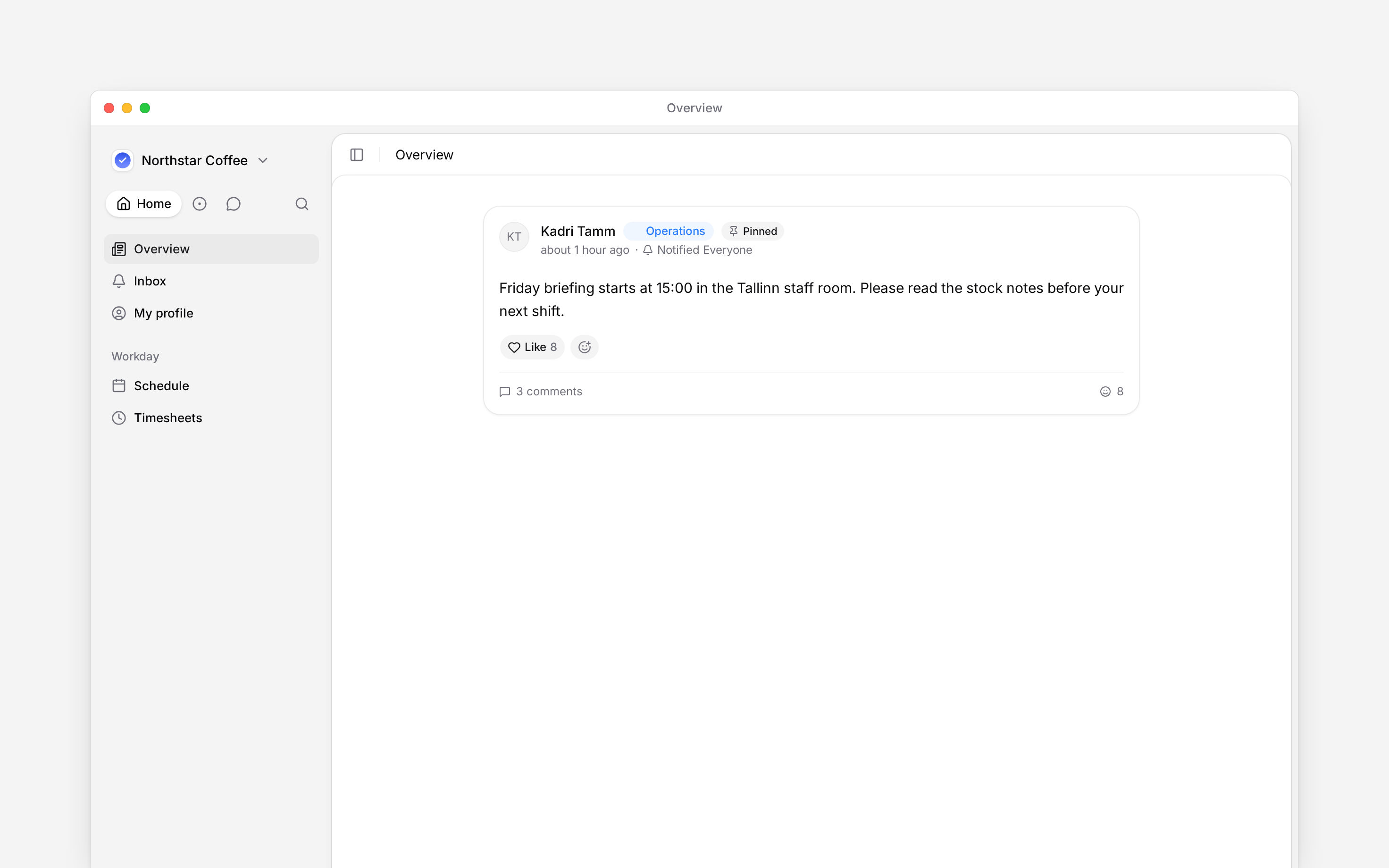
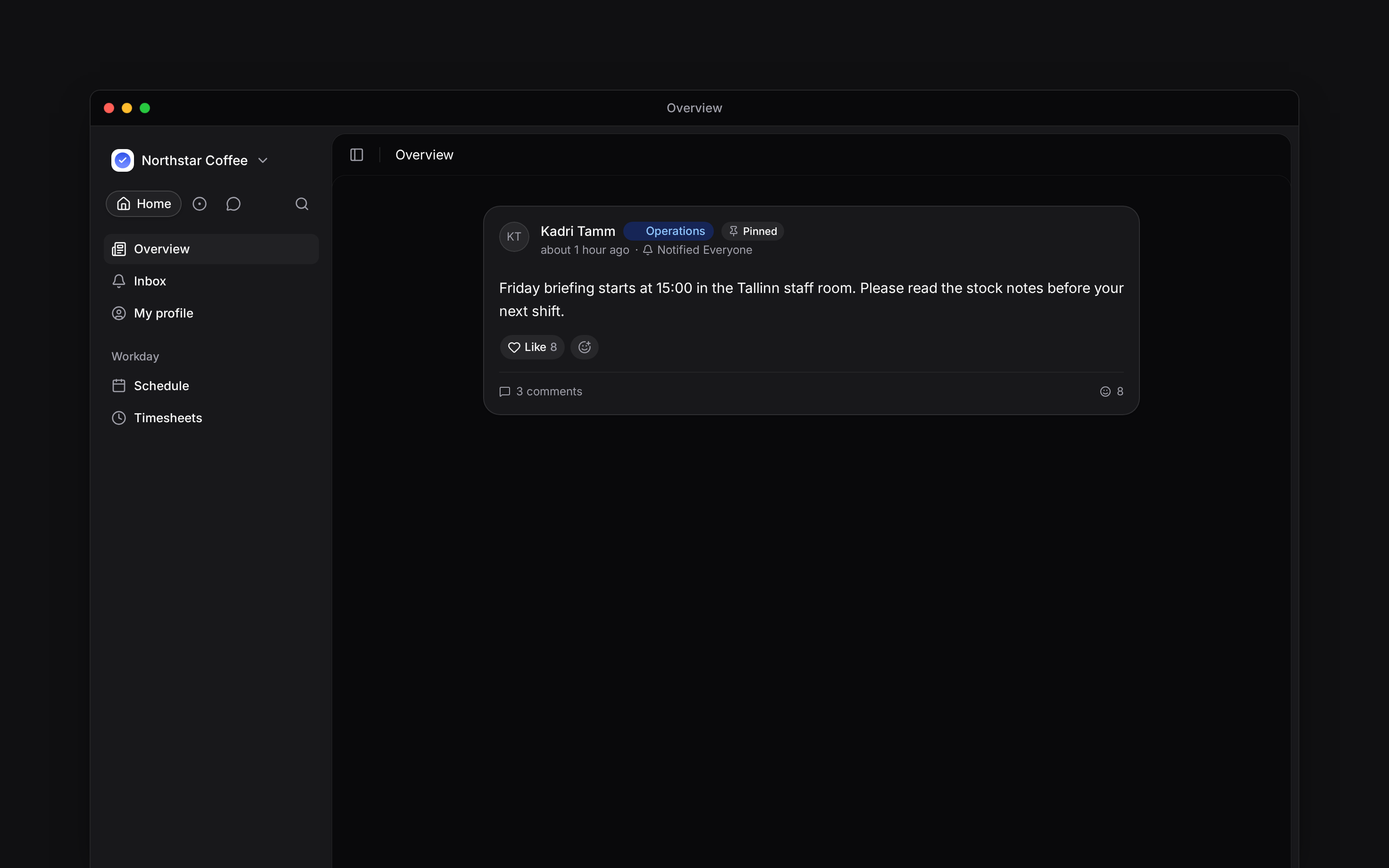
 Read company announcements in **Home** on a phone or **Overview** on a computer. Posts stay in the feed so you can return to them after a notification has been read.
## Find the update
On a phone, choose **Home** in the bottom navigation. On a computer, choose **Overview**.
Pinned posts appear first. Choose a category to narrow the feed, then return to all posts when
you have finished.
Open a post's comments to read the full conversation and replies. On a phone, use the back arrow
to return to the feed.
You see posts shared with your audience and allowed by your role. If a colleague can see a post that you cannot, ask its author or your manager to check who it was shared with.
Read company announcements in **Home** on a phone or **Overview** on a computer. Posts stay in the feed so you can return to them after a notification has been read.
## Find the update
On a phone, choose **Home** in the bottom navigation. On a computer, choose **Overview**.
Pinned posts appear first. Choose a category to narrow the feed, then return to all posts when
you have finished.
Open a post's comments to read the full conversation and replies. On a phone, use the back arrow
to return to the feed.
You see posts shared with your audience and allowed by your role. If a colleague can see a post that you cannot, ask its author or your manager to check who it was shared with.
 ## Reply where the update lives
Add a comment when your question concerns the post. Reply to an existing comment to keep your answer with its question. Use a reaction when a short acknowledgement is enough; select your own reaction again to remove it.
A comment can include an image, and typing `@` lets you pick someone to mention. Check the audience before posting personal information. Comments are part of the shared post, not a private message to its author.
## Follow attachments and requests
Open an attachment or linked document to read it. Document access still applies: a link in a post does not grant access to a restricted file.
Answer a poll or attendance question using the post's own controls. Reading, reacting or commenting does not submit either response. See [Polls and events](/for-employees/overview/polls-and-events).
Your employee role normally lets you read, comment and react. Ask a manager to publish an announcement or change a post you did not write.
**Context for reading posts.** The default Employee role has post-read, post-comment create/read and post-reaction create/read/delete permissions, but not post-create or post-management permissions. Category and visibility filters apply to the feed. Seen status is evidence of viewing, not a formal document acknowledgement or signed agreement. Publishing belongs to the manager guides.
## Next
Vote and respond to invitations.
Start a separate conversation with a colleague.
## Still need help?
Email the Begin team and we'll get back to you.
Open the AI assistant and get instant answers based on these docs.
## Reply where the update lives
Add a comment when your question concerns the post. Reply to an existing comment to keep your answer with its question. Use a reaction when a short acknowledgement is enough; select your own reaction again to remove it.
A comment can include an image, and typing `@` lets you pick someone to mention. Check the audience before posting personal information. Comments are part of the shared post, not a private message to its author.
## Follow attachments and requests
Open an attachment or linked document to read it. Document access still applies: a link in a post does not grant access to a restricted file.
Answer a poll or attendance question using the post's own controls. Reading, reacting or commenting does not submit either response. See [Polls and events](/for-employees/overview/polls-and-events).
Your employee role normally lets you read, comment and react. Ask a manager to publish an announcement or change a post you did not write.
**Context for reading posts.** The default Employee role has post-read, post-comment create/read and post-reaction create/read/delete permissions, but not post-create or post-management permissions. Category and visibility filters apply to the feed. Seen status is evidence of viewing, not a formal document acknowledgement or signed agreement. Publishing belongs to the manager guides.
## Next
Vote and respond to invitations.
Start a separate conversation with a colleague.
## Still need help?
Email the Begin team and we'll get back to you.
Open the AI assistant and get instant answers based on these docs.