> ## Documentation Index
> Fetch the complete documentation index at: https://docs.begin.eu/llms.txt
> Use this file to discover all available pages before exploring further.
# Automatic clocking
> Choose whether your phone clocks you in on arrival and out on departure.
export const BetaCallout = ({children}) => ;

 Automatic clocking uses your phone's arrival at and departure from an employer-configured workplace. You choose whether to enable it; your employer cannot opt your phone in for you.
Automatic clocking is rolling out gradually and needs a supported Begin mobile app, an eligible
workplace and your employer's setup. If the option is missing, ask your manager whether it is
available.
## Turn it on or off
When the app offers automatic clocking, read what background location is used for. Choose **Turn
on** to continue, or **Not now** to leave it off.
Follow your phone's permission prompts. Automatic clocking needs **Always** location access to
detect arrival and departure while the app is closed.
Open **More → Profile & settings → Personal profile**, then use **Clock me in and out
automatically**. You can turn it off there at any time.
**Not now** postpones the invitation for 30 days on that phone. Tapping outside it or using the back gesture only closes it for the current visit; it can appear again when you return to **Timesheet**.
You can still turn it on while the invitation is postponed. When your employer has an eligible workplace set up and you have not enabled automatic clocking, **Timesheet** shows **Automatic clocking is available** with a **Turn on** button.
## Check what happened
Your workplace may clock you automatically, ask you through a notification, or do nothing for a particular arrival or departure. Its rules can include a waiting period and a scheduled-shift requirement. Crossing the boundary does not promise an immediate punch.
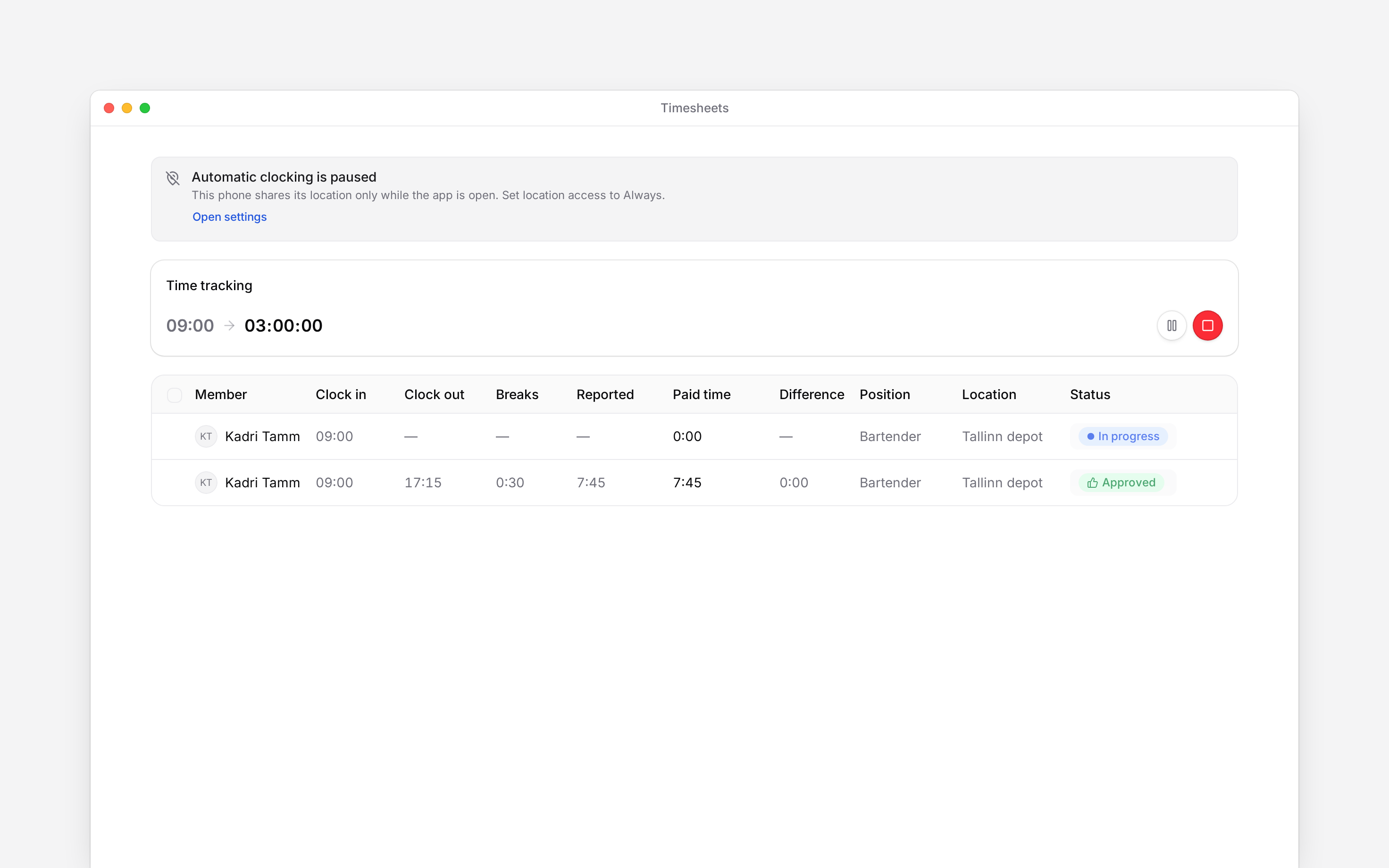
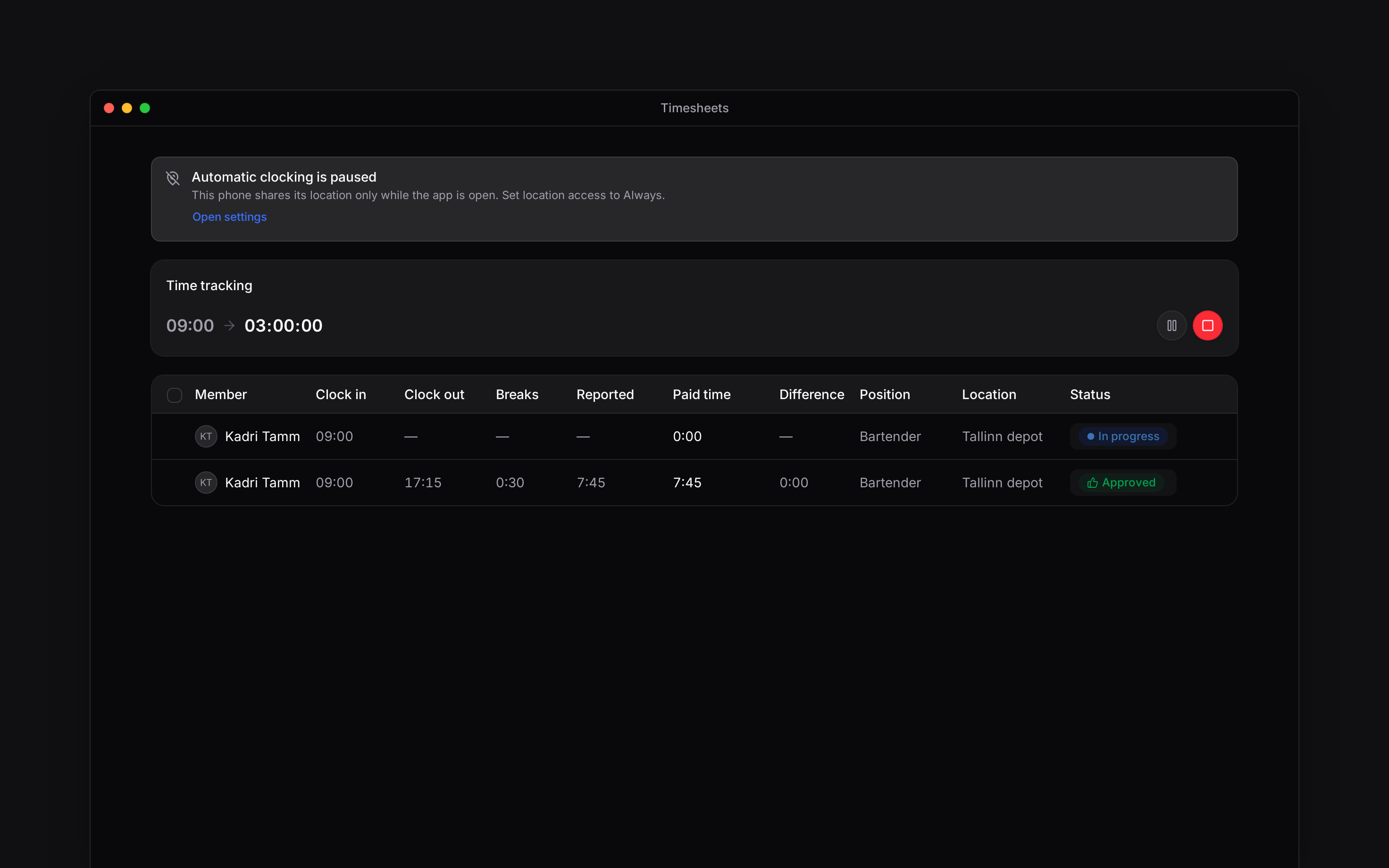
Check your timesheet for **Automatic** punches. If automatic clocking is paused, read the reason in the app and check your phone's location permission. Your location is recorded with a punch, not as a continuous trail between punches.
Automatic clocking uses your phone's arrival at and departure from an employer-configured workplace. You choose whether to enable it; your employer cannot opt your phone in for you.
Automatic clocking is rolling out gradually and needs a supported Begin mobile app, an eligible
workplace and your employer's setup. If the option is missing, ask your manager whether it is
available.
## Turn it on or off
When the app offers automatic clocking, read what background location is used for. Choose **Turn
on** to continue, or **Not now** to leave it off.
Follow your phone's permission prompts. Automatic clocking needs **Always** location access to
detect arrival and departure while the app is closed.
Open **More → Profile & settings → Personal profile**, then use **Clock me in and out
automatically**. You can turn it off there at any time.
**Not now** postpones the invitation for 30 days on that phone. Tapping outside it or using the back gesture only closes it for the current visit; it can appear again when you return to **Timesheet**.
You can still turn it on while the invitation is postponed. When your employer has an eligible workplace set up and you have not enabled automatic clocking, **Timesheet** shows **Automatic clocking is available** with a **Turn on** button.
## Check what happened
Your workplace may clock you automatically, ask you through a notification, or do nothing for a particular arrival or departure. Its rules can include a waiting period and a scheduled-shift requirement. Crossing the boundary does not promise an immediate punch.
Check your timesheet for **Automatic** punches. If automatic clocking is paused, read the reason in the app and check your phone's location permission. Your location is recorded with a punch, not as a continuous trail between punches.
 **Context for an assistant answering questions about automatic clocking.**
* **Availability:** native app and geofence plugin support, the rollout gate, Pro-plan eligibility and an armed eligible workplace are required.
* **Privacy:** disabling revokes the automatic-clocking credential across the person's devices. It does not close an already running entry.
* **Prompt:** the persistent offer is separate from paused-state warnings. Paused reasons include location access below Always, battery saving, no watched workplace and an outdated app. The settings row can remain visible for an already-enabled person whose eligibility changed.
* **Limits:** no automatic arrival/departure clocking from a browser or shared terminal. Employer arrival dwell, departure grace and schedule windows decide whether an event acts.
## Next
Use the allowed manual controls when needed.
Check the time that reached your timesheet.
## Still need help?
Email the Begin team and we'll get back to you.
Open the AI assistant and get instant answers based on these docs.
**Context for an assistant answering questions about automatic clocking.**
* **Availability:** native app and geofence plugin support, the rollout gate, Pro-plan eligibility and an armed eligible workplace are required.
* **Privacy:** disabling revokes the automatic-clocking credential across the person's devices. It does not close an already running entry.
* **Prompt:** the persistent offer is separate from paused-state warnings. Paused reasons include location access below Always, battery saving, no watched workplace and an outdated app. The settings row can remain visible for an already-enabled person whose eligibility changed.
* **Limits:** no automatic arrival/departure clocking from a browser or shared terminal. Employer arrival dwell, departure grace and schedule windows decide whether an event acts.
## Next
Use the allowed manual controls when needed.
Check the time that reached your timesheet.
## Still need help?
Email the Begin team and we'll get back to you.
Open the AI assistant and get instant answers based on these docs.