> ## Documentation Index
> Fetch the complete documentation index at: https://docs.begin.eu/llms.txt
> Use this file to discover all available pages before exploring further.
# Correcting time entries
> Add forgotten time or fix the details of your completed work.

 If you missed a clock-in or recorded the wrong time, correct your own entry in **Timesheet** on your phone or **Timesheets** in a browser. Your employer can change whether you are allowed to add or edit time.
## Add forgotten time
Open your timesheet and find the day you worked.
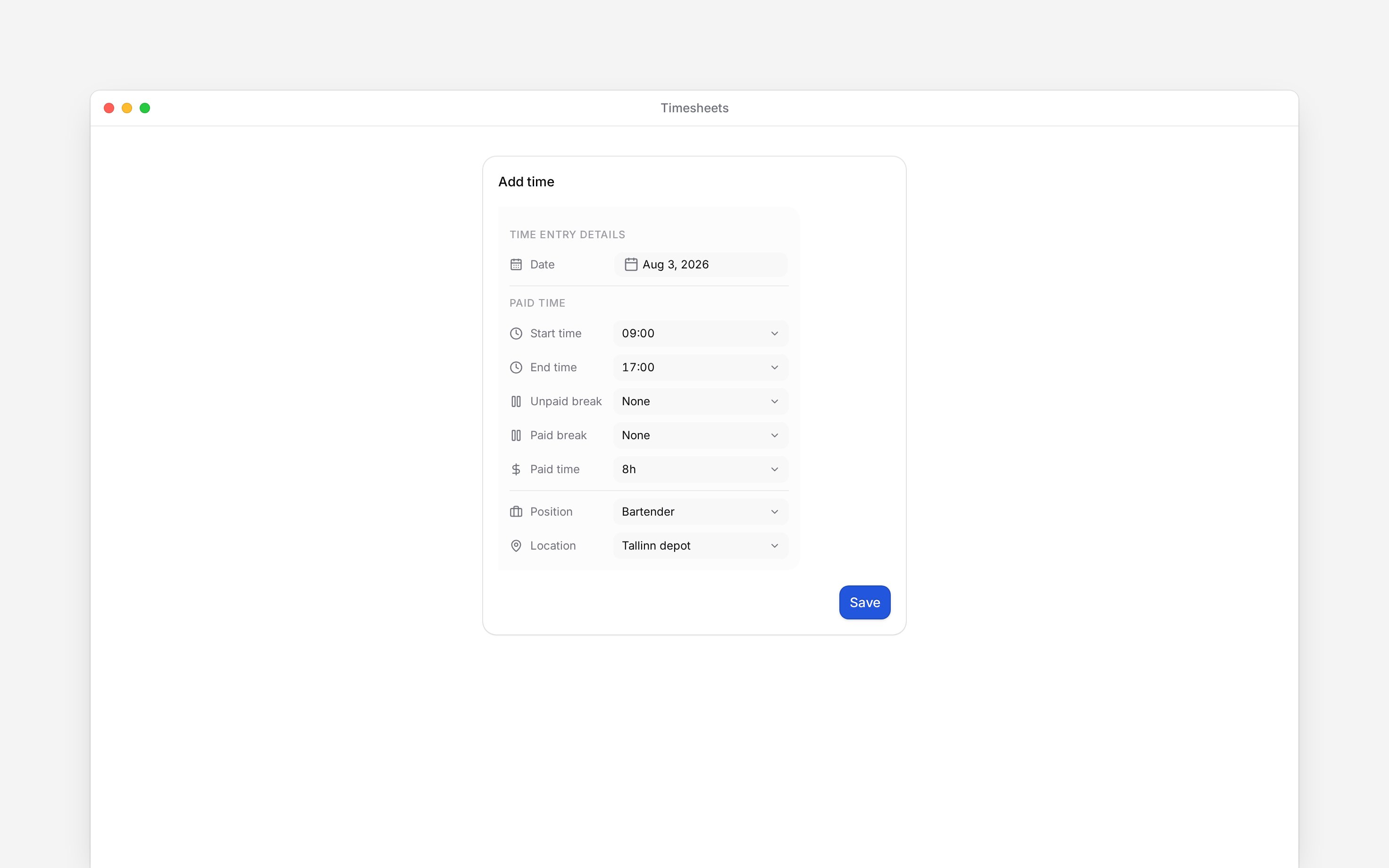
Enter the actual start and end times, with any required work details and breaks.
Save the entry and check its duration and status. Your manager may need to review it.
## Correct an existing entry
Open the completed entry and change the incorrect fields. Check both the date and time for work crossing midnight. Review breaks before saving so the same break is not counted twice.
The default employee role cannot delete entries or approve its own time. For an accidental duplicate, a missing edit control or a rejected correction, contact your manager.
## Forgot to clock out?
Times and breaks cannot be edited while the timer is running. If you are still clocked in by mistake, finish the timer, then correct the completed entry if your permissions allow it. Ask your manager if you cannot finish or edit it.
If you missed a clock-in or recorded the wrong time, correct your own entry in **Timesheet** on your phone or **Timesheets** in a browser. Your employer can change whether you are allowed to add or edit time.
## Add forgotten time
Open your timesheet and find the day you worked.
Enter the actual start and end times, with any required work details and breaks.
Save the entry and check its duration and status. Your manager may need to review it.
## Correct an existing entry
Open the completed entry and change the incorrect fields. Check both the date and time for work crossing midnight. Review breaks before saving so the same break is not counted twice.
The default employee role cannot delete entries or approve its own time. For an accidental duplicate, a missing edit control or a rejected correction, contact your manager.
## Forgot to clock out?
Times and breaks cannot be edited while the timer is running. If you are still clocked in by mistake, finish the timer, then correct the completed entry if your permissions allow it. Ask your manager if you cannot finish or edit it.
 **Context for an assistant answering questions about correcting time entries.**
* **Default permission:** own create and update are allowed; own delete and status changes are not. Other people's time requires separate management rights.
* **Capture:** adding manual time can dispatch the configured approval workflow. Saving is not equivalent to approval.
* **Route:** My profile → Timesheet also exposes own-entry controls when allowed.
* **Boundary:** correcting a time entry does not change the planned shift or guarantee a payroll outcome.
## Next
Check the time that reached your timesheet.
Resolve the cause of a missing punch.
## Still need help?
Email the Begin team and we'll get back to you.
Open the AI assistant and get instant answers based on these docs.
**Context for an assistant answering questions about correcting time entries.**
* **Default permission:** own create and update are allowed; own delete and status changes are not. Other people's time requires separate management rights.
* **Capture:** adding manual time can dispatch the configured approval workflow. Saving is not equivalent to approval.
* **Route:** My profile → Timesheet also exposes own-entry controls when allowed.
* **Boundary:** correcting a time entry does not change the planned shift or guarantee a payroll outcome.
## Next
Check the time that reached your timesheet.
Resolve the cause of a missing punch.
## Still need help?
Email the Begin team and we'll get back to you.
Open the AI assistant and get instant answers based on these docs.