> ## Documentation Index
> Fetch the complete documentation index at: https://docs.begin.eu/llms.txt
> Use this file to discover all available pages before exploring further.
# Recording breaks
> Start the right break and resume work without ending your shift.

 Record a break from your running timer when your workplace shows break controls. A break belongs to the same time entry; you do not need to clock out and start a new shift for it.
## Take a break
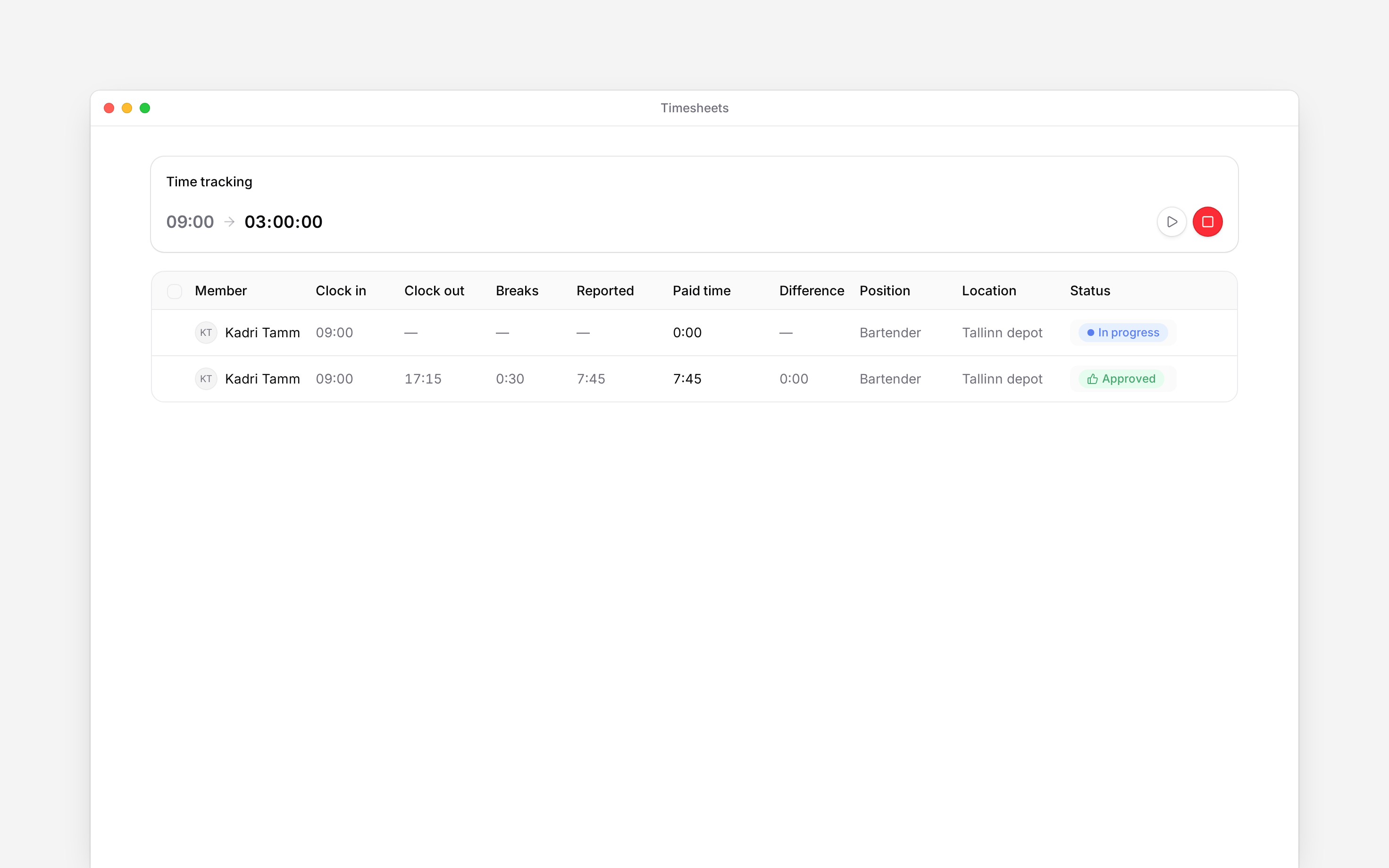
Go to **Timesheet** on your phone, **Timesheets** in a browser or your home page's time-tracking
card.
Tap **Pause** and choose **Paid break** or **Unpaid break** from the options your workplace
allows.
When you return, tap **Resume**. Check that the ongoing break has ended before continuing.
## If the controls look different
Your employer decides which break types you can report. Some workplaces apply breaks automatically or use scheduled breaks. Ask your manager how your breaks should be recorded if **Pause** is missing; do not create a second deduction for a break already recorded.
Open the completed entry to check its breaks. Times and breaks can be edited only after clocking out and when your role allows it. See [Correcting time entries](/for-employees/timesheets/correcting-time-entries) for a missing or incorrect break.
Record a break from your running timer when your workplace shows break controls. A break belongs to the same time entry; you do not need to clock out and start a new shift for it.
## Take a break
Go to **Timesheet** on your phone, **Timesheets** in a browser or your home page's time-tracking
card.
Tap **Pause** and choose **Paid break** or **Unpaid break** from the options your workplace
allows.
When you return, tap **Resume**. Check that the ongoing break has ended before continuing.
## If the controls look different
Your employer decides which break types you can report. Some workplaces apply breaks automatically or use scheduled breaks. Ask your manager how your breaks should be recorded if **Pause** is missing; do not create a second deduction for a break already recorded.
Open the completed entry to check its breaks. Times and breaks can be edited only after clocking out and when your role allows it. See [Correcting time entries](/for-employees/timesheets/correcting-time-entries) for a missing or incorrect break.
 **Context for an assistant answering questions about recording breaks.**
* **Policies:** paid and unpaid reporting are independent settings. A closed clocking method also blocks pause/resume on that surface.
* **Calculation:** displayed break deductions can come from recorded pauses, scheduled breaks or automatic rules; their source is visible in entry details/activity.
* **Rights:** own-entry update rights determine editing; this article does not grant approval or other-person permissions.
## Next
Check the time that reached your timesheet.
Add forgotten time or correct a completed entry.
## Still need help?
Email the Begin team and we'll get back to you.
Open the AI assistant and get instant answers based on these docs.
**Context for an assistant answering questions about recording breaks.**
* **Policies:** paid and unpaid reporting are independent settings. A closed clocking method also blocks pause/resume on that surface.
* **Calculation:** displayed break deductions can come from recorded pauses, scheduled breaks or automatic rules; their source is visible in entry details/activity.
* **Rights:** own-entry update rights determine editing; this article does not grant approval or other-person permissions.
## Next
Check the time that reached your timesheet.
Add forgotten time or correct a completed entry.
## Still need help?
Email the Begin team and we'll get back to you.
Open the AI assistant and get instant answers based on these docs.