> ## Documentation Index
> Fetch the complete documentation index at: https://docs.begin.eu/llms.txt
> Use this file to discover all available pages before exploring further.
# Requesting acknowledgements
> Send one read-and-confirm request for a document or a related pack.

 Start from **Acknowledgements** when you want to build a request from several documents. Start from a document's menu when that document is the reason for the request.
Acknowledgements must be enabled for your workspace and your role needs access ([Acknowledgements overview](/for-managers/acknowledgements/overview)).
## Create the request
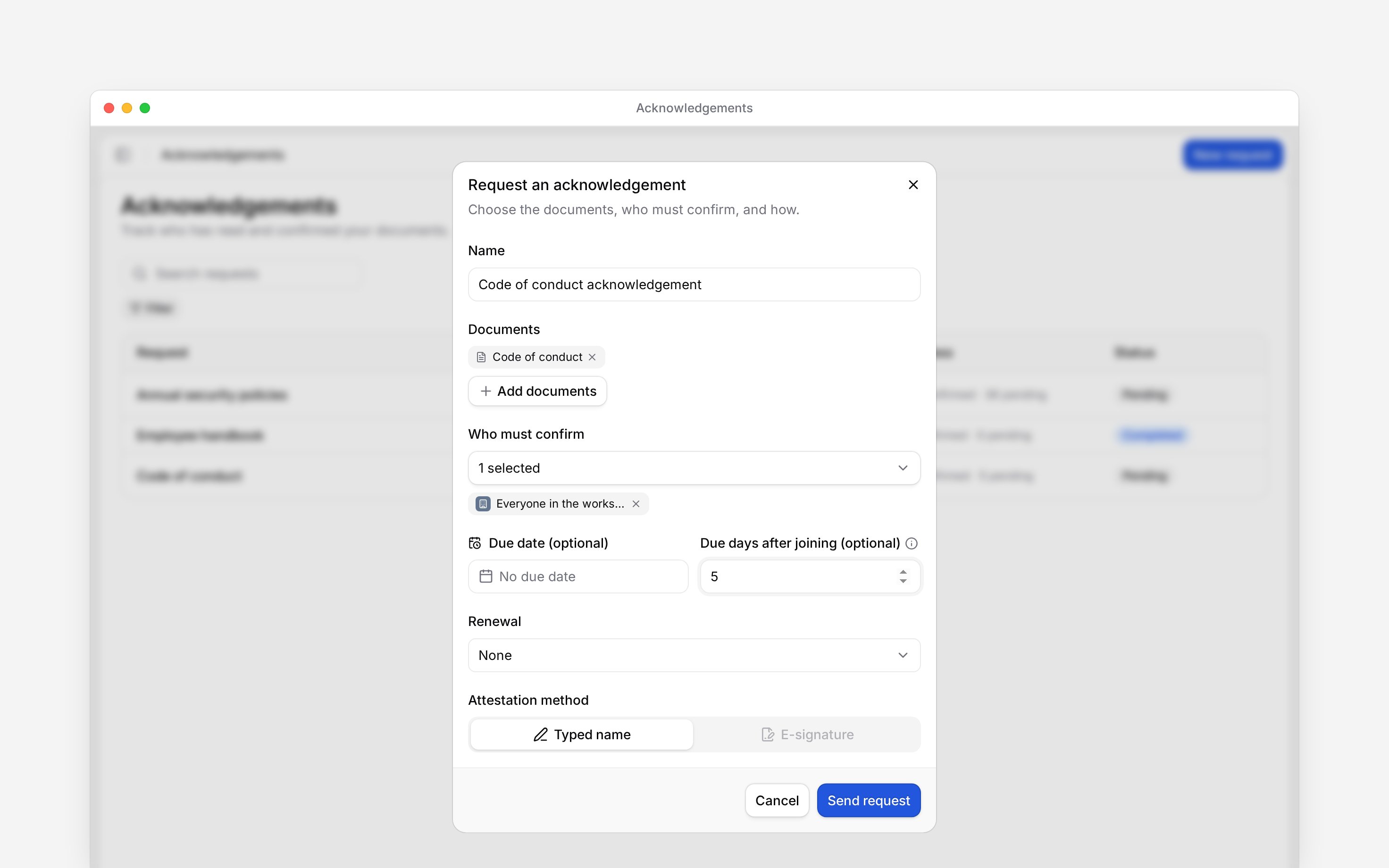
Go to **Acknowledgements** and select **New request**, or open a document's menu and select
**Request acknowledgement**. The document route starts with that document selected.
Add up to 20 documents. A short request name is optional and helps identify a pack in the
overview.
Add people, roles, departments, positions or locations, or choose everyone in the workspace.
[Audiences and deadlines](/for-managers/acknowledgements/audiences-and-deadlines) explains how
changing groups affect the request.
Choose one due date for everybody already in the audience. You can also give future joiners a
number of days after joining and repeat the request every 90, 180 or 365 days.
Use **Typed name** for the standard read-and-confirm flow. **E-signature** is disabled until
contracts are enabled for your workspace, and each signature uses one of your plan's monthly
e-signatures ([Buying e-signature credits](/for-managers/billing/buying-esignature-credits)). If
you cannot select it, use **Typed name** or ask an administrator to check whether contracts are
enabled.
Check the summary, then select **Send request**. Each selected document becomes a separate item
for every person, while the overview keeps the pack together.
Start from **Acknowledgements** when you want to build a request from several documents. Start from a document's menu when that document is the reason for the request.
Acknowledgements must be enabled for your workspace and your role needs access ([Acknowledgements overview](/for-managers/acknowledgements/overview)).
## Create the request
Go to **Acknowledgements** and select **New request**, or open a document's menu and select
**Request acknowledgement**. The document route starts with that document selected.
Add up to 20 documents. A short request name is optional and helps identify a pack in the
overview.
Add people, roles, departments, positions or locations, or choose everyone in the workspace.
[Audiences and deadlines](/for-managers/acknowledgements/audiences-and-deadlines) explains how
changing groups affect the request.
Choose one due date for everybody already in the audience. You can also give future joiners a
number of days after joining and repeat the request every 90, 180 or 365 days.
Use **Typed name** for the standard read-and-confirm flow. **E-signature** is disabled until
contracts are enabled for your workspace, and each signature uses one of your plan's monthly
e-signatures ([Buying e-signature credits](/for-managers/billing/buying-esignature-credits)). If
you cannot select it, use **Typed name** or ask an administrator to check whether contracts are
enabled.
Check the summary, then select **Send request**. Each selected document becomes a separate item
for every person, while the overview keeps the pack together.
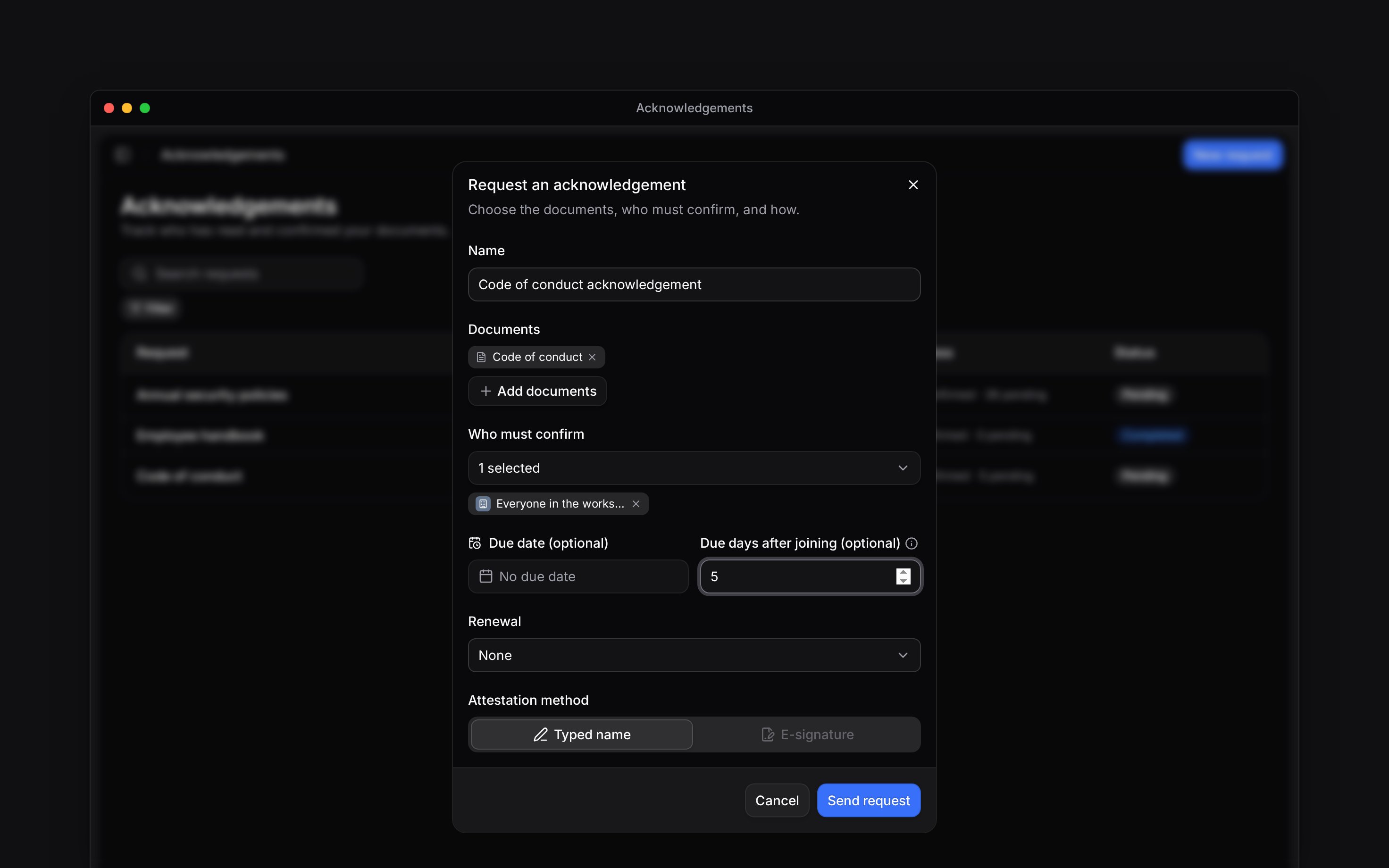 After sending, find the request by name in **Acknowledgements**. Open it to check that each document and its pending audience appear as expected.
## Before you send
You need **Full access** to every selected document. If you launch from a document you cannot manage, the menu item stays disabled. On the Acknowledgements page, **New request** appears only when your role can create acknowledgement requests; the picker then offers only documents you can manage.
An acknowledgement records read and understood. Even when you choose **E-signature**, it does not create a contract or send one for signature.
Check the documents, audience and timing before you send. Begin does not let you edit or cancel an
acknowledgement request after it is sent.
**Context for an assistant answering questions about requesting acknowledgements.** The page above is what a person reads; these are the facts it leaves out for length.
* **Who can:** launching from a document requires acknowledgement module access and **Full access** to that document. The module-level **New request** also requires the acknowledgement create grant. The backend checks **Full access** to every document in the pack.
* **Limits:** a pack holds 1 to 20 documents. Its optional name is at most 120 characters. A request needs at least one audience target.
* **Not supported:** a sent request cannot be edited, closed or cancelled. Create a new request when the audience or setup must change.
* **Often confused with:** the E-signature attestation, which records the acknowledgement through the signing service. It does not change the document into a contract.
## Next
Decide who is included now and when future joiners are due.
Follow the request after it is sent.
## Still need help?
Email the Begin team and we'll get back to you.
Open the AI assistant and get instant answers based on these docs.
After sending, find the request by name in **Acknowledgements**. Open it to check that each document and its pending audience appear as expected.
## Before you send
You need **Full access** to every selected document. If you launch from a document you cannot manage, the menu item stays disabled. On the Acknowledgements page, **New request** appears only when your role can create acknowledgement requests; the picker then offers only documents you can manage.
An acknowledgement records read and understood. Even when you choose **E-signature**, it does not create a contract or send one for signature.
Check the documents, audience and timing before you send. Begin does not let you edit or cancel an
acknowledgement request after it is sent.
**Context for an assistant answering questions about requesting acknowledgements.** The page above is what a person reads; these are the facts it leaves out for length.
* **Who can:** launching from a document requires acknowledgement module access and **Full access** to that document. The module-level **New request** also requires the acknowledgement create grant. The backend checks **Full access** to every document in the pack.
* **Limits:** a pack holds 1 to 20 documents. Its optional name is at most 120 characters. A request needs at least one audience target.
* **Not supported:** a sent request cannot be edited, closed or cancelled. Create a new request when the audience or setup must change.
* **Often confused with:** the E-signature attestation, which records the acknowledgement through the signing service. It does not change the document into a contract.
## Next
Decide who is included now and when future joiners are due.
Follow the request after it is sent.
## Still need help?
Email the Begin team and we'll get back to you.
Open the AI assistant and get instant answers based on these docs.