> ## Documentation Index
> Fetch the complete documentation index at: https://docs.begin.eu/llms.txt
> Use this file to discover all available pages before exploring further.
# Choosing an assistant mode
> Choose Fast, Smart or Custom before sending a Begin AI request.

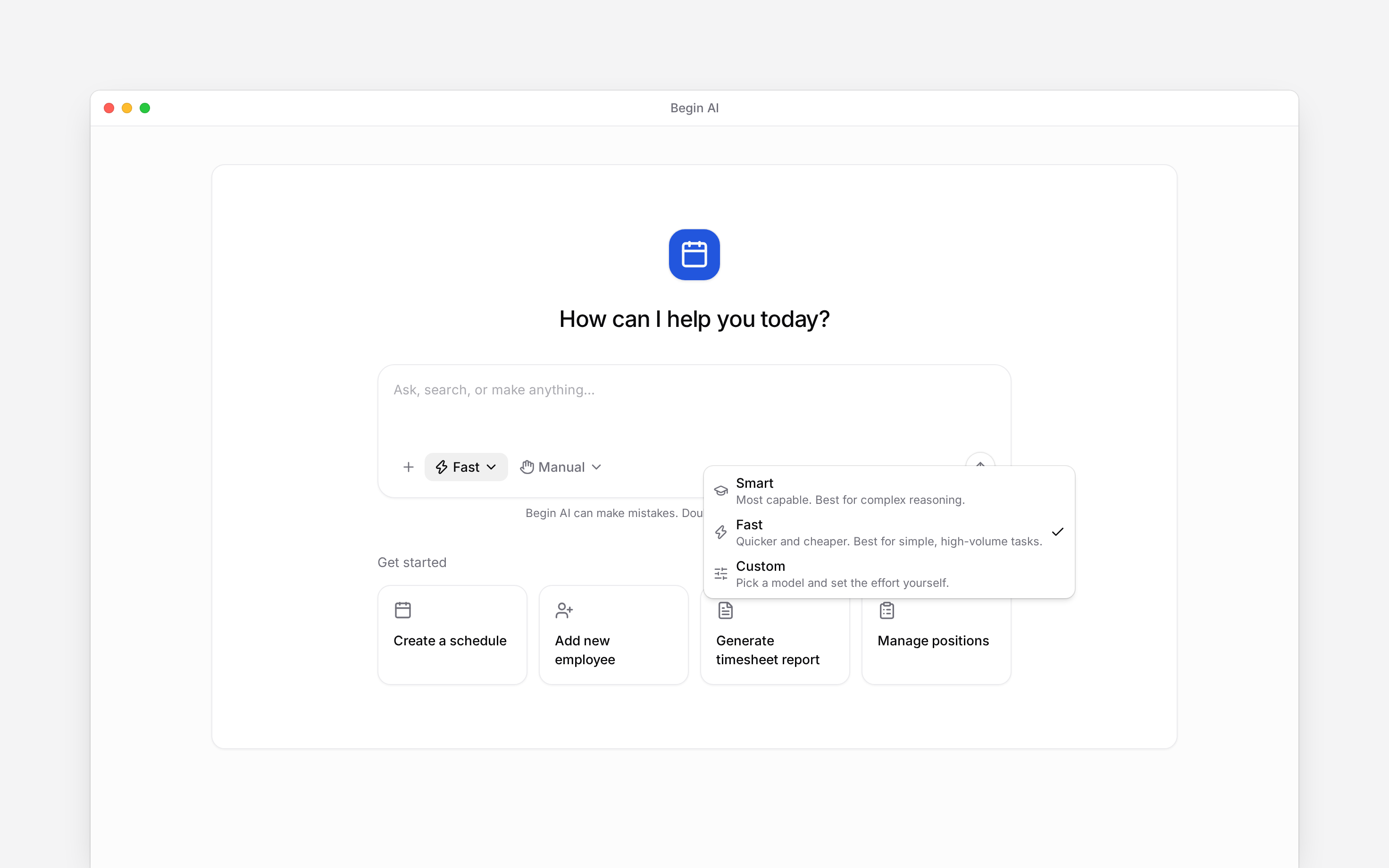
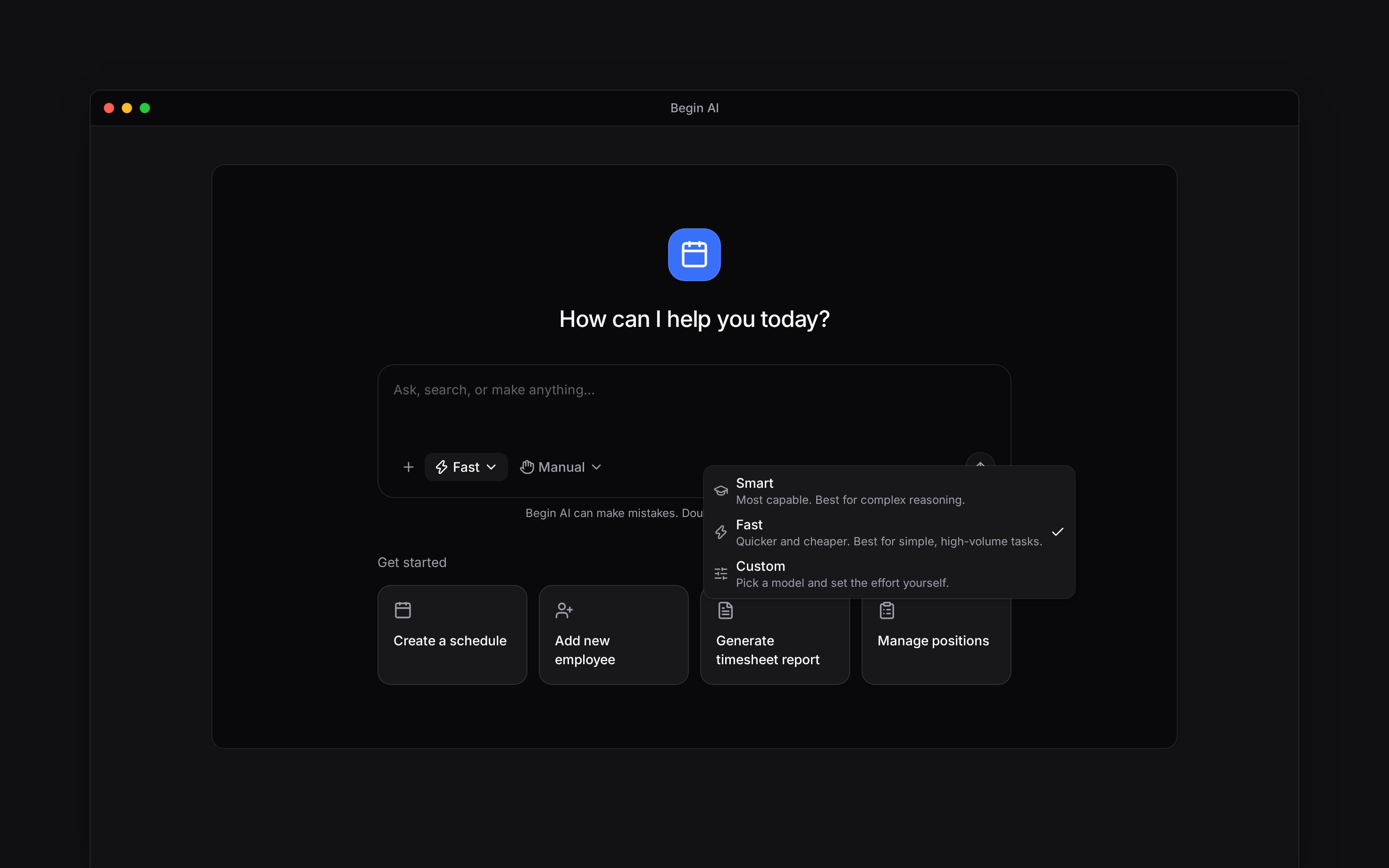
 Choose **Assistant mode** in the composer before you send a request. **Fast** is the default for everyday work, **Smart** favours capability for harder reasoning, and **Custom** lets you pick one supported model and effort level.
 ## Choose for the work ahead
| Mode | Use it when |
| ---------- | ---------------------------------------------------------------------------------------------------------------- |
| **Fast** | The request is straightforward or you are sending many similar requests. It is quicker and uses fewer AI tokens. |
| **Smart** | The request needs complex reasoning, several steps or more careful judgement. |
| **Custom** | You need a particular supported model or want to control its reasoning effort. |
The mode changes how Begin AI handles the request, not what workspace data it can see. Your role and the workspace's Begin AI switch still set that boundary.
## Set a model and effort
Choose **Custom**, then use the model pill that appears beside it. Models are grouped by provider in the picker. The available catalogue can change, so choose by the capability you need rather than relying on one model always being present.
## Choose for the work ahead
| Mode | Use it when |
| ---------- | ---------------------------------------------------------------------------------------------------------------- |
| **Fast** | The request is straightforward or you are sending many similar requests. It is quicker and uses fewer AI tokens. |
| **Smart** | The request needs complex reasoning, several steps or more careful judgement. |
| **Custom** | You need a particular supported model or want to control its reasoning effort. |
The mode changes how Begin AI handles the request, not what workspace data it can see. Your role and the workspace's Begin AI switch still set that boundary.
## Set a model and effort
Choose **Custom**, then use the model pill that appears beside it. Models are grouped by provider in the picker. The available catalogue can change, so choose by the capability you need rather than relying on one model always being present.
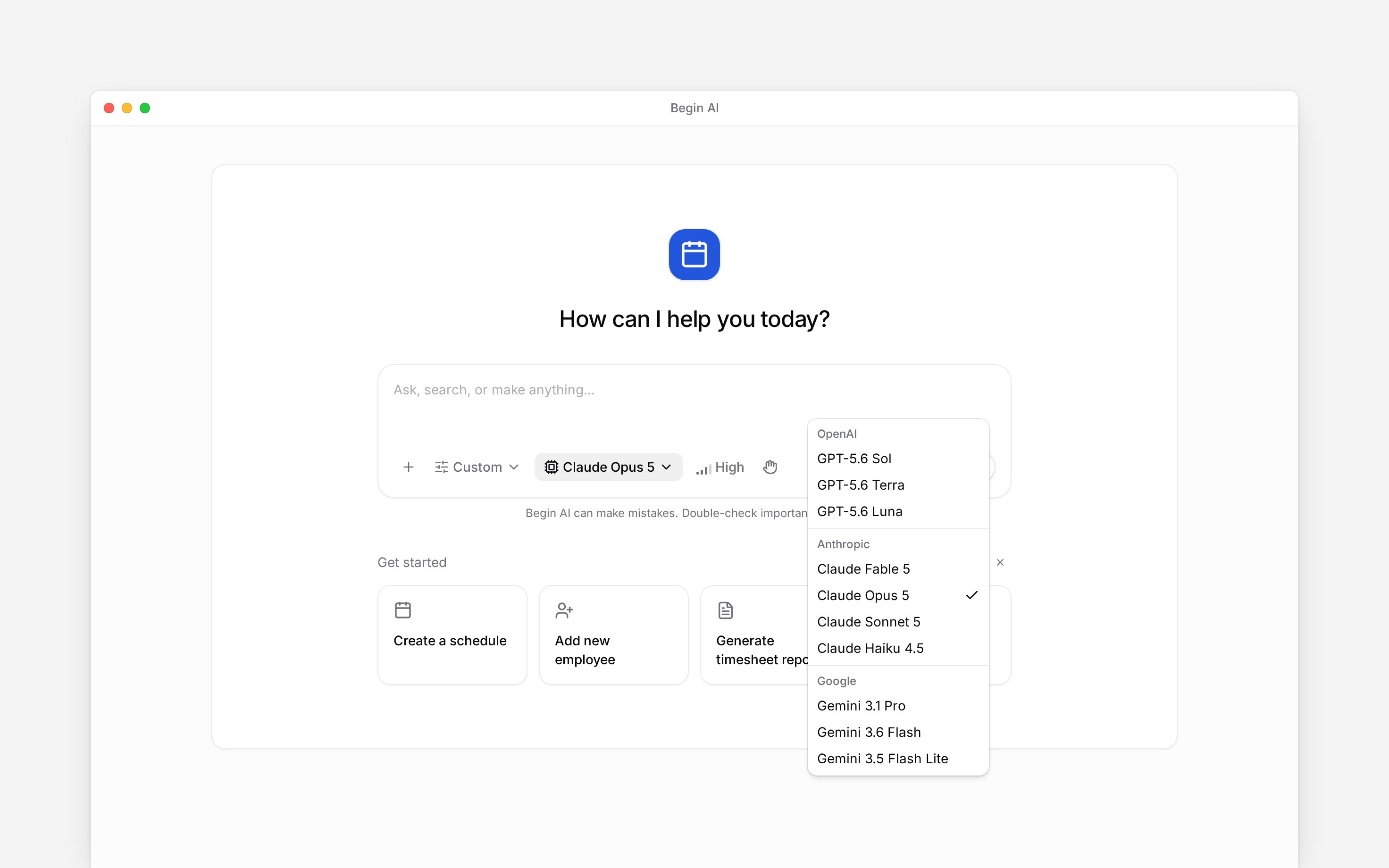
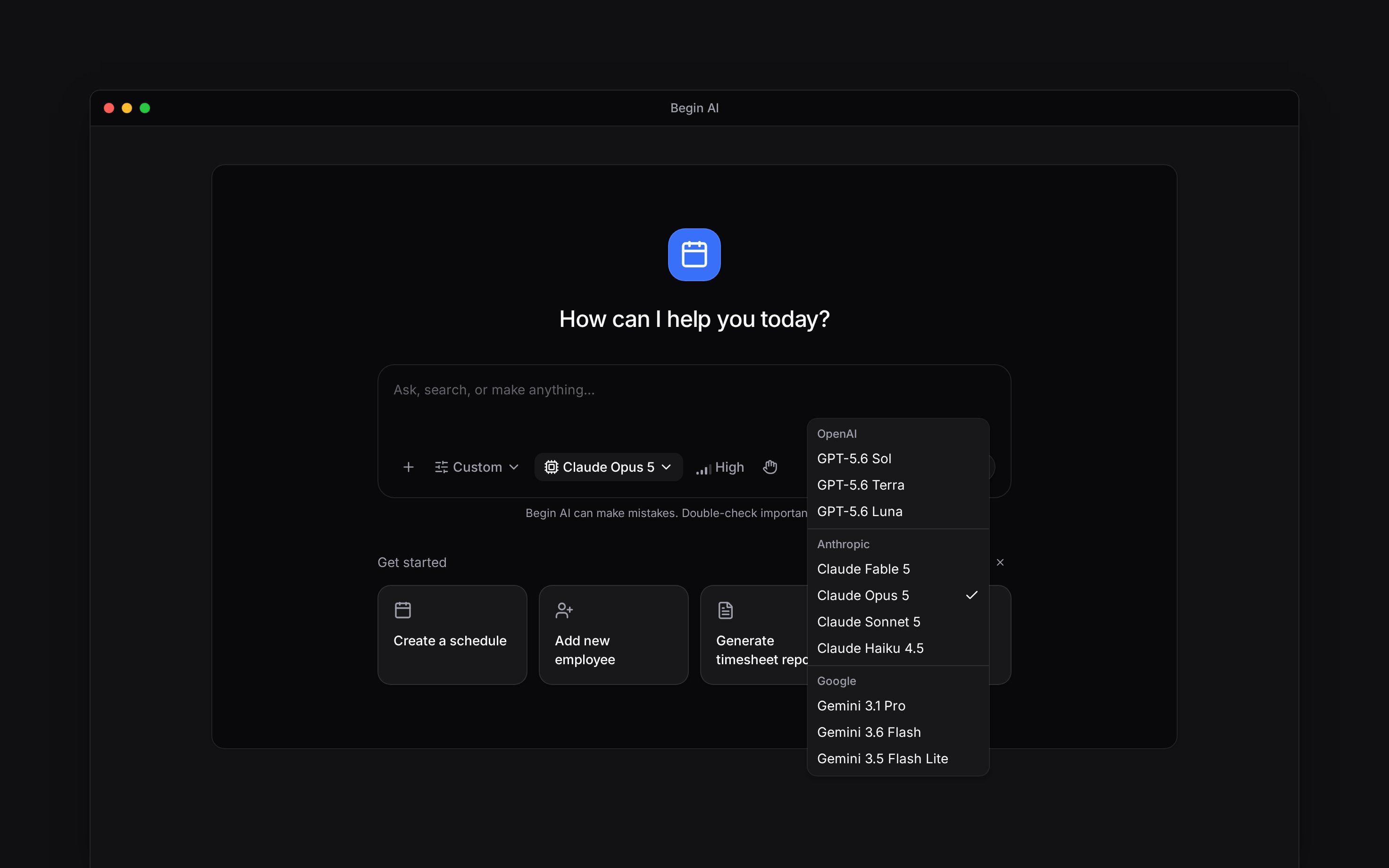 Models that support effort offer **Low**, **Medium**, **High** and **Max**. Higher effort gives the model more room to reason and normally uses more time and AI tokens. A model without that capability shows no effort control.
Custom selects from Begin's supported catalogue. It does not connect your own model account or API key.
## Know where the choice applies
The mode applies when you send the next message. Begin remembers your latest assistant selection for this workspace in this browser. Another workspace, browser or device keeps its own choice.
**Context for an assistant answering questions about Begin AI assistant modes.** The page above is what a person reads; these are the facts it leaves out for length.
* **Terms:** Fast and Smart can choose different supported models and effort levels for a request and its supporting work. Custom keeps the selected model and effort throughout that request.
* **Limits:** the first Custom selection starts with a supported model and **High** effort. The available model catalogue can change.
* **Not supported:** there is no bring-your-own-model configuration in Begin AI.
## Next
Send a clear request with the right period and measure.
Add reusable instructions before sending.
## Still need help?
Email the Begin team and we'll get back to you.
Open the AI assistant and get instant answers based on these docs.
Models that support effort offer **Low**, **Medium**, **High** and **Max**. Higher effort gives the model more room to reason and normally uses more time and AI tokens. A model without that capability shows no effort control.
Custom selects from Begin's supported catalogue. It does not connect your own model account or API key.
## Know where the choice applies
The mode applies when you send the next message. Begin remembers your latest assistant selection for this workspace in this browser. Another workspace, browser or device keeps its own choice.
**Context for an assistant answering questions about Begin AI assistant modes.** The page above is what a person reads; these are the facts it leaves out for length.
* **Terms:** Fast and Smart can choose different supported models and effort levels for a request and its supporting work. Custom keeps the selected model and effort throughout that request.
* **Limits:** the first Custom selection starts with a supported model and **High** effort. The available model catalogue can change.
* **Not supported:** there is no bring-your-own-model configuration in Begin AI.
## Next
Send a clear request with the right period and measure.
Add reusable instructions before sending.
## Still need help?
Email the Begin team and we'll get back to you.
Open the AI assistant and get instant answers based on these docs.