> ## Documentation Index
> Fetch the complete documentation index at: https://docs.begin.eu/llms.txt
> Use this file to discover all available pages before exploring further.
# Finding AI chats
> Start a Begin AI chat, return to earlier work, and recognise unread or running chats in the sidebar.

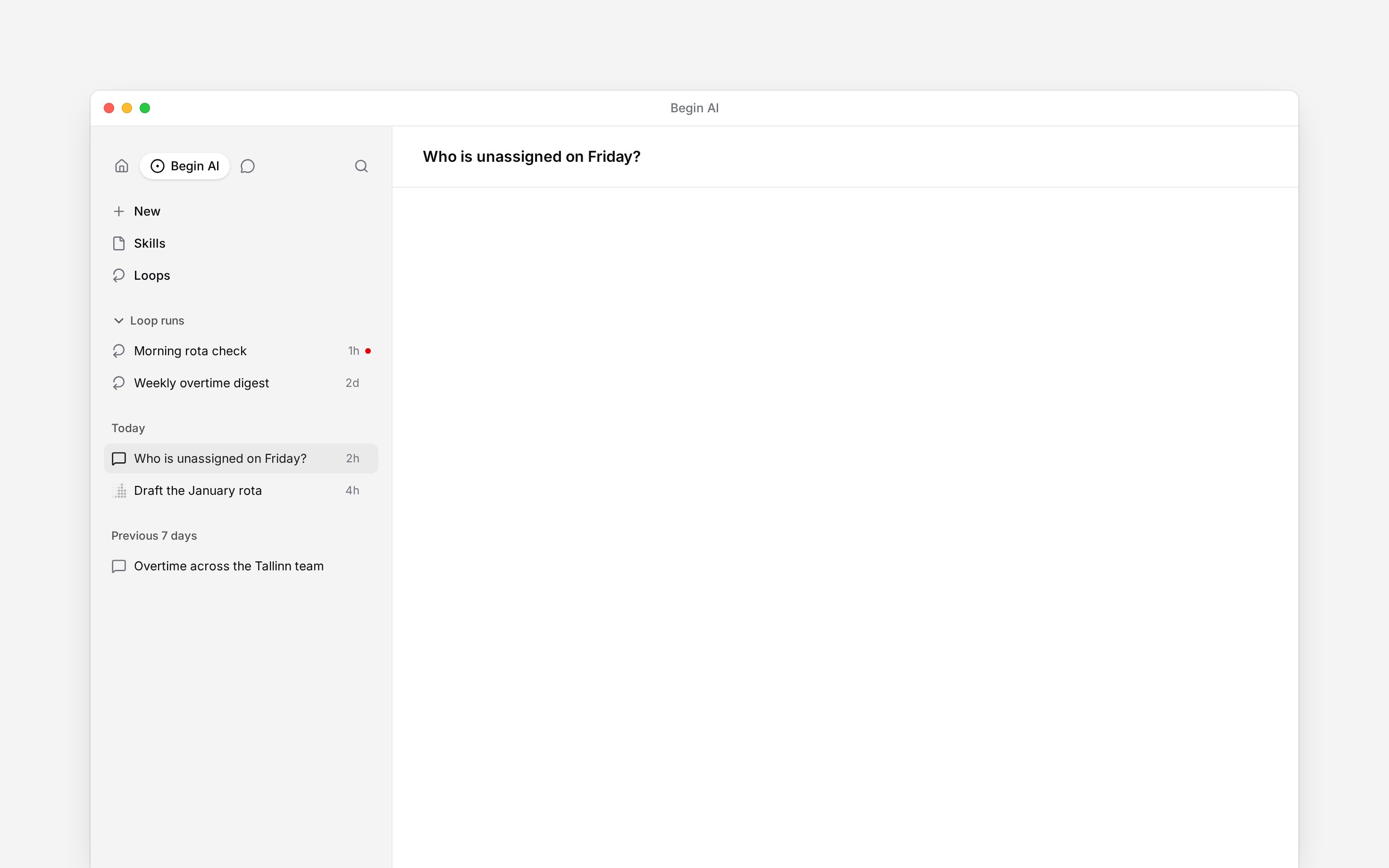
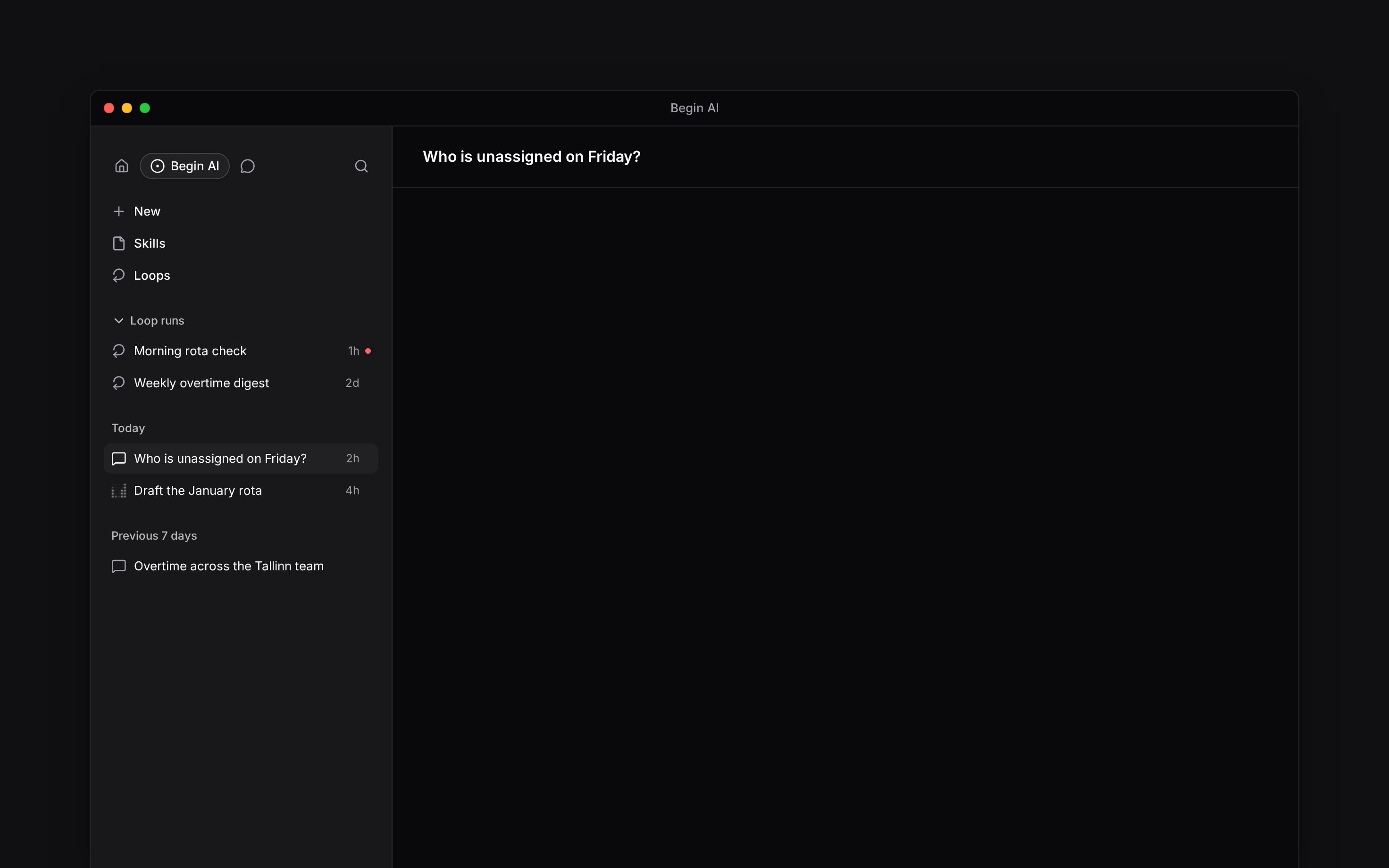
 Select **Begin AI** in the sidebar ribbon to open your AI navigation and chat history. The full page keeps earlier chats close while you work; Cmd+J (Ctrl+J on Windows) opens the current chat in a side panel instead.
 ## Start or reopen a chat
Select **Begin AI** in the ribbon at the top of the sidebar. The ribbon switches between your
normal navigation, AI chats and Messages when your role has access to each area.
Select **New** for a blank chat, or select a chat title to return to its conversation. The open
row has a filled background.
Enter a new request in the composer. Continuing a chat keeps its earlier questions, sources and
approval boundary available as context.
Chats are ordered by their latest activity and grouped under headings such as **Today** and **Yesterday**. A chat can move to the top when Begin AI finishes later work in it.
## Read its status
An unread dot means a chat has a result you have not opened. A moving Begin AI mark means work is still running, so you can leave the chat and return without stopping it.
Results created by loops sit in their own **Loops** group above dated chats. Select one to read the result, or open **Loops** near the top of the panel to manage how it starts and what it may do. The **Skills** link opens reusable AI workflows when your role has access and read permissions.
**Context for an assistant answering questions about finding Begin AI chats.** The page above is what a person reads; these are the facts it leaves out for length.
* **Who can:** every member can use AI chats while Begin AI is enabled. The **Skills** and **Loops** navigation rows require their own permissions.
* **Terms:** ordinary chats are grouped and sorted by their latest activity. Loop results appear in the dedicated group instead of the date groups. The moving Begin AI mark remains while the chat or work it started is still running.
* **Where:** a chat row's menu can mark it read or unread, or delete it. The open chat's header also offers rename, delete and delete-all actions where applicable.
* **Not supported:** there is no search box limited to chat history. Global search is separate.
## Next
Choose how the next request is handled.
Create recurring or event-driven work whose results appear here.
## Still need help?
Email the Begin team and we'll get back to you.
Open the AI assistant and get instant answers based on these docs.
## Start or reopen a chat
Select **Begin AI** in the ribbon at the top of the sidebar. The ribbon switches between your
normal navigation, AI chats and Messages when your role has access to each area.
Select **New** for a blank chat, or select a chat title to return to its conversation. The open
row has a filled background.
Enter a new request in the composer. Continuing a chat keeps its earlier questions, sources and
approval boundary available as context.
Chats are ordered by their latest activity and grouped under headings such as **Today** and **Yesterday**. A chat can move to the top when Begin AI finishes later work in it.
## Read its status
An unread dot means a chat has a result you have not opened. A moving Begin AI mark means work is still running, so you can leave the chat and return without stopping it.
Results created by loops sit in their own **Loops** group above dated chats. Select one to read the result, or open **Loops** near the top of the panel to manage how it starts and what it may do. The **Skills** link opens reusable AI workflows when your role has access and read permissions.
**Context for an assistant answering questions about finding Begin AI chats.** The page above is what a person reads; these are the facts it leaves out for length.
* **Who can:** every member can use AI chats while Begin AI is enabled. The **Skills** and **Loops** navigation rows require their own permissions.
* **Terms:** ordinary chats are grouped and sorted by their latest activity. Loop results appear in the dedicated group instead of the date groups. The moving Begin AI mark remains while the chat or work it started is still running.
* **Where:** a chat row's menu can mark it read or unread, or delete it. The open chat's header also offers rename, delete and delete-all actions where applicable.
* **Not supported:** there is no search box limited to chat history. Global search is separate.
## Next
Choose how the next request is handled.
Create recurring or event-driven work whose results appear here.
## Still need help?
Email the Begin team and we'll get back to you.
Open the AI assistant and get instant answers based on these docs.