> ## Documentation Index
> Fetch the complete documentation index at: https://docs.begin.eu/llms.txt
> Use this file to discover all available pages before exploring further.
# Using skills in a chat
> Attach a reusable skill to a Begin AI request and know which skills are available.

 A skill is a saved set of instructions for work you repeat. Attach one to a message when you want Begin AI to follow that workflow without rewriting its method each time.
 ## Add a skill to your message
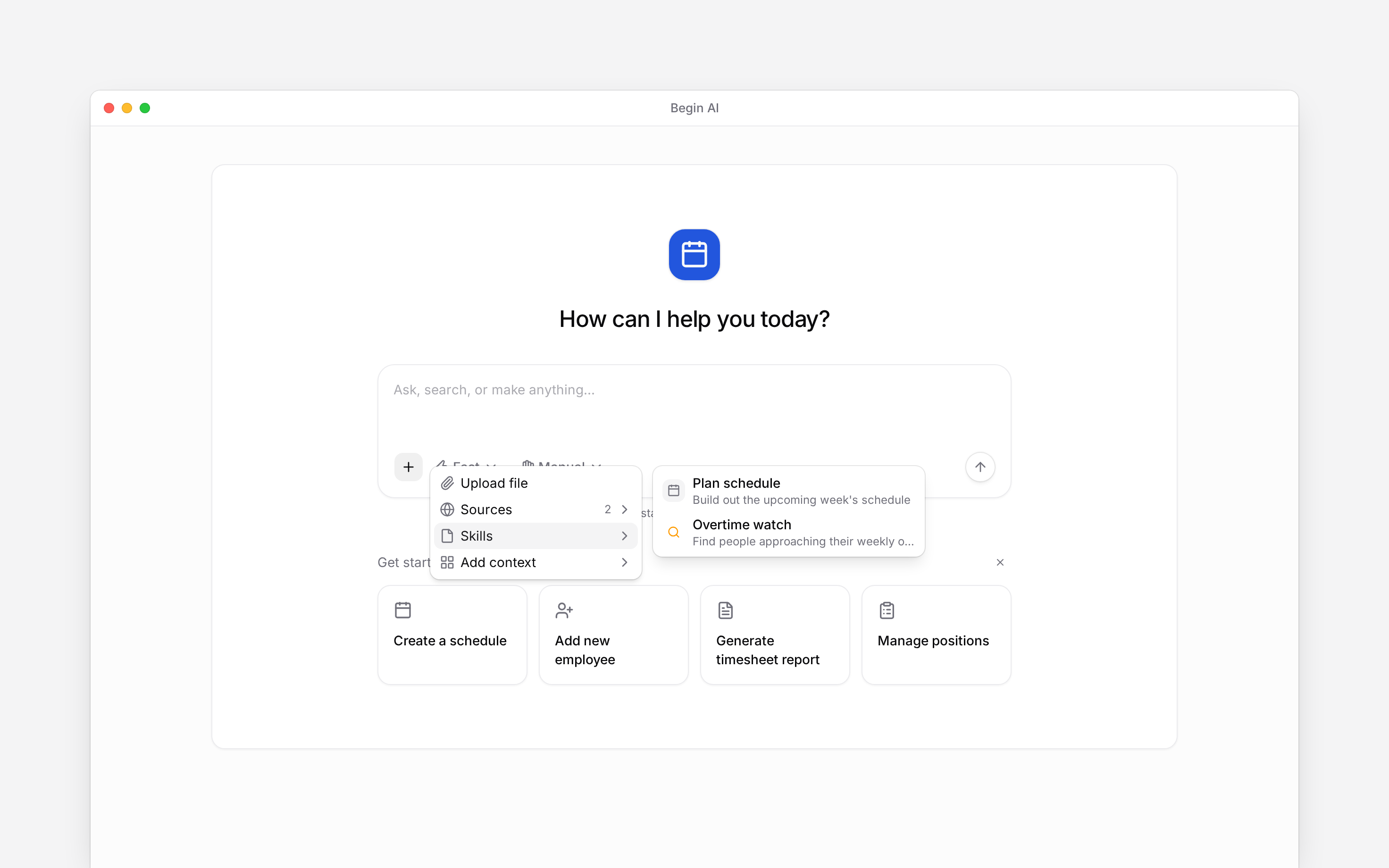
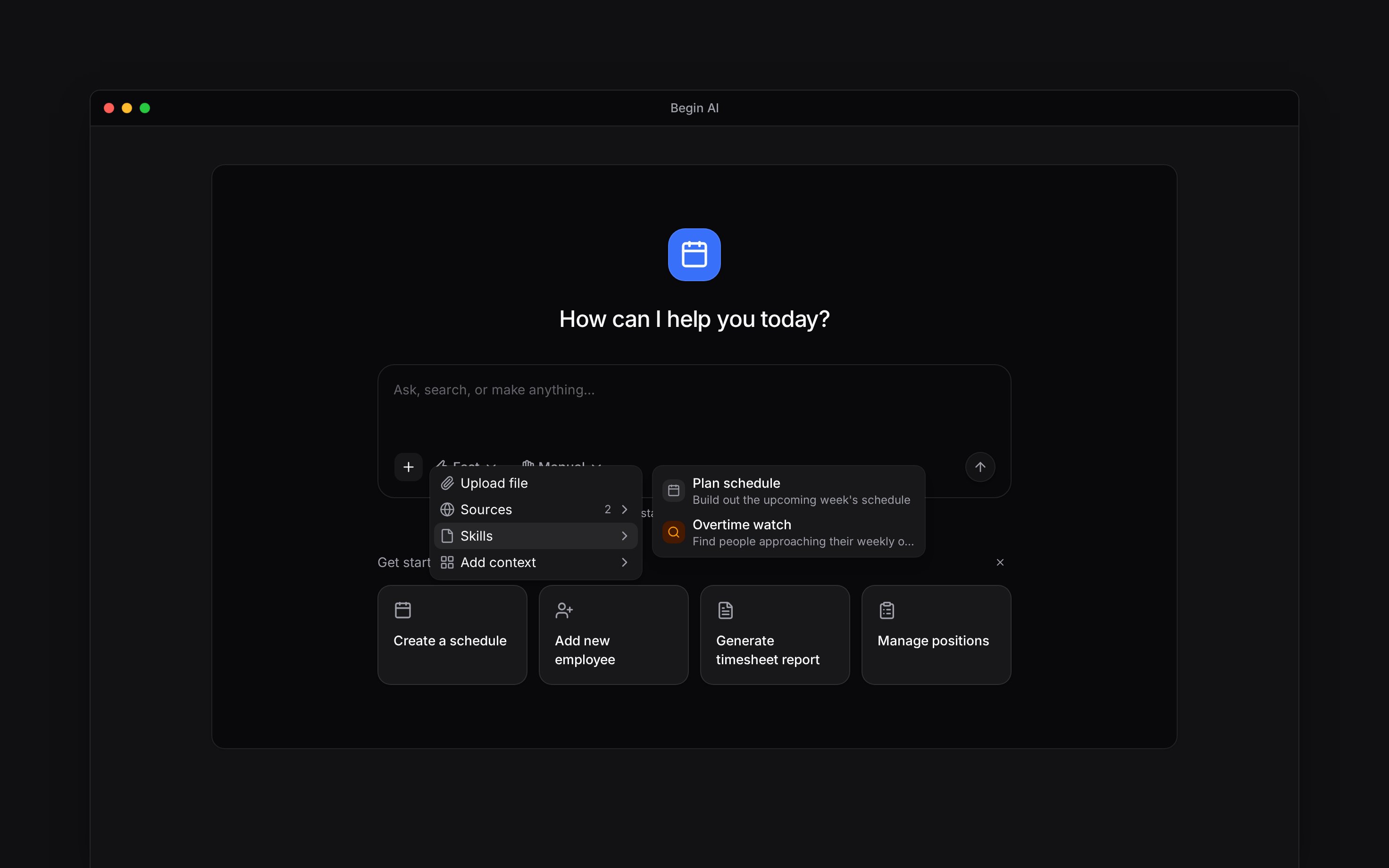
In the composer, select **Files, skills and sources → Skills**.
Select the skill whose description matches the work. You can also open **Skills** from the AI
sidebar, choose a skill, then select **Add to chat**.
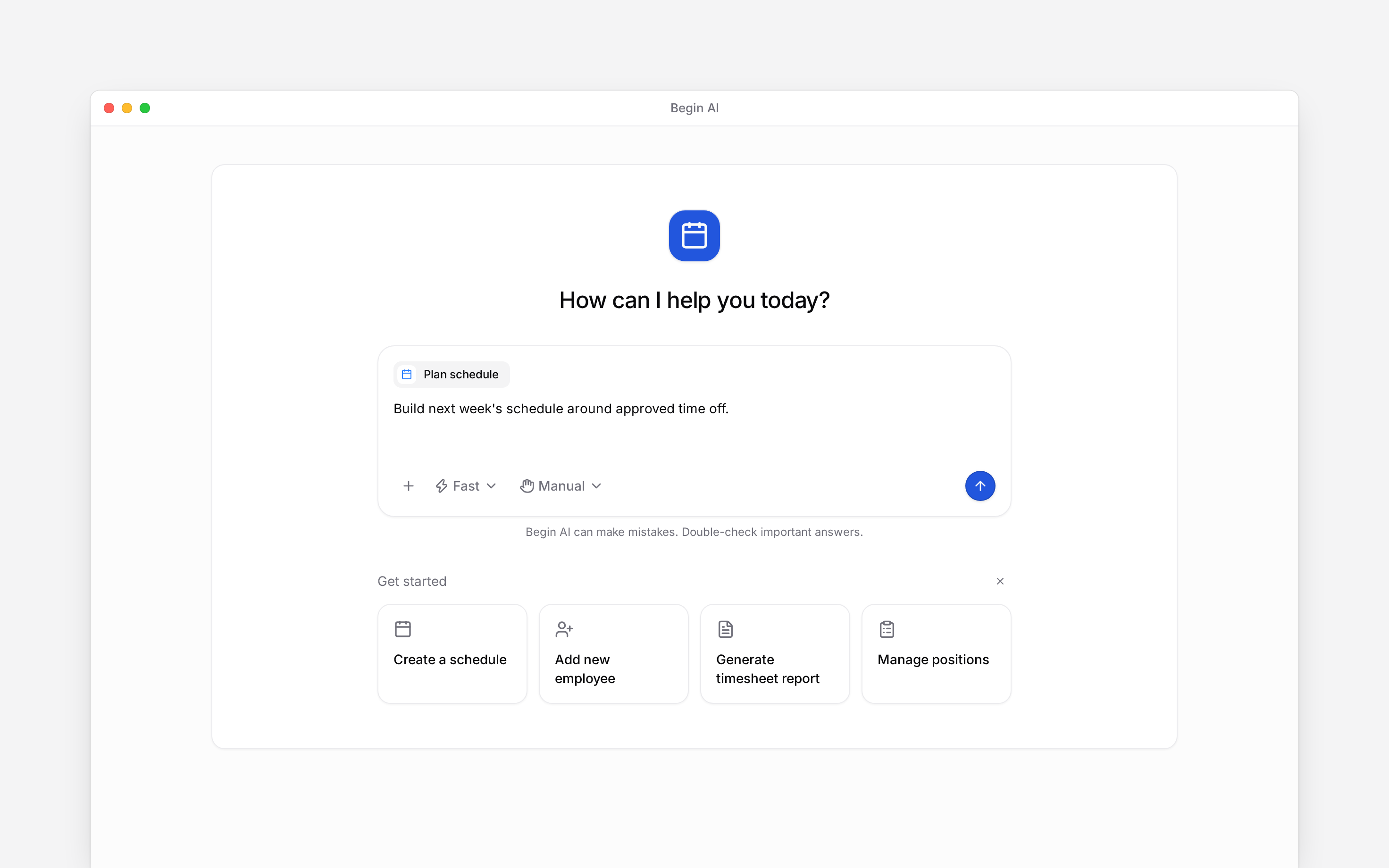
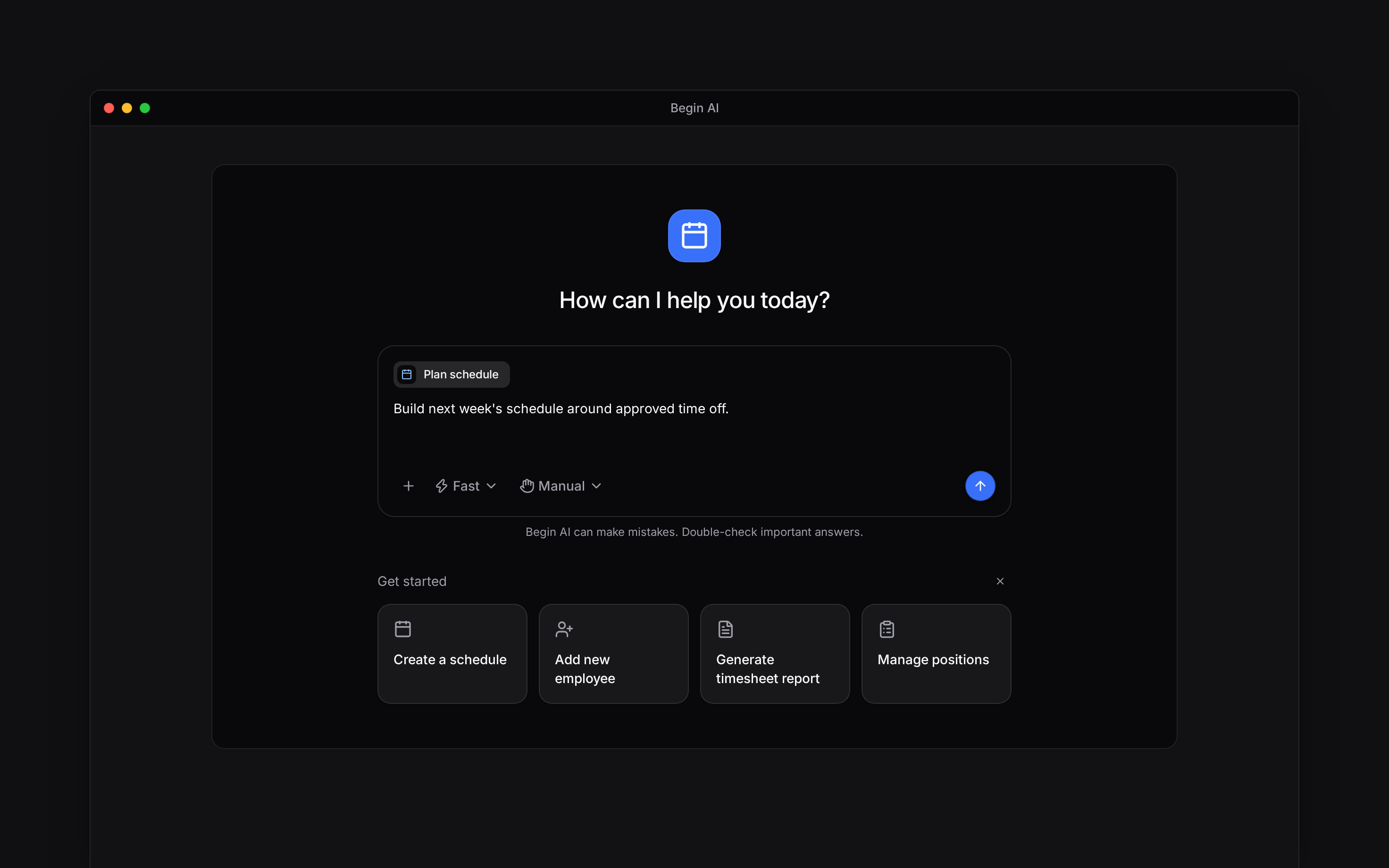
Check the skill chip above the composer, add any dates, people or outcome it needs, then send.
The chip clears after the message is sent.
## Add a skill to your message
In the composer, select **Files, skills and sources → Skills**.
Select the skill whose description matches the work. You can also open **Skills** from the AI
sidebar, choose a skill, then select **Add to chat**.
Check the skill chip above the composer, add any dates, people or outcome it needs, then send.
The chip clears after the message is sent.
 ## Know which skills appear
The chat menu shows enabled skills that are visible to you. System skills are supplied by Begin; custom skills are written for your own work or workspace. A disabled skill stays out of the menu until somebody with permission enables it.
You can use an available skill even when your role cannot open the **Skills** management page. Attaching one does not grant extra access: Begin AI still reads and changes only what your role allows.
A skill affects one message. Attach it again when a later message should start the saved workflow
again.
**Context for an assistant answering questions about using AI skills.** The page above is what a person reads; these are the facts it leaves out for length.
* **Who can:** every workspace member may use an enabled skill visible to them in chat. Opening the **Skills** management page requires Skills access and read permissions; editing, enabling or deleting uses the matching management permissions.
* **Terms:** personal skills are available only to their owner, while workspace skills are available across the workspace. System skills are supplied by Begin and cannot be edited or deleted; authorised owners and administrators can enable or disable them.
* **Not supported:** attaching a skill does not bypass workspace permissions or increase the current AI allowance.
## Next
Put recurring instructions into work that runs on its own.
Choose what Begin AI may read alongside the skill.
## Still need help?
Email the Begin team and we'll get back to you.
Open the AI assistant and get instant answers based on these docs.
## Know which skills appear
The chat menu shows enabled skills that are visible to you. System skills are supplied by Begin; custom skills are written for your own work or workspace. A disabled skill stays out of the menu until somebody with permission enables it.
You can use an available skill even when your role cannot open the **Skills** management page. Attaching one does not grant extra access: Begin AI still reads and changes only what your role allows.
A skill affects one message. Attach it again when a later message should start the saved workflow
again.
**Context for an assistant answering questions about using AI skills.** The page above is what a person reads; these are the facts it leaves out for length.
* **Who can:** every workspace member may use an enabled skill visible to them in chat. Opening the **Skills** management page requires Skills access and read permissions; editing, enabling or deleting uses the matching management permissions.
* **Terms:** personal skills are available only to their owner, while workspace skills are available across the workspace. System skills are supplied by Begin and cannot be edited or deleted; authorised owners and administrators can enable or disable them.
* **Not supported:** attaching a skill does not bypass workspace permissions or increase the current AI allowance.
## Next
Put recurring instructions into work that runs on its own.
Choose what Begin AI may read alongside the skill.
## Still need help?
Email the Begin team and we'll get back to you.
Open the AI assistant and get instant answers based on these docs.