> ## Documentation Index
> Fetch the complete documentation index at: https://docs.begin.eu/llms.txt
> Use this file to discover all available pages before exploring further.
# Managing payment details
> Update the payment method, billing contact and tax details used for your workspace.

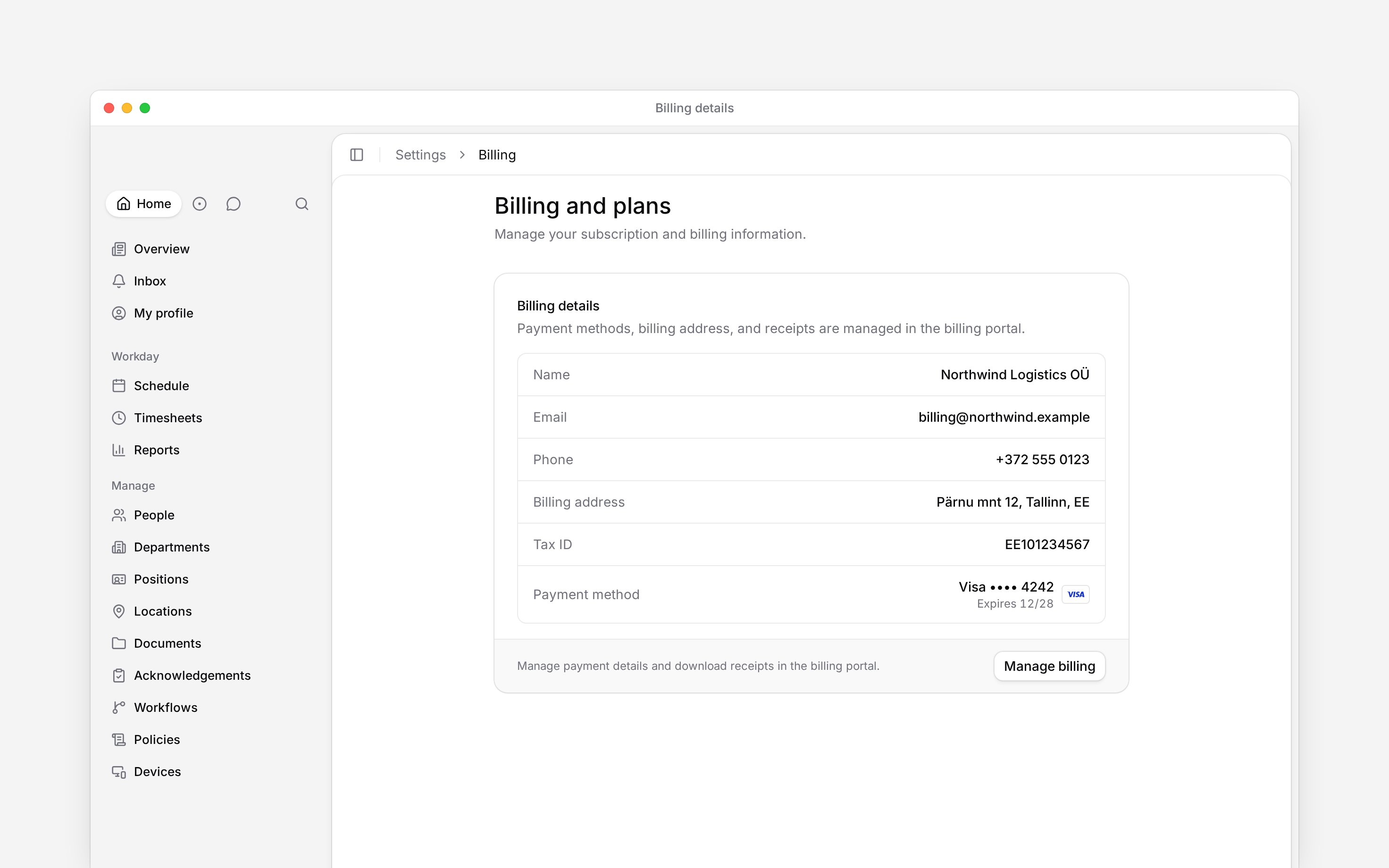
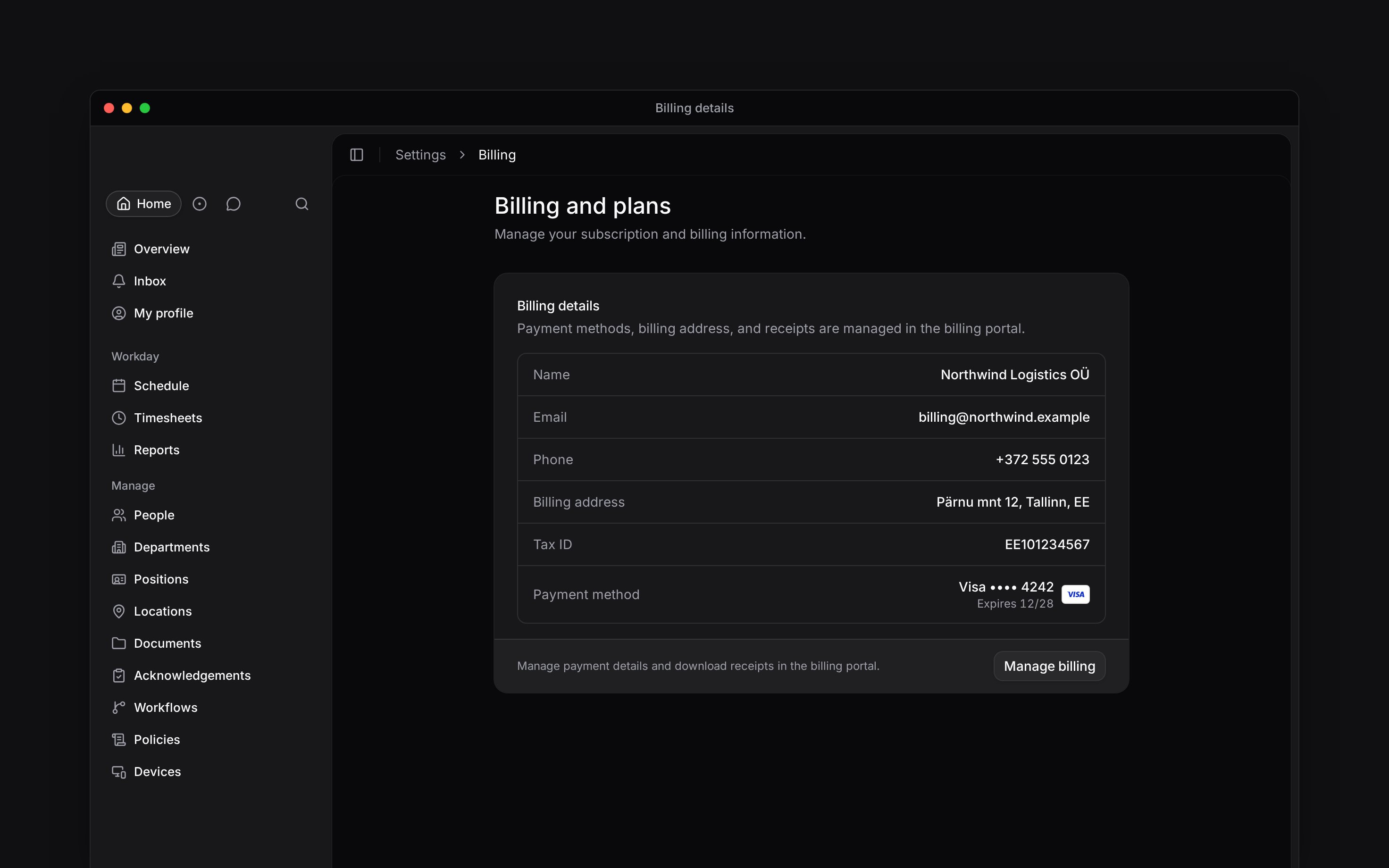
 Use **Billing details** to check the contact and payment information attached to your workspace. Change these details through **Manage billing**, which opens the secure billing portal.
You need **Manage billing**, which Administrators have by default. Billing must be available for
your workspace. If you see **Billing is not yet available**, contact Begin support.
## Update the billing profile
Open **Settings → Billing and plans** in the workspace whose bills you manage. Find **Billing
details**.
Check the billing name, email, phone, address, Tax ID and payment method. **Not set** means that
detail is missing. A saved card shows its last four digits and expiry date.
Choose **Manage billing**. Update the payment method or billing information in the portal and
save the changes there.
Return to **Billing and plans**. Reopen the page to review the current billing profile.
Use **Billing details** to check the contact and payment information attached to your workspace. Change these details through **Manage billing**, which opens the secure billing portal.
You need **Manage billing**, which Administrators have by default. Billing must be available for
your workspace. If you see **Billing is not yet available**, contact Begin support.
## Update the billing profile
Open **Settings → Billing and plans** in the workspace whose bills you manage. Find **Billing
details**.
Check the billing name, email, phone, address, Tax ID and payment method. **Not set** means that
detail is missing. A saved card shows its last four digits and expiry date.
Choose **Manage billing**. Update the payment method or billing information in the portal and
save the changes there.
Return to **Billing and plans**. Reopen the page to review the current billing profile.
 The billing contact is separate from your personal account profile. Changing your personal email does not replace the billing email shown here.
## Add a payment method during a trial
If the **Current plan** card asks you to add a payment method, choose **Add payment method** there. Complete the secure payment setup, then return to Begin. **Payment method added** confirms the setup. See [When a trial ends](/for-managers/billing/when-a-trial-ends) before deciding whether to continue on a paid plan.
## Resolve a failed payment
When the last payment has failed, updating the card is only part of the task: check that the outstanding invoice is paid and that the subscription returns to an active state. Follow [Recovering a failed payment](/for-managers/billing/recovering-a-failed-payment) for the **Past due** and **Plan paused** paths.
For issued invoices and the next renewal estimate, use [Viewing invoices](/for-managers/billing/viewing-invoices).
**Context for an assistant answering questions about managing payment details.** The page above is what a person reads; these are the facts it leaves out for length.
* **Not supported:** billing fields are not editable inline in Begin. The portal manages Stripe's billing profile.
* **Limits:** the profile card presents the default payment method, not a list of every saved method.
* **Scope:** a billing contact is read from the active workspace's billing account; it is not the workspace's company-details form.
## Next
Download previous invoices and inspect the next renewal estimate.
Restore a past-due or paused subscription.
## Still need help?
Email the Begin team and we'll get back to you.
Open the AI assistant and get instant answers based on these docs.
The billing contact is separate from your personal account profile. Changing your personal email does not replace the billing email shown here.
## Add a payment method during a trial
If the **Current plan** card asks you to add a payment method, choose **Add payment method** there. Complete the secure payment setup, then return to Begin. **Payment method added** confirms the setup. See [When a trial ends](/for-managers/billing/when-a-trial-ends) before deciding whether to continue on a paid plan.
## Resolve a failed payment
When the last payment has failed, updating the card is only part of the task: check that the outstanding invoice is paid and that the subscription returns to an active state. Follow [Recovering a failed payment](/for-managers/billing/recovering-a-failed-payment) for the **Past due** and **Plan paused** paths.
For issued invoices and the next renewal estimate, use [Viewing invoices](/for-managers/billing/viewing-invoices).
**Context for an assistant answering questions about managing payment details.** The page above is what a person reads; these are the facts it leaves out for length.
* **Not supported:** billing fields are not editable inline in Begin. The portal manages Stripe's billing profile.
* **Limits:** the profile card presents the default payment method, not a list of every saved method.
* **Scope:** a billing contact is read from the active workspace's billing account; it is not the workspace's company-details form.
## Next
Download previous invoices and inspect the next renewal estimate.
Restore a past-due or paused subscription.
## Still need help?
Email the Begin team and we'll get back to you.
Open the AI assistant and get instant answers based on these docs.