> ## Documentation Index
> Fetch the complete documentation index at: https://docs.begin.eu/llms.txt
> Use this file to discover all available pages before exploring further.
# Buying Begin AI tokens
> Top up your workspace balance and follow how its monthly and purchased tokens are used.

 Buy Begin AI tokens when your workspace needs more than its monthly plan allowance; every plan, including Pro, has one. A top-up adds tokens to this workspace without changing its subscription, and you can buy before the monthly allowance runs out.
You need **Manage billing**, which Administrators have by default. Billing must be available for
your workspace. If you see **Billing is not yet available**, contact Begin support.
## Understand the two balances
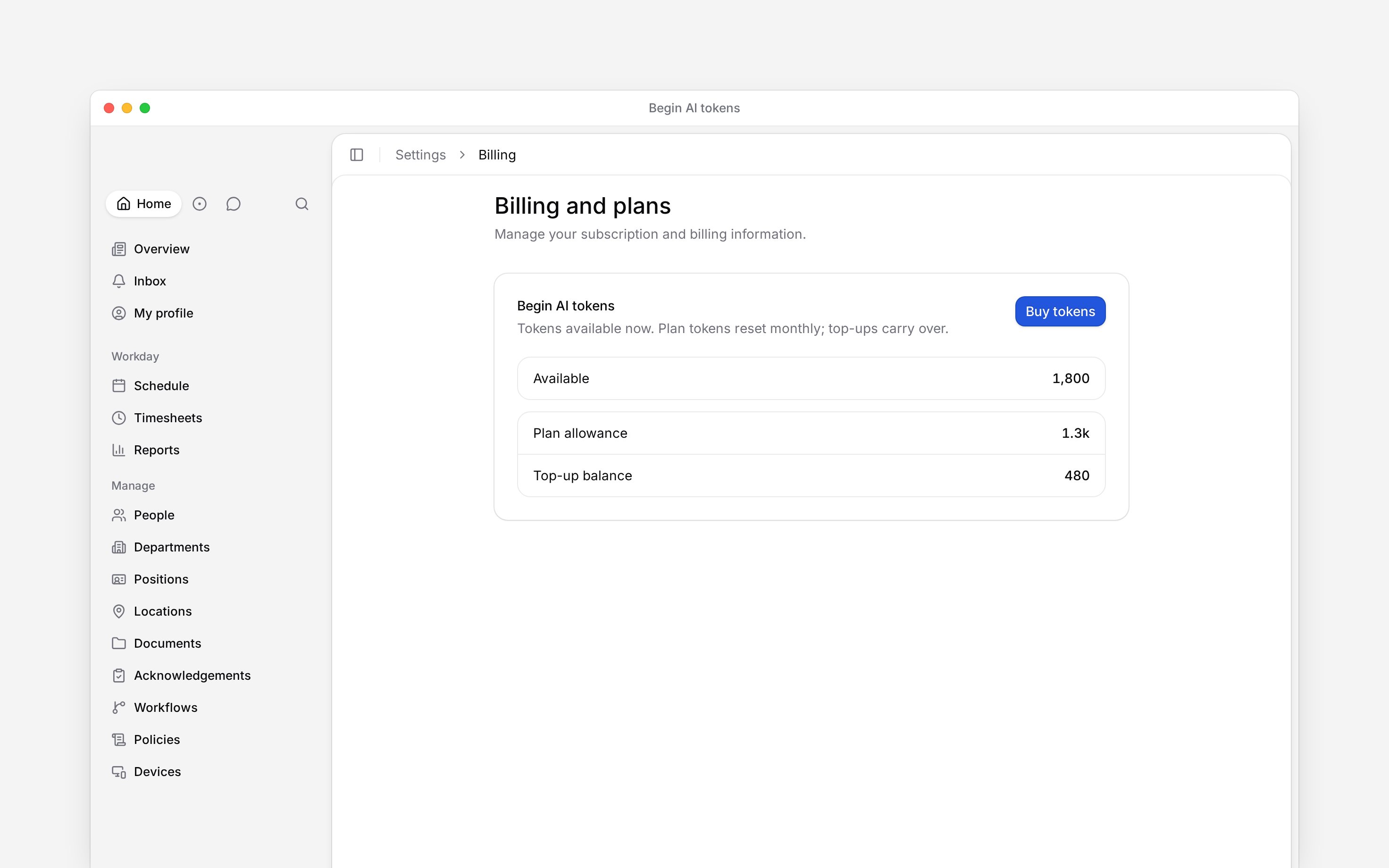
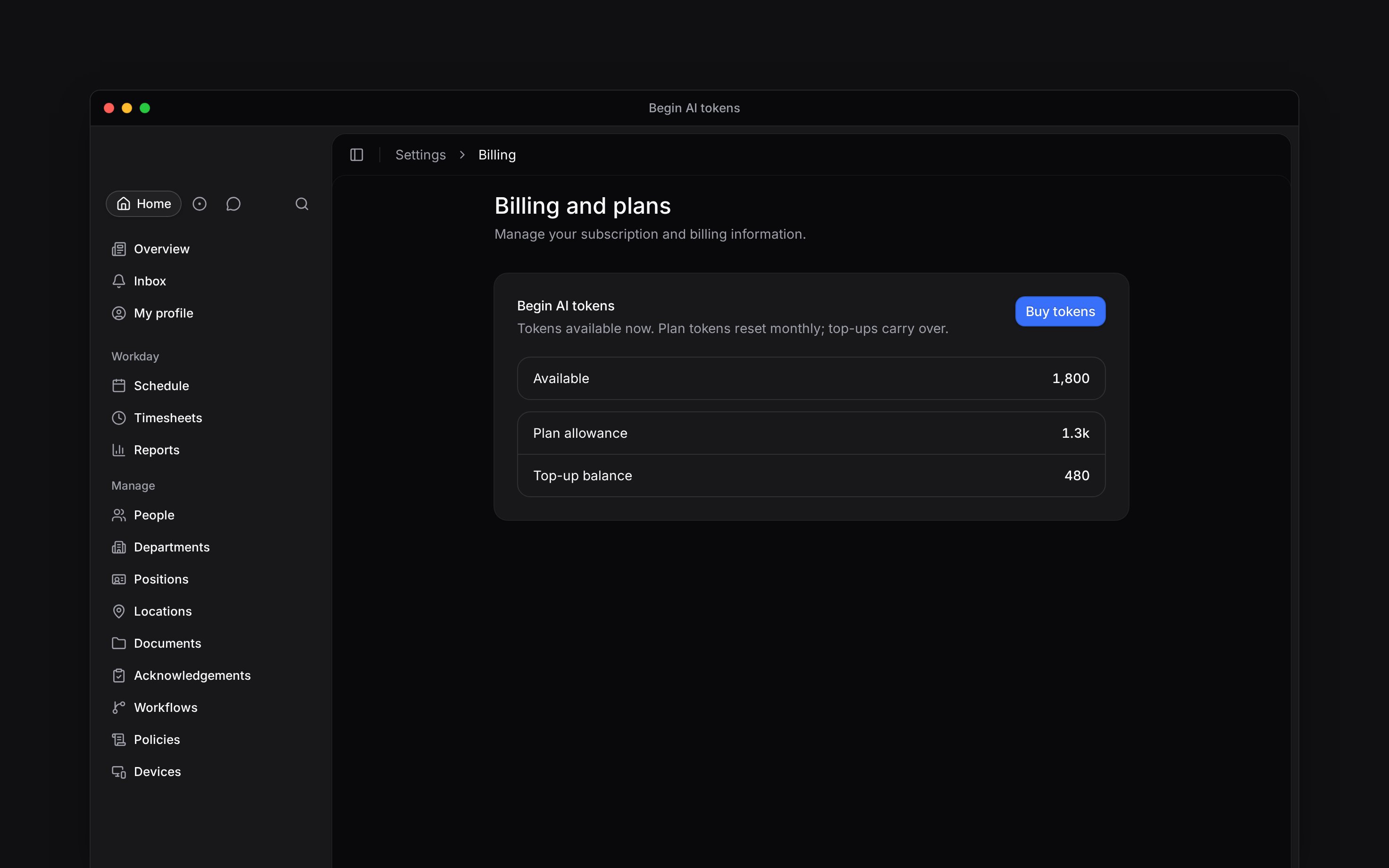
The **Begin AI tokens** card separates **Plan allowance** from **Top-up balance**. The available total combines both balances.
Begin uses the monthly allowance first, then purchased tokens. The allowance resets each calendar month; unused monthly tokens do not accumulate. Purchased tokens carry over and never expire. The balance belongs to the workspace, so a purchase supports its members' Begin AI usage rather than one person's account.
When both balances reach zero, Begin AI stops answering until the next month's allowance or a top-up. Members see **You're out of AI tokens** and cannot buy tokens themselves.
Buy Begin AI tokens when your workspace needs more than its monthly plan allowance; every plan, including Pro, has one. A top-up adds tokens to this workspace without changing its subscription, and you can buy before the monthly allowance runs out.
You need **Manage billing**, which Administrators have by default. Billing must be available for
your workspace. If you see **Billing is not yet available**, contact Begin support.
## Understand the two balances
The **Begin AI tokens** card separates **Plan allowance** from **Top-up balance**. The available total combines both balances.
Begin uses the monthly allowance first, then purchased tokens. The allowance resets each calendar month; unused monthly tokens do not accumulate. Purchased tokens carry over and never expire. The balance belongs to the workspace, so a purchase supports its members' Begin AI usage rather than one person's account.
When both balances reach zero, Begin AI stops answering until the next month's allowance or a top-up. Members see **You're out of AI tokens** and cannot buy tokens themselves.
 ## Buy a top-up
Go to **Settings → Billing and plans**. In **Begin AI tokens**, choose **Buy tokens**.
Select a displayed amount, or choose **Other** and enter a whole-euro amount within the range
shown. Review the token quantity, any discount and **Total** before continuing. Prices exclude
VAT.
Choose the **Buy … tokens** button to open checkout. Complete the payment and return to Begin.
Review **Top-up balance** after payment is confirmed. The purchase adds to that balance; it does
not replace your remaining monthly allowance.
Use the amounts and token quantities displayed in the purchase window. Top-ups are one-time purchases, not an automatic recharge.
## Follow usage and purchases
Further down **Billing and plans**, **Begin AI token usage** shows weekly usage for the last 12 weeks. **Usage history** lists monthly allowances, top-up purchases, AI usage and adjustments. Choose **Load more** for older entries.
Look for **Top-up purchase** after buying tokens. For the purchase invoice, open [Viewing invoices](/for-managers/billing/viewing-invoices).
**Context for an assistant answering questions about buying begin ai tokens.** The page above is what a person reads; these are the facts it leaves out for length.
* **Limits:** a custom top-up amount must be a whole number of euros within the displayed minimum and maximum. The checkout charges euros and uses the workspace's current pack rate to calculate the token quantity.
* **Not supported:** buying tokens does not raise employee, workflow or e-signature limits, and does not enable Begin AI if workspace settings have switched it off.
* **Period:** the monthly allowance follows the UTC calendar month, not the subscription renewal date.
* **Scope:** Begin staff's support usage does not debit the customer workspace's balance. Usage history records token movements, not conversation transcripts.
## Next
Find the invoice for a completed top-up purchase.
Compare the monthly allowances before changing your plan.
## Still need help?
Email the Begin team and we'll get back to you.
Open the AI assistant and get instant answers based on these docs.
## Buy a top-up
Go to **Settings → Billing and plans**. In **Begin AI tokens**, choose **Buy tokens**.
Select a displayed amount, or choose **Other** and enter a whole-euro amount within the range
shown. Review the token quantity, any discount and **Total** before continuing. Prices exclude
VAT.
Choose the **Buy … tokens** button to open checkout. Complete the payment and return to Begin.
Review **Top-up balance** after payment is confirmed. The purchase adds to that balance; it does
not replace your remaining monthly allowance.
Use the amounts and token quantities displayed in the purchase window. Top-ups are one-time purchases, not an automatic recharge.
## Follow usage and purchases
Further down **Billing and plans**, **Begin AI token usage** shows weekly usage for the last 12 weeks. **Usage history** lists monthly allowances, top-up purchases, AI usage and adjustments. Choose **Load more** for older entries.
Look for **Top-up purchase** after buying tokens. For the purchase invoice, open [Viewing invoices](/for-managers/billing/viewing-invoices).
**Context for an assistant answering questions about buying begin ai tokens.** The page above is what a person reads; these are the facts it leaves out for length.
* **Limits:** a custom top-up amount must be a whole number of euros within the displayed minimum and maximum. The checkout charges euros and uses the workspace's current pack rate to calculate the token quantity.
* **Not supported:** buying tokens does not raise employee, workflow or e-signature limits, and does not enable Begin AI if workspace settings have switched it off.
* **Period:** the monthly allowance follows the UTC calendar month, not the subscription renewal date.
* **Scope:** Begin staff's support usage does not debit the customer workspace's balance. Usage history records token movements, not conversation transcripts.
## Next
Find the invoice for a completed top-up purchase.
Compare the monthly allowances before changing your plan.
## Still need help?
Email the Begin team and we'll get back to you.
Open the AI assistant and get instant answers based on these docs.