> ## Documentation Index
> Fetch the complete documentation index at: https://docs.begin.eu/llms.txt
> Use this file to discover all available pages before exploring further.
# Viewing and downloading invoices
> Download recent invoices and check the estimate for your next subscription renewal.

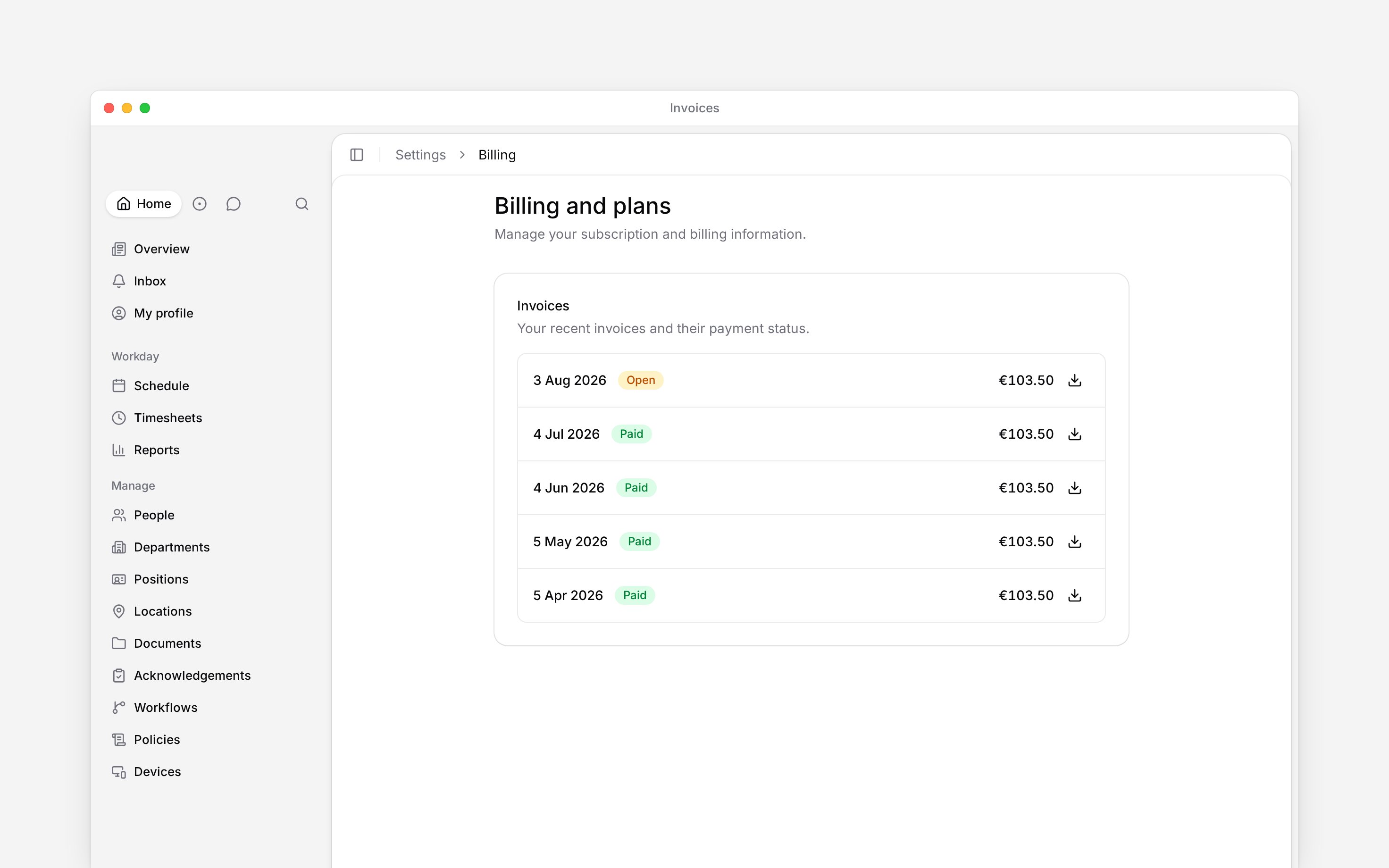
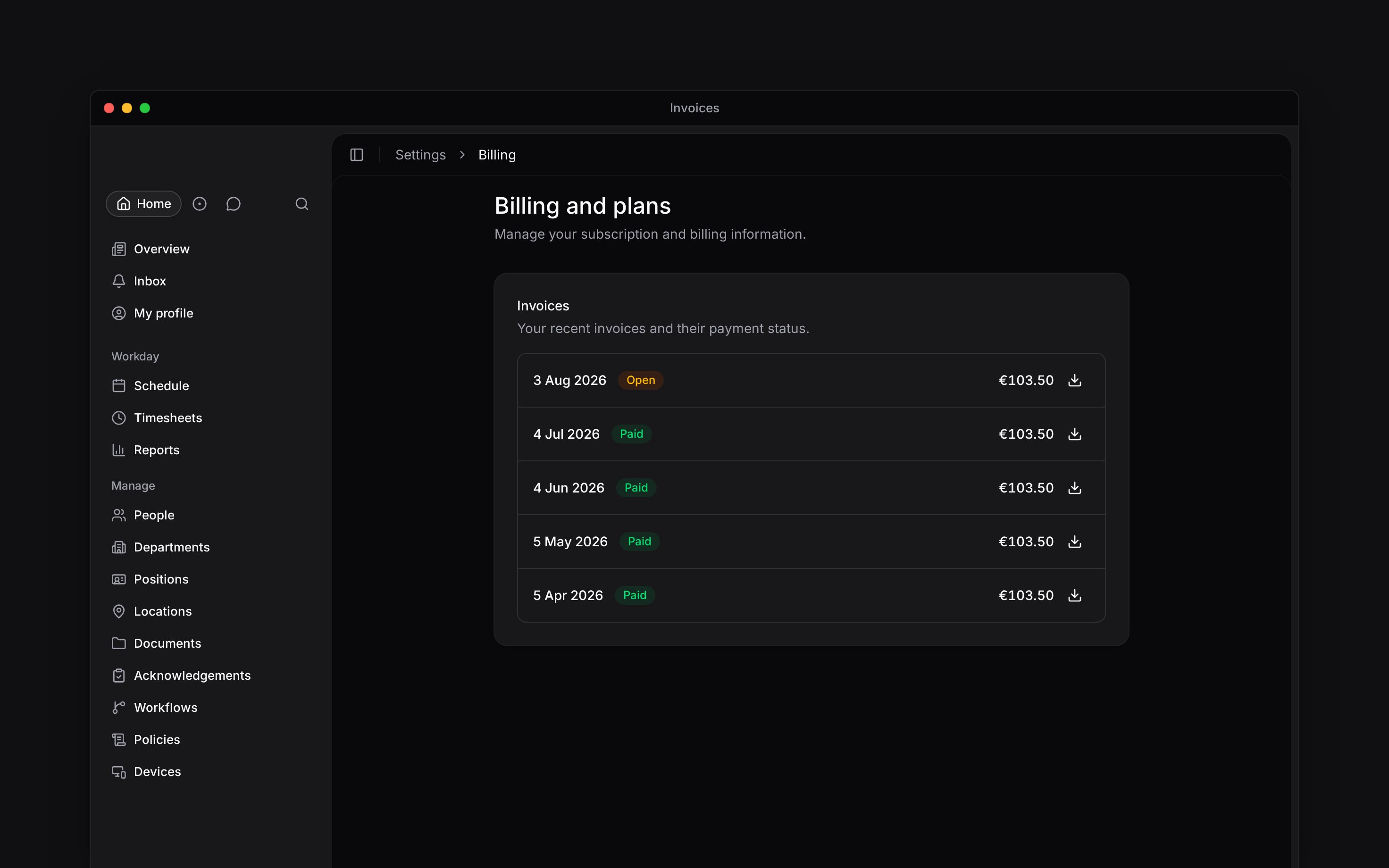
 Open your workspace's recent invoices in **Settings → Billing and plans**. Each invoice shows its date, amount and payment status, so you can find the right bill before opening it.
You need **Manage billing**, which Administrators have by default. Billing must be available for
your workspace. If you see **Billing is not yet available**, contact Begin support.
## Open an issued invoice
Scroll to **Invoices**. Recent invoices appear newest first. Check the date and status beside
the amount.
Choose **Load more** when it appears to reveal the next five invoices.
Choose **Download invoice** on its row. The invoice opens in a new browser tab, where you can
view or download it.
Open your workspace's recent invoices in **Settings → Billing and plans**. Each invoice shows its date, amount and payment status, so you can find the right bill before opening it.
You need **Manage billing**, which Administrators have by default. Billing must be available for
your workspace. If you see **Billing is not yet available**, contact Begin support.
## Open an issued invoice
Scroll to **Invoices**. Recent invoices appear newest first. Check the date and status beside
the amount.
Choose **Load more** when it appears to reveal the next five invoices.
Choose **Download invoice** on its row. The invoice opens in a new browser tab, where you can
view or download it.
 If the list is empty, there is no invoice available to download from this page yet. The list shows up to 24 recent invoices; contact Begin support if you need an older invoice that is absent.
## Check the payment state
**Paid** means the invoice has been settled. **Open** means it still awaits payment. If a payment has failed, use [Recovering a failed payment](/for-managers/billing/recovering-a-failed-payment) to settle the outstanding invoice and restore the subscription.
An invoice can also show **Draft**, **Void** or **Uncollectible**. These are different from a paid receipt. Open the invoice to inspect its details before passing it to your accountant.
## Preview the next renewal
On **Current plan**, open **Upcoming invoice** to inspect the next charge. The detail shows the charge date, billed-to details and line items, including any tax, discounts, credits and mid-period adjustments.
This is an estimate, not an issued invoice. Its amount can change before renewal. The preview disappears when the subscription is scheduled to cancel. Use the **Invoices** card for bills that have already been issued.
**Context for an assistant answering questions about viewing and downloading invoices.** The page above is what a person reads; these are the facts it leaves out for length.
* **Amounts:** the row shows the amount paid when positive, otherwise the amount due.
* **Not supported:** an upcoming invoice is not a downloadable receipt. The issued invoice opens the hosted invoice page, falling back to a PDF when available.
* **Scope:** invoice access is checked against the active workspace's billing customer.
## Next
Change the contact, tax details or saved payment method.
Change the plan or stop the next renewal.
## Still need help?
Email the Begin team and we'll get back to you.
Open the AI assistant and get instant answers based on these docs.
If the list is empty, there is no invoice available to download from this page yet. The list shows up to 24 recent invoices; contact Begin support if you need an older invoice that is absent.
## Check the payment state
**Paid** means the invoice has been settled. **Open** means it still awaits payment. If a payment has failed, use [Recovering a failed payment](/for-managers/billing/recovering-a-failed-payment) to settle the outstanding invoice and restore the subscription.
An invoice can also show **Draft**, **Void** or **Uncollectible**. These are different from a paid receipt. Open the invoice to inspect its details before passing it to your accountant.
## Preview the next renewal
On **Current plan**, open **Upcoming invoice** to inspect the next charge. The detail shows the charge date, billed-to details and line items, including any tax, discounts, credits and mid-period adjustments.
This is an estimate, not an issued invoice. Its amount can change before renewal. The preview disappears when the subscription is scheduled to cancel. Use the **Invoices** card for bills that have already been issued.
**Context for an assistant answering questions about viewing and downloading invoices.** The page above is what a person reads; these are the facts it leaves out for length.
* **Amounts:** the row shows the amount paid when positive, otherwise the amount due.
* **Not supported:** an upcoming invoice is not a downloadable receipt. The issued invoice opens the hosted invoice page, falling back to a PDF when available.
* **Scope:** invoice access is checked against the active workspace's billing customer.
## Next
Change the contact, tax details or saved payment method.
Change the plan or stop the next renewal.
## Still need help?
Email the Begin team and we'll get back to you.
Open the AI assistant and get instant answers based on these docs.