> ## Documentation Index
> Fetch the complete documentation index at: https://docs.begin.eu/llms.txt
> Use this file to discover all available pages before exploring further.
# Assigning people and positions
> Link jobs and assign people separately so department lists and filters show the right team.

 A department has two separate lists: its positions and its people. Linking a position does not assign the people who hold it. Keep both lists current so department filters select the work or people you expect.
## Link the positions
Open **Departments**, open the department's row menu and choose **Edit**. Under **Positions**, select the jobs that belong here or remove ones that no longer do. Click **Save changes**.
A position can belong to more than one department. Removing its link here does not delete the position or remove it from anyone's profile.
## Assign the people
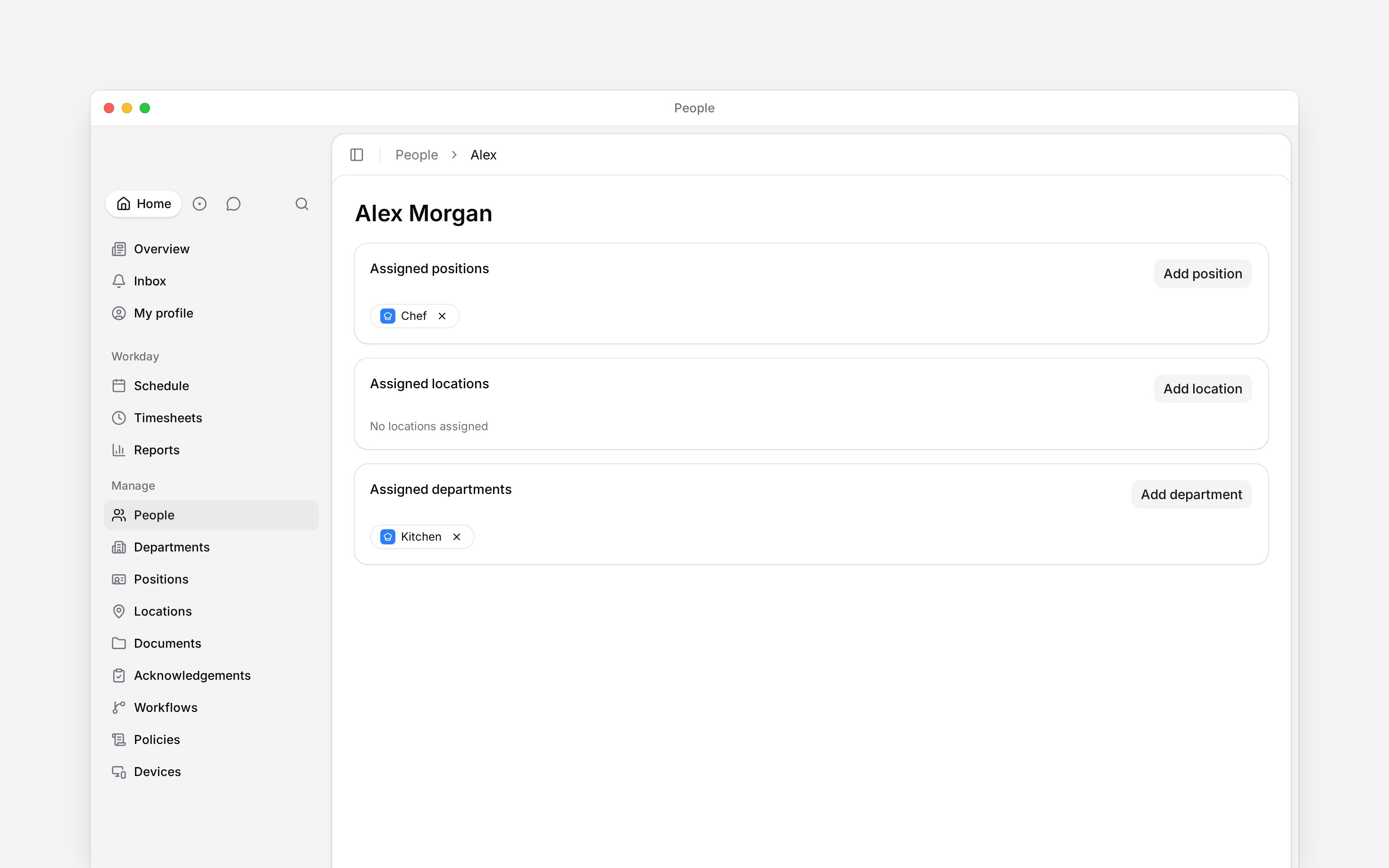
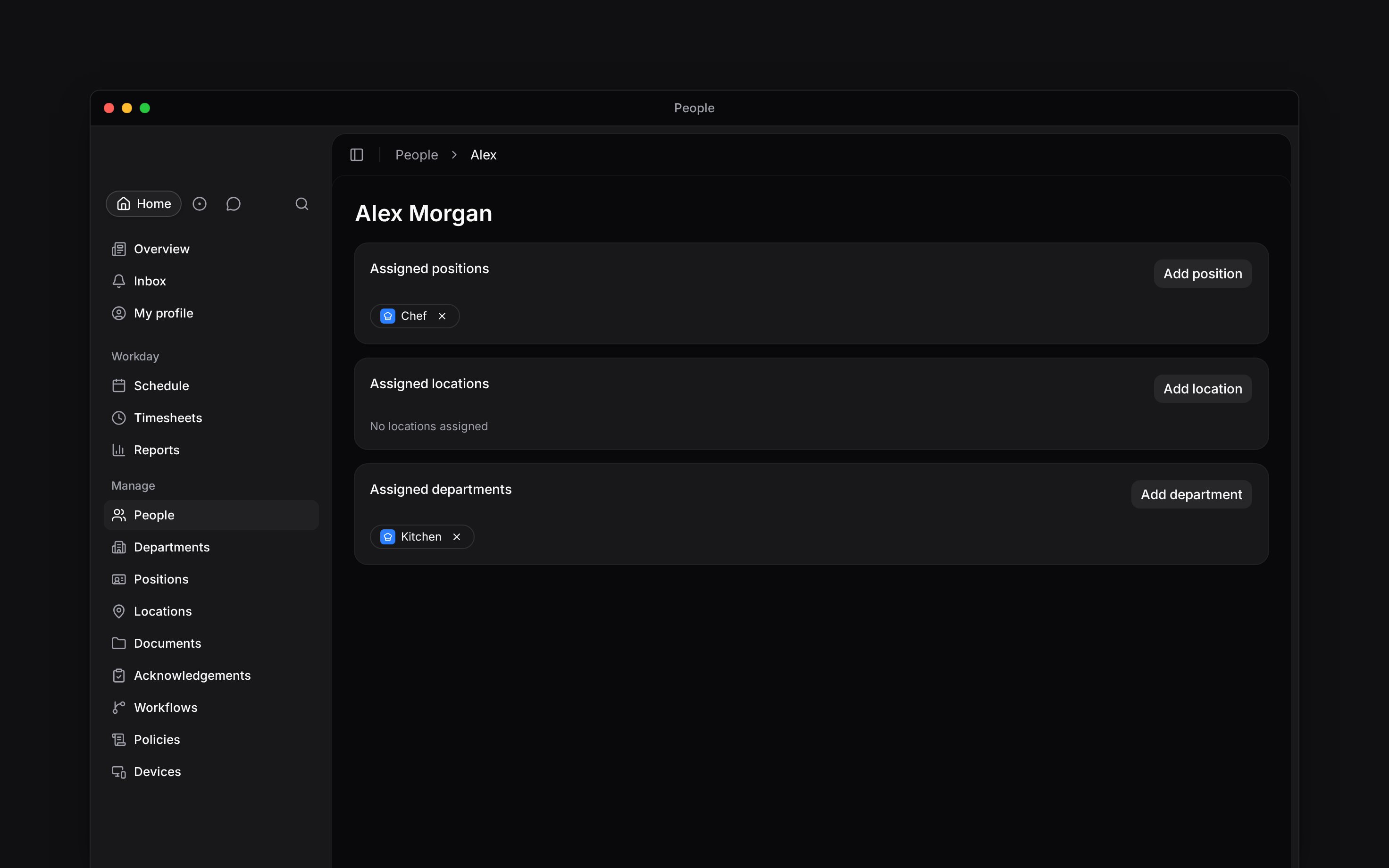
Go to **People**, select the person and open **Overview**.
Under **Assigned departments**, click the add button and select the department. It appears as a
chip and saves immediately.
Click the remove button on the department chip. The person stays in your workspace and keeps
their positions and other departments.
A department has two separate lists: its positions and its people. Linking a position does not assign the people who hold it. Keep both lists current so department filters select the work or people you expect.
## Link the positions
Open **Departments**, open the department's row menu and choose **Edit**. Under **Positions**, select the jobs that belong here or remove ones that no longer do. Click **Save changes**.
A position can belong to more than one department. Removing its link here does not delete the position or remove it from anyone's profile.
## Assign the people
Go to **People**, select the person and open **Overview**.
Under **Assigned departments**, click the add button and select the department. It appears as a
chip and saves immediately.
Click the remove button on the department chip. The person stays in your workspace and keeps
their positions and other departments.
 A person can belong to several departments. Policies and cover rules can target a department, so adding or removing a membership changes which rules apply to that person. If you cannot add or remove their departments, ask your administrator to check your access to edit that person.
If your role only sees people in your own departments, you cannot add a department your role does not already reach to yourself. An administrator does that, so nobody widens their own access by assigning themselves a department. Taking one of your own departments off, and adding a department your role already covers, both still work.
## Check who is included
Back in **Departments**, the people count comes from direct assignments. **See people** in the row menu opens **People** filtered to that department. The list still respects your role's access to people.
The schedule's **Department** filter selects the people assigned to it and keeps their shifts, including shifts in other positions. See [Filters and saved views](/for-managers/schedule/filters-and-saved-views) before publishing a filtered schedule.
* **Who can:** changing position links through the department editor requires department update permission. Adding or removing a person's department requires people update permission and access to that person. A role whose visibility follows its holder's own departments cannot add a department outside what that role already reaches to the holder. Removing one, and adding a department the role already covers, both still work.
* **Limits:** the people count excludes deleted people. A person in two departments contributes to both counts, so adding the counts does not give a unique workspace headcount.
* **Where:** **See people** is in the department row menu, which appears for readers who can update or delete departments.
* **Often confused with:** a reports filter over shifts or time entries, which uses linked positions rather than this people list.
## Next
Choose the right filter for people or their work.
Change details, reorder the list or remove a department.
## Still need help?
Email the Begin team and we'll get back to you.
Open the AI assistant and get instant answers based on these docs.
A person can belong to several departments. Policies and cover rules can target a department, so adding or removing a membership changes which rules apply to that person. If you cannot add or remove their departments, ask your administrator to check your access to edit that person.
If your role only sees people in your own departments, you cannot add a department your role does not already reach to yourself. An administrator does that, so nobody widens their own access by assigning themselves a department. Taking one of your own departments off, and adding a department your role already covers, both still work.
## Check who is included
Back in **Departments**, the people count comes from direct assignments. **See people** in the row menu opens **People** filtered to that department. The list still respects your role's access to people.
The schedule's **Department** filter selects the people assigned to it and keeps their shifts, including shifts in other positions. See [Filters and saved views](/for-managers/schedule/filters-and-saved-views) before publishing a filtered schedule.
* **Who can:** changing position links through the department editor requires department update permission. Adding or removing a person's department requires people update permission and access to that person. A role whose visibility follows its holder's own departments cannot add a department outside what that role already reaches to the holder. Removing one, and adding a department the role already covers, both still work.
* **Limits:** the people count excludes deleted people. A person in two departments contributes to both counts, so adding the counts does not give a unique workspace headcount.
* **Where:** **See people** is in the department row menu, which appears for readers who can update or delete departments.
* **Often confused with:** a reports filter over shifts or time entries, which uses linked positions rather than this people list.
## Next
Choose the right filter for people or their work.
Change details, reorder the list or remove a department.
## Still need help?
Email the Begin team and we'll get back to you.
Open the AI assistant and get instant answers based on these docs.