> ## Documentation Index
> Fetch the complete documentation index at: https://docs.begin.eu/llms.txt
> Use this file to discover all available pages before exploring further.
# Configuring terminal clocking
> Use a clocking policy to allow terminal punches and decide whether a PIN is accepted.

 Clocking policies decide which people may use a terminal and whether they may identify themselves with a PIN. The rule can apply to everyone or to selected people, positions, departments and locations.
**Devices** must be enabled for your workspace, and your role needs access. If it is missing from
the sidebar, ask an administrator to check your role or contact Begin support about availability.
Your role also needs access to **Policies**. If **Open clocking policies** is unavailable under
**Settings → Devices**, ask an administrator to open the policy for you.
## Allow the terminal method
With no clocking policy, everyone may use a terminal and type a PIN. Add a policy only to restrict who may, or to block PINs.
Go to **Settings → Devices** and choose **Open clocking policies**, or open **Policies →
Clocking**.
Open the policy that targets the people who will use the terminal, or add one.
Choose **Restrict**, then tick **Terminal** and every other surface these people may use.
**Don't restrict** leaves every method available unless another policy restricts it.
Choose **Allowed** when people may type their PIN, or **Blocked** when the terminal must accept
only face, fingerprint and card.
The rule applies to its selected people and groups. A policy targeted at a location uses the
location assigned to the terminal.
## Check the saved rule
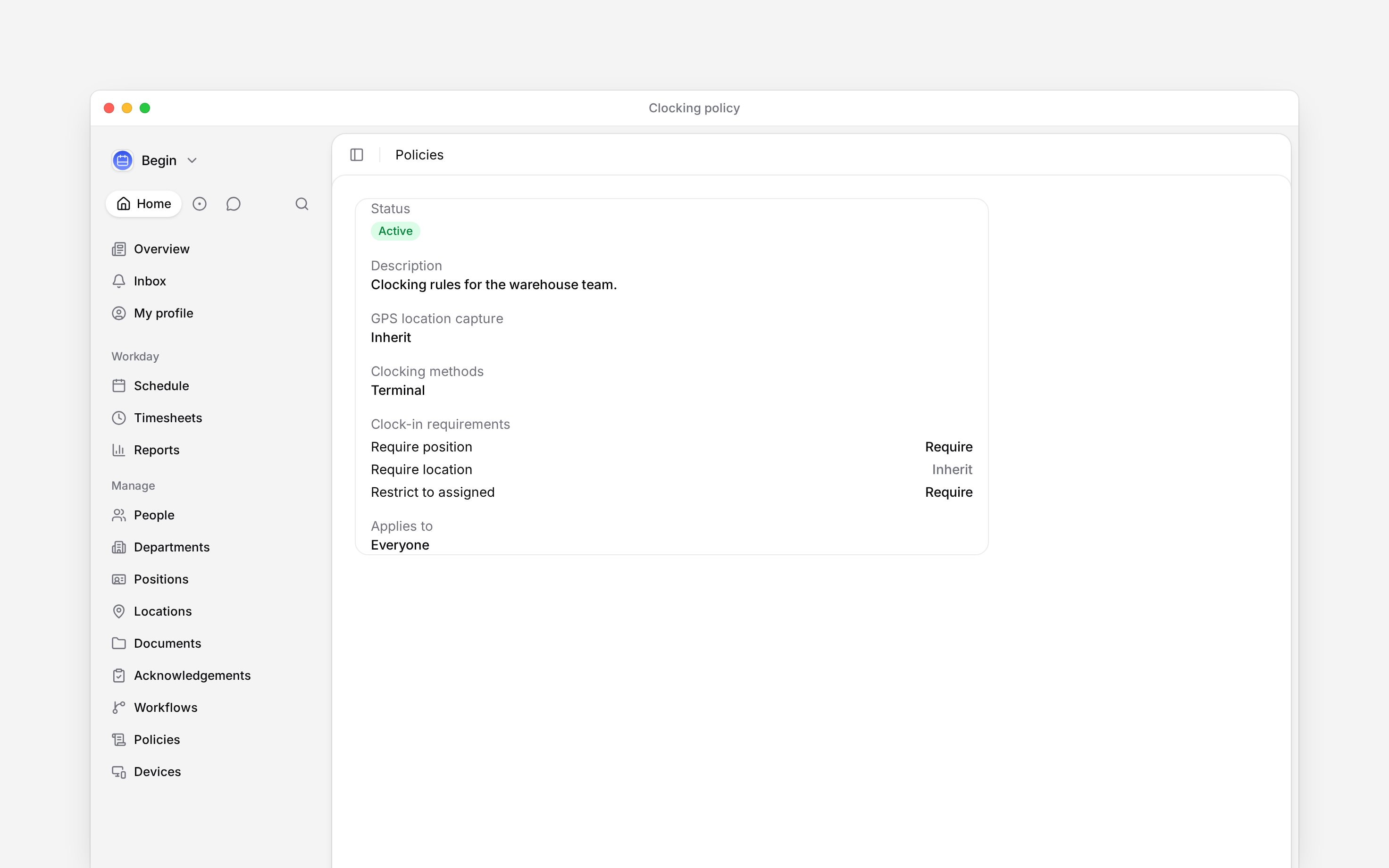
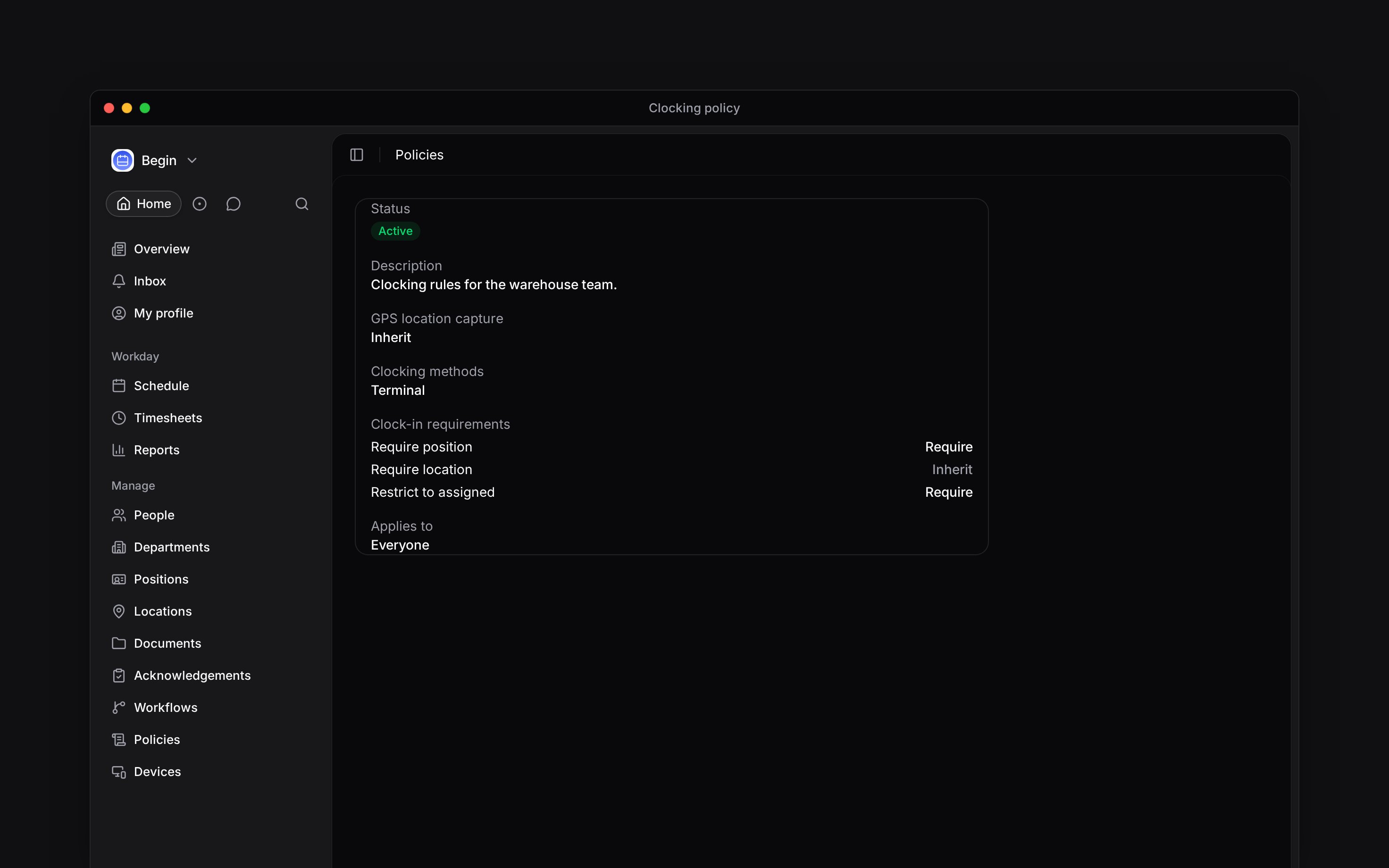
Reopen the policy and check that **Terminal** appears under **Clocking methods**. A PIN restriction appears beneath the method. If there is no PIN note, this policy does not add a restriction.
Terminals enforce the terminal method and PIN rule. Required position/location selections and GPS checks shown elsewhere in the policy apply to app and web clocking, not terminal punches.
Clocking policies decide which people may use a terminal and whether they may identify themselves with a PIN. The rule can apply to everyone or to selected people, positions, departments and locations.
**Devices** must be enabled for your workspace, and your role needs access. If it is missing from
the sidebar, ask an administrator to check your role or contact Begin support about availability.
Your role also needs access to **Policies**. If **Open clocking policies** is unavailable under
**Settings → Devices**, ask an administrator to open the policy for you.
## Allow the terminal method
With no clocking policy, everyone may use a terminal and type a PIN. Add a policy only to restrict who may, or to block PINs.
Go to **Settings → Devices** and choose **Open clocking policies**, or open **Policies →
Clocking**.
Open the policy that targets the people who will use the terminal, or add one.
Choose **Restrict**, then tick **Terminal** and every other surface these people may use.
**Don't restrict** leaves every method available unless another policy restricts it.
Choose **Allowed** when people may type their PIN, or **Blocked** when the terminal must accept
only face, fingerprint and card.
The rule applies to its selected people and groups. A policy targeted at a location uses the
location assigned to the terminal.
## Check the saved rule
Reopen the policy and check that **Terminal** appears under **Clocking methods**. A PIN restriction appears beneath the method. If there is no PIN note, this policy does not add a restriction.
Terminals enforce the terminal method and PIN rule. Required position/location selections and GPS checks shown elsewhere in the policy apply to app and web clocking, not terminal punches.
 The policy only allows or blocks PIN entry. Find or replace the person's PIN under **People → person → Identifiers**.
**Context for an assistant answering questions about terminal clocking rules.** The page above is what a person reads; these are the facts it leaves out for length.
* **Who can:** opening **Devices** needs **Devices and identifiers**; opening clocking policies needs **Policies** access. Creating or changing a policy needs the policy write permissions carried by the role.
* **Where:** the old **Settings → Devices** clocking row is a signpost to `/policies/clocking`; no PIN switch remains on the device page.
* **Limits:** the terminal method controls clock in, clock out and both break edges. Blocking PIN does not block face, fingerprint or card. Terminal punches bypass selection and clock-back restrictions.
* **Often confused with:** phone location capture. A terminal punch uses the terminal's registered location to resolve location-targeted policies; it does not use the phone geofence.
## Next
Find someone's PIN or link the face, fingerprint or card that proves who is clocking.
Choose who can clock in by terminal and which checks apply.
## Still need help?
Email the Begin team and we'll get back to you.
Open the AI assistant and get instant answers based on these docs.
The policy only allows or blocks PIN entry. Find or replace the person's PIN under **People → person → Identifiers**.
**Context for an assistant answering questions about terminal clocking rules.** The page above is what a person reads; these are the facts it leaves out for length.
* **Who can:** opening **Devices** needs **Devices and identifiers**; opening clocking policies needs **Policies** access. Creating or changing a policy needs the policy write permissions carried by the role.
* **Where:** the old **Settings → Devices** clocking row is a signpost to `/policies/clocking`; no PIN switch remains on the device page.
* **Limits:** the terminal method controls clock in, clock out and both break edges. Blocking PIN does not block face, fingerprint or card. Terminal punches bypass selection and clock-back restrictions.
* **Often confused with:** phone location capture. A terminal punch uses the terminal's registered location to resolve location-targeted policies; it does not use the phone geofence.
## Next
Find someone's PIN or link the face, fingerprint or card that proves who is clocking.
Choose who can clock in by terminal and which checks apply.
## Still need help?
Email the Begin team and we'll get back to you.
Open the AI assistant and get instant answers based on these docs.