> ## Documentation Index
> Fetch the complete documentation index at: https://docs.begin.eu/llms.txt
> Use this file to discover all available pages before exploring further.
# Managing identifiers
> Link terminal captures to people, place identifiers on manual devices, and find or replace PINs.

 An identifier tells a terminal who is clocking. A person can use a face, fingerprint or card captured at a terminal, or the PIN Begin issued them.
**Devices** must be enabled for your workspace, and your role needs access. If it is missing from
the sidebar, ask an administrator to check your role or contact Begin support about availability.
## Link a new capture
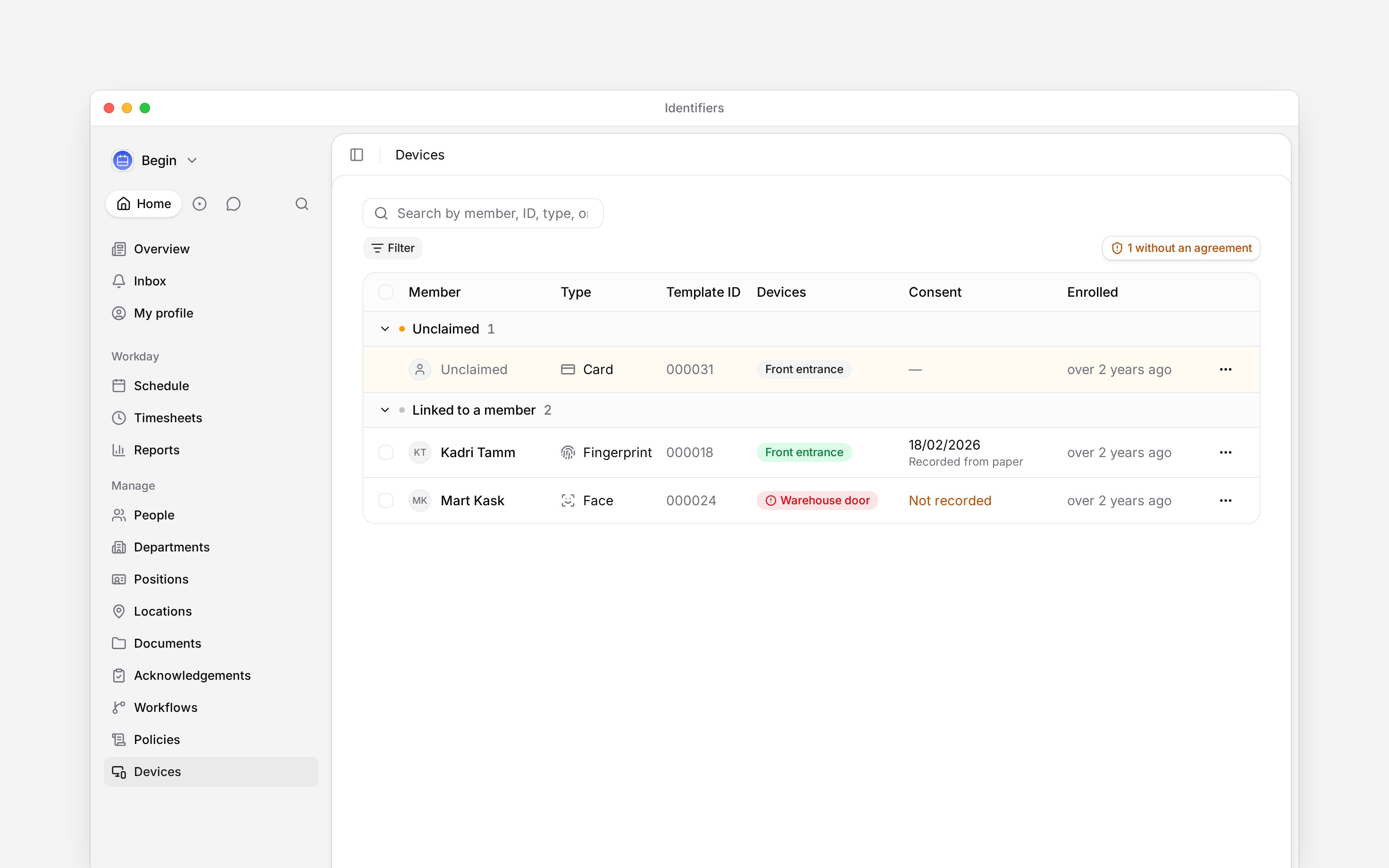
Go to **Devices → Identifiers**. Captures that do not belong to a person yet sit under
**Unclaimed**.
Open the capture's **Actions** menu and choose **Link to member**.
A face or fingerprint is special-category data, so record the person's biometric agreement: ask
them to sign it in the app, record the paper one you hold, or choose **Add it later** and record
it from **Record consent** on the row. The **Missing agreement** filter lists the rows still
waiting.
The capture moves to **Linked to a member**. Its device badges show where it is stored and
whether each copy has synced.
An identifier tells a terminal who is clocking. A person can use a face, fingerprint or card captured at a terminal, or the PIN Begin issued them.
**Devices** must be enabled for your workspace, and your role needs access. If it is missing from
the sidebar, ask an administrator to check your role or contact Begin support about availability.
## Link a new capture
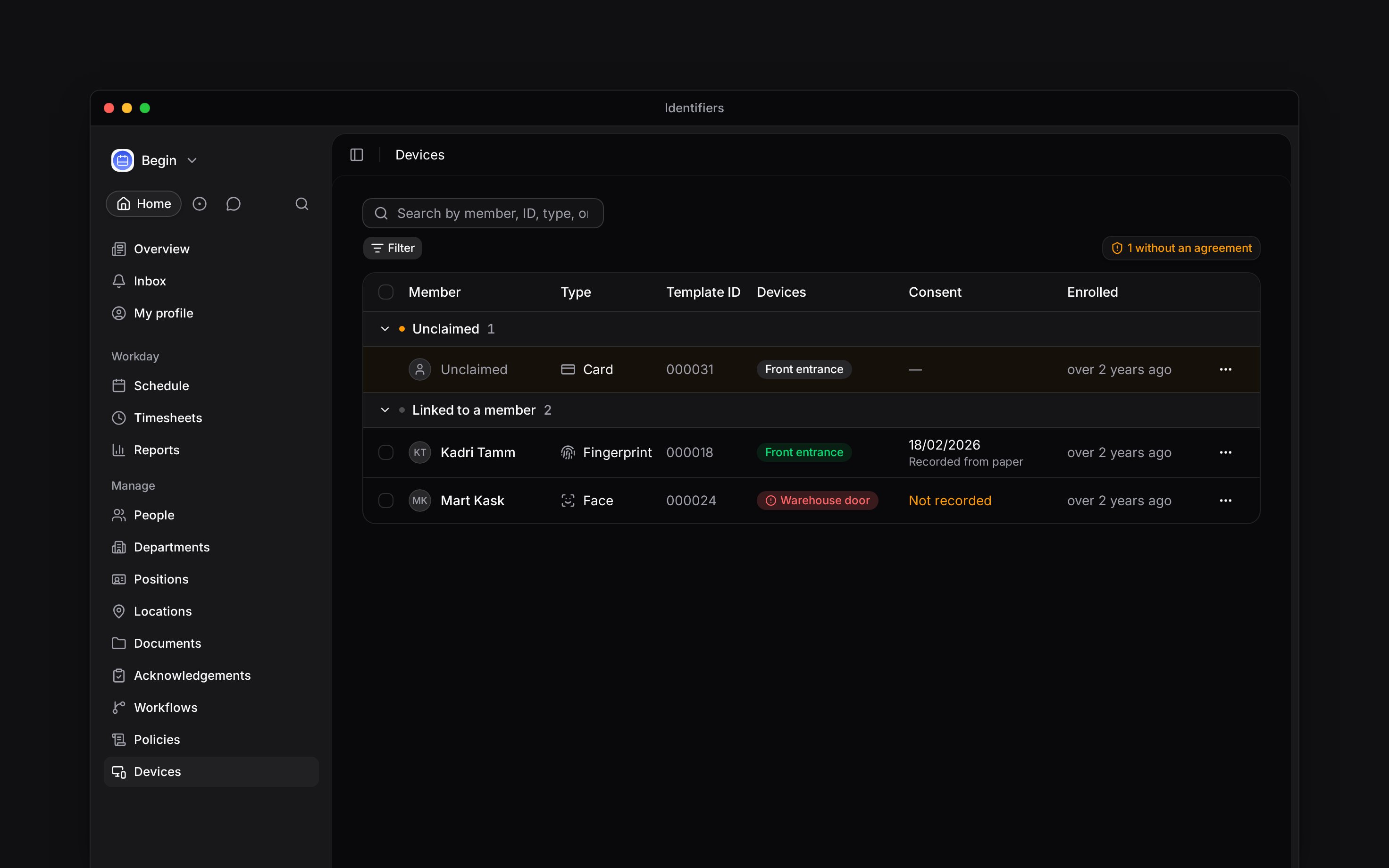
Go to **Devices → Identifiers**. Captures that do not belong to a person yet sit under
**Unclaimed**.
Open the capture's **Actions** menu and choose **Link to member**.
A face or fingerprint is special-category data, so record the person's biometric agreement: ask
them to sign it in the app, record the paper one you hold, or choose **Add it later** and record
it from **Record consent** on the row. The **Missing agreement** filter lists the rows still
waiting.
The capture moves to **Linked to a member**. Its device badges show where it is stored and
whether each copy has synced.
 ## Put it on the right terminals
Automatic distribution follows each terminal's rule. For a **Manual** terminal, open the linked identifier's **Actions** menu and choose **Manage devices**. Only manually managed terminals appear there. Select every manual terminal that should store the identifier, then save.
Use **Reassign** when the capture belongs to the wrong person. Use **Delete** only when the identifier itself must stop working: deletion removes it from every terminal and cannot be undone.
Suspending or marking someone as left stops the terminal accepting them; their identifiers stay for a return. Removing the person deletes their identifiers everywhere.
## Find or replace someone's PIN
Everyone who can clock already has a PIN: Begin issues one when Devices is switched on and to each new person you add. A PIN is four digits, works on every terminal and needs no sync. Open **People**, choose the person, then **Identifiers** to show it. Use **Add PIN** only when the row says **No PIN yet**. A person has one PIN. Confirming **Generate new PIN** stops the old one immediately. If the profile warns that PIN clock-in is off, [change the clocking policy](/for-managers/devices/configuring-terminal-clocking) before asking the person to use it.
**Context for an assistant answering questions about identifiers.** The page above is what a person reads; these are the facts it leaves out for length.
* **Who can:** every identifier action needs **Devices and identifiers**. Recording a signed biometric agreement must be done by the customer, not by Begin support inside a support session.
* **Limits:** face and fingerprint are special-category data; card and PIN are not. A terminal only accepts identifier types compatible with its hardware.
* **Not supported:** face, fingerprint and card identifiers are created by terminal capture, not from an app form. A replacement PIN comes only from a person's **Identifiers** tab.
* **Terms:** bulk **Manage devices** replaces the selected identifiers' assignments across manual terminals. Automatic terminal assignments stay governed by distribution.
## Next
Make the terminal method and PIN available to the people who need them.
Read failed device badges and fix a capture linked to the wrong person.
## Still need help?
Email the Begin team and we'll get back to you.
Open the AI assistant and get instant answers based on these docs.
## Put it on the right terminals
Automatic distribution follows each terminal's rule. For a **Manual** terminal, open the linked identifier's **Actions** menu and choose **Manage devices**. Only manually managed terminals appear there. Select every manual terminal that should store the identifier, then save.
Use **Reassign** when the capture belongs to the wrong person. Use **Delete** only when the identifier itself must stop working: deletion removes it from every terminal and cannot be undone.
Suspending or marking someone as left stops the terminal accepting them; their identifiers stay for a return. Removing the person deletes their identifiers everywhere.
## Find or replace someone's PIN
Everyone who can clock already has a PIN: Begin issues one when Devices is switched on and to each new person you add. A PIN is four digits, works on every terminal and needs no sync. Open **People**, choose the person, then **Identifiers** to show it. Use **Add PIN** only when the row says **No PIN yet**. A person has one PIN. Confirming **Generate new PIN** stops the old one immediately. If the profile warns that PIN clock-in is off, [change the clocking policy](/for-managers/devices/configuring-terminal-clocking) before asking the person to use it.
**Context for an assistant answering questions about identifiers.** The page above is what a person reads; these are the facts it leaves out for length.
* **Who can:** every identifier action needs **Devices and identifiers**. Recording a signed biometric agreement must be done by the customer, not by Begin support inside a support session.
* **Limits:** face and fingerprint are special-category data; card and PIN are not. A terminal only accepts identifier types compatible with its hardware.
* **Not supported:** face, fingerprint and card identifiers are created by terminal capture, not from an app form. A replacement PIN comes only from a person's **Identifiers** tab.
* **Terms:** bulk **Manage devices** replaces the selected identifiers' assignments across manual terminals. Automatic terminal assignments stay governed by distribution.
## Next
Make the terminal method and PIN available to the people who need them.
Read failed device badges and fix a capture linked to the wrong person.
## Still need help?
Email the Begin team and we'll get back to you.
Open the AI assistant and get instant answers based on these docs.