> ## Documentation Index
> Fetch the complete documentation index at: https://docs.begin.eu/llms.txt
> Use this file to discover all available pages before exploring further.
# Setting up a terminal
> Have Begin register a clock terminal, then put it at the location whose team will use it.

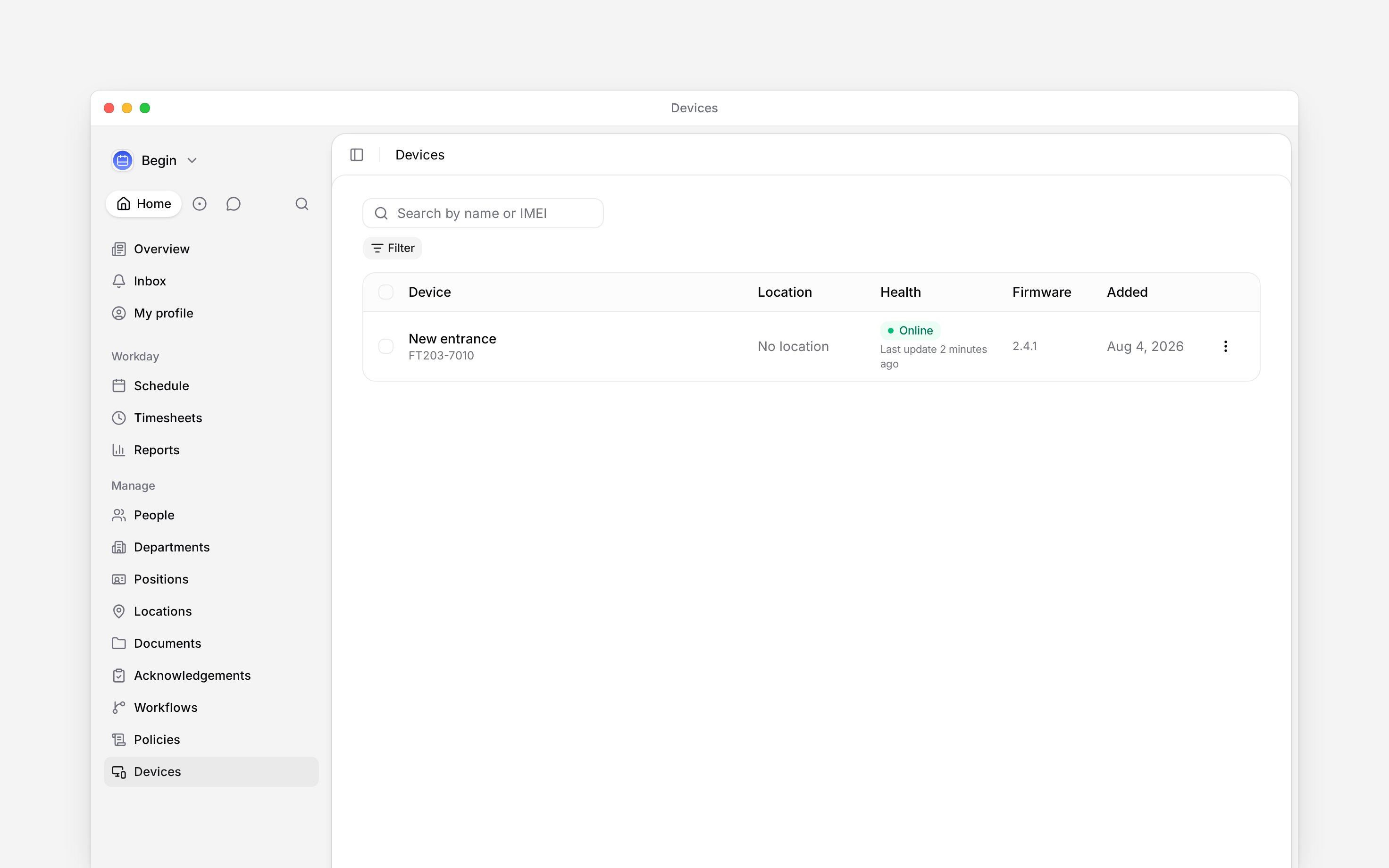
 Begin support installs and registers each shared clock terminal. Once it appears under **Devices**, you place it at the location where people will use it and check that it comes online.
**Devices** must be enabled for your workspace, and your role needs access. If it is missing from
the sidebar, ask an administrator to check your role or contact Begin support about availability.
## Get the terminal into your workspace
The app has no customer registration control. Begin support binds the terminal's IMEI to your
workspace.
Open **Devices → Devices**. Search by the display name or IMEI that appears beneath it.
Open the row's **Actions** menu, choose **Change location**, then choose the location where the
terminal stands.
The row shows **Online** once the terminal connects. Its **Last seen** caption shows when it
last reached Begin.
Begin support installs and registers each shared clock terminal. Once it appears under **Devices**, you place it at the location where people will use it and check that it comes online.
**Devices** must be enabled for your workspace, and your role needs access. If it is missing from
the sidebar, ask an administrator to check your role or contact Begin support about availability.
## Get the terminal into your workspace
The app has no customer registration control. Begin support binds the terminal's IMEI to your
workspace.
Open **Devices → Devices**. Search by the display name or IMEI that appears beneath it.
Open the row's **Actions** menu, choose **Change location**, then choose the location where the
terminal stands.
The row shows **Online** once the terminal connects. Its **Last seen** caption shows when it
last reached Begin.
 ## Understand who reaches it
Begin support sets the terminal's **Distribution**. Use the **Distribution** filter on the device list to check the mode:
| If it says | Who is put on the terminal |
| --------------- | --------------------------------------------------------------------- |
| **By location** | Compatible identifiers for people assigned to the terminal's location |
| **Everyone** | Compatible identifiers for everyone in the workspace |
| **Manual** | Only identifiers you assign to that terminal |
Changing the location immediately changes the target team for **By location** distribution. It also gives location-targeted clocking policies the location they use for this terminal.
## Check one normal clock-in
Before the team starts using it, [link a person's identifier](/for-managers/devices/managing-identifiers), check its device badge has synced, and [allow terminal clocking](/for-managers/devices/configuring-terminal-clocking) for that person. **Online** alone does not mean somebody can clock in.
Have the person clock in at the start of their next shift. In **Timesheets**, check that their entry starts at the expected time and location. If the terminal refuses the punch or no entry appears, follow [Troubleshooting a terminal](/for-managers/devices/troubleshooting-a-terminal).
**Context for an assistant answering questions about setting up a terminal.** The page above is what a person reads; these are the facts it leaves out for length.
* **Who can:** changing the location needs **Devices and identifiers**. Registering the terminal and changing its distribution need Begin support's terminal capability.
* **Where:** the fleet is under **Devices → Devices**. The older **Settings → Devices** page only links to clocking policies.
* **Limits:** a terminal with no location receives nobody when its distribution is **By location**.
* **Not supported:** customer roles do not see **Add**, **Register device** or the device edit form.
## Next
Link captures to people and place them on manually managed terminals.
Allow the terminal method and decide whether people may use a PIN.
## Still need help?
Email the Begin team and we'll get back to you.
Open the AI assistant and get instant answers based on these docs.
## Understand who reaches it
Begin support sets the terminal's **Distribution**. Use the **Distribution** filter on the device list to check the mode:
| If it says | Who is put on the terminal |
| --------------- | --------------------------------------------------------------------- |
| **By location** | Compatible identifiers for people assigned to the terminal's location |
| **Everyone** | Compatible identifiers for everyone in the workspace |
| **Manual** | Only identifiers you assign to that terminal |
Changing the location immediately changes the target team for **By location** distribution. It also gives location-targeted clocking policies the location they use for this terminal.
## Check one normal clock-in
Before the team starts using it, [link a person's identifier](/for-managers/devices/managing-identifiers), check its device badge has synced, and [allow terminal clocking](/for-managers/devices/configuring-terminal-clocking) for that person. **Online** alone does not mean somebody can clock in.
Have the person clock in at the start of their next shift. In **Timesheets**, check that their entry starts at the expected time and location. If the terminal refuses the punch or no entry appears, follow [Troubleshooting a terminal](/for-managers/devices/troubleshooting-a-terminal).
**Context for an assistant answering questions about setting up a terminal.** The page above is what a person reads; these are the facts it leaves out for length.
* **Who can:** changing the location needs **Devices and identifiers**. Registering the terminal and changing its distribution need Begin support's terminal capability.
* **Where:** the fleet is under **Devices → Devices**. The older **Settings → Devices** page only links to clocking policies.
* **Limits:** a terminal with no location receives nobody when its distribution is **By location**.
* **Not supported:** customer roles do not see **Add**, **Register device** or the device edit form.
## Next
Link captures to people and place them on manually managed terminals.
Allow the terminal method and decide whether people may use a PIN.
## Still need help?
Email the Begin team and we'll get back to you.
Open the AI assistant and get instant answers based on these docs.