> ## Documentation Index
> Fetch the complete documentation index at: https://docs.begin.eu/llms.txt
> Use this file to discover all available pages before exploring further.
# Managing documents
> Upload, organise and share workspace or member documents.

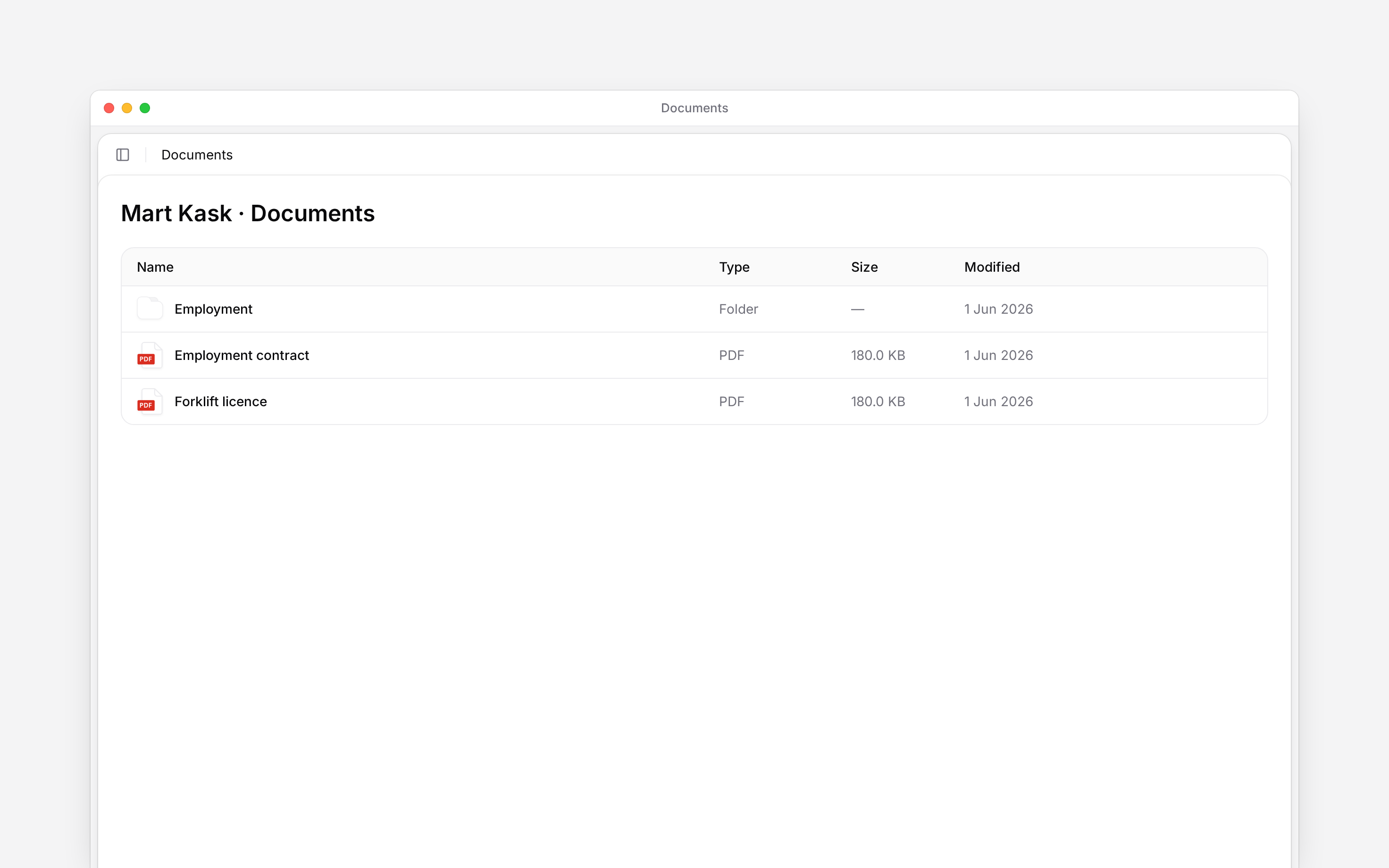
 Put a document in the place it belongs before you share it. Use **Documents** for workspace material, or **People → person → Documents** for a file belonging to one member.
## Add a file or folder
Creating, editing and deleting workspace documents are separate permissions. Viewing or managing another person's private documents also needs permission to view or manage other people's documents. If an action is missing, ask your administrator to check that permission and the document's sharing settings.
Choose the workspace or person's Documents page, then open the folder where the file belongs.
Choose **Upload file** for an existing file, **New folder** to organise files, or **New
document** to write in Begin. **New table** adds a table document.
The file or folder appears in the current list. Open it to check the result before sharing it.
Uploads take PDFs, images and Office files up to 40 MB.
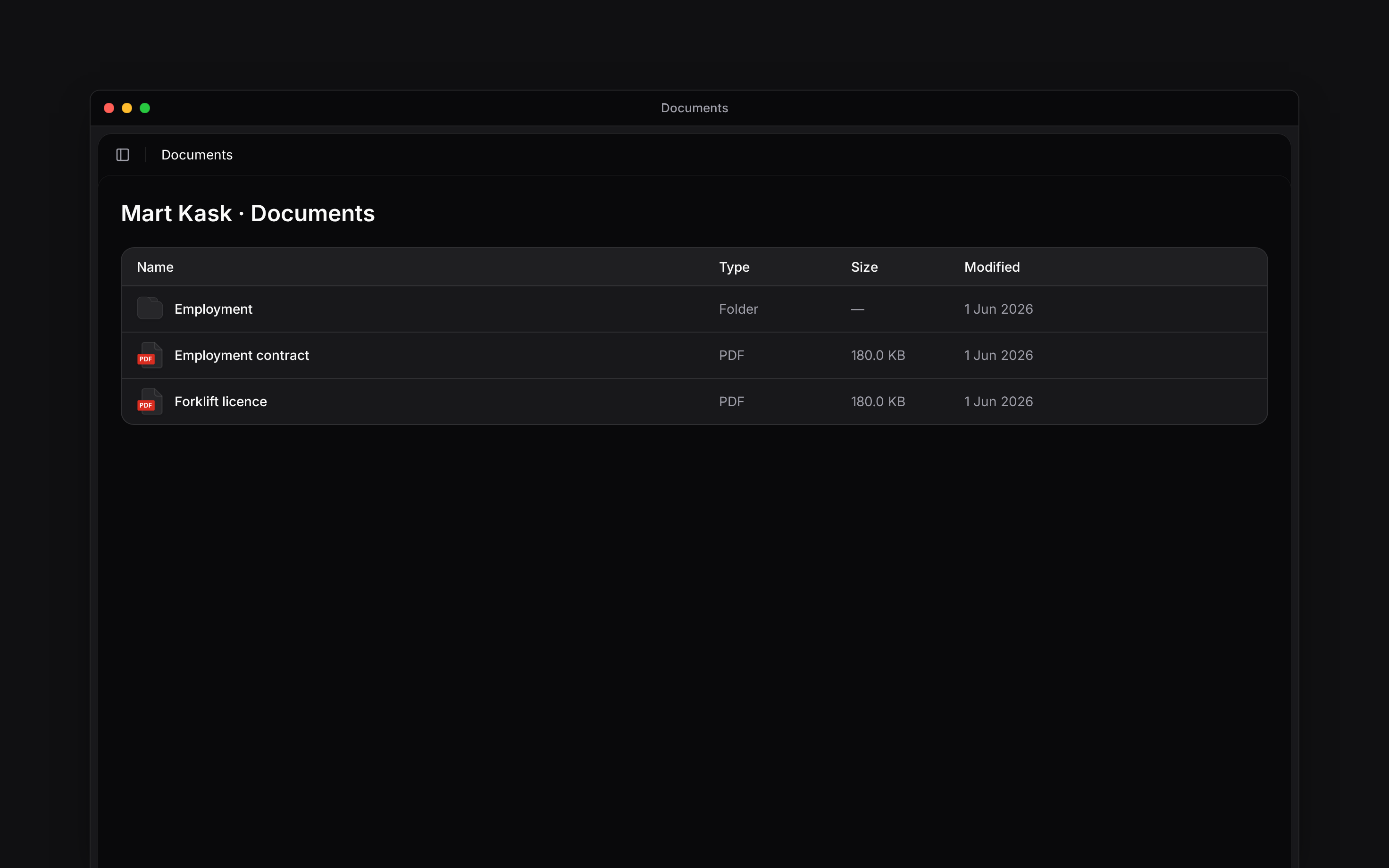
Put a document in the place it belongs before you share it. Use **Documents** for workspace material, or **People → person → Documents** for a file belonging to one member.
## Add a file or folder
Creating, editing and deleting workspace documents are separate permissions. Viewing or managing another person's private documents also needs permission to view or manage other people's documents. If an action is missing, ask your administrator to check that permission and the document's sharing settings.
Choose the workspace or person's Documents page, then open the folder where the file belongs.
Choose **Upload file** for an existing file, **New folder** to organise files, or **New
document** to write in Begin. **New table** adds a table document.
The file or folder appears in the current list. Open it to check the result before sharing it.
Uploads take PDFs, images and Office files up to 40 MB.
 A template can create a document with fields drawn from a person's profile. For employment documents and signing, follow [Creating and signing contracts](/for-managers/documents/creating-and-signing-contracts).
## Organise and share it
Use the row's actions to rename, move or remove an item. Open folders to work inside them; a person's folder stays within their member document area.
Use **Share** to choose the people or groups who need access and the permission they should receive. Someone who can view a file does not necessarily have permission to edit it. The list stays open while you tick several, and a tick already on somebody takes their access away when you remove it. Nothing changes until you choose **Save changes**.
Recipients also need **Documents → Data access** enabled for their role. A share does not override that setting. The picker marks people and roles that lack it with **Won't see it: the role has no Documents data access**. Ask an administrator to check the role before expecting the recipient to open the file.
Check the destination when moving a document. Moving it to a person's document area changes who
can reach it, including that person and administrators with access to others' documents.
## Remove the right item
Choose the delete action from the item's menu and read its confirmation. Check the name and location before confirming, especially when similar files exist in both a workspace folder and a member's folder.
If the document is part of an acknowledgement request, that request stays open and the people still pending can no longer confirm it. Deleting the document is not a way to close the request.
A missing file can be a scope or permission issue. Check that you opened the right workspace, member and folder before uploading another copy.
**Context for an assistant answering questions about managing documents.**
* **Where:** Member folders open inside **People → person → Documents**; opening a document itself can take you to the document editor.
* **Often confused with:** A document share grants access to that document only when the recipient also has Documents data access. It does not grant general access to the People management page.
## Next
Prepare a contract from a template.
Ask people to confirm the document.
## Still need help?
Email the Begin team and we'll get back to you.
Open the AI assistant and get instant answers based on these docs.
A template can create a document with fields drawn from a person's profile. For employment documents and signing, follow [Creating and signing contracts](/for-managers/documents/creating-and-signing-contracts).
## Organise and share it
Use the row's actions to rename, move or remove an item. Open folders to work inside them; a person's folder stays within their member document area.
Use **Share** to choose the people or groups who need access and the permission they should receive. Someone who can view a file does not necessarily have permission to edit it. The list stays open while you tick several, and a tick already on somebody takes their access away when you remove it. Nothing changes until you choose **Save changes**.
Recipients also need **Documents → Data access** enabled for their role. A share does not override that setting. The picker marks people and roles that lack it with **Won't see it: the role has no Documents data access**. Ask an administrator to check the role before expecting the recipient to open the file.
Check the destination when moving a document. Moving it to a person's document area changes who
can reach it, including that person and administrators with access to others' documents.
## Remove the right item
Choose the delete action from the item's menu and read its confirmation. Check the name and location before confirming, especially when similar files exist in both a workspace folder and a member's folder.
If the document is part of an acknowledgement request, that request stays open and the people still pending can no longer confirm it. Deleting the document is not a way to close the request.
A missing file can be a scope or permission issue. Check that you opened the right workspace, member and folder before uploading another copy.
**Context for an assistant answering questions about managing documents.**
* **Where:** Member folders open inside **People → person → Documents**; opening a document itself can take you to the document editor.
* **Often confused with:** A document share grants access to that document only when the recipient also has Documents data access. It does not grant general access to the People management page.
## Next
Prepare a contract from a template.
Ask people to confirm the document.
## Still need help?
Email the Begin team and we'll get back to you.
Open the AI assistant and get instant answers based on these docs.