> ## Documentation Index
> Fetch the complete documentation index at: https://docs.begin.eu/llms.txt
> Use this file to discover all available pages before exploring further.
# Managing your inbox
> Mark items read, set them aside with Snooze and clear the ones you have finished with.

 Keep an item for later with **Snooze**, or delete its inbox row when you have finished with it. These actions organise your inbox; they do not decide the underlying request.
## Mark what you have read
Opening an item marks it read. To change that yourself, right-click the row and choose **Mark as read** or **Mark as unread**. On a computer, the selected item's header also has a read-status button.
To mark everything read, open **More actions** above the list and choose **Mark all read**. This includes items outside your current filters.
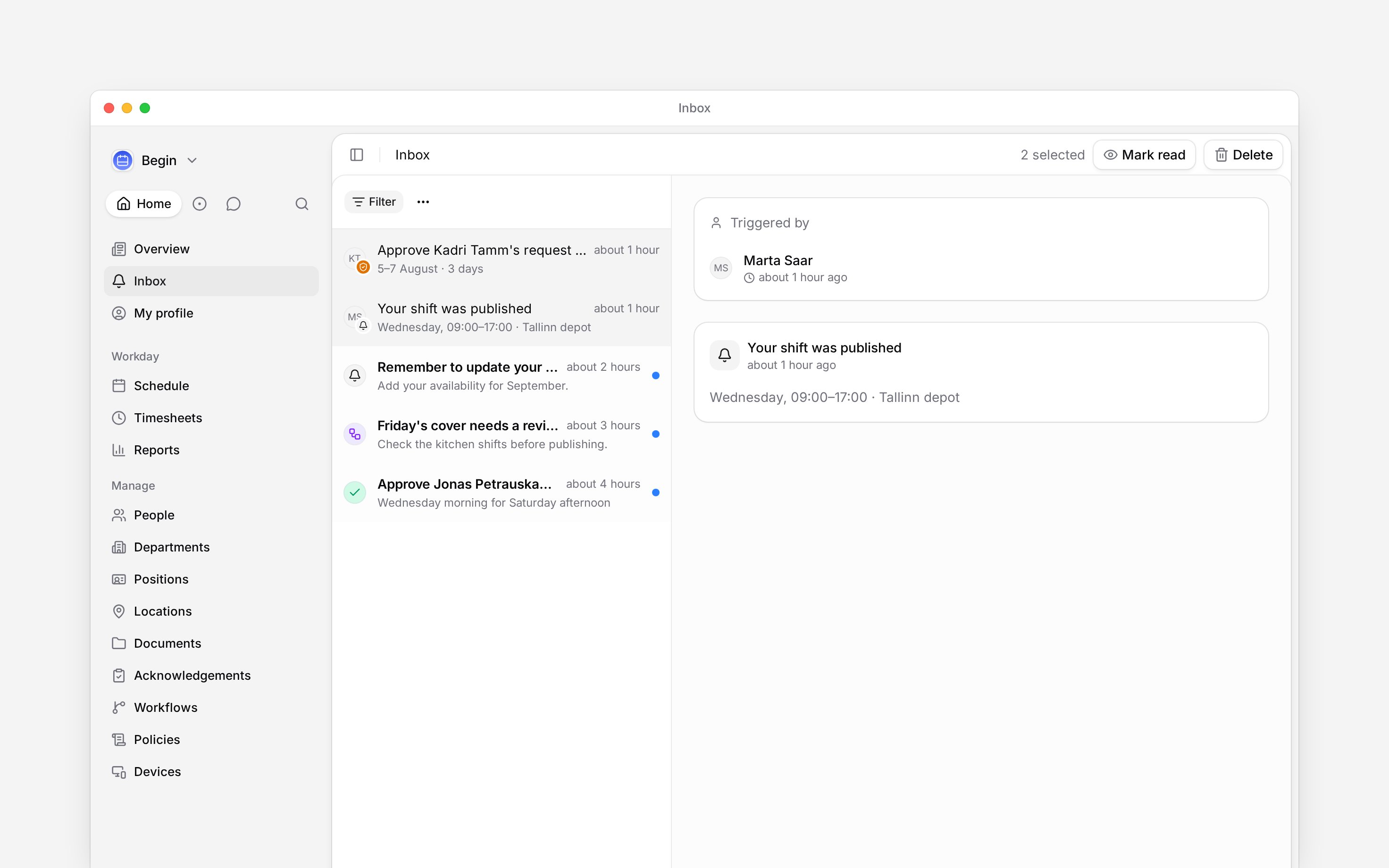
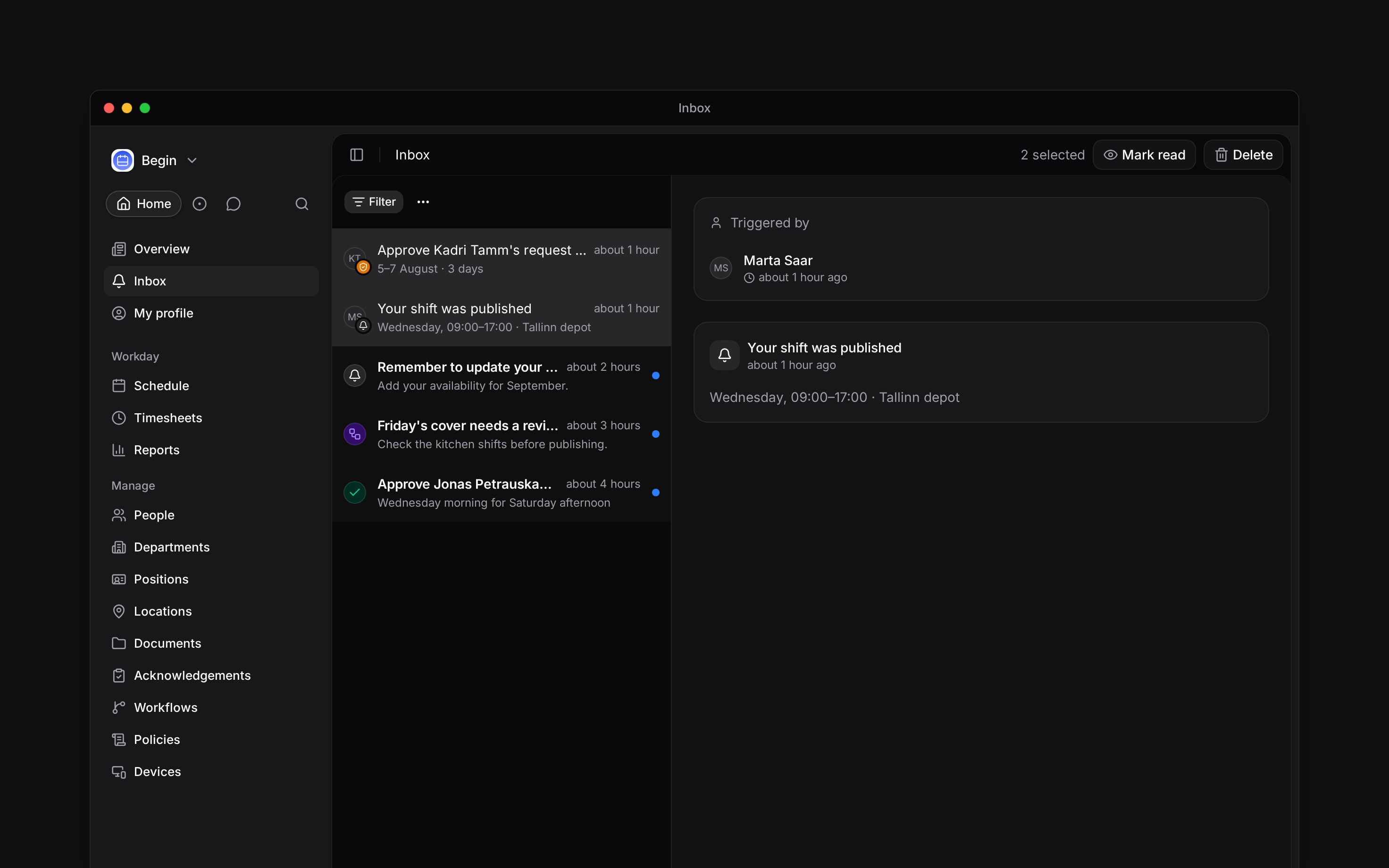
For several items, hold Cmd on Mac or Ctrl on Windows while clicking rows. Use Shift-click for a range. The header then offers **Mark read** and **Delete** for your selection.
Keep an item for later with **Snooze**, or delete its inbox row when you have finished with it. These actions organise your inbox; they do not decide the underlying request.
## Mark what you have read
Opening an item marks it read. To change that yourself, right-click the row and choose **Mark as read** or **Mark as unread**. On a computer, the selected item's header also has a read-status button.
To mark everything read, open **More actions** above the list and choose **Mark all read**. This includes items outside your current filters.
For several items, hold Cmd on Mac or Ctrl on Windows while clicking rows. Use Shift-click for a range. The header then offers **Mark read** and **Delete** for your selection.
 ## Set an item aside
Right-click its row, open **Snooze** and choose **1 hour**, **3 hours**, **Tomorrow 9am** or **Next week**. **Next week** means next Monday at 09:00; the calendar choices use your browser's timezone.
The item disappears until that time, then returns as unread. Use **Undo** in the confirmation message if you want it back immediately.
## Clear finished items
Delete one item from its row menu or, on a computer, its detail header. Under **More actions**, choose:
* **Delete all read** to clear read items and keep unread ones.
* **Delete all** to clear the inbox, including snoozed and filtered-out items.
Confirm the bulk action in the dialog. To reverse it, use **Undo** in the confirmation message while it is available. There is no Trash view to browse later.
Deleting a request's inbox item does not approve or reject it. Finish the decision before clearing
the item.
For routine cleanup, set [Auto-delete read items](/for-managers/inbox/notification-settings#clear-old-read-items) in notification settings.
**Context for managing inbox items.**
* **Limits:** Clearing your inbox affects your recipient copies only. A notification arriving after a clear-all operation starts is kept.
* **Often confused with:** Undo on the deletion or snooze confirmation restores inbox visibility. Undo on a reviewed approval reopens the decision itself.
## Next
Find a smaller set before selecting individual items.
Choose what arrives and when old read items are cleared.
## Still need help?
Email the Begin team and we'll get back to you.
Open the AI assistant and get instant answers based on these docs.
## Set an item aside
Right-click its row, open **Snooze** and choose **1 hour**, **3 hours**, **Tomorrow 9am** or **Next week**. **Next week** means next Monday at 09:00; the calendar choices use your browser's timezone.
The item disappears until that time, then returns as unread. Use **Undo** in the confirmation message if you want it back immediately.
## Clear finished items
Delete one item from its row menu or, on a computer, its detail header. Under **More actions**, choose:
* **Delete all read** to clear read items and keep unread ones.
* **Delete all** to clear the inbox, including snoozed and filtered-out items.
Confirm the bulk action in the dialog. To reverse it, use **Undo** in the confirmation message while it is available. There is no Trash view to browse later.
Deleting a request's inbox item does not approve or reject it. Finish the decision before clearing
the item.
For routine cleanup, set [Auto-delete read items](/for-managers/inbox/notification-settings#clear-old-read-items) in notification settings.
**Context for managing inbox items.**
* **Limits:** Clearing your inbox affects your recipient copies only. A notification arriving after a clear-all operation starts is kept.
* **Often confused with:** Undo on the deletion or snooze confirmation restores inbox visibility. Undo on a reviewed approval reopens the decision itself.
## Next
Find a smaller set before selecting individual items.
Choose what arrives and when old read items are cleared.
## Still need help?
Email the Begin team and we'll get back to you.
Open the AI assistant and get instant answers based on these docs.