> ## Documentation Index
> Fetch the complete documentation index at: https://docs.begin.eu/llms.txt
> Use this file to discover all available pages before exploring further.
# Connecting your calendar
> Keep your own shifts and time off in Google Calendar or a calendar subscription.

 Show your own published shifts and approved time off in another calendar. Open **Settings → Calendars** in Begin. The connection belongs to you in the active workspace; it does not export the whole team’s schedule.
## Connect Google Calendar
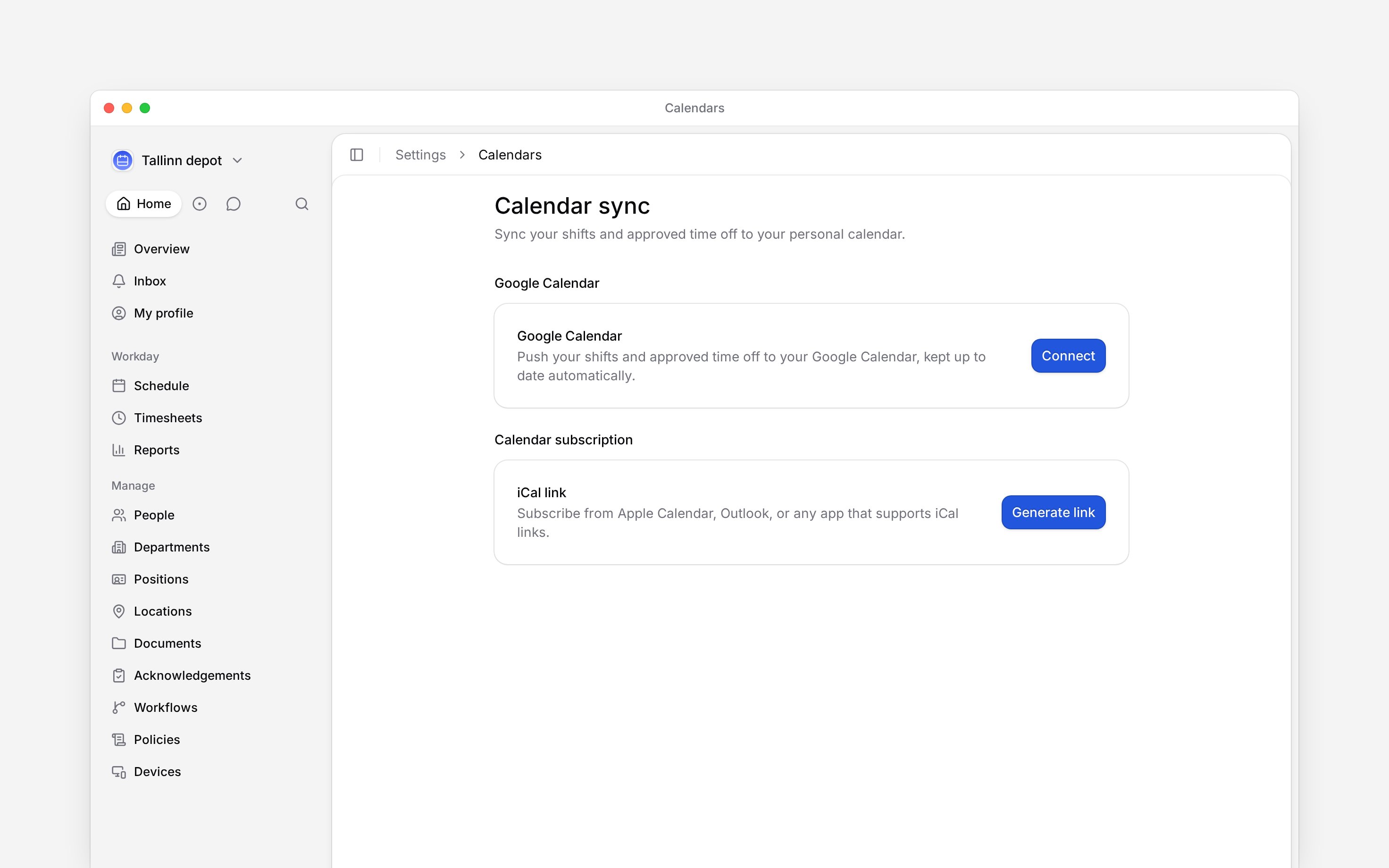
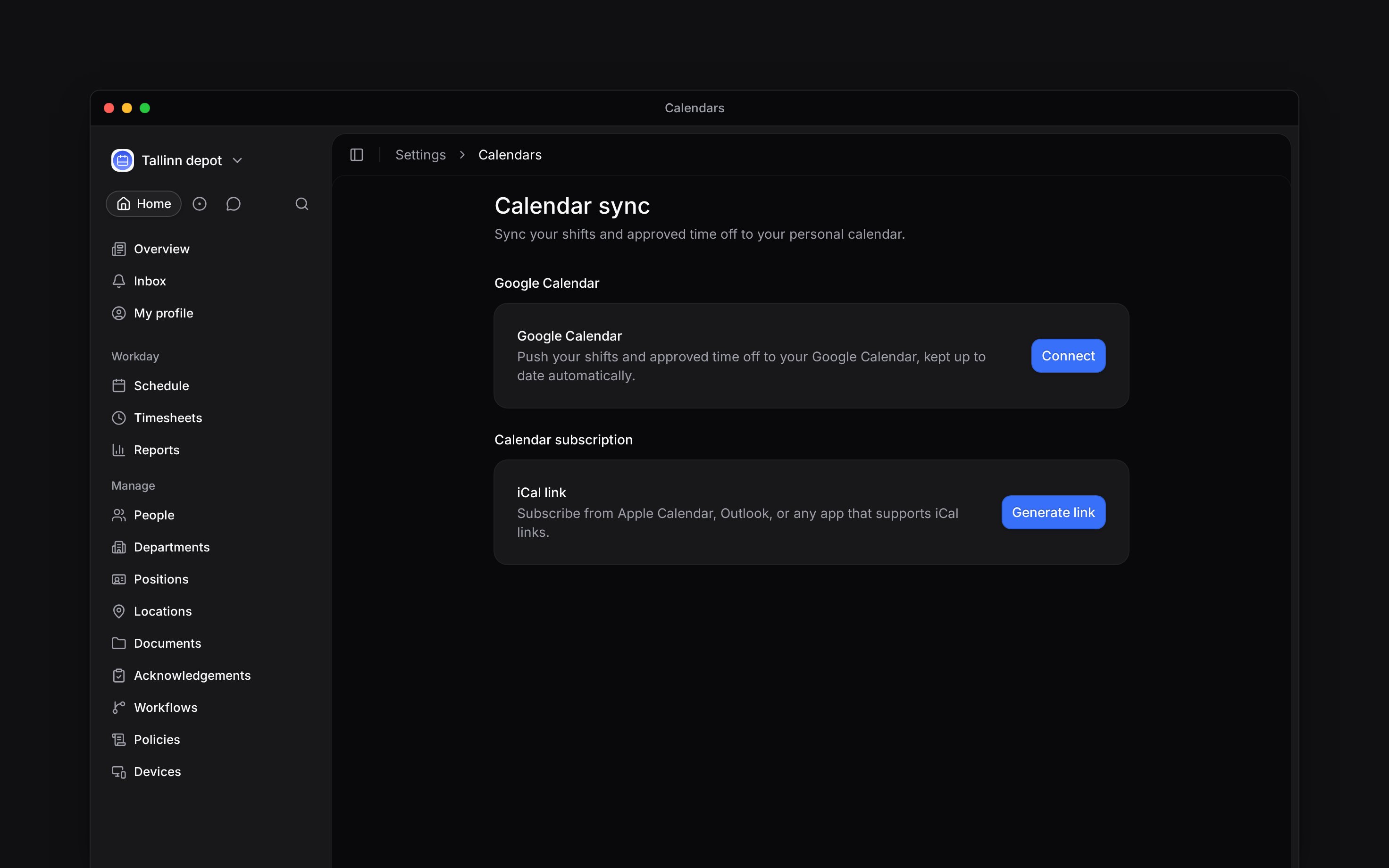
In **Settings → Calendars**, choose **Connect** under Google Calendar.
Sign in to the Google account you want to use and approve the connection.
Back in Begin, check the connected account and last-sync status. Your published shifts and
approved time off are sent automatically.
If the connection reports an error, reconnect. If Google Calendar is unavailable on the page, contact support; changing your Google password will not enable a connection that Begin has not configured.
Show your own published shifts and approved time off in another calendar. Open **Settings → Calendars** in Begin. The connection belongs to you in the active workspace; it does not export the whole team’s schedule.
## Connect Google Calendar
In **Settings → Calendars**, choose **Connect** under Google Calendar.
Sign in to the Google account you want to use and approve the connection.
Back in Begin, check the connected account and last-sync status. Your published shifts and
approved time off are sent automatically.
If the connection reports an error, reconnect. If Google Calendar is unavailable on the page, contact support; changing your Google password will not enable a connection that Begin has not configured.
 ## Subscribe from another calendar
For a calendar that accepts an iCal subscription, such as Apple Calendar or Outlook, choose **Generate link** under **Calendar subscription**, then **Copy link**. In your calendar app, add a calendar subscription using that URL. Subscribe to the link rather than importing it once if you want later changes.
Your calendar app decides how often it refreshes the subscription, so updates may appear later than they do in Begin.
Anyone with the subscription link can read the calendar feed. Keep it private. If it has been
shared, use **Regenerate** and replace the old subscription with the new URL.
## Know what updates
Both methods include recent history and the coming year: 30 days back and 365 days ahead. Draft shifts and time off still awaiting approval are excluded. Editing an event in the other calendar does not change Begin.
Choose **Disconnect** to stop Google updates. Events already added to Google stay there. **Remove** stops the subscription link; **Regenerate** invalidates the old URL.
**Connecting your calendar: access and limits**
* **Who can:** active workspace members connect their own calendars without permission to manage company integrations.
* **Not supported:** a team calendar export, incoming changes from Google or iCal, and unpublished availability blocks.
* **Terms:** a published time-off block with no approval policy can also appear; policy-backed requests must be approved.
## Next
Ask an AI client about your own Begin data.
Choose the connection you need.
## Still need help?
Email the Begin team and we'll get back to you.
Open the AI assistant and get instant answers based on these docs.
## Subscribe from another calendar
For a calendar that accepts an iCal subscription, such as Apple Calendar or Outlook, choose **Generate link** under **Calendar subscription**, then **Copy link**. In your calendar app, add a calendar subscription using that URL. Subscribe to the link rather than importing it once if you want later changes.
Your calendar app decides how often it refreshes the subscription, so updates may appear later than they do in Begin.
Anyone with the subscription link can read the calendar feed. Keep it private. If it has been
shared, use **Regenerate** and replace the old subscription with the new URL.
## Know what updates
Both methods include recent history and the coming year: 30 days back and 365 days ahead. Draft shifts and time off still awaiting approval are excluded. Editing an event in the other calendar does not change Begin.
Choose **Disconnect** to stop Google updates. Events already added to Google stay there. **Remove** stops the subscription link; **Regenerate** invalidates the old URL.
**Connecting your calendar: access and limits**
* **Who can:** active workspace members connect their own calendars without permission to manage company integrations.
* **Not supported:** a team calendar export, incoming changes from Google or iCal, and unpublished availability blocks.
* **Terms:** a published time-off block with no approval policy can also appear; policy-backed requests must be approved.
## Next
Ask an AI client about your own Begin data.
Choose the connection you need.
## Still need help?
Email the Begin team and we'll get back to you.
Open the AI assistant and get instant answers based on these docs.