> ## Documentation Index
> Fetch the complete documentation index at: https://docs.begin.eu/llms.txt
> Use this file to discover all available pages before exploring further.
# Jumis
> Send approved day, night and overtime hours to Jumis payroll.
export const BetaCallout = ({children}) => ;

 Send day, night and overtime hours directly to Jumis. This is an API sync, so Begin does not produce a file for you to download and import.
Payroll integrations are rolling out gradually. If **Settings → Integrations** is missing, ask us
about enabling it for your workspace. Your role also needs permission to manage integrations.
## Connect Jumis
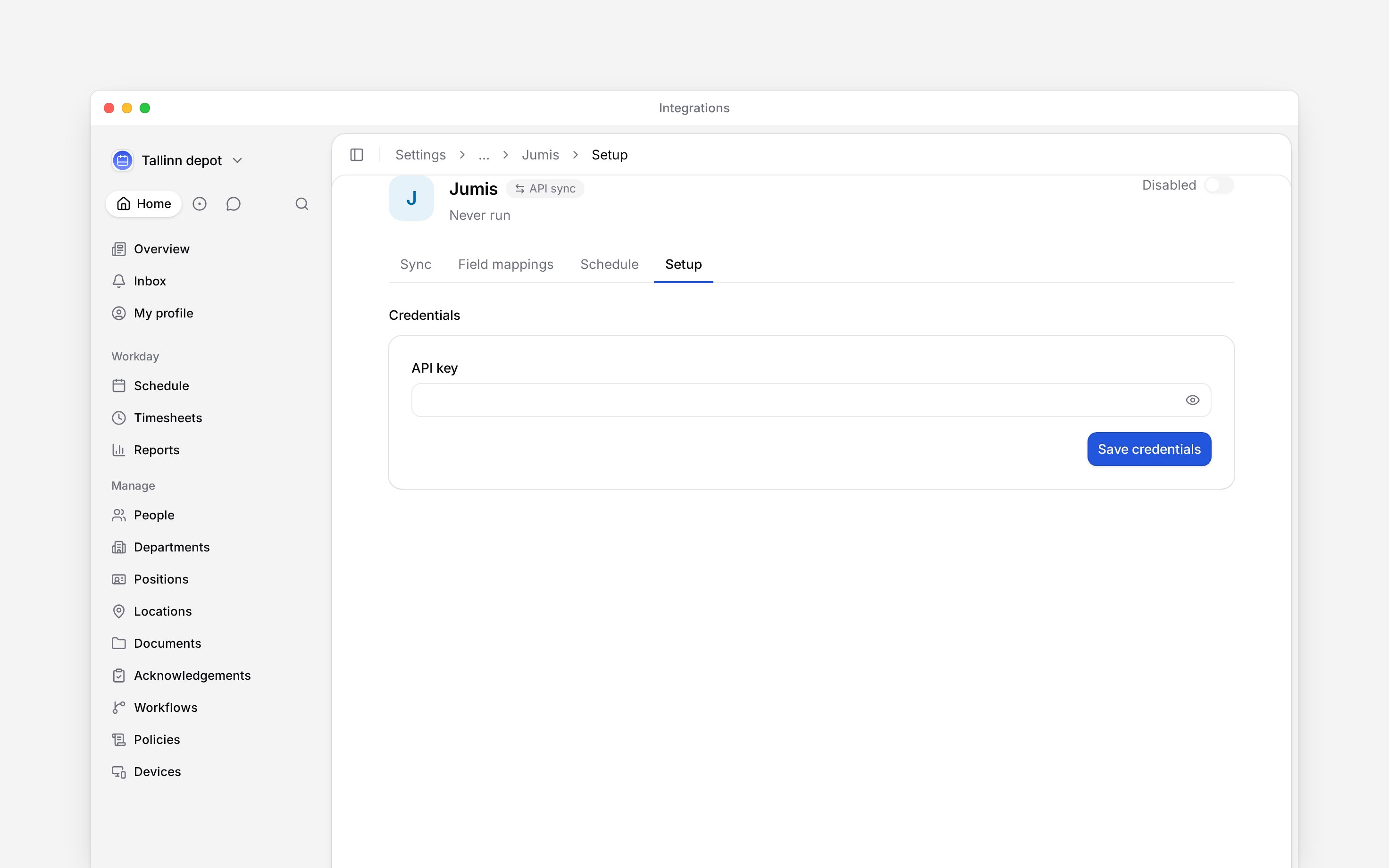
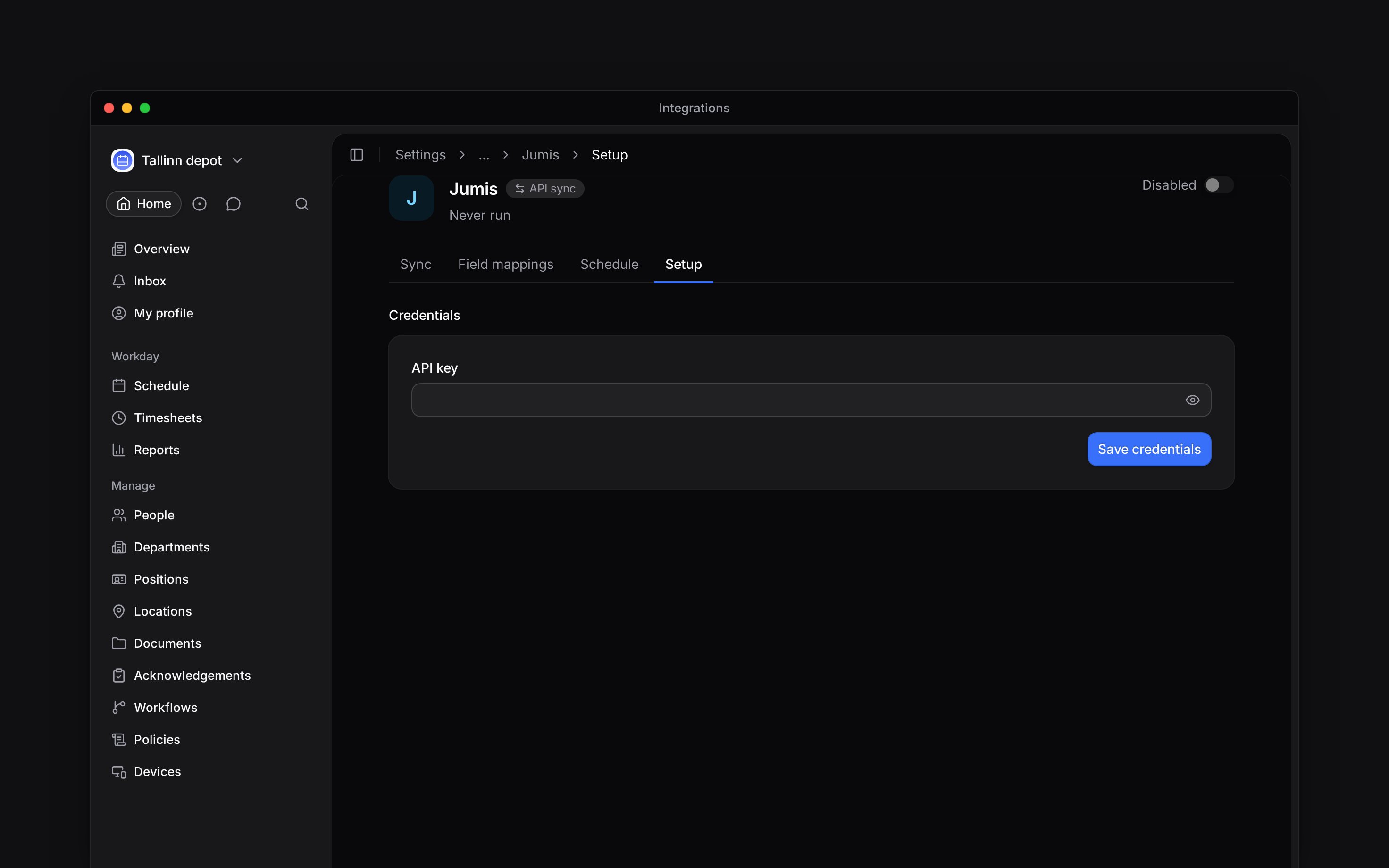
Open **Settings → Integrations → Jumis** and turn on the header switch. This creates the setup
and opens **Setup**; the switch stays off until credentials are saved.
Enter the Jumis **API key**, choose **Save credentials**, then turn the header switch on.
Make sure each person you send has the personal code Jumis uses under **Identification number**
on their [profile](/for-managers/people/member-profiles).
Send day, night and overtime hours directly to Jumis. This is an API sync, so Begin does not produce a file for you to download and import.
Payroll integrations are rolling out gradually. If **Settings → Integrations** is missing, ask us
about enabling it for your workspace. Your role also needs permission to manage integrations.
## Connect Jumis
Open **Settings → Integrations → Jumis** and turn on the header switch. This creates the setup
and opens **Setup**; the switch stays off until credentials are saved.
Enter the Jumis **API key**, choose **Save credentials**, then turn the header switch on.
Make sure each person you send has the personal code Jumis uses under **Identification number**
on their [profile](/for-managers/people/member-profiles).
 ## Keep the fixed mapping
**Field mappings** shows the fixed fields sent to Jumis: personal code, day hours, night hours and overtime. The rows are informational. You cannot change their codes or add custom fields to this payload.
Leave **Include unconfirmed hours** off in Setup unless your payroll process deliberately includes hours a manager has not approved. Rejected and cancelled hours are always excluded, even when this setting is on.
## Send a month
Open **Sync**, choose the month, narrow it to the required people or part of the company, and run the sync. Check the completed result and any errors before repeating a run or turning on **Sync on a schedule**.
If a person’s hours are missing, check their personal code and approval state before sending the month again. The shared run guide explains filters, status and automatic runs.
**Jumis: access and limits**
* **Who can:** the default Administrator role manages integrations; Manager and Employee do not. A custom role can carry that permission.
* **Where:** integration access is controlled per role in **Settings → Permissions**.
* **Not supported:** Jumis does not import people, contracts or employee details through this integration.
* **Limits:** the export uses Begin’s calculated payroll values. It is not a list of individual clock-in and clock-out records.
## Next
Choose a month, run it and check the result.
Compare providers and connection methods.
## Still need help?
Email the Begin team and we'll get back to you.
Open the AI assistant and get instant answers based on these docs.
## Keep the fixed mapping
**Field mappings** shows the fixed fields sent to Jumis: personal code, day hours, night hours and overtime. The rows are informational. You cannot change their codes or add custom fields to this payload.
Leave **Include unconfirmed hours** off in Setup unless your payroll process deliberately includes hours a manager has not approved. Rejected and cancelled hours are always excluded, even when this setting is on.
## Send a month
Open **Sync**, choose the month, narrow it to the required people or part of the company, and run the sync. Check the completed result and any errors before repeating a run or turning on **Sync on a schedule**.
If a person’s hours are missing, check their personal code and approval state before sending the month again. The shared run guide explains filters, status and automatic runs.
**Jumis: access and limits**
* **Who can:** the default Administrator role manages integrations; Manager and Employee do not. A custom role can carry that permission.
* **Where:** integration access is controlled per role in **Settings → Permissions**.
* **Not supported:** Jumis does not import people, contracts or employee details through this integration.
* **Limits:** the export uses Begin’s calculated payroll values. It is not a list of individual clock-in and clock-out records.
## Next
Choose a month, run it and check the result.
Compare providers and connection methods.
## Still need help?
Email the Begin team and we'll get back to you.
Open the AI assistant and get instant answers based on these docs.