> ## Documentation Index
> Fetch the complete documentation index at: https://docs.begin.eu/llms.txt
> Use this file to discover all available pages before exploring further.
# Taavi
> Prepare a CSV of hours and absences for import into Taavi.
export const BetaCallout = ({children}) => ;

 Export a CSV for your payroll team to import into Taavi. Generating the file in Begin does not upload it to Taavi.
Payroll integrations are rolling out gradually. If **Settings → Integrations** is missing, ask us
about enabling it for your workspace. Your role also needs permission to manage integrations.
## Prepare the export
Open **Settings → Integrations → Taavi** and turn on the header switch. This file export needs
no API credentials.
Give each person the **Payroll export code** Taavi uses, on their
[profile](/for-managers/people/member-profiles). A person without an export code is left out of
the file.
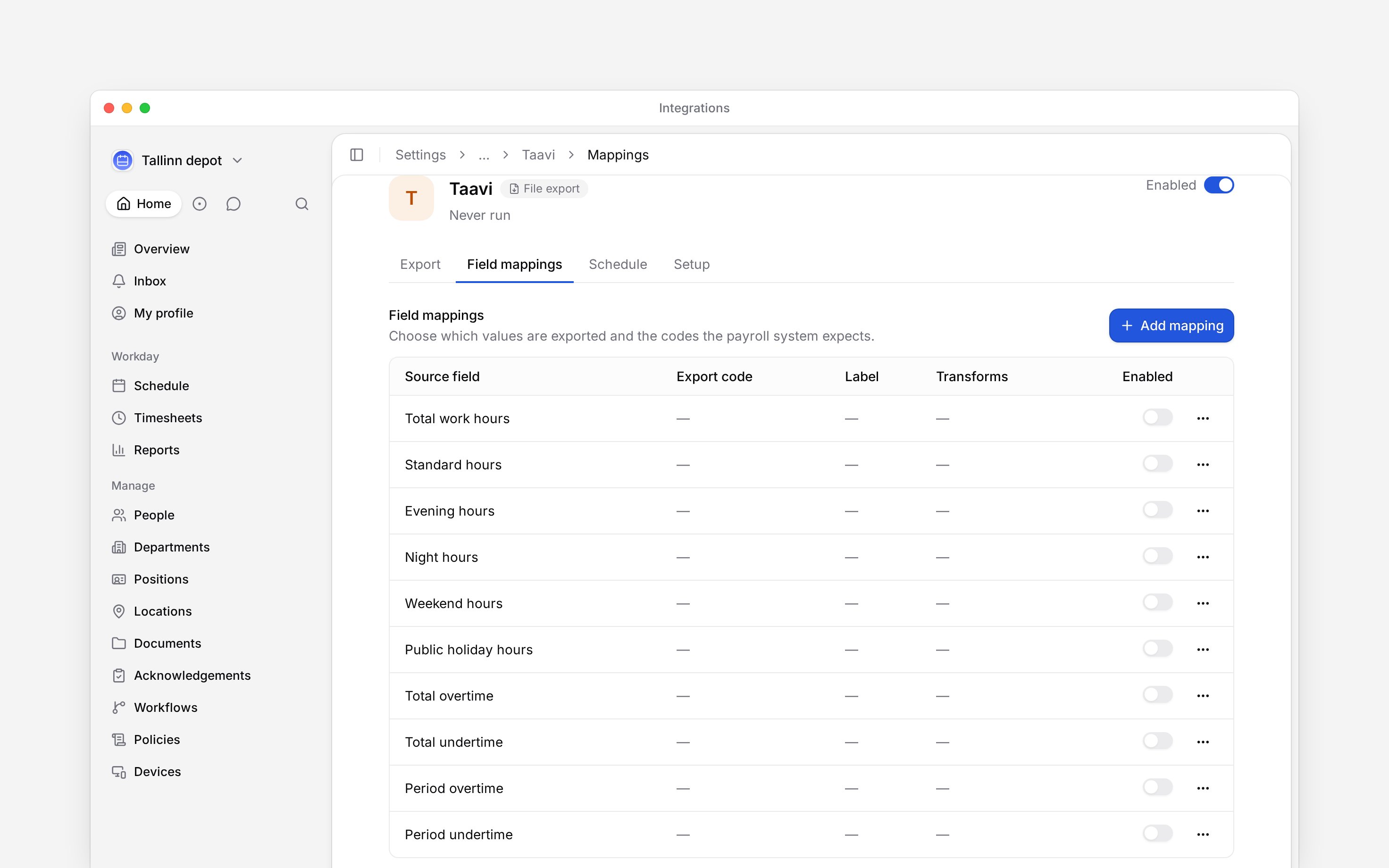
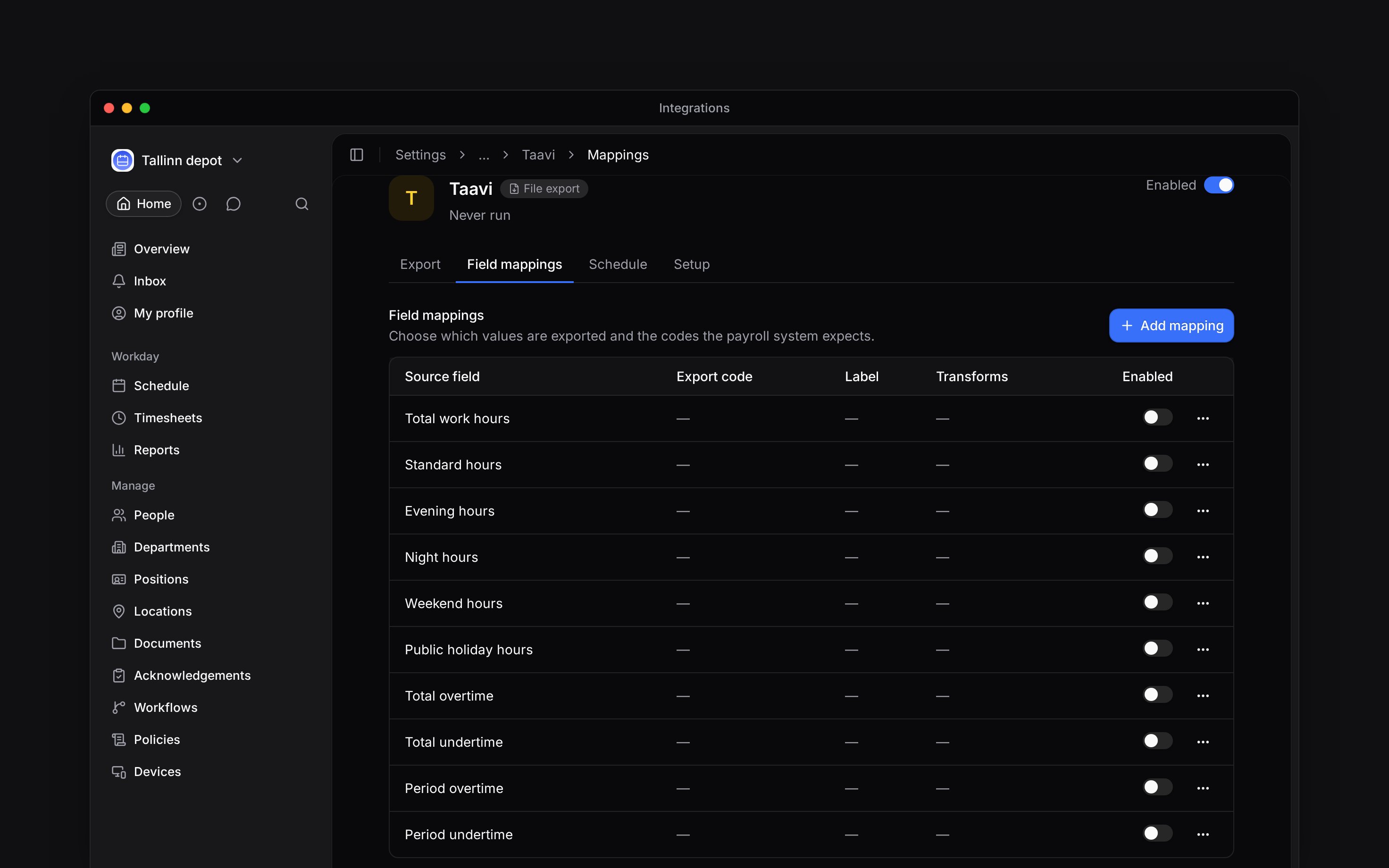
Open **Field mappings**. Edit the values you need, set their **Export code**, and turn on
**Include in export**. New configurable mappings start off.
Enable **Absences** in Setup and map the time-off policies to the codes Taavi expects.
Export a CSV for your payroll team to import into Taavi. Generating the file in Begin does not upload it to Taavi.
Payroll integrations are rolling out gradually. If **Settings → Integrations** is missing, ask us
about enabling it for your workspace. Your role also needs permission to manage integrations.
## Prepare the export
Open **Settings → Integrations → Taavi** and turn on the header switch. This file export needs
no API credentials.
Give each person the **Payroll export code** Taavi uses, on their
[profile](/for-managers/people/member-profiles). A person without an export code is left out of
the file.
Open **Field mappings**. Edit the values you need, set their **Export code**, and turn on
**Include in export**. New configurable mappings start off.
Enable **Absences** in Setup and map the time-off policies to the codes Taavi expects.
 ## Choose what payroll receives
Leave **Include unconfirmed hours** off to use approved hours only. Rejected and cancelled hours are always excluded, even when this setting is on. Add only the hour categories your Taavi import is configured to accept.
A mapping can apply a **Multiplier**, **Rounding method**, **Rounding precision**, or **Skip zero values**. Use these only when your payroll import requires that transformation; they change the values exported.
## Download and import
Open **Export**, choose the month and any people, location or department filters, then run the export. When the run finishes, download its file from the history and import it into Taavi.
Check errors and skipped records before treating the file as a complete month. If no field mappings are enabled, fix the mappings before exporting again.
**Taavi objects** is a separate catalogue entry. It cannot run yet, so use the working **Taavi** integration described here.
**Taavi: access and limits**
* **Who can:** the default Administrator role manages integrations; Manager and Employee do not. A custom role can carry that permission.
* **Where:** integration access is controlled per role in **Settings → Permissions**.
* **Not supported:** this integration does not send directly to Taavi or read employee data back into Begin.
* **Limits:** absence export is separately selected from hour mappings; it is not enabled by choosing an hour category.
## Next
Choose a month, run it and check the result.
Compare providers and connection methods.
## Still need help?
Email the Begin team and we'll get back to you.
Open the AI assistant and get instant answers based on these docs.
## Choose what payroll receives
Leave **Include unconfirmed hours** off to use approved hours only. Rejected and cancelled hours are always excluded, even when this setting is on. Add only the hour categories your Taavi import is configured to accept.
A mapping can apply a **Multiplier**, **Rounding method**, **Rounding precision**, or **Skip zero values**. Use these only when your payroll import requires that transformation; they change the values exported.
## Download and import
Open **Export**, choose the month and any people, location or department filters, then run the export. When the run finishes, download its file from the history and import it into Taavi.
Check errors and skipped records before treating the file as a complete month. If no field mappings are enabled, fix the mappings before exporting again.
**Taavi objects** is a separate catalogue entry. It cannot run yet, so use the working **Taavi** integration described here.
**Taavi: access and limits**
* **Who can:** the default Administrator role manages integrations; Manager and Employee do not. A custom role can carry that permission.
* **Where:** integration access is controlled per role in **Settings → Permissions**.
* **Not supported:** this integration does not send directly to Taavi or read employee data back into Begin.
* **Limits:** absence export is separately selected from hour mappings; it is not enabled by choosing an hour category.
## Next
Choose a month, run it and check the result.
Compare providers and connection methods.
## Still need help?
Email the Begin team and we'll get back to you.
Open the AI assistant and get instant answers based on these docs.