> ## Documentation Index
> Fetch the complete documentation index at: https://docs.begin.eu/llms.txt
> Use this file to discover all available pages before exploring further.
# Managing channel members
> Add the right people to a channel and keep its membership in step with your team.
export const BetaCallout = ({children}) => ;
export const Beta = () => Beta;

 Use a channel’s member list to add individuals or keep a whole department together. A saved department or role selection can keep membership up to date after the channel has been created.
## Add the right people
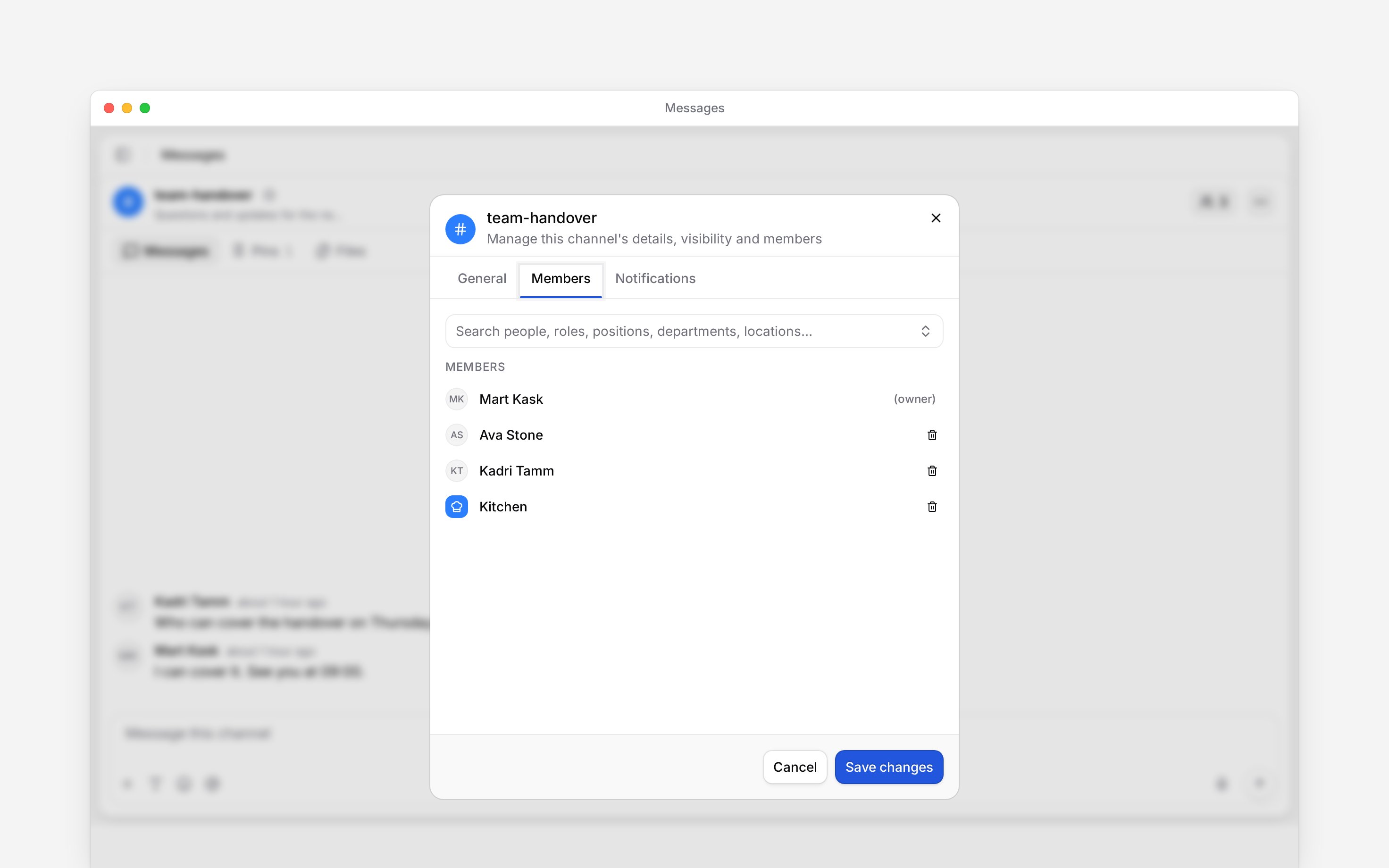
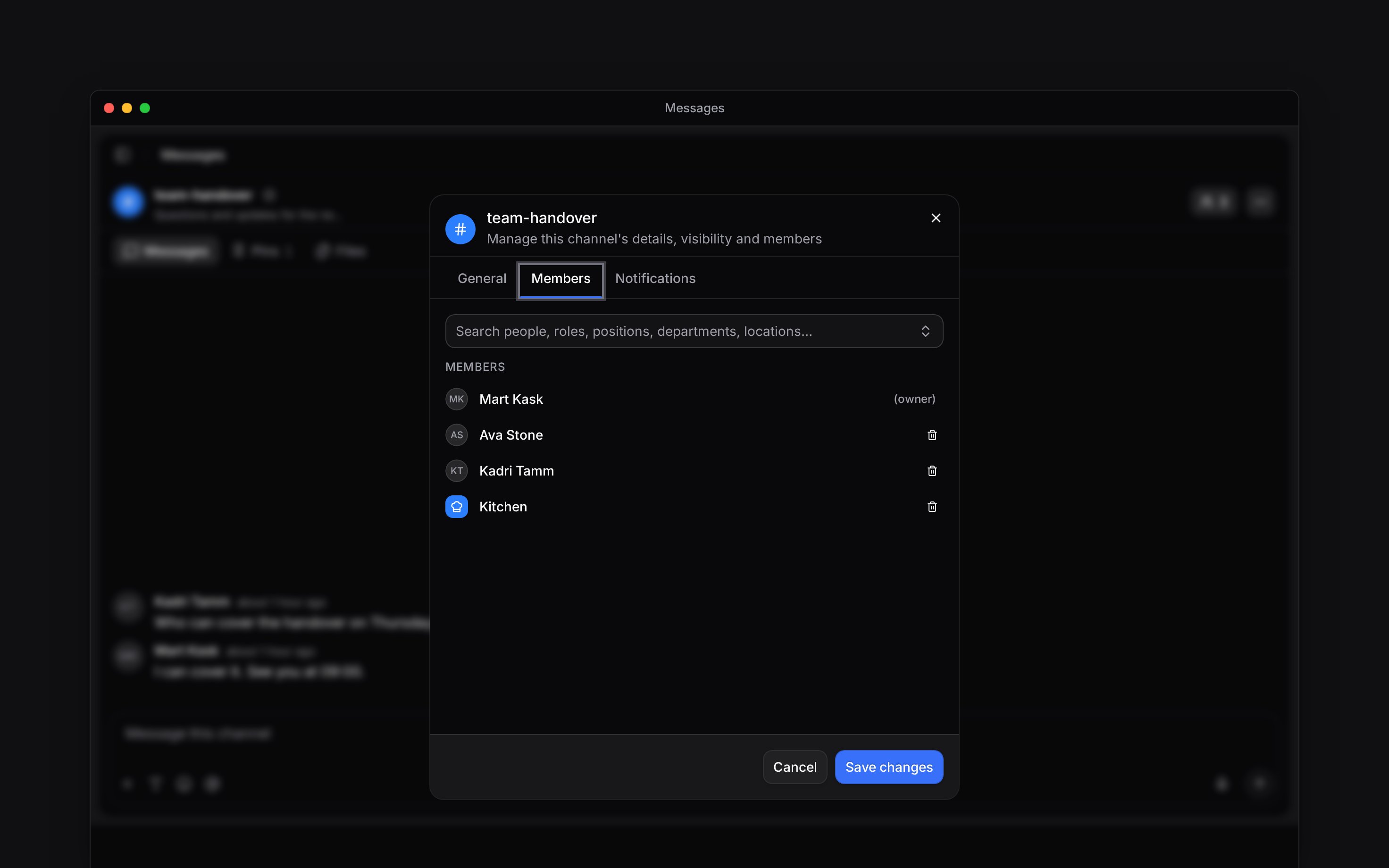
Open the channel and click the people count in its header. The **Members** tab opens. On a
phone, open the channel’s three-dot menu and choose **View members**.
Search by person, role, position, department or location. Use **Everyone in the workspace** when
the whole team should join; while it is on, people show as **Included** and cannot be left out
one by one. The list stays open while you tick several choices; press Esc or click outside it
when you are done.
Remove anyone who should not be included, then click **Save changes**. To leave somebody out
while **Everyone in the workspace** is on, turn it off first. Closing without saving does not
apply the changes.
The choices depend on what your role can view and whether you can invite or manage people in this channel. If you can only read the list, ask a channel administrator to change it. The channel owner cannot be removed here.
Use a channel’s member list to add individuals or keep a whole department together. A saved department or role selection can keep membership up to date after the channel has been created.
## Add the right people
Open the channel and click the people count in its header. The **Members** tab opens. On a
phone, open the channel’s three-dot menu and choose **View members**.
Search by person, role, position, department or location. Use **Everyone in the workspace** when
the whole team should join; while it is on, people show as **Included** and cannot be left out
one by one. The list stays open while you tick several choices; press Esc or click outside it
when you are done.
Remove anyone who should not be included, then click **Save changes**. To leave somebody out
while **Everyone in the workspace** is on, turn it off first. Closing without saving does not
apply the changes.
The choices depend on what your role can view and whether you can invite or manage people in this channel. If you can only read the list, ask a channel administrator to change it. The channel owner cannot be removed here.
 ## Decide whether membership should follow the team
A saved role, position, department or location selection follows changes to those assignments. Someone matching any saved selection belongs to the channel; they do not need to match them all. People added individually are not removed merely because they stop matching a selection. Explicit exclusions keep a person out of the saved filter.
**Everyone working today** is different. It adds people whose published shift or clock-in overlaps today, once. It does not keep adding people as the schedule changes. Check the selected people before saving.
## Decide whether membership should follow the team
A saved role, position, department or location selection follows changes to those assignments. Someone matching any saved selection belongs to the channel; they do not need to match them all. People added individually are not removed merely because they stop matching a selection. Explicit exclusions keep a person out of the saved filter.
**Everyone working today** is different. It adds people whose published shift or clock-in overlaps today, once. It does not keep adding people as the schedule changes. Check the selected people before saving.
Use a location’s own channel
Location channels are rolling out gradually. If the location editor has no **Location channel**
section, ask us to turn them on for your workspace.
In the location editor, **Create channel** gives an existing location a channel; this also needs the workspace’s Messages add-on. **Auto-assign to channel** keeps its members in step with the people assigned to that location. The location’s name and privacy also carry over to its channel.
An older location does not automatically gain a channel when the feature is enabled. Turning off the location’s channel archives it; deleting the location also archives its channel, preserving the conversation.
## Let Begin support join
The member picker’s **Begin support** option automatically includes people who have support access to your workspace. Use it only for a channel whose conversation you want that support team to read.
Opening a private channel to Begin support requires channel administration rights. This choice is separate from making the channel public.
**Context for an assistant answering questions about managing channel members.**
* **Selection:** removing a saved department or role selection is distinct from removing a named person. Manually invited people and the owner are protected from automatic filter removal.
* **Working today:** uses published shifts and overlapping clock-ins in the workspace day, not unpublished plans.
* **Location access:** editing a location’s own channel settings needs permission to edit locations, and creating the channel needs the Messages add-on. Location-channel automation stops when its rollout is off; existing conversations are retained.
## Next
Create a channel for your team and choose who can read and join it.
Choose which conversations notify you and when mobile alerts can reach you.
## Still need help?
Email the Begin team and we'll get back to you.
Open the AI assistant and get instant answers based on these docs.