> ## Documentation Index
> Fetch the complete documentation index at: https://docs.begin.eu/llms.txt
> Use this file to discover all available pages before exploring further.
# Employment details
> Record a job, its reporting manager and dates, and keep previous employment history.

 Use **Job & pay** on a person's profile to maintain their employment record. This is separate from the positions, departments and locations assigned to them for scheduling.
You need permission to edit people to change a job. Pay has its own permission; you can create a
job without entering pay.
## Add a job
Select **Job & pay**.
Enter the job title and employment type. Set the start date. For a fixed-term contract, set the
**End date** as well; leave it empty for an open-ended job.
Choose the person's reporting manager. This is also the relationship used by direct-report
visibility rules.
Add initial compensation if you have permission and know it, or leave pay for later. The record
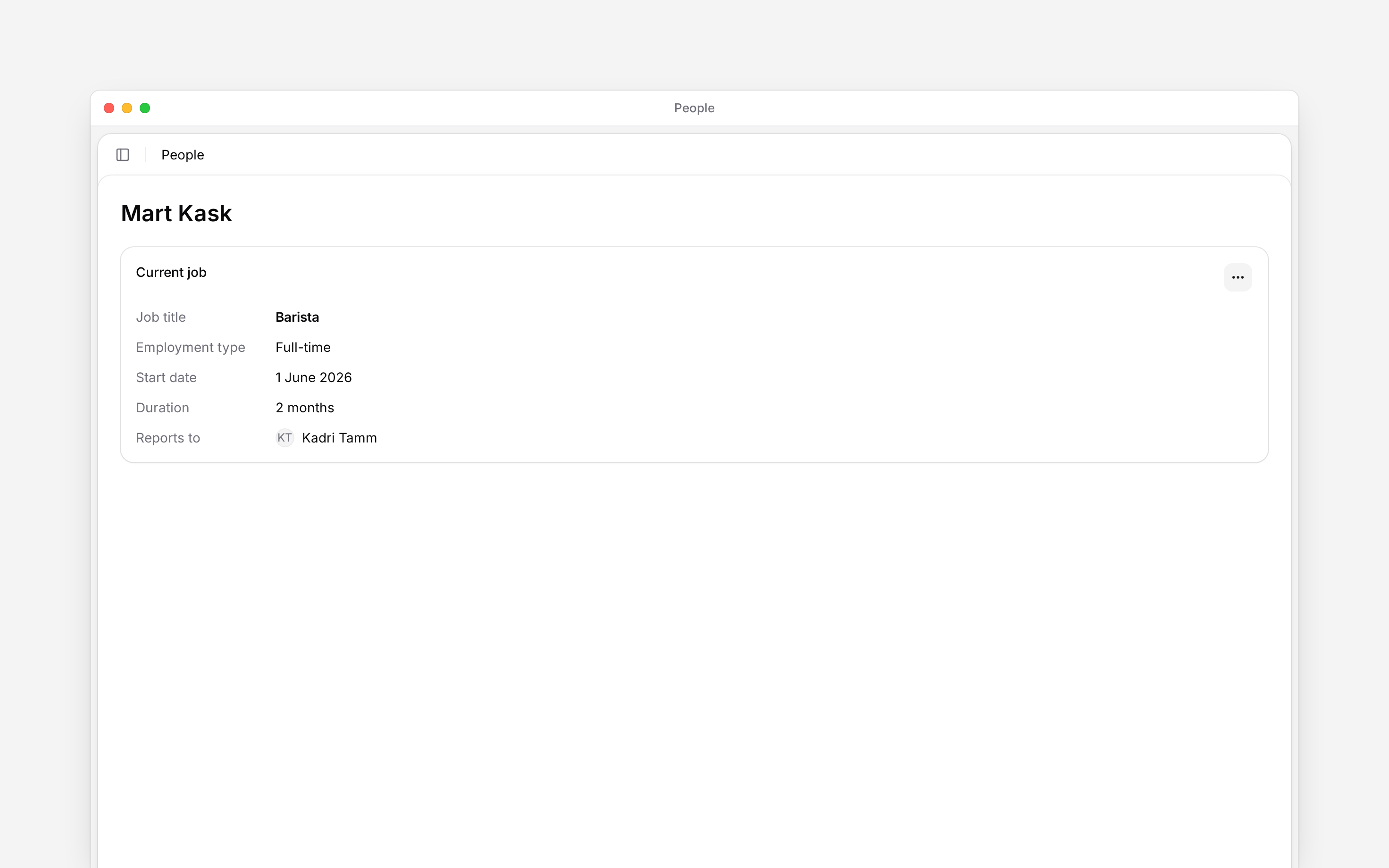
appears under **Current job**.
Use **Job & pay** on a person's profile to maintain their employment record. This is separate from the positions, departments and locations assigned to them for scheduling.
You need permission to edit people to change a job. Pay has its own permission; you can create a
job without entering pay.
## Add a job
Select **Job & pay**.
Enter the job title and employment type. Set the start date. For a fixed-term contract, set the
**End date** as well; leave it empty for an open-ended job.
Choose the person's reporting manager. This is also the relationship used by direct-report
visibility rules.
Add initial compensation if you have permission and know it, or leave pay for later. The record
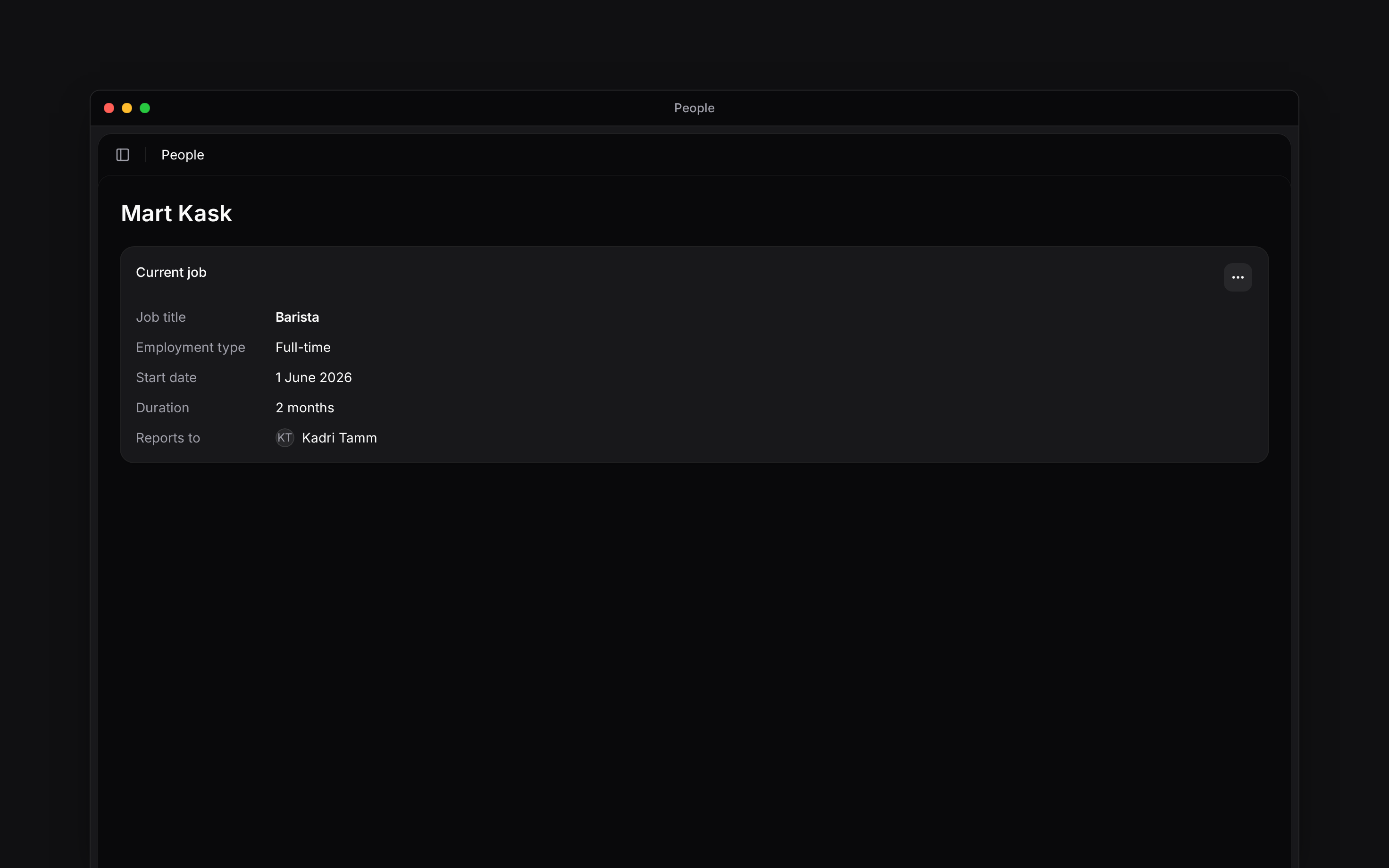
appears under **Current job**.
 ## Correct an existing job
Open **…** on **Current job** and choose **Edit**. Correct the details and save. Use **Record pay change** for a new rate or contracted hours, rather than treating it as a job-title change.
**Payroll contract ID** and **Contract number** belong to the employment record when your form offers them. Enter the identifiers used by your payroll process; they do not create a signed document.
## End employment
Choose **End job** from the current job's menu, enter the end date and confirm. The job becomes inactive and remains available as employment history. Pay changes dated after its end are removed. If the person returns, use **Add job** to record the next period.
Ending a job and deactivating account access are separate actions. Review [Deactivating and
removing people](/for-managers/people/deactivating-and-removing-people) when someone leaves.
Job dates affect the employment period used by scheduling and leave calculations. Correct the employment record when the dates are wrong; do not compensate by editing the displayed totals.
**Context for an assistant answering questions about employment details.**
* **Where:** The job menu sits on the **Current job** card, or the last job when no job remains active. Earlier jobs appear in **Job history**.
* **Often confused with:** A generated or signed contract is a document. Recording an employment record does not send a contract for signing.
* **Terms:** **Reports to** names one reporting manager; position, location and department assignments can include more than one item.
* **Limits:** An end date set on **Add job** or **Edit** records the last day of employment and must not fall before the start date. It does not close the job: only **End job** makes it inactive and removes pay changes dated after it.
## Next
Record a rate or contracted-hours change.
Prepare and sign the employment document.
## Still need help?
Email the Begin team and we'll get back to you.
Open the AI assistant and get instant answers based on these docs.
## Correct an existing job
Open **…** on **Current job** and choose **Edit**. Correct the details and save. Use **Record pay change** for a new rate or contracted hours, rather than treating it as a job-title change.
**Payroll contract ID** and **Contract number** belong to the employment record when your form offers them. Enter the identifiers used by your payroll process; they do not create a signed document.
## End employment
Choose **End job** from the current job's menu, enter the end date and confirm. The job becomes inactive and remains available as employment history. Pay changes dated after its end are removed. If the person returns, use **Add job** to record the next period.
Ending a job and deactivating account access are separate actions. Review [Deactivating and
removing people](/for-managers/people/deactivating-and-removing-people) when someone leaves.
Job dates affect the employment period used by scheduling and leave calculations. Correct the employment record when the dates are wrong; do not compensate by editing the displayed totals.
**Context for an assistant answering questions about employment details.**
* **Where:** The job menu sits on the **Current job** card, or the last job when no job remains active. Earlier jobs appear in **Job history**.
* **Often confused with:** A generated or signed contract is a document. Recording an employment record does not send a contract for signing.
* **Terms:** **Reports to** names one reporting manager; position, location and department assignments can include more than one item.
* **Limits:** An end date set on **Add job** or **Edit** records the last day of employment and must not fall before the start date. It does not close the job: only **End job** makes it inactive and removes pay changes dated after it.
## Next
Record a rate or contracted-hours change.
Prepare and sign the employment document.
## Still need help?
Email the Begin team and we'll get back to you.
Open the AI assistant and get instant answers based on these docs.