> ## Documentation Index
> Fetch the complete documentation index at: https://docs.begin.eu/llms.txt
> Use this file to discover all available pages before exploring further.
# Managing time-off balances
> Check a person’s leave, correct their balance and follow their requests.

 Open **People → person → Time off** to check leave balances and requests together. Use this page when the question is about one person's allowance, rather than the whole team's calendar.
## Read the balance
Each policy shows its own balance and unit. Check the breakdown before changing anything: entitlement, carryover and adjustments contribute to the allowance; taken and upcoming leave explain what has been used or booked. Pending requests are shown separately.
Open **People → person → Time off** to check leave balances and requests together. Use this page when the question is about one person's allowance, rather than the whole team's calendar.
## Read the balance
Each policy shows its own balance and unit. Check the breakdown before changing anything: entitlement, carryover and adjustments contribute to the allowance; taken and upcoming leave explain what has been used or booked. Pending requests are shown separately.
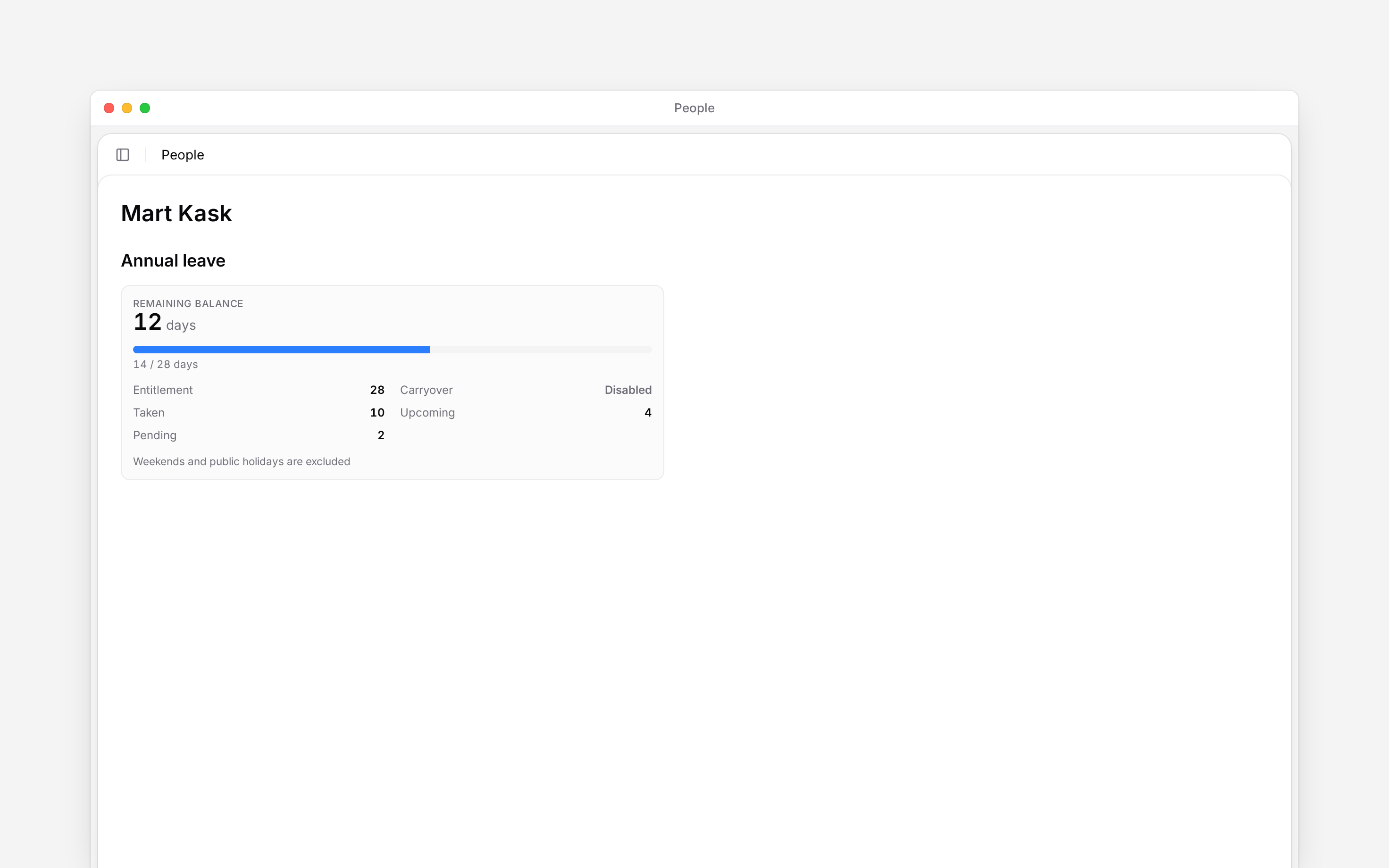
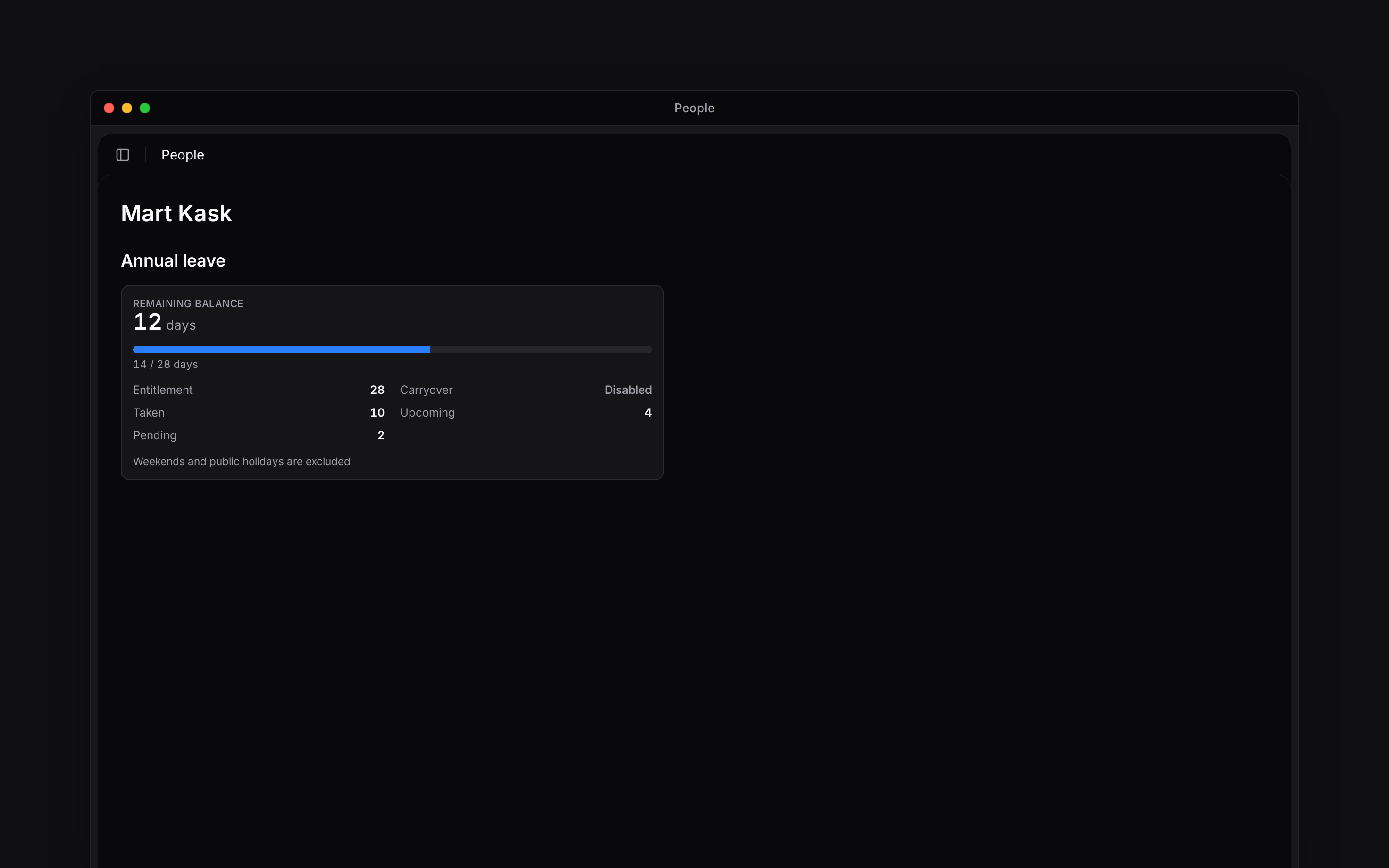 The compact **Time-off balances** card on Overview has **View all** to open this tab.
If a banner says balances need updating, choose **Refresh** before making an adjustment.
An unlimited policy has no fixed allowance to correct. A missing balance can mean the policy does not apply to that person; adding a manual adjustment is not a substitute for assigning the right policy.
## Correct the remaining amount
Check its name and whether it counts days or hours.
You need **Approve or deny time-off requests** for your role. Permission to edit the person's
profile is not enough.
Enter what the remaining balance should become. For example, to change 12 days to 14, enter
`14`. The reason is required and can contain up to 500 characters. Enter a different balance
from the current one.
Begin calculates the difference and records your reason. The displayed balance updates.
**New balance** is the resulting balance, not the number to add. Unlimited policies have no
balance to adjust.
## Handle the request
The list includes the person's requests, past decisions and time off placed directly on the schedule. Use its period and policy filters to find the relevant dates.
Right-click a request and choose **Approved** or **Rejected** under **Status** when your role can review it. **Send for review again**, when offered, starts a fresh approval workflow; changing dates is a different action. Reviewing needs the same **Approve or deny time-off requests** permission, while editing or deleting the absence follows your schedule permissions.
Click a row to open its absence in the schedule editor, or choose **Edit** from its menu. A historical request whose absence no longer exists may have no editor to open.
Use **Add time off** to record an absence directly for the person. Check the policy, dates and balance before saving. This is separate from deciding a request they submitted.
For how absences appear on the roster, use [Time off on the schedule](/for-managers/schedule/time-off). Check the policy and employment dates when an entitlement is wrong; a balance adjustment corrects the amount, not those settings.
**Context for an assistant answering questions about managing time-off balances.**
* **Limits:** Adjustments are recorded for the policy and person, with the selected year when supplied by the surface.
* **Often confused with:** A leave balance is not a timesheet total. Days and hours follow the policy's unit.
## Next
Check the dates behind the employment period.
See how an absence appears in the working week.
## Still need help?
Email the Begin team and we'll get back to you.
Open the AI assistant and get instant answers based on these docs.
The compact **Time-off balances** card on Overview has **View all** to open this tab.
If a banner says balances need updating, choose **Refresh** before making an adjustment.
An unlimited policy has no fixed allowance to correct. A missing balance can mean the policy does not apply to that person; adding a manual adjustment is not a substitute for assigning the right policy.
## Correct the remaining amount
Check its name and whether it counts days or hours.
You need **Approve or deny time-off requests** for your role. Permission to edit the person's
profile is not enough.
Enter what the remaining balance should become. For example, to change 12 days to 14, enter
`14`. The reason is required and can contain up to 500 characters. Enter a different balance
from the current one.
Begin calculates the difference and records your reason. The displayed balance updates.
**New balance** is the resulting balance, not the number to add. Unlimited policies have no
balance to adjust.
## Handle the request
The list includes the person's requests, past decisions and time off placed directly on the schedule. Use its period and policy filters to find the relevant dates.
Right-click a request and choose **Approved** or **Rejected** under **Status** when your role can review it. **Send for review again**, when offered, starts a fresh approval workflow; changing dates is a different action. Reviewing needs the same **Approve or deny time-off requests** permission, while editing or deleting the absence follows your schedule permissions.
Click a row to open its absence in the schedule editor, or choose **Edit** from its menu. A historical request whose absence no longer exists may have no editor to open.
Use **Add time off** to record an absence directly for the person. Check the policy, dates and balance before saving. This is separate from deciding a request they submitted.
For how absences appear on the roster, use [Time off on the schedule](/for-managers/schedule/time-off). Check the policy and employment dates when an entitlement is wrong; a balance adjustment corrects the amount, not those settings.
**Context for an assistant answering questions about managing time-off balances.**
* **Limits:** Adjustments are recorded for the policy and person, with the selected year when supplied by the surface.
* **Often confused with:** A leave balance is not a timesheet total. Days and hours follow the policy's unit.
## Next
Check the dates behind the employment period.
See how an absence appears in the working week.
## Still need help?
Email the Begin team and we'll get back to you.
Open the AI assistant and get instant answers based on these docs.