> ## Documentation Index
> Fetch the complete documentation index at: https://docs.begin.eu/llms.txt
> Use this file to discover all available pages before exploring further.
# Onboarding a new hire
> Collect a new starter’s details and follow their progress from offer to account access.
export const BetaCallout = ({children}) => ;
export const Beta = () => Beta;

 Use **New hire** when someone needs a job record, pay details and a guided start. Use [Quick add](/for-managers/people/inviting-members) when you only need to add them to the team.
Guided onboarding is rolling out gradually. If People has **Add person** but no **New hire**, ask
us to turn it on.
Before starting, use [Setting up onboarding](/for-managers/people/setting-up-onboarding) to choose default documents and personalise the portal.
## Prepare their profile
You need permission to add people to create the hire, permission to edit them to complete later steps, and invitation permission to send their app invitation.
Identity and bank fields also need people access and permission to view and edit private details for that person. If those fields are hidden, you can still save their name and contact details, including their address, without changing the stored private values.
Enter their name and country of work in **Personal**. Complete the details you already know.
Set their job details and start date. Their reporting manager is the person selected in
**Reports to**.
You can enter initial pay while preparing the draft, or add it later from **Job & pay**.
Changing pay after onboarding is finalised requires permission to edit pay.
Choose **I'll add them myself** to finish the remaining details, or ask the person to fill them
in. Review any offer, contract and onboarding tasks before confirming.
Choose **Add \[name]**, or the variant that sends or copies the preboarding link when you chose
that handoff. Continue from their profile to follow progress.
**Save as draft** keeps an unfinished setup. Open the person's profile and continue it later. A saved draft already creates their profile; cancelling the wizard before the first save adds nobody.
## Follow what is still missing
The onboarding card on **Overview** shows the next step and anything holding it up. An offer, when used, comes before the person fills in their details. They can accept or decline it; a decline can include a note for you.
Use **New hire** when someone needs a job record, pay details and a guided start. Use [Quick add](/for-managers/people/inviting-members) when you only need to add them to the team.
Guided onboarding is rolling out gradually. If People has **Add person** but no **New hire**, ask
us to turn it on.
Before starting, use [Setting up onboarding](/for-managers/people/setting-up-onboarding) to choose default documents and personalise the portal.
## Prepare their profile
You need permission to add people to create the hire, permission to edit them to complete later steps, and invitation permission to send their app invitation.
Identity and bank fields also need people access and permission to view and edit private details for that person. If those fields are hidden, you can still save their name and contact details, including their address, without changing the stored private values.
Enter their name and country of work in **Personal**. Complete the details you already know.
Set their job details and start date. Their reporting manager is the person selected in
**Reports to**.
You can enter initial pay while preparing the draft, or add it later from **Job & pay**.
Changing pay after onboarding is finalised requires permission to edit pay.
Choose **I'll add them myself** to finish the remaining details, or ask the person to fill them
in. Review any offer, contract and onboarding tasks before confirming.
Choose **Add \[name]**, or the variant that sends or copies the preboarding link when you chose
that handoff. Continue from their profile to follow progress.
**Save as draft** keeps an unfinished setup. Open the person's profile and continue it later. A saved draft already creates their profile; cancelling the wizard before the first save adds nobody.
## Follow what is still missing
The onboarding card on **Overview** shows the next step and anything holding it up. An offer, when used, comes before the person fills in their details. They can accept or decline it; a decline can include a note for you.
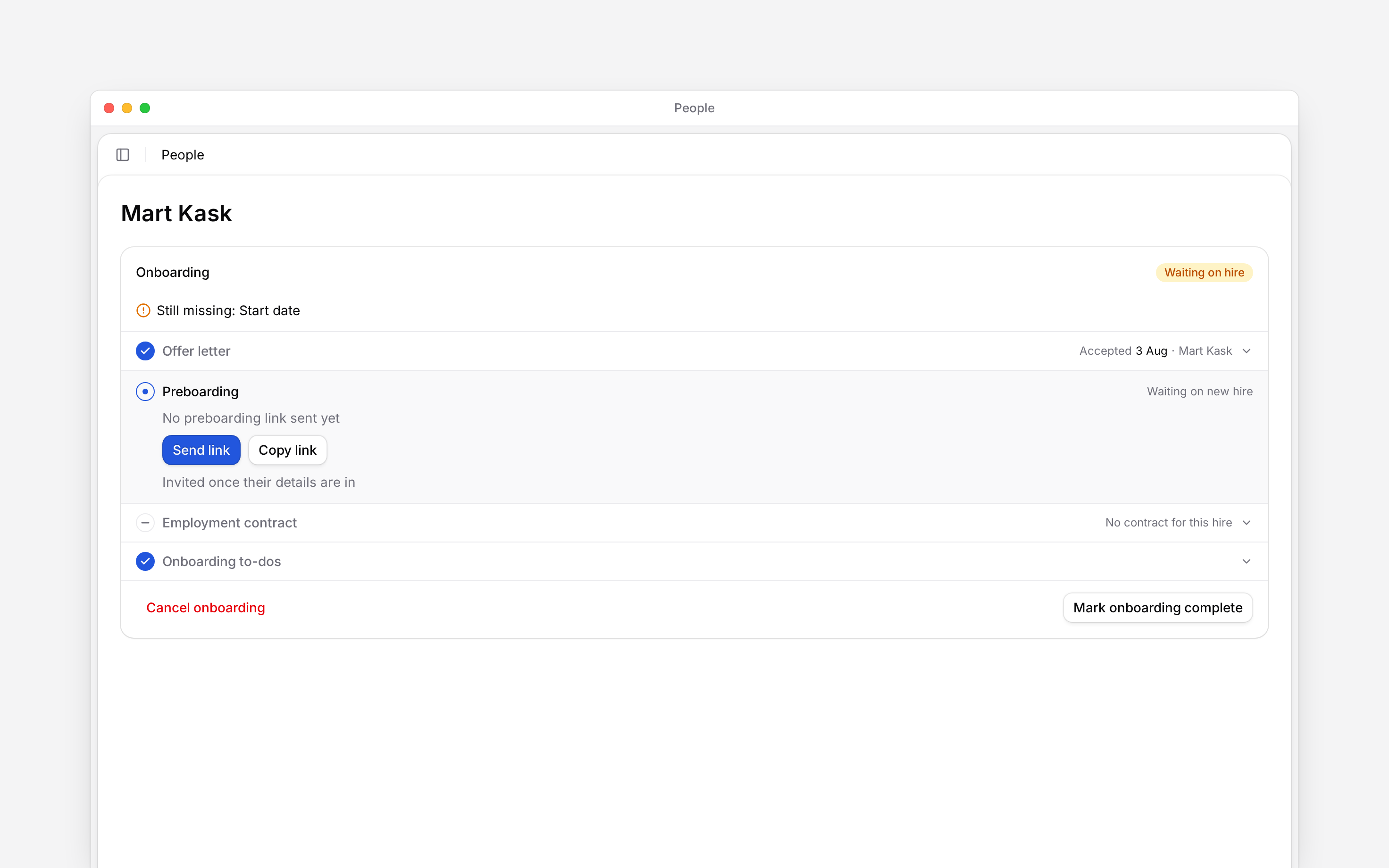
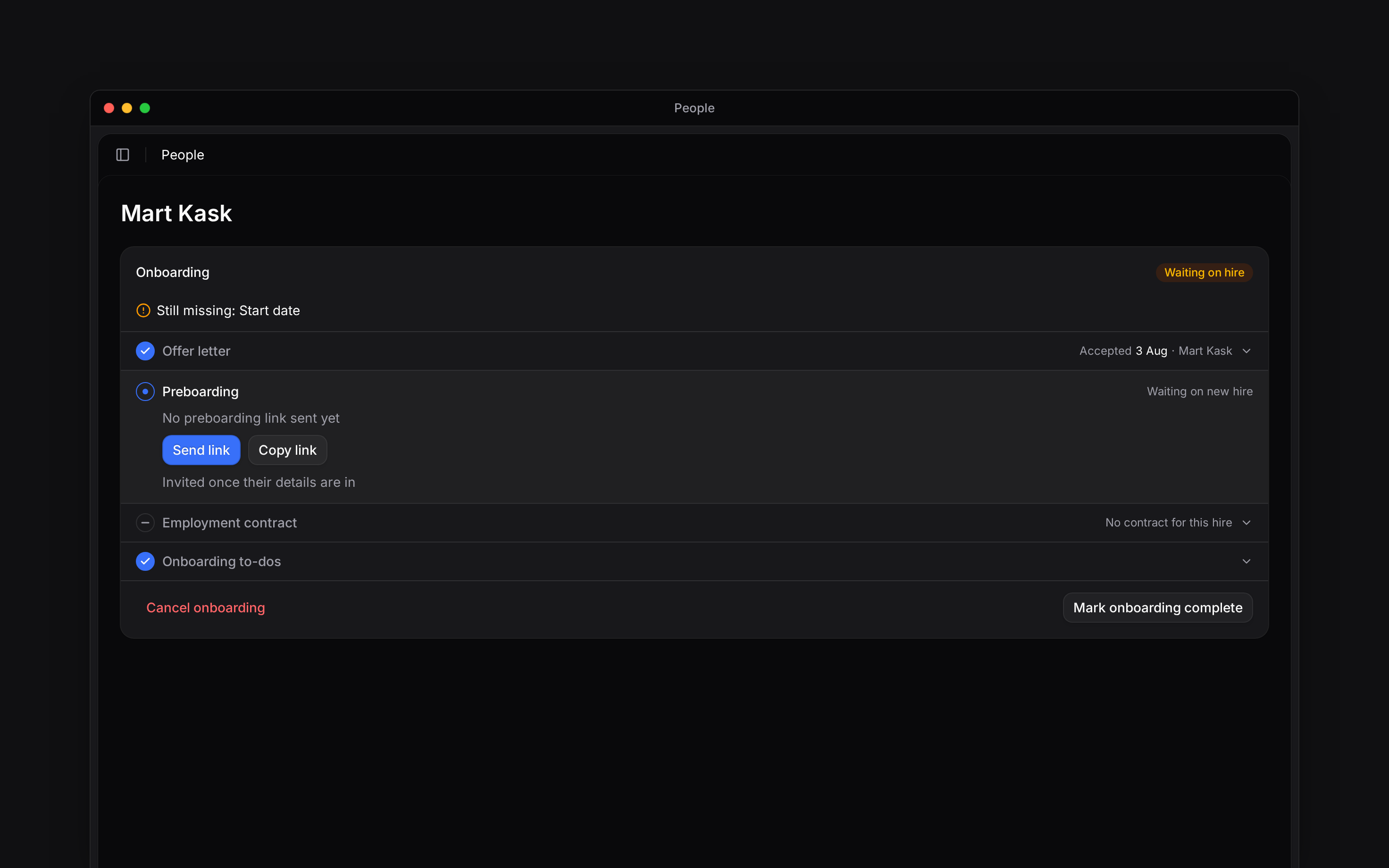 The preboarding form collects details such as their address, bank details and emergency contact. Those answers appear on the profile. Missing information can hold up document generation, so resolve the fields named on the card.
[Contracts](/for-managers/documents/creating-and-signing-contracts) and [acknowledgements](/for-managers/documents/document-acknowledgements) have their own completion steps. Use the card's status instead of assuming that sending a link completes onboarding.
## Keep the links separate
The preboarding link collects information before day one. It is not the invitation to sign in to
Begin. The app invitation can wait for details or a contract signature; the card explains what is
pending.
Use **Cancel onboarding** on the profile when you need to stop an onboarding already in progress. This cannot be undone. The person stays in People; [delete them](/for-managers/people/deactivating-and-removing-people) separately if they will not join.
**Context for an assistant answering questions about onboarding a new hire.**
* **Where:** Continue an existing saved draft from its profile instead of adding the person again.
* **Often confused with:** An offer response, a submitted preboarding form and a signed employment contract are separate milestones. Skipping pay does not mean a zero rate has been recorded.
## Next
Choose the default documents and portal welcome message.
Prepare the document and collect signatures.
## Still need help?
Email the Begin team and we'll get back to you.
Open the AI assistant and get instant answers based on these docs.
The preboarding form collects details such as their address, bank details and emergency contact. Those answers appear on the profile. Missing information can hold up document generation, so resolve the fields named on the card.
[Contracts](/for-managers/documents/creating-and-signing-contracts) and [acknowledgements](/for-managers/documents/document-acknowledgements) have their own completion steps. Use the card's status instead of assuming that sending a link completes onboarding.
## Keep the links separate
The preboarding link collects information before day one. It is not the invitation to sign in to
Begin. The app invitation can wait for details or a contract signature; the card explains what is
pending.
Use **Cancel onboarding** on the profile when you need to stop an onboarding already in progress. This cannot be undone. The person stays in People; [delete them](/for-managers/people/deactivating-and-removing-people) separately if they will not join.
**Context for an assistant answering questions about onboarding a new hire.**
* **Where:** Continue an existing saved draft from its profile instead of adding the person again.
* **Often confused with:** An offer response, a submitted preboarding form and a signed employment contract are separate milestones. Skipping pay does not mean a zero rate has been recorded.
## Next
Choose the default documents and portal welcome message.
Prepare the document and collect signatures.
## Still need help?
Email the Begin team and we'll get back to you.
Open the AI assistant and get instant answers based on these docs.