> ## Documentation Index
> Fetch the complete documentation index at: https://docs.begin.eu/llms.txt
> Use this file to discover all available pages before exploring further.
# Setting up onboarding
> Choose default documents and personalise the portal new hires see.
export const BetaCallout = ({children}) => ;
export const Beta = () => Beta;

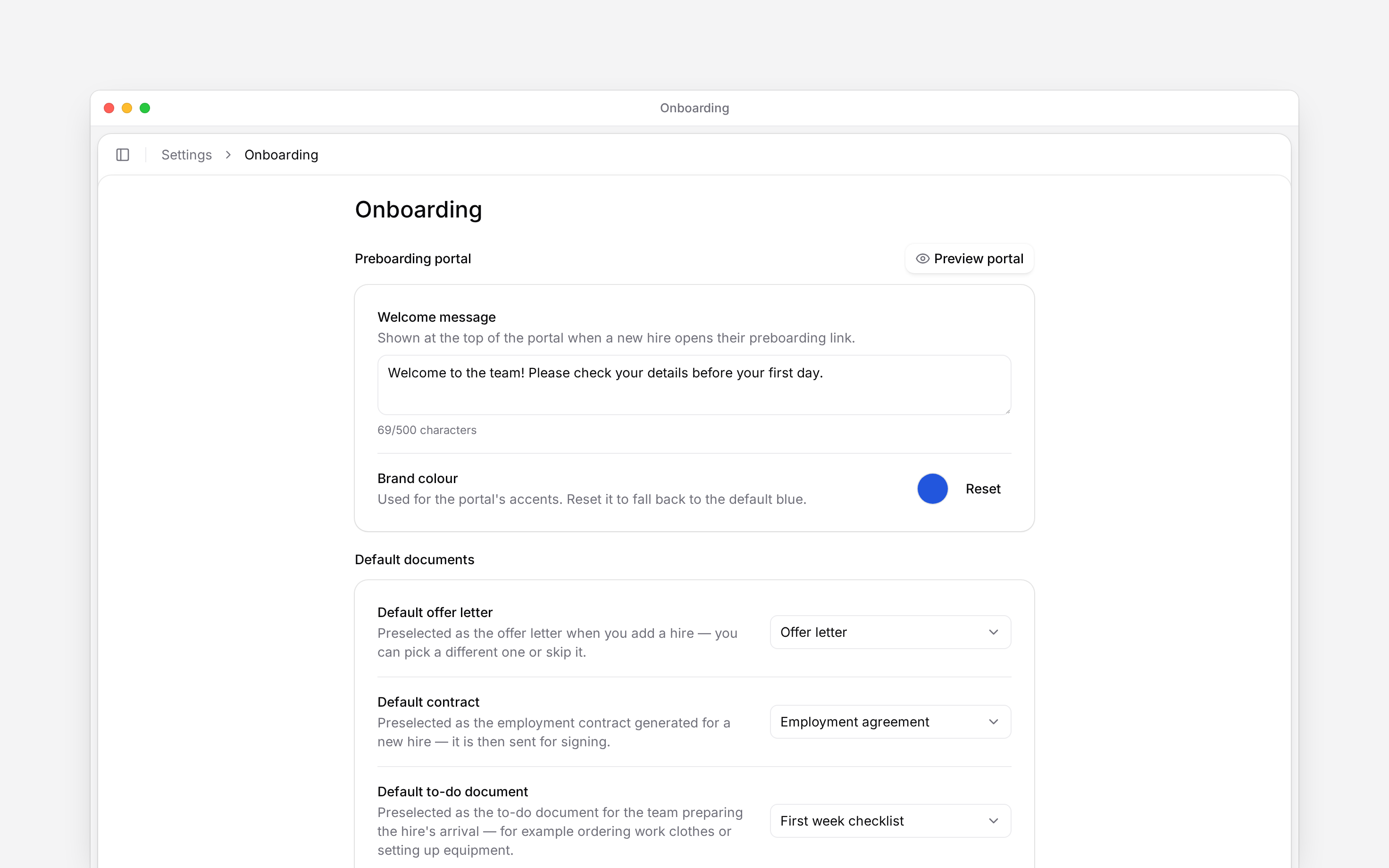
 Set up **Settings → Onboarding** before your team starts adding new hires. These settings choose the documents offered during hiring and the welcome message and colour shown in the preboarding portal.
Guided onboarding is rolling out gradually. If **Onboarding** is missing from Settings, ask your
administrator to check your access and ask us whether onboarding is enabled for your workspace.
You need **Onboarding settings** for your role; Manager has it by default. Permission to add people does not grant this access. A hiring manager can still use the configured defaults without being able to change workspace settings.
## Choose the default documents
Under **Default documents**, choose the starting templates for each new hire:
| What do you want to prepare? | Choose |
| -------------------------------------------------------- | -------------------------- |
| An offer for the person to accept or decline | **Default offer letter** |
| An employment document to generate and send for signing | **Default contract** |
| Instructions for the team preparing the person's arrival | **Default to-do document** |
Each selection saves immediately. Wait for **Document defaults saved** before leaving. Choose **None** to clear a default. This removes the preselection; it does not delete the template.
The hiring flow lets you review the selected documents for the individual hire. Check them before sending anything. A default is a starting choice, not evidence that an offer was accepted, a contract was signed or a task was completed.
## Make a missing template available
Create or edit it in [Document templates](/for-managers/documents/managing-document-templates). Each picker shows templates suitable for that purpose. An offer needs the **Offer letter** category. Use an **Employment agreement** for the contract, and a non-contract document such as a **Policy** or **Other** template for the to-do document.
A folder is not a selectable document. Offer and termination-letter templates do not belong in the default-contract slot. A contract template cannot be the to-do document.
The to-do document is for internal preparation, such as ordering work clothes or setting up equipment. It is separate from the details the new hire submits through their preboarding link.
## Personalise the portal
Under **Preboarding portal**, enter a **Welcome message** of up to 500 characters. It appears at the top of the portal when a new hire opens their link. Clear it to remove your custom message.
Choose **Brand colour** from the palette or enter a complete six-digit hex colour, such as `#2256DD`. **Reset** restores the default blue. An incomplete or invalid colour is not saved.
The message and colour save automatically after you finish editing. Wait for **Portal settings saved** before navigating away; there is no separate Save button.
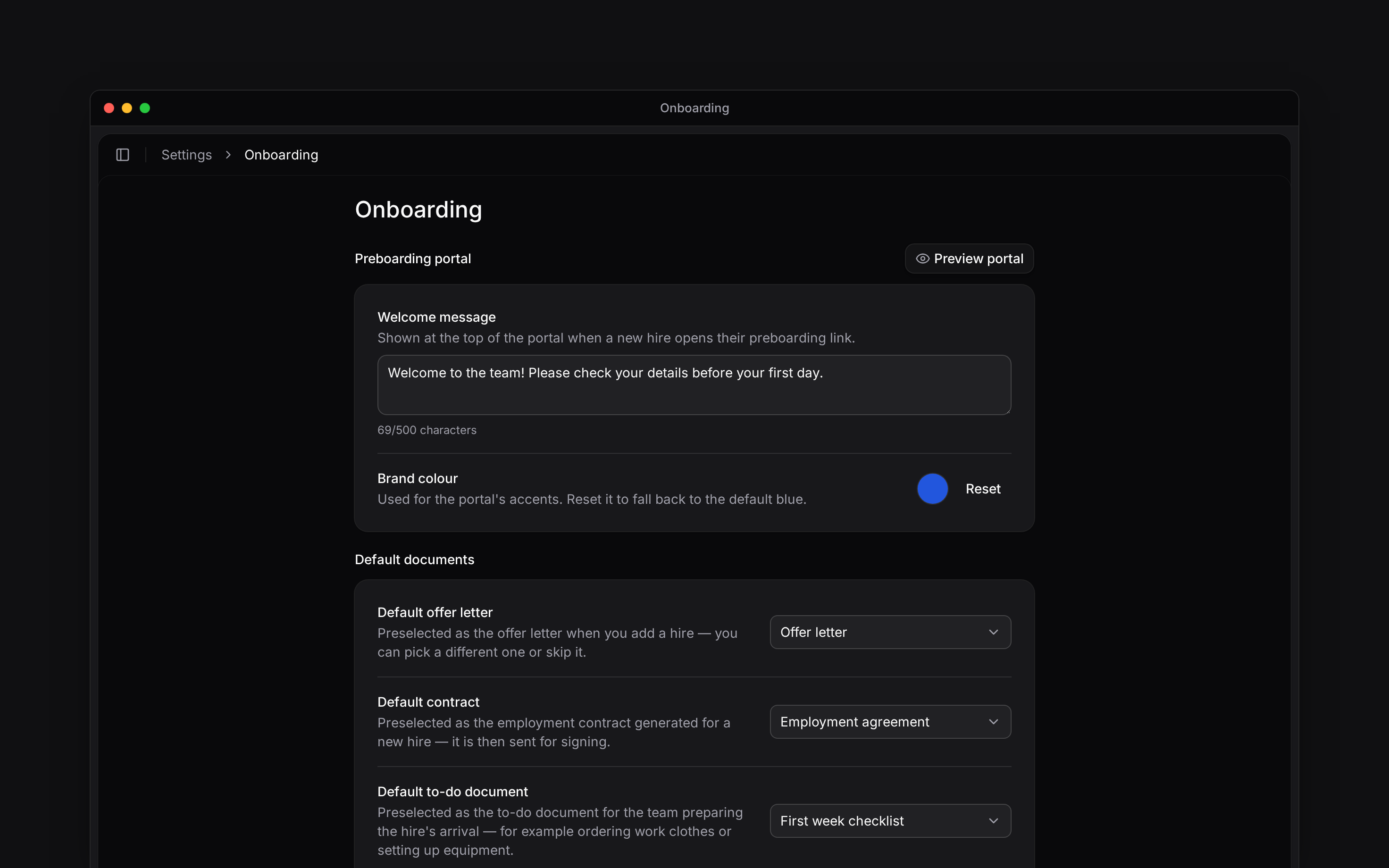
Set up **Settings → Onboarding** before your team starts adding new hires. These settings choose the documents offered during hiring and the welcome message and colour shown in the preboarding portal.
Guided onboarding is rolling out gradually. If **Onboarding** is missing from Settings, ask your
administrator to check your access and ask us whether onboarding is enabled for your workspace.
You need **Onboarding settings** for your role; Manager has it by default. Permission to add people does not grant this access. A hiring manager can still use the configured defaults without being able to change workspace settings.
## Choose the default documents
Under **Default documents**, choose the starting templates for each new hire:
| What do you want to prepare? | Choose |
| -------------------------------------------------------- | -------------------------- |
| An offer for the person to accept or decline | **Default offer letter** |
| An employment document to generate and send for signing | **Default contract** |
| Instructions for the team preparing the person's arrival | **Default to-do document** |
Each selection saves immediately. Wait for **Document defaults saved** before leaving. Choose **None** to clear a default. This removes the preselection; it does not delete the template.
The hiring flow lets you review the selected documents for the individual hire. Check them before sending anything. A default is a starting choice, not evidence that an offer was accepted, a contract was signed or a task was completed.
## Make a missing template available
Create or edit it in [Document templates](/for-managers/documents/managing-document-templates). Each picker shows templates suitable for that purpose. An offer needs the **Offer letter** category. Use an **Employment agreement** for the contract, and a non-contract document such as a **Policy** or **Other** template for the to-do document.
A folder is not a selectable document. Offer and termination-letter templates do not belong in the default-contract slot. A contract template cannot be the to-do document.
The to-do document is for internal preparation, such as ordering work clothes or setting up equipment. It is separate from the details the new hire submits through their preboarding link.
## Personalise the portal
Under **Preboarding portal**, enter a **Welcome message** of up to 500 characters. It appears at the top of the portal when a new hire opens their link. Clear it to remove your custom message.
Choose **Brand colour** from the palette or enter a complete six-digit hex colour, such as `#2256DD`. **Reset** restores the default blue. An incomplete or invalid colour is not saved.
The message and colour save automatically after you finish editing. Wait for **Portal settings saved** before navigating away; there is no separate Save button.
 ## Preview before inviting someone
Choose **Preview portal** to check the saved message and colour in the portal layout. The preview uses sample hire details, so you can inspect it without opening a real person's record or sending an invitation.
Then follow [Onboarding a new hire](/for-managers/people/onboarding-a-new-hire) to prepare an actual hire. The preboarding link collects their details; the invitation to sign in to Begin is a separate step.
**Context for an assistant answering questions about setting up onboarding.**
* **Limits:** Default template selections must refer to live document templates in the same workspace.
* **Where:** Portal settings and default documents save independently; changing one card does not overwrite the other.
## Next
Use the defaults for a real new starter.
Prepare the documents the hiring flow uses.
## Still need help?
Email the Begin team and we'll get back to you.
Open the AI assistant and get instant answers based on these docs.
## Preview before inviting someone
Choose **Preview portal** to check the saved message and colour in the portal layout. The preview uses sample hire details, so you can inspect it without opening a real person's record or sending an invitation.
Then follow [Onboarding a new hire](/for-managers/people/onboarding-a-new-hire) to prepare an actual hire. The preboarding link collects their details; the invitation to sign in to Begin is a separate step.
**Context for an assistant answering questions about setting up onboarding.**
* **Limits:** Default template selections must refer to live document templates in the same workspace.
* **Where:** Portal settings and default documents save independently; changing one card does not overwrite the other.
## Next
Use the defaults for a real new starter.
Prepare the documents the hiring flow uses.
## Still need help?
Email the Begin team and we'll get back to you.
Open the AI assistant and get instant answers based on these docs.