> ## Documentation Index
> Fetch the complete documentation index at: https://docs.begin.eu/llms.txt
> Use this file to discover all available pages before exploring further.
# Applying policies
> Target rules to everyone or selected groups and check the effective result before people use them.

 Use **Applies to** to decide who a policy reaches. You can start with **Everyone**, then add a more specific policy for selected people, positions or departments when their rules differ.
## Choose the audience
Go to **Policies**, choose its tab, then add a policy or open an existing row and select
**Edit**.
Choose **Everyone** for a workspace-wide rule, or the specific option (its wording varies by
tab) and select at least one target.
Set **Status** to **Active**, then save. Draft and archived policies do not take effect.
When several active policies match, a direct person target is more specific than a position, a position is more specific than a department, and a department is more specific than **Everyone**. Some families combine compatible settings; others select the most specific matching policy.
## Preview the result
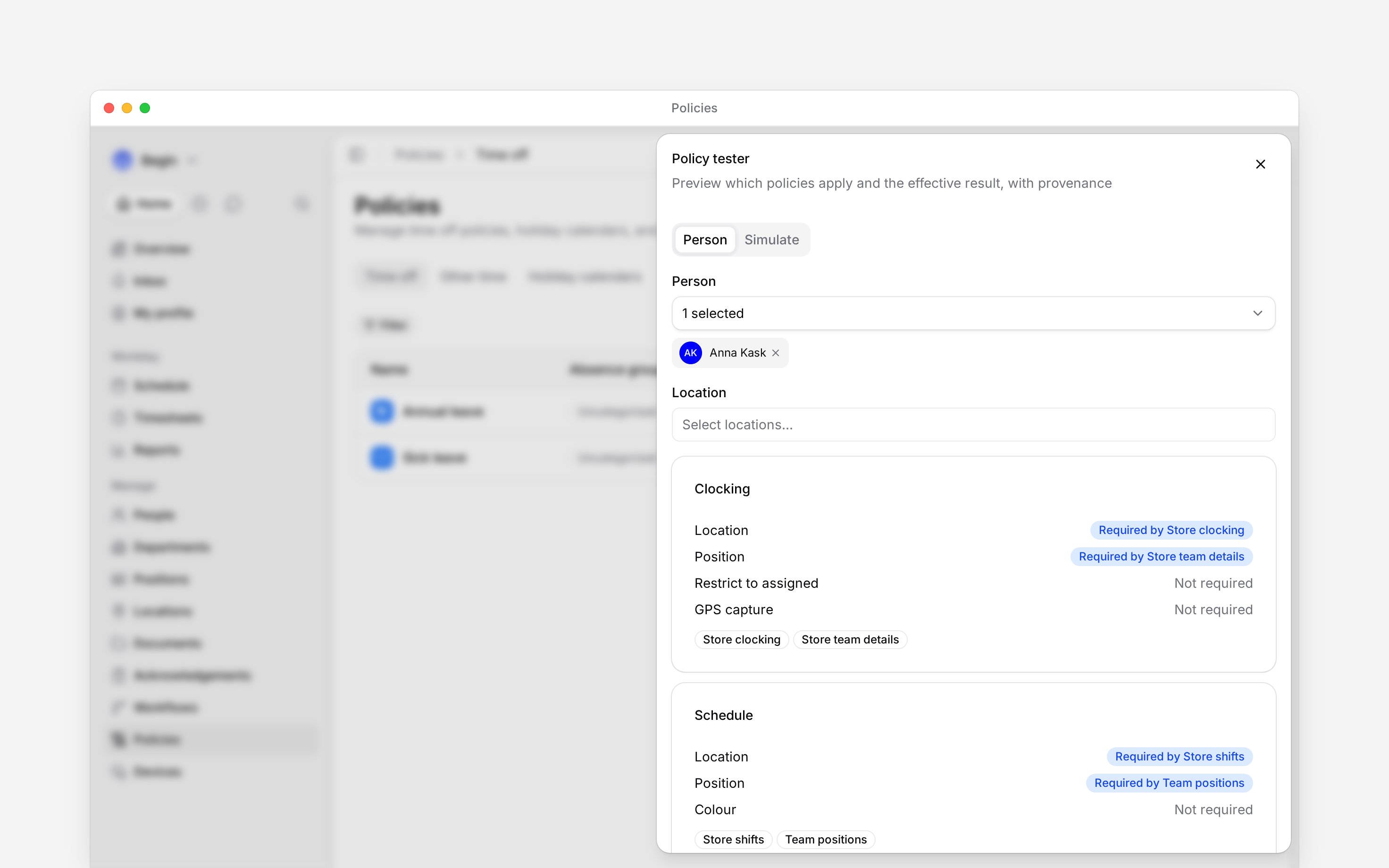
Open **Policy options** (the three-dot menu beside **Add**) and choose **Policy tester**. Pick a person to use their current assignments, or choose **Simulate** to test a position, department and location without changing anyone.
The cards name the policies that apply. Where several rules contribute, the result also names which policy supplied each requirement.
Check one person who should receive the rule and one who should not. For example, a schedule policy requiring **Position** for a department should contribute that requirement for a member of that department. A person outside it may still have the same requirement from a different policy: read the source name rather than checking only the final result.
If the expected rule is missing, check its **Active** status, the person's current assignments and its targets. For families with location-scoped matching, select the location you want to test. Overtime, premium-hours and compliance rules do not take a location target. **Simulate** does not represent a real person, so it cannot match a policy targeted directly to that person.
Use **Applies to** to decide who a policy reaches. You can start with **Everyone**, then add a more specific policy for selected people, positions or departments when their rules differ.
## Choose the audience
Go to **Policies**, choose its tab, then add a policy or open an existing row and select
**Edit**.
Choose **Everyone** for a workspace-wide rule, or the specific option (its wording varies by
tab) and select at least one target.
Set **Status** to **Active**, then save. Draft and archived policies do not take effect.
When several active policies match, a direct person target is more specific than a position, a position is more specific than a department, and a department is more specific than **Everyone**. Some families combine compatible settings; others select the most specific matching policy.
## Preview the result
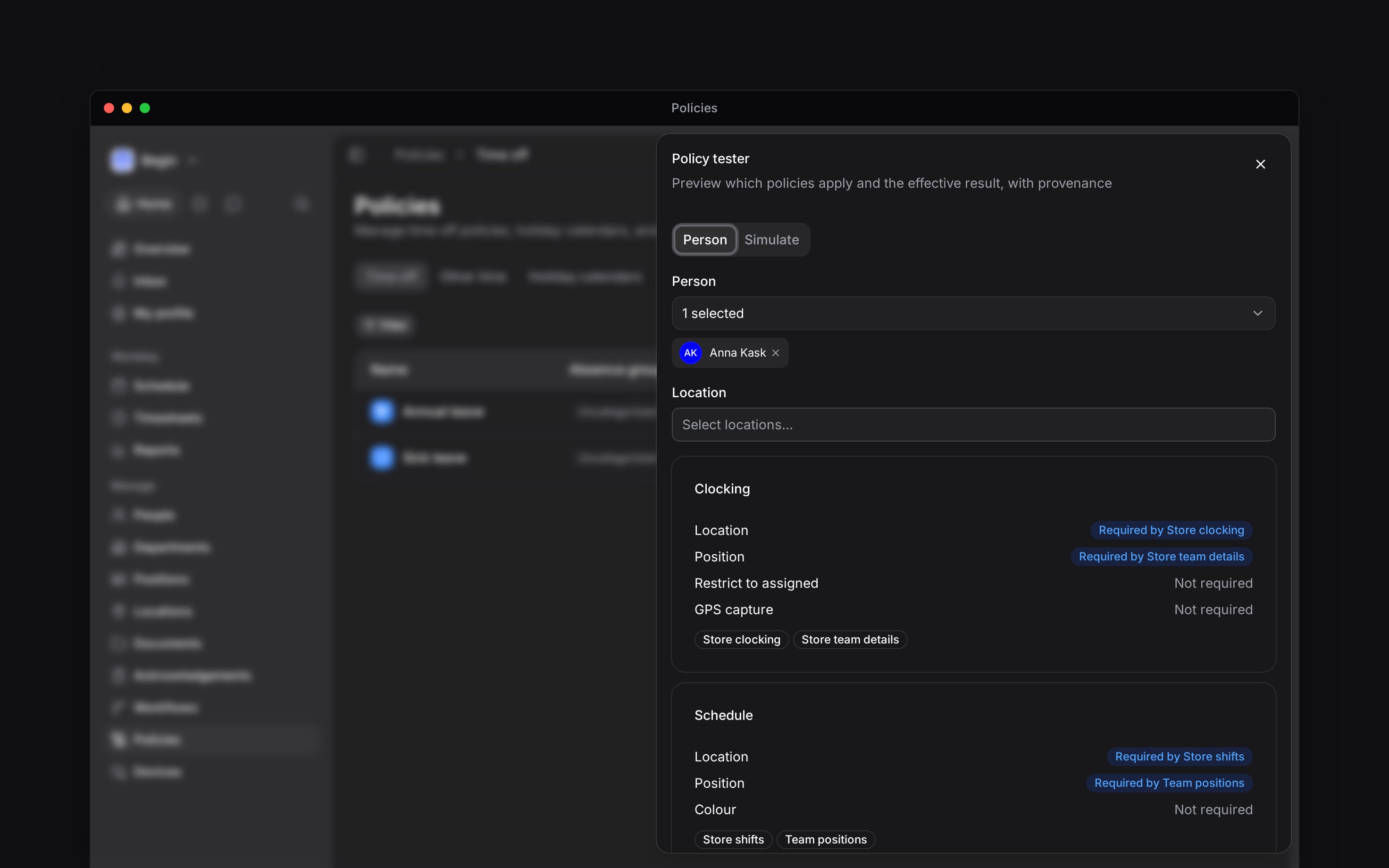
Open **Policy options** (the three-dot menu beside **Add**) and choose **Policy tester**. Pick a person to use their current assignments, or choose **Simulate** to test a position, department and location without changing anyone.
The cards name the policies that apply. Where several rules contribute, the result also names which policy supplied each requirement.
Check one person who should receive the rule and one who should not. For example, a schedule policy requiring **Position** for a department should contribute that requirement for a member of that department. A person outside it may still have the same requirement from a different policy: read the source name rather than checking only the final result.
If the expected rule is missing, check its **Active** status, the person's current assignments and its targets. For families with location-scoped matching, select the location you want to test. Overtime, premium-hours and compliance rules do not take a location target. **Simulate** does not represent a real person, so it cannot match a policy targeted directly to that person.
 ## Resolve equal matches
Two equally specific policies in one family may disagree. Where conflict checks are available, Begin marks both rows and names the setting that differs. Change the targets or align the settings so the effective result is unambiguous.
Conflict marks appear only when conflict checks are enabled for your workspace and a scan has
completed. If you do not see them, use **Policy tester** to check the effective result.
**Context for an assistant answering questions about policy application.** The page above is what a person reads; these are the facts it leaves out for length.
* **Who can:** **Policy tester** needs **Data access** to **Policies**. Changing a target needs **Edit** access.
* **Where:** location targeting is an additional filter for policy families that offer it; a matching person still needs the relevant location when the rule is evaluated.
* **Limits:** **Simulate** cannot match a policy targeted directly to a person because it does not represent a real member.
* **Terms:** precedence is person, position, department, then everyone. A location target wins a tie inside the same tier rather than forming another precedence tier.
* **Not supported:** conflict marks do not appear while conflict checks are unavailable or a conflict scan is incomplete.
## Next
Apply leave and balance rules to the right people.
Combine audience and workplace rules for clocking.
## Still need help?
Email the Begin team and we'll get back to you.
Open the AI assistant and get instant answers based on these docs.
## Resolve equal matches
Two equally specific policies in one family may disagree. Where conflict checks are available, Begin marks both rows and names the setting that differs. Change the targets or align the settings so the effective result is unambiguous.
Conflict marks appear only when conflict checks are enabled for your workspace and a scan has
completed. If you do not see them, use **Policy tester** to check the effective result.
**Context for an assistant answering questions about policy application.** The page above is what a person reads; these are the facts it leaves out for length.
* **Who can:** **Policy tester** needs **Data access** to **Policies**. Changing a target needs **Edit** access.
* **Where:** location targeting is an additional filter for policy families that offer it; a matching person still needs the relevant location when the rule is evaluated.
* **Limits:** **Simulate** cannot match a policy targeted directly to a person because it does not represent a real member.
* **Terms:** precedence is person, position, department, then everyone. A location target wins a tie inside the same tier rather than forming another precedence tier.
* **Not supported:** conflict marks do not appear while conflict checks are unavailable or a conflict scan is incomplete.
## Next
Apply leave and balance rules to the right people.
Combine audience and workplace rules for clocking.
## Still need help?
Email the Begin team and we'll get back to you.
Open the AI assistant and get instant answers based on these docs.