> ## Documentation Index
> Fetch the complete documentation index at: https://docs.begin.eu/llms.txt
> Use this file to discover all available pages before exploring further.
# Break policies
> Control reported breaks, add automatic breaks and recalculate existing time entries when needed.

 A break policy decides which breaks people may report and whether Begin adds a break automatically. Paid breaks count towards worked time; unpaid breaks are deducted from it.
## Choose the break rules
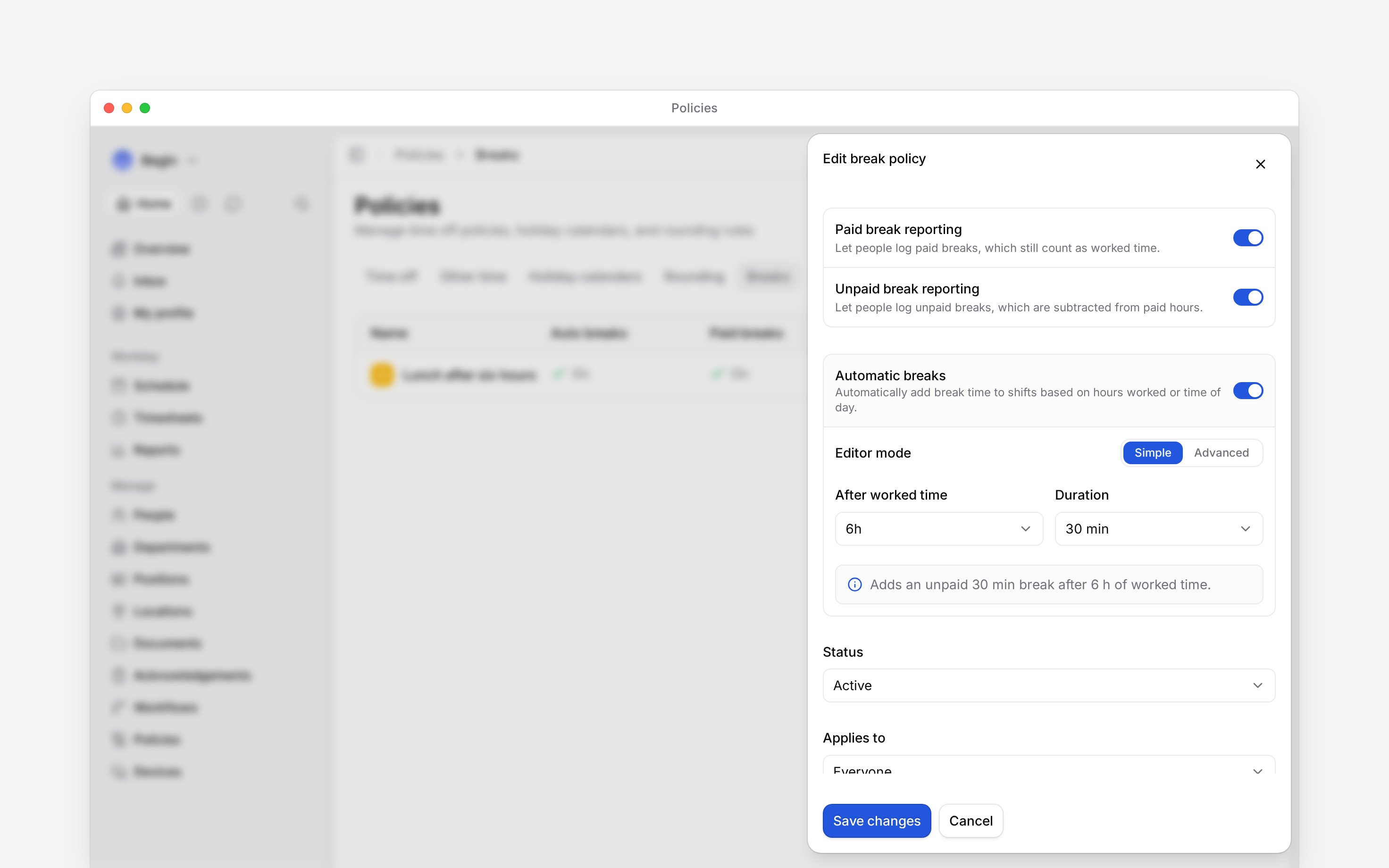
Turn on **Paid break reporting** or **Unpaid break reporting** for the kinds people may add themselves. With no matching break policy, break reporting is off, so deleting the last policy that reaches someone turns their break reporting off.
For one automatic break, use the simple setup: choose how long someone must work before the break applies, then set its duration.
For example, for a 30-minute unpaid break after six hours, set **After worked time** to `6` hours and **Duration** to `30` minutes. Check that **Automatic break preview** describes an unpaid 30-minute break after six hours. These are example values; use your own agreed break rule.
Use the advanced setup for these decisions:
* **Time of day** places a break at a fixed clock time within the shift, regardless of hours already worked.
* **Multiple breaks** and **Repeat every** add further breaks after more worked time.
* **Paid** makes the automatic break count as worked time.
* **Count nearby shifts together** joins shifts for the trigger. Set **Join shifts within** for the gap and **Maximum shift length** for the total grouping window.
The preview summarises the rule you will save. Check it again after changing these options.
Switching an advanced automatic break back to the simple setup replaces the advanced settings.
Begin asks you to confirm first.
## Create the policy
Go to **Policies → Breaks**, open **Add**, then choose **Break policy**.
Choose whether paid breaks, unpaid breaks or both may be reported.
Turn on **Automatic break**, then set when it triggers and how long it lasts. Switch to
**Advanced** for a paid break.
Choose [**Applies to**](/for-managers/policies/applying-policies), set **Status** to **Active**,
then save.
A break policy decides which breaks people may report and whether Begin adds a break automatically. Paid breaks count towards worked time; unpaid breaks are deducted from it.
## Choose the break rules
Turn on **Paid break reporting** or **Unpaid break reporting** for the kinds people may add themselves. With no matching break policy, break reporting is off, so deleting the last policy that reaches someone turns their break reporting off.
For one automatic break, use the simple setup: choose how long someone must work before the break applies, then set its duration.
For example, for a 30-minute unpaid break after six hours, set **After worked time** to `6` hours and **Duration** to `30` minutes. Check that **Automatic break preview** describes an unpaid 30-minute break after six hours. These are example values; use your own agreed break rule.
Use the advanced setup for these decisions:
* **Time of day** places a break at a fixed clock time within the shift, regardless of hours already worked.
* **Multiple breaks** and **Repeat every** add further breaks after more worked time.
* **Paid** makes the automatic break count as worked time.
* **Count nearby shifts together** joins shifts for the trigger. Set **Join shifts within** for the gap and **Maximum shift length** for the total grouping window.
The preview summarises the rule you will save. Check it again after changing these options.
Switching an advanced automatic break back to the simple setup replaces the advanced settings.
Begin asks you to confirm first.
## Create the policy
Go to **Policies → Breaks**, open **Add**, then choose **Break policy**.
Choose whether paid breaks, unpaid breaks or both may be reported.
Turn on **Automatic break**, then set when it triggers and how long it lasts. Switch to
**Advanced** for a paid break.
Choose [**Applies to**](/for-managers/policies/applying-policies), set **Status** to **Active**,
then save.
 ## Apply a change to existing records
Recalculation needs permission to manage other people's timesheets and edit their schedules, as well as edit the policy.
Policy changes apply to new calculations. To update existing entries, open the policy and choose **Apply latest settings to existing records**. In **Apply latest automatic break settings**, preview the date range and audience, then choose **Apply latest settings**. Begin reports which entries changed and which it skipped.
Begin skips approved entries, manually overridden breaks, breaks with a manual duration, ineligible entries, entries governed by another policy and entries in a closed period. The applied policy snapshot remains on each entry, so the change is traceable.
Check a matching entry long enough to contain the full break. With a six-hour trigger, a shift ending exactly at six hours has no room for the break; one ending 15 minutes later can contain only 15 minutes. Existing manually reported breaks can also suppress automatic breaks. Review the entry's breaks and warnings before treating an unexpected total as a rounding issue.
**Context for an assistant answering questions about break policies.** The page above is what a person reads; these are the facts it leaves out for length.
* **Who can:** creating or changing a break policy uses the matching grant on **Policies**. Recalculation is available from an editable policy.
* **Where:** automatic breaks appear on time entries and feed worked-time calculations; the entry keeps the applied policy snapshot.
* **Limits:** an automatic break can be triggered by worked minutes or time of day. Advanced mode also supports repetition, nearby-shift aggregation and validity windows.
* **Not supported:** saving a changed policy does not silently rewrite existing entries. Use the explicit recalculation flow.
* **Often confused with:** a reported break, which a person adds, and an automatic break, which the calculation engine inserts.
## Next
See where break results appear on a time entry.
Set the separate rules that adjust punches and totals.
## Still need help?
Email the Begin team and we'll get back to you.
Open the AI assistant and get instant answers based on these docs.
## Apply a change to existing records
Recalculation needs permission to manage other people's timesheets and edit their schedules, as well as edit the policy.
Policy changes apply to new calculations. To update existing entries, open the policy and choose **Apply latest settings to existing records**. In **Apply latest automatic break settings**, preview the date range and audience, then choose **Apply latest settings**. Begin reports which entries changed and which it skipped.
Begin skips approved entries, manually overridden breaks, breaks with a manual duration, ineligible entries, entries governed by another policy and entries in a closed period. The applied policy snapshot remains on each entry, so the change is traceable.
Check a matching entry long enough to contain the full break. With a six-hour trigger, a shift ending exactly at six hours has no room for the break; one ending 15 minutes later can contain only 15 minutes. Existing manually reported breaks can also suppress automatic breaks. Review the entry's breaks and warnings before treating an unexpected total as a rounding issue.
**Context for an assistant answering questions about break policies.** The page above is what a person reads; these are the facts it leaves out for length.
* **Who can:** creating or changing a break policy uses the matching grant on **Policies**. Recalculation is available from an editable policy.
* **Where:** automatic breaks appear on time entries and feed worked-time calculations; the entry keeps the applied policy snapshot.
* **Limits:** an automatic break can be triggered by worked minutes or time of day. Advanced mode also supports repetition, nearby-shift aggregation and validity windows.
* **Not supported:** saving a changed policy does not silently rewrite existing entries. Use the explicit recalculation flow.
* **Often confused with:** a reported break, which a person adds, and an automatic break, which the calculation engine inserts.
## Next
See where break results appear on a time entry.
Set the separate rules that adjust punches and totals.
## Still need help?
Email the Begin team and we'll get back to you.
Open the AI assistant and get instant answers based on these docs.