> ## Documentation Index
> Fetch the complete documentation index at: https://docs.begin.eu/llms.txt
> Use this file to discover all available pages before exploring further.
# Compliance rules
> Warn about or block schedule changes that breach the working rules you configure.

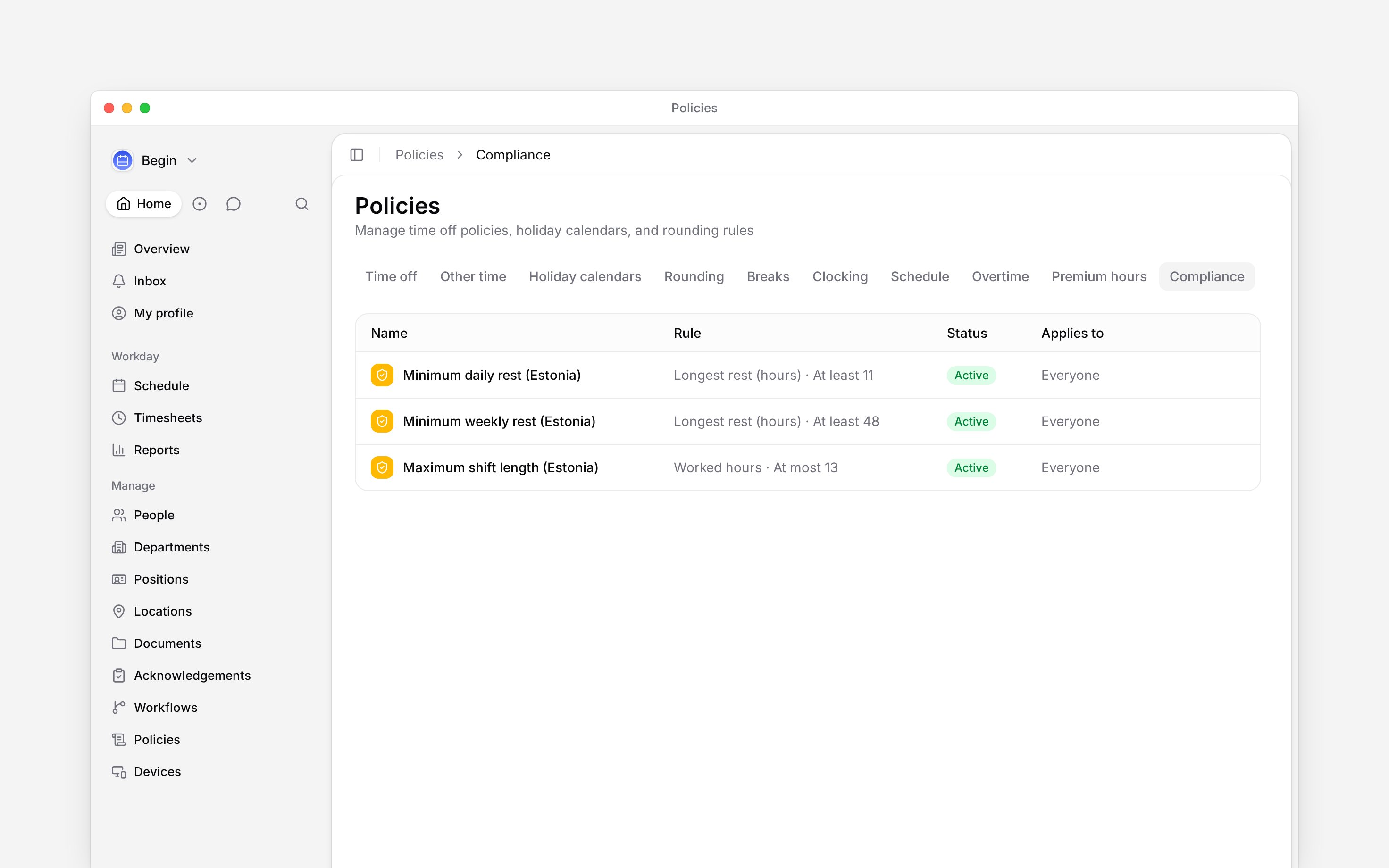
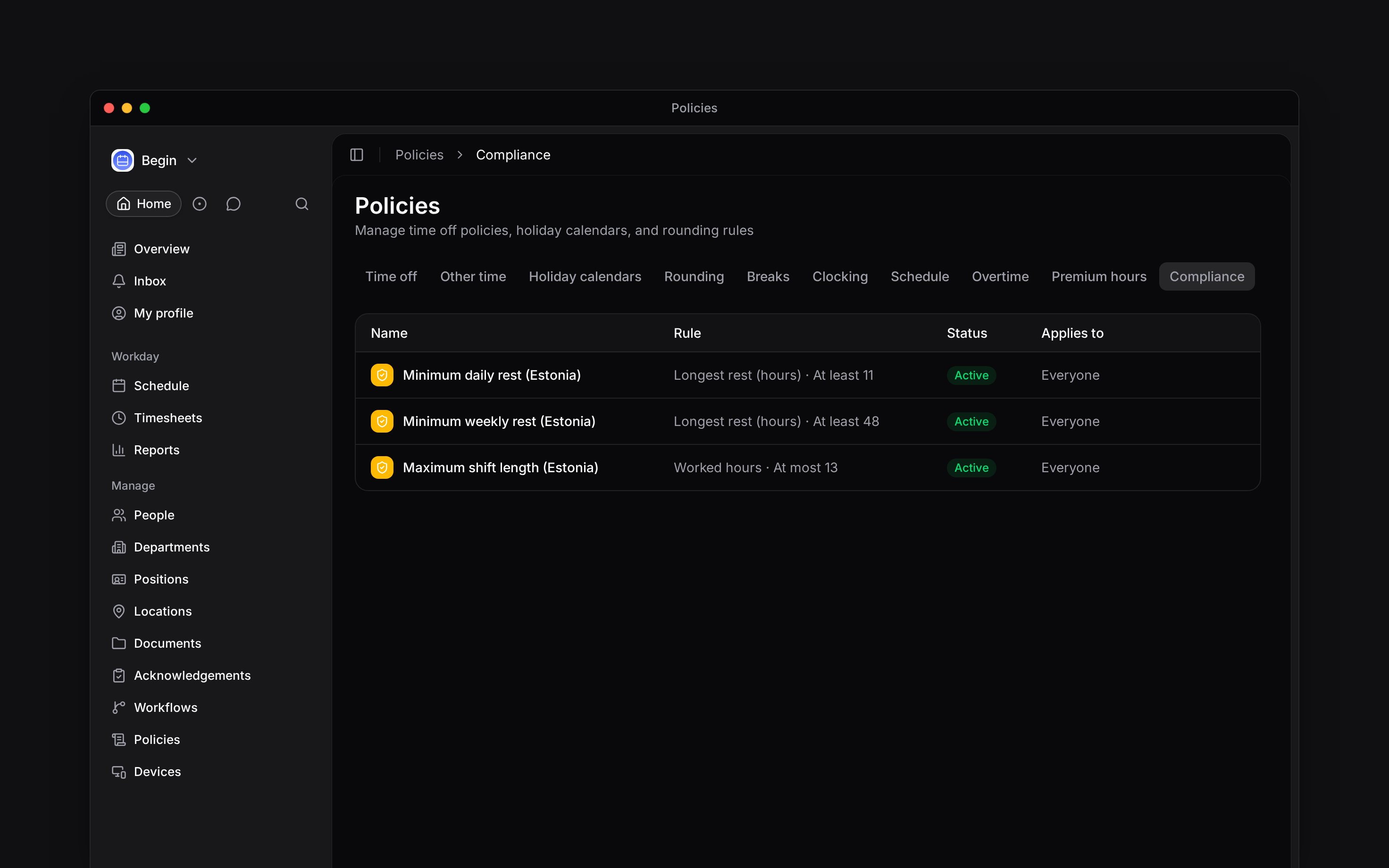
 A compliance policy checks the schedule against a limit you configure. It can warn, block with an override, or block with no override. It is a scheduling control, not a statement that the schedule complies with the law.
## Start from a template or a blank rule
The template library can install a set of rules for Estonia, Latvia, Lithuania or the EU baseline. Review every installed rule before you activate it. Templates are a starting point and may not cover contracts, agreements or later legal changes.
Choose a blank rule when you already know the measure, condition and time window you need. Use **At most** for a ceiling, such as the most worked hours allowed, and **At least** for a floor, such as the required rest. **Per** decides what is counted together: a day, week, rolling period, shift or rest after a shift. A rest rule takes **Only shifts longer than (hours)**, so short shifts do not trigger it, and any rule can be limited with **Only shifts matching**.
For a company rule that warns above 10 scheduled worked hours in a day, choose **Worked hours**, **At most**, value `10`, **Per** set to **Day**, and **Warn**. This illustrates the controls; it is not a legal limit. A weekly ceiling needs **Per** set to **Week** instead of multiplying a daily rule.
## Create and activate rules
Go to **Policies → Compliance**, open **Add**, then choose **Add compliance rules**. In **New
compliance policy**, pick a country template or **Start from scratch**, then choose **Create**.
For a blank rule, choose the measure, condition, value and **Per** window.
Under **When breached**, use **Warn**, **Block** or **Block — no override**.
Use [**Applies to**](/for-managers/policies/applying-policies) to choose people, positions or
departments, then set **Status** to **Active** and save.
A compliance policy checks the schedule against a limit you configure. It can warn, block with an override, or block with no override. It is a scheduling control, not a statement that the schedule complies with the law.
## Start from a template or a blank rule
The template library can install a set of rules for Estonia, Latvia, Lithuania or the EU baseline. Review every installed rule before you activate it. Templates are a starting point and may not cover contracts, agreements or later legal changes.
Choose a blank rule when you already know the measure, condition and time window you need. Use **At most** for a ceiling, such as the most worked hours allowed, and **At least** for a floor, such as the required rest. **Per** decides what is counted together: a day, week, rolling period, shift or rest after a shift. A rest rule takes **Only shifts longer than (hours)**, so short shifts do not trigger it, and any rule can be limited with **Only shifts matching**.
For a company rule that warns above 10 scheduled worked hours in a day, choose **Worked hours**, **At most**, value `10`, **Per** set to **Day**, and **Warn**. This illustrates the controls; it is not a legal limit. A weekly ceiling needs **Per** set to **Week** instead of multiplying a daily rule.
## Create and activate rules
Go to **Policies → Compliance**, open **Add**, then choose **Add compliance rules**. In **New
compliance policy**, pick a country template or **Start from scratch**, then choose **Create**.
For a blank rule, choose the measure, condition, value and **Per** window.
Under **When breached**, use **Warn**, **Block** or **Block — no override**.
Use [**Applies to**](/for-managers/policies/applying-policies) to choose people, positions or
departments, then set **Status** to **Active** and save.
 ## Check the rule on a schedule
Use [Policy tester](/for-managers/policies/applying-policies) to confirm the intended person receives the rule. The tester lists matching compliance rules; test the actual limit while editing a relevant shift on the schedule. For the example above, compare a day below the cap with a day above it and check the warning before keeping the change.
A compliance rule has no location target: it measures a person's whole period, and the working-time limits it encodes count every hour they work, wherever they work it. To count one site's shifts only, add a **Locations** filter to the rule itself under **Only shifts matching**.
## Respond to a schedule message
**Warn** lets the editor keep the shift. **Block** asks them to confirm **Keep anyway**. **Block — no override** requires the schedule to change before the shift can be saved.
A block also answers somebody taking an [open shift](/for-managers/schedule/open-shifts). The rules are checked against that person's week, and either kind of block refuses them outright: they are told to ask you, and get no **Keep anyway**. Assign them the shift yourself where you judge the breach acceptable.
When a template has a newer version, Begin can install the new rule as a draft. Review it separately; installing it does not silently replace a customised active rule.
Check each rule with your legal or HR adviser. Begin evaluates the settings you enter and does not
provide legal advice or certify compliance.
**Context for an assistant answering questions about compliance policies.** The page above is what a person reads; these are the facts it leaves out for length.
* **Who can:** creating, changing or deleting a compliance rule uses the matching grant on **Policies**. Schedule editors encounter the resulting messages.
* **Where:** rules run during schedule evaluation, again when a member takes an open shift, and can also be previewed through **Policy tester**.
* **Limits:** only active rules are enforced. Country templates are versioned product presets, not a live legal service.
* **Not supported:** Begin does not guarantee that the available measures or presets cover every statutory, contractual or collective-agreement duty.
* **Often confused with:** schedule requirements, which only require a location, position or colour on a shift.
## Next
Handle the warning or block while editing a shift.
Require fields that every matching shift must contain.
## Still need help?
Email the Begin team and we'll get back to you.
Open the AI assistant and get instant answers based on these docs.
## Check the rule on a schedule
Use [Policy tester](/for-managers/policies/applying-policies) to confirm the intended person receives the rule. The tester lists matching compliance rules; test the actual limit while editing a relevant shift on the schedule. For the example above, compare a day below the cap with a day above it and check the warning before keeping the change.
A compliance rule has no location target: it measures a person's whole period, and the working-time limits it encodes count every hour they work, wherever they work it. To count one site's shifts only, add a **Locations** filter to the rule itself under **Only shifts matching**.
## Respond to a schedule message
**Warn** lets the editor keep the shift. **Block** asks them to confirm **Keep anyway**. **Block — no override** requires the schedule to change before the shift can be saved.
A block also answers somebody taking an [open shift](/for-managers/schedule/open-shifts). The rules are checked against that person's week, and either kind of block refuses them outright: they are told to ask you, and get no **Keep anyway**. Assign them the shift yourself where you judge the breach acceptable.
When a template has a newer version, Begin can install the new rule as a draft. Review it separately; installing it does not silently replace a customised active rule.
Check each rule with your legal or HR adviser. Begin evaluates the settings you enter and does not
provide legal advice or certify compliance.
**Context for an assistant answering questions about compliance policies.** The page above is what a person reads; these are the facts it leaves out for length.
* **Who can:** creating, changing or deleting a compliance rule uses the matching grant on **Policies**. Schedule editors encounter the resulting messages.
* **Where:** rules run during schedule evaluation, again when a member takes an open shift, and can also be previewed through **Policy tester**.
* **Limits:** only active rules are enforced. Country templates are versioned product presets, not a live legal service.
* **Not supported:** Begin does not guarantee that the available measures or presets cover every statutory, contractual or collective-agreement duty.
* **Often confused with:** schedule requirements, which only require a location, position or colour on a shift.
## Next
Handle the warning or block while editing a shift.
Require fields that every matching shift must contain.
## Still need help?
Email the Begin team and we'll get back to you.
Open the AI assistant and get instant answers based on these docs.