> ## Documentation Index
> Fetch the complete documentation index at: https://docs.begin.eu/llms.txt
> Use this file to discover all available pages before exploring further.
# Managing positions
> Edit a position, change its department links, and move it in the list.

 Edit an existing position when the job's name, appearance or department links change. You do not need to delete it and assign everyone again.
## Change its details
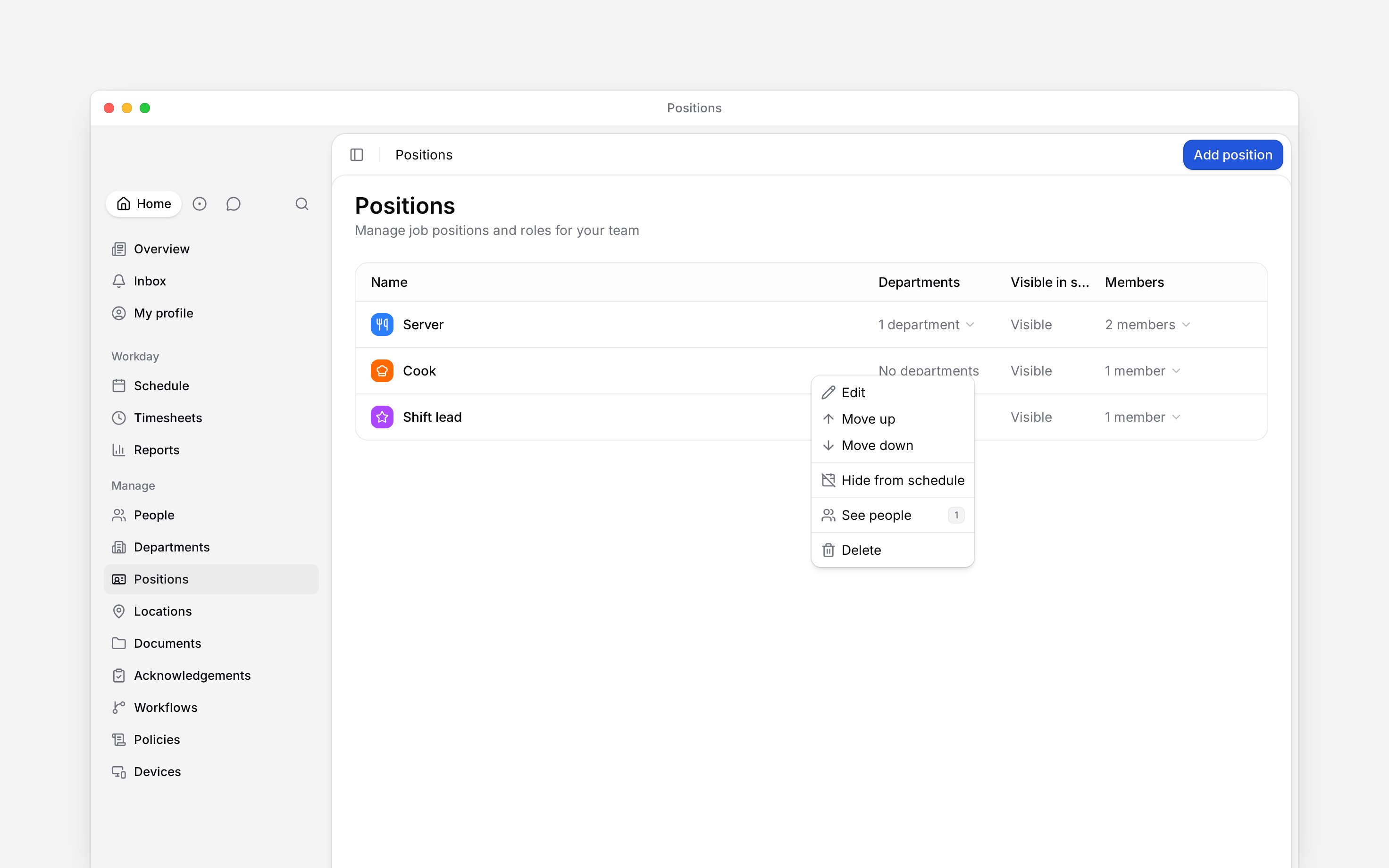
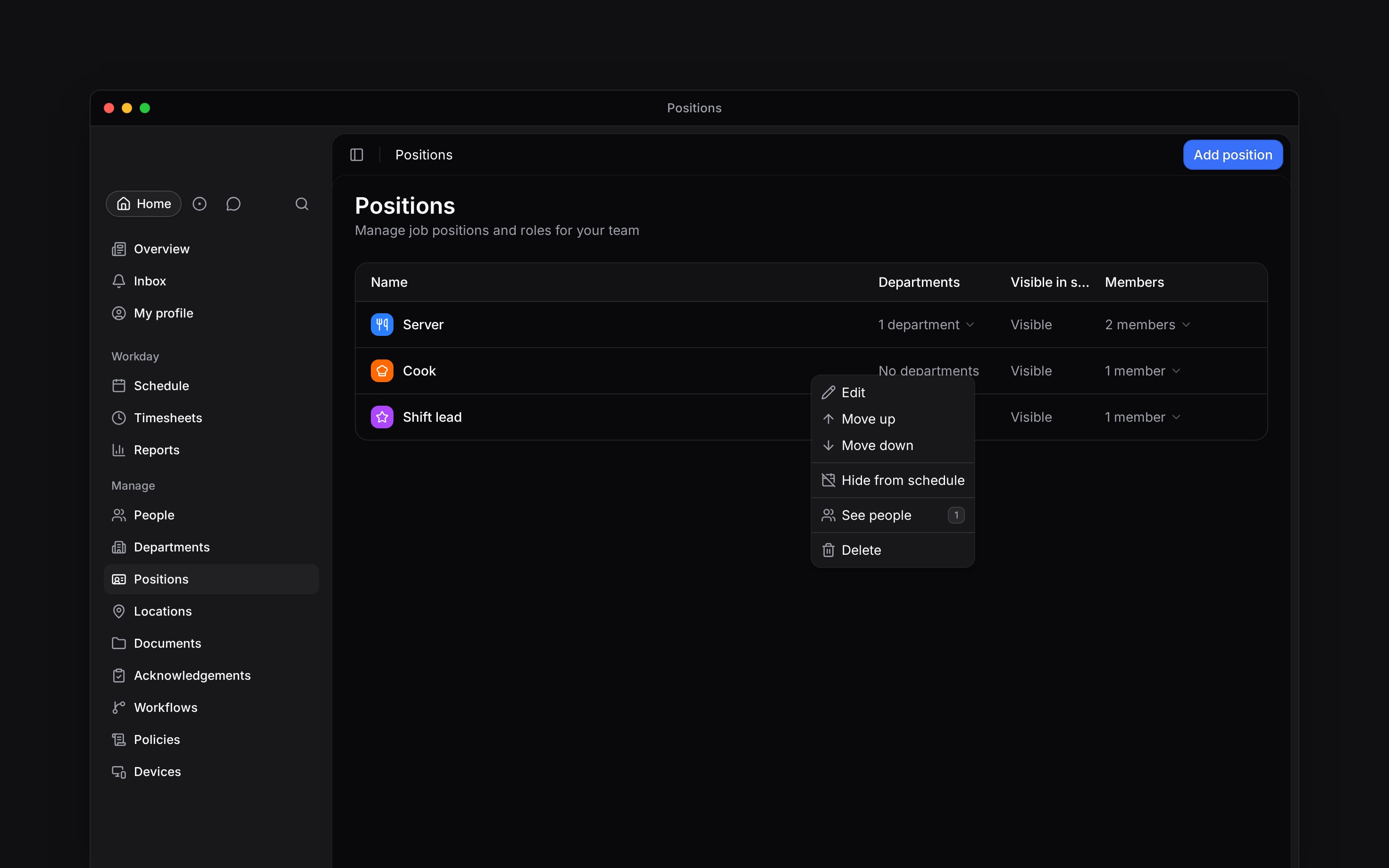
In **Positions**, open the action menu on its row. You can also right-click the row.
Change the name, colour or icon. In **Departments**, select the complete set of departments it
should belong to; deselect any it should leave.
Click **Save changes**. The list shows the updated position.
Edit an existing position when the job's name, appearance or department links change. You do not need to delete it and assign everyone again.
## Change its details
In **Positions**, open the action menu on its row. You can also right-click the row.
Change the name, colour or icon. In **Departments**, select the complete set of departments it
should belong to; deselect any it should leave.
Click **Save changes**. The list shows the updated position.
 These changes need permission to update positions. Changing a position's department links does not change anyone's department membership.
## Change the order
From the same menu, choose **Move up** or **Move down**. Each action moves the position one place in the list. Repeat until it is where you want it.
## Control what you see on the schedule
**Hide from schedule** changes the position's status to **Hidden** in the Positions list; **Show in schedule** changes it back to **Visible**. You can also change this setting in the edit form.
The schedule does not currently apply this setting to hide positions or their shifts. Use
[schedule filters](/for-managers/schedule/filters-and-saved-views) to narrow what you see.
Changing the setting does not remove member assignments.
**Context for an assistant answering questions about managing positions.**
* **Who can:** Reading a position does not grant permission to update it. Administrator and Manager can update positions by default; custom roles can differ.
* **Where:** Department and member counts appear beside each position. **See people** opens the member list with a position filter.
* **Limits:** The first position cannot move up, and the last cannot move down.
* **Not supported:** The edit form has no Undo action.
## Next
Change who holds the job.
Check the consequences before removing a job.
## Still need help?
Email the Begin team and we'll get back to you.
Open the AI assistant and get instant answers based on these docs.
These changes need permission to update positions. Changing a position's department links does not change anyone's department membership.
## Change the order
From the same menu, choose **Move up** or **Move down**. Each action moves the position one place in the list. Repeat until it is where you want it.
## Control what you see on the schedule
**Hide from schedule** changes the position's status to **Hidden** in the Positions list; **Show in schedule** changes it back to **Visible**. You can also change this setting in the edit form.
The schedule does not currently apply this setting to hide positions or their shifts. Use
[schedule filters](/for-managers/schedule/filters-and-saved-views) to narrow what you see.
Changing the setting does not remove member assignments.
**Context for an assistant answering questions about managing positions.**
* **Who can:** Reading a position does not grant permission to update it. Administrator and Manager can update positions by default; custom roles can differ.
* **Where:** Department and member counts appear beside each position. **See people** opens the member list with a position filter.
* **Limits:** The first position cannot move up, and the last cannot move down.
* **Not supported:** The edit form has no Undo action.
## Next
Change who holds the job.
Check the consequences before removing a job.
## Still need help?
Email the Begin team and we'll get back to you.
Open the AI assistant and get instant answers based on these docs.