> ## Documentation Index
> Fetch the complete documentation index at: https://docs.begin.eu/llms.txt
> Use this file to discover all available pages before exploring further.
# Checking report totals
> Find why a report total differs from its records or a calculated figure is unavailable.

 If a report total looks wrong, check its period, filters and calculation state first. A list of clock records can include work that a calculated hour total excludes, and a blank or marked cell does not always mean zero hours.
## Read the marks
Open **Info** in the report toolbar and read **Help**. It distinguishes a measured zero, no measurement, a figure withheld by a rule, and a person whose calculation was refused. On a report of several blocks it also lists which need attention; each row opens that block.
Wait for loading hour cells to finish before comparing or exporting them. A calculation still in progress is not a measured zero.
**Not included** lists what a block read but did not count: shifts outside the **Status** filter, and availability, unavailability and time-off blocks, which a Shifts report never counts. A Shifts report shows how many shifts and hours were not counted, and **Open in schedule** shows them. On a report of several blocks, open the mark on the block itself.
## Explain a difference
Confirm the report's range, grouping and filters match the records you are comparing.
Open the block's own mark and read **Totals**; on a report of one block the toolbar's **Info**
holds it. Either turns amber when a figure could not be produced, and **Needs attention** names
that instead.
**Totals** names the affected columns and the reason. A reason that applies to every column
reads once below them. Choose **Show the numbers** for the record total, adjustment and
calculated result.
If a report total looks wrong, check its period, filters and calculation state first. A list of clock records can include work that a calculated hour total excludes, and a blank or marked cell does not always mean zero hours.
## Read the marks
Open **Info** in the report toolbar and read **Help**. It distinguishes a measured zero, no measurement, a figure withheld by a rule, and a person whose calculation was refused. On a report of several blocks it also lists which need attention; each row opens that block.
Wait for loading hour cells to finish before comparing or exporting them. A calculation still in progress is not a measured zero.
**Not included** lists what a block read but did not count: shifts outside the **Status** filter, and availability, unavailability and time-off blocks, which a Shifts report never counts. A Shifts report shows how many shifts and hours were not counted, and **Open in schedule** shows them. On a report of several blocks, open the mark on the block itself.
## Explain a difference
Confirm the report's range, grouping and filters match the records you are comparing.
Open the block's own mark and read **Totals**; on a report of one block the toolbar's **Info**
holds it. Either turns amber when a figure could not be produced, and **Needs attention** names
that instead.
**Totals** names the affected columns and the reason. A reason that applies to every column
reads once below them. Choose **Show the numbers** for the record total, adjustment and
calculated result.
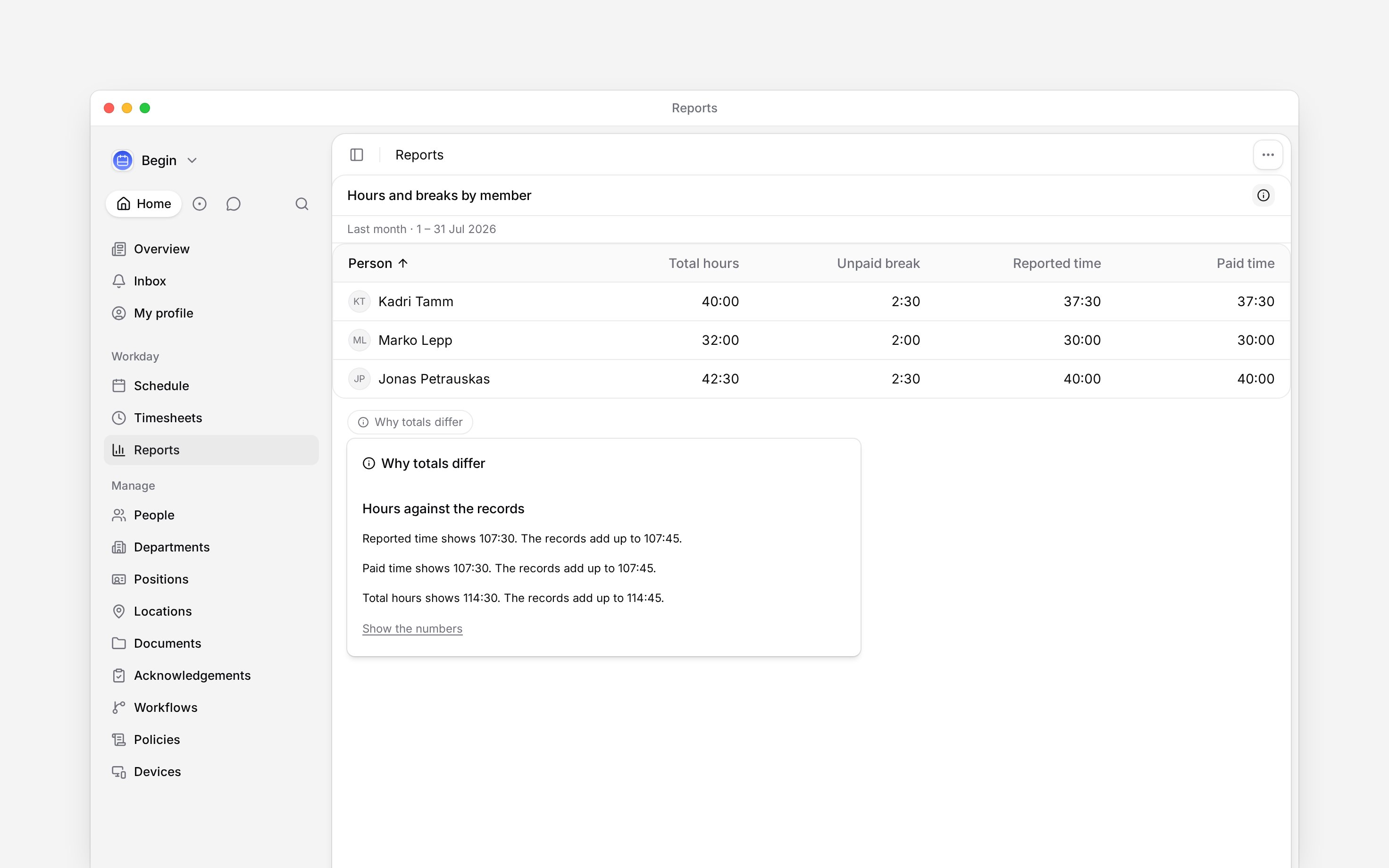
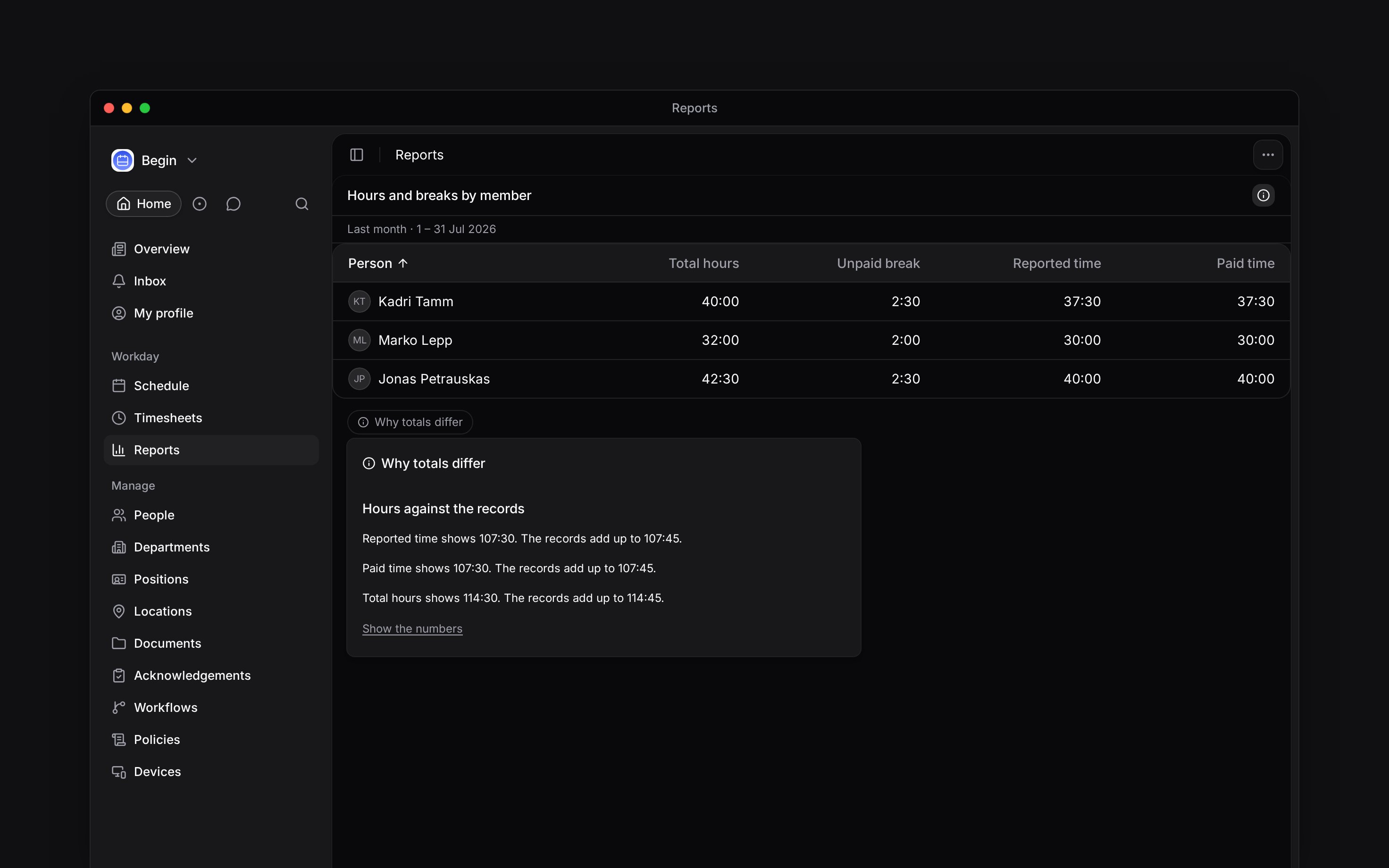 Hour totals use policies and rounding. Break, count and time-off columns are summed from records. Unpaid breaks or rounding can therefore explain a difference without any record needing correction.
**Show the numbers** compares **Scheduled hours**, **Reported time**, **Paid time** and **Total hours** with their record totals. Norm, overtime and premium columns have no equivalent record total to reconcile.
| If the explanation names… | What it means |
| --------------------------------------- | ------------------------------------------------------------------------------------------------------------------- |
| Unpaid breaks | Those minutes were taken off the relevant hour total. |
| Paid breaks | Paid break minutes are treated differently in reported and paid time. |
| Period rounding | Rounding applies to the period total, so adding displayed row values can give a different result. |
| Another rounding, break or premium rule | The difference cannot be attributed to one specific adjustment. Read **Show the numbers** before changing a record. |
Calculated time-entry hours count approved work. If the explanation names unapproved entries,
review those entries before using the hours for payroll. A record count and a calculated hour
total can cover different statuses.
For example, an eight-hour pending entry can appear in the record list without contributing to calculated hours. Review and approve it in Timesheets if it is correct, then wait for recalculation before exporting.
When the figures agree and no rule needs explaining, the table can have no explanation control at all.
## Recover an unavailable figure
| What the report explains | What to check |
| -------------------------------------------- | ------------------------------------------------------------------------------------------------------------------------------ |
| Calculated figures need a person | Set **Summarise by** to **Person**. |
| A filter narrows someone's work | Remove or change that filter. Other people's norm figures can remain available. |
| The status filter selects unapproved entries | Choose approved entries for calculated hours, or use recorded hours and counts to inspect pending, rejected or cancelled work. |
| Period figures need a whole month | Choose **This month**, **Last month**, or a complete custom calendar-month range. |
| The country of work is unsupported | Check the contract. Scheduled and worked hours remain available. |
| The person has left the workspace | Use their recorded hours and counts; calculated figures are unavailable. |
A permission restriction can also withhold figures that would reveal unpublished shifts. Ask an administrator to check access rather than treating those cells as zero.
A rule can remove whole rows rather than figures. A leave table holding only colleagues you cannot see keeps none of them, and says **All rows withheld** with the rule in place of its rows. No filter change brings those rows back, so ask an administrator to check access rather than reading the period as empty.
## Compare a chart with a table
Charts that sum paid time by person or date use calculated hours too. Counts and break or time-off figures come from records. Other chart groupings may not support the same hour calculation.
A chart waits for its whole calculation before it draws anything, because every bar and every
metric figure adds people together. While it waits it shows a placeholder instead of a figure, so
a chart that has not finished is never a zero. If the calculation stops before it finishes, the
block says **Still calculating** and offers **Try again**.
Read the chart's notices and **Info**, then compare the same measure, people, period and filters. A chart's own menu offers **View chart data**, which replaces the plot with a table of the same labels and values. Changing the picture from a chart to a table does not, by itself, explain a difference.
**Context for an assistant answering questions about checking report totals.** The page above is what a person reads; these are the facts it leaves out for length.
* **Where:** a whole-column mark is on its header; a person-specific rule is marked on that person's row. A block carries its own Info mark when it has something of its own to say, amber for a figure it could not produce and muted otherwise, and that mark explains that block alone. The toolbar's **Info** holds what is true of the whole report: the marks and figures legend, and which blocks need attention. A report of one block has no separate mark, because the toolbar control is already that block's Info.
* **Who can:** reading **Info** needs no permission to change the report, and it shows only the rows the reader can already see.
* **Terms:** **No calculated hours** means no calculator result is available for the comparison, not that everyone worked zero hours.
* **A chart with no figure:** a chart block sums calculated hours across everybody it plots, so one person still being calculated would shorten every figure on it. It therefore withholds the whole picture, and its **View data** table with it, until the calculation is in. A table beside it marks each waiting cell instead, because a cell belongs to one person.
## Next
Check what each hour figure measures.
Find the days and records behind one person’s total.
## Still need help?
Email the Begin team and we'll get back to you.
Open the AI assistant and get instant answers based on these docs.
Hour totals use policies and rounding. Break, count and time-off columns are summed from records. Unpaid breaks or rounding can therefore explain a difference without any record needing correction.
**Show the numbers** compares **Scheduled hours**, **Reported time**, **Paid time** and **Total hours** with their record totals. Norm, overtime and premium columns have no equivalent record total to reconcile.
| If the explanation names… | What it means |
| --------------------------------------- | ------------------------------------------------------------------------------------------------------------------- |
| Unpaid breaks | Those minutes were taken off the relevant hour total. |
| Paid breaks | Paid break minutes are treated differently in reported and paid time. |
| Period rounding | Rounding applies to the period total, so adding displayed row values can give a different result. |
| Another rounding, break or premium rule | The difference cannot be attributed to one specific adjustment. Read **Show the numbers** before changing a record. |
Calculated time-entry hours count approved work. If the explanation names unapproved entries,
review those entries before using the hours for payroll. A record count and a calculated hour
total can cover different statuses.
For example, an eight-hour pending entry can appear in the record list without contributing to calculated hours. Review and approve it in Timesheets if it is correct, then wait for recalculation before exporting.
When the figures agree and no rule needs explaining, the table can have no explanation control at all.
## Recover an unavailable figure
| What the report explains | What to check |
| -------------------------------------------- | ------------------------------------------------------------------------------------------------------------------------------ |
| Calculated figures need a person | Set **Summarise by** to **Person**. |
| A filter narrows someone's work | Remove or change that filter. Other people's norm figures can remain available. |
| The status filter selects unapproved entries | Choose approved entries for calculated hours, or use recorded hours and counts to inspect pending, rejected or cancelled work. |
| Period figures need a whole month | Choose **This month**, **Last month**, or a complete custom calendar-month range. |
| The country of work is unsupported | Check the contract. Scheduled and worked hours remain available. |
| The person has left the workspace | Use their recorded hours and counts; calculated figures are unavailable. |
A permission restriction can also withhold figures that would reveal unpublished shifts. Ask an administrator to check access rather than treating those cells as zero.
A rule can remove whole rows rather than figures. A leave table holding only colleagues you cannot see keeps none of them, and says **All rows withheld** with the rule in place of its rows. No filter change brings those rows back, so ask an administrator to check access rather than reading the period as empty.
## Compare a chart with a table
Charts that sum paid time by person or date use calculated hours too. Counts and break or time-off figures come from records. Other chart groupings may not support the same hour calculation.
A chart waits for its whole calculation before it draws anything, because every bar and every
metric figure adds people together. While it waits it shows a placeholder instead of a figure, so
a chart that has not finished is never a zero. If the calculation stops before it finishes, the
block says **Still calculating** and offers **Try again**.
Read the chart's notices and **Info**, then compare the same measure, people, period and filters. A chart's own menu offers **View chart data**, which replaces the plot with a table of the same labels and values. Changing the picture from a chart to a table does not, by itself, explain a difference.
**Context for an assistant answering questions about checking report totals.** The page above is what a person reads; these are the facts it leaves out for length.
* **Where:** a whole-column mark is on its header; a person-specific rule is marked on that person's row. A block carries its own Info mark when it has something of its own to say, amber for a figure it could not produce and muted otherwise, and that mark explains that block alone. The toolbar's **Info** holds what is true of the whole report: the marks and figures legend, and which blocks need attention. A report of one block has no separate mark, because the toolbar control is already that block's Info.
* **Who can:** reading **Info** needs no permission to change the report, and it shows only the rows the reader can already see.
* **Terms:** **No calculated hours** means no calculator result is available for the comparison, not that everyone worked zero hours.
* **A chart with no figure:** a chart block sums calculated hours across everybody it plots, so one person still being calculated would shorten every figure on it. It therefore withholds the whole picture, and its **View data** table with it, until the calculation is in. A table beside it marks each waiting cell instead, because a cell belongs to one person.
## Next
Check what each hour figure measures.
Find the days and records behind one person’s total.
## Still need help?
Email the Begin team and we'll get back to you.
Open the AI assistant and get instant answers based on these docs.