> ## Documentation Index
> Fetch the complete documentation index at: https://docs.begin.eu/llms.txt
> Use this file to discover all available pages before exploring further.
# Sharing a report
> Choose who can open a report and who can change its saved configuration.

 Sharing a report gives someone access to its saved configuration and current results. It does not freeze the figures or grant access to records they could not otherwise see.
You need **Edit reports** permission and edit access to the report to change its sharing. Presets
are read-only; [duplicate one first](/for-managers/reports/presets).
## Choose who can open it
Open your report's menu and choose **Share view**. Under **General access**, choose the audience:
| I want the report available to… | Choose |
| ------------------------------- | ----------------------------- |
| Me alone | **Only me** |
| The workspace | **Everyone in the workspace** |
| Named people or roles | **Specific people** |
Recipients still need Reports data access through their role. Choosing the whole workspace does not turn on Reports for an employee whose role has no report permissions.
## Give named people access
Select it under **General access**.
Use **Add people or roles**. Add at least one recipient.
Choose **Can view** to let them read the report or **Can edit** to let them change it, subject
to their role permissions.
Select **Save** to apply the access changes.
Sharing a report gives someone access to its saved configuration and current results. It does not freeze the figures or grant access to records they could not otherwise see.
You need **Edit reports** permission and edit access to the report to change its sharing. Presets
are read-only; [duplicate one first](/for-managers/reports/presets).
## Choose who can open it
Open your report's menu and choose **Share view**. Under **General access**, choose the audience:
| I want the report available to… | Choose |
| ------------------------------- | ----------------------------- |
| Me alone | **Only me** |
| The workspace | **Everyone in the workspace** |
| Named people or roles | **Specific people** |
Recipients still need Reports data access through their role. Choosing the whole workspace does not turn on Reports for an employee whose role has no report permissions.
## Give named people access
Select it under **General access**.
Use **Add people or roles**. Add at least one recipient.
Choose **Can view** to let them read the report or **Can edit** to let them change it, subject
to their role permissions.
Select **Save** to apply the access changes.
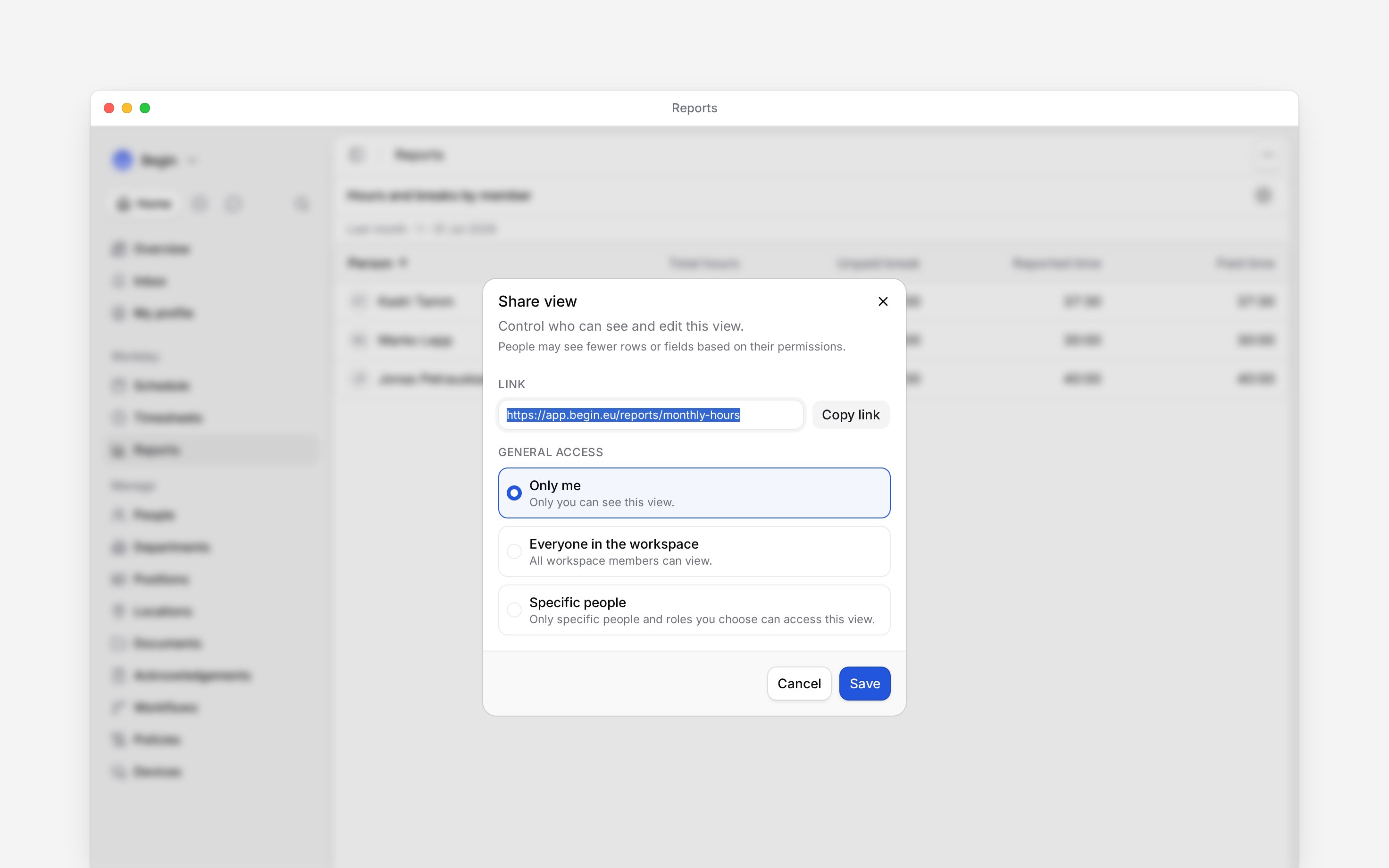
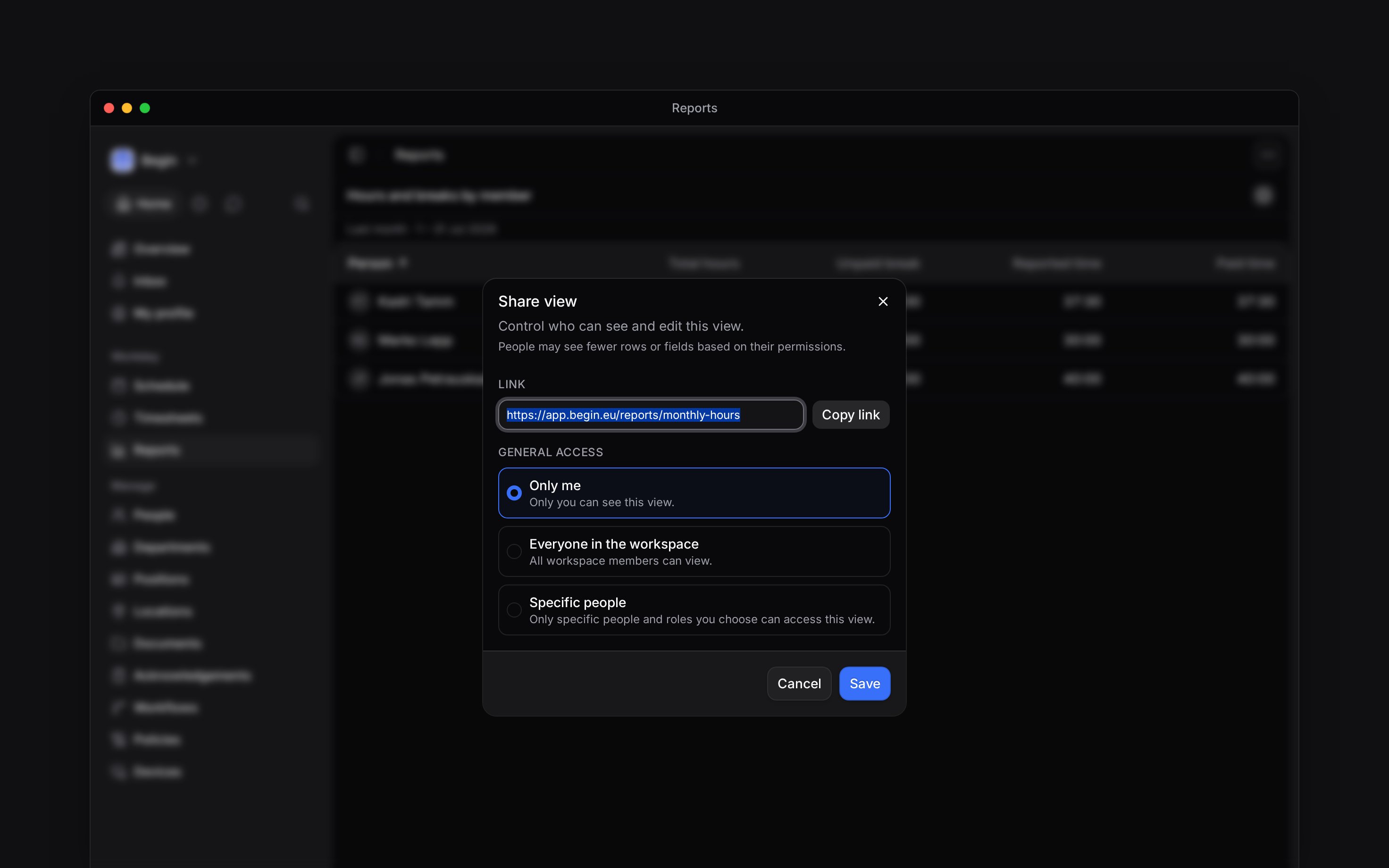 Choose **Copy link** to copy the report's address and send it to the recipient. The link opens the report under their account; possessing the link does not grant access.
## Understand what others see
Everyone opens the report against current data. Their data permissions still control which people, records and figures they can read, so a colleague may see fewer rows, unavailable figures or different totals than you.
**Can edit** lets someone change the shared report, affecting the configuration others open too.
If they need a different set of columns or filters of their own, they can duplicate the report
instead, provided their role allows creating reports.
**Can edit** does not grant permission to delete or restore a report; [Recover a deleted copy](/for-managers/reports/presets#recover-a-deleted-copy) explains who can.
To remove a named recipient, open **Share view**, remove their entry and save. Check whether a role they belong to still grants access. An administrator can also access a report shared with specific people.
**Context for an assistant answering questions about sharing a report.** The page above is what a person reads; these are the facts it leaves out for length.
* **Who can:** the owner keeps access to a restricted report. An administrator's access to restricted reports does not make someone else's **Only me** report visible in ordinary use.
* **Limits:** depending on their permissions, a reader may lose access to leave rows, unpublished shifts, and hires and leavers counts.
* **Where:** role-level **Data access** and **Edit reports** are in **Settings → Permissions**.
* **Not supported:** a copied report link is not a public or anonymous sharing link.
* **Often confused with:** a downloaded file, which contains the figures at export time rather than refreshing with the report.
## Next
Make a separate copy when someone needs a different setup.
Send a file containing the figures at export time.
## Still need help?
Email the Begin team and we'll get back to you.
Open the AI assistant and get instant answers based on these docs.
Choose **Copy link** to copy the report's address and send it to the recipient. The link opens the report under their account; possessing the link does not grant access.
## Understand what others see
Everyone opens the report against current data. Their data permissions still control which people, records and figures they can read, so a colleague may see fewer rows, unavailable figures or different totals than you.
**Can edit** lets someone change the shared report, affecting the configuration others open too.
If they need a different set of columns or filters of their own, they can duplicate the report
instead, provided their role allows creating reports.
**Can edit** does not grant permission to delete or restore a report; [Recover a deleted copy](/for-managers/reports/presets#recover-a-deleted-copy) explains who can.
To remove a named recipient, open **Share view**, remove their entry and save. Check whether a role they belong to still grants access. An administrator can also access a report shared with specific people.
**Context for an assistant answering questions about sharing a report.** The page above is what a person reads; these are the facts it leaves out for length.
* **Who can:** the owner keeps access to a restricted report. An administrator's access to restricted reports does not make someone else's **Only me** report visible in ordinary use.
* **Limits:** depending on their permissions, a reader may lose access to leave rows, unpublished shifts, and hires and leavers counts.
* **Where:** role-level **Data access** and **Edit reports** are in **Settings → Permissions**.
* **Not supported:** a copied report link is not a public or anonymous sharing link.
* **Often confused with:** a downloaded file, which contains the figures at export time rather than refreshing with the report.
## Next
Make a separate copy when someone needs a different setup.
Send a file containing the figures at export time.
## Still need help?
Email the Begin team and we'll get back to you.
Open the AI assistant and get instant answers based on these docs.