> ## Documentation Index
> Fetch the complete documentation index at: https://docs.begin.eu/llms.txt
> Use this file to discover all available pages before exploring further.
# Configure schedule colours
> Set default block colours and name the colours your team selects on shifts.

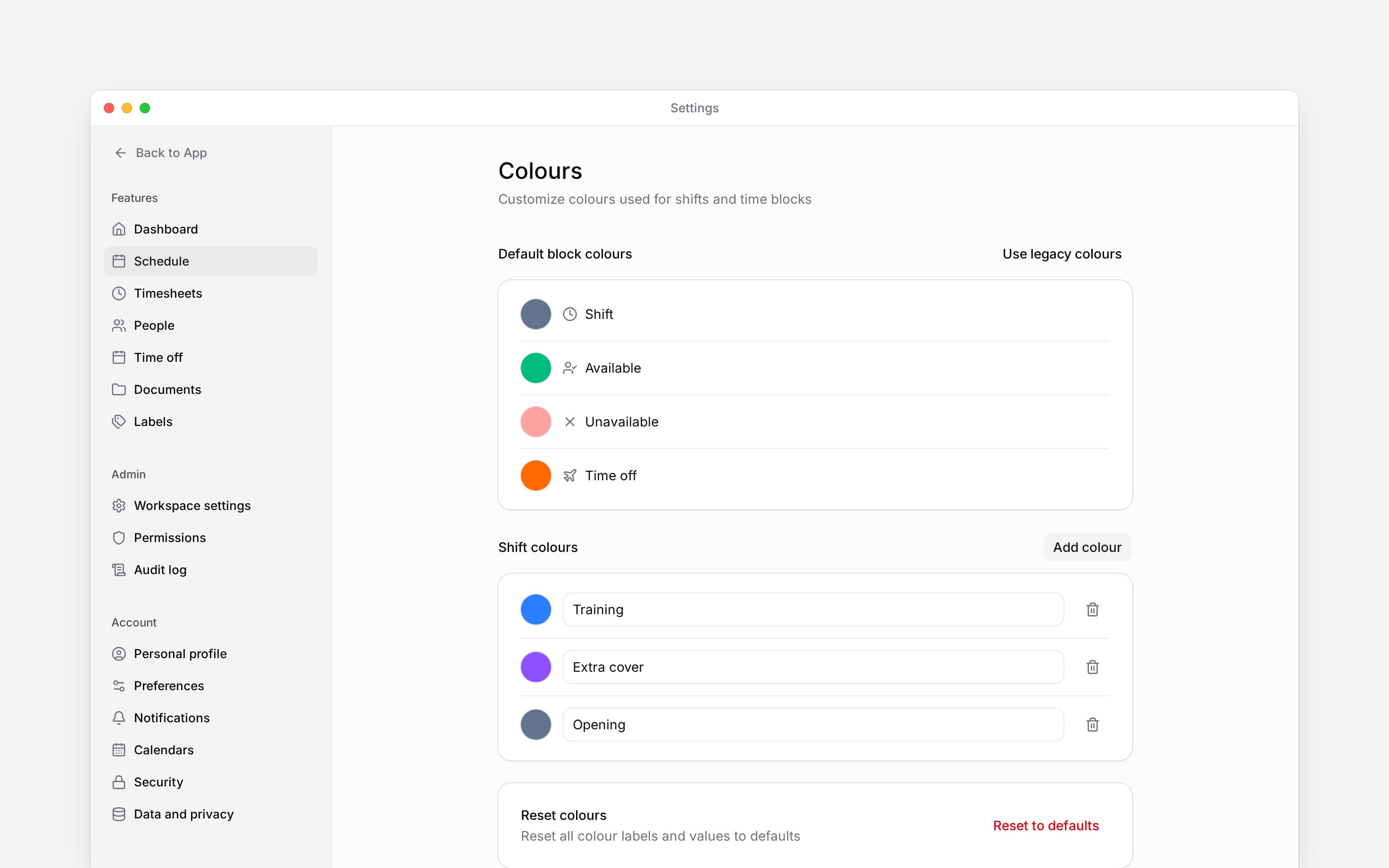
 Open **Settings → Schedule → Colours** to change shared schedule colours. **Default block colours** distinguish kinds of time, while **Shift colours** are named choices you can apply to individual shifts.
You need **Manage schedule settings**. These changes affect the workspace, so agree on the meaning
of named colours with the people who build its schedules.
## Set defaults for each kind of block
Under **Default block colours**, choose the swatch beside the block type you want to change. Begin saves your choice immediately. For example, you can give time off a different default from availability.
Use the reset control beside an overridden type to return that type to Begin's default. This does not rename or remove your named shift colours.
Choose **Use legacy colours** if your team wants the familiar Heybegin block-type palette. This applies the preset to the workspace's block types. It does not import old shifts or recreate your previous custom colour names.
## Create named shift colours
Under **Shift colours**, choose **Add colour**. A **New colour** row appears.
Replace the name with a term such as `Training` and choose the swatch beside it. Both changes
save automatically.
Return to the schedule and select the named colour when creating or editing a shift. The shift
uses that colour in place of its block-type default.
A colour is a visual cue. Naming one **Training** does not change the shift's position, hours, pay rules or approval status. Use labels when you need a reusable tag to filter work in reports.
## Remove or reset choices
Use **Remove colour** beside a named colour and confirm **Remove** to take it off the list. At least one named colour must remain.
**Reset to defaults** replaces all named colour labels and values with Begin's defaults. Read the confirmation before selecting **Reset**: there is no undo. This reset is separate from the per-type reset controls above.
An individual block's named colour takes priority over its block-type default. Clear the individual colour choice if you want that block to follow the shared default again.
Open **Settings → Schedule → Colours** to change shared schedule colours. **Default block colours** distinguish kinds of time, while **Shift colours** are named choices you can apply to individual shifts.
You need **Manage schedule settings**. These changes affect the workspace, so agree on the meaning
of named colours with the people who build its schedules.
## Set defaults for each kind of block
Under **Default block colours**, choose the swatch beside the block type you want to change. Begin saves your choice immediately. For example, you can give time off a different default from availability.
Use the reset control beside an overridden type to return that type to Begin's default. This does not rename or remove your named shift colours.
Choose **Use legacy colours** if your team wants the familiar Heybegin block-type palette. This applies the preset to the workspace's block types. It does not import old shifts or recreate your previous custom colour names.
## Create named shift colours
Under **Shift colours**, choose **Add colour**. A **New colour** row appears.
Replace the name with a term such as `Training` and choose the swatch beside it. Both changes
save automatically.
Return to the schedule and select the named colour when creating or editing a shift. The shift
uses that colour in place of its block-type default.
A colour is a visual cue. Naming one **Training** does not change the shift's position, hours, pay rules or approval status. Use labels when you need a reusable tag to filter work in reports.
## Remove or reset choices
Use **Remove colour** beside a named colour and confirm **Remove** to take it off the list. At least one named colour must remain.
**Reset to defaults** replaces all named colour labels and values with Begin's defaults. Read the confirmation before selecting **Reset**: there is no undo. This reset is separate from the per-type reset controls above.
An individual block's named colour takes priority over its block-type default. Clear the individual colour choice if you want that block to follow the shared default again.
 **Context for an assistant answering questions about schedule colours.** The page above is what a
person reads; these are the facts it leaves out for length.
* **Who can:** changing any colour here needs **Manage schedule settings**. Picking a named colour
on a shift needs only what editing that shift needs.
* **Where:** **Settings → Schedule → Colours**. The **Colour** filter on the schedule finds blocks
given a named colour themselves, not ones sitting in their type's default.
* **Not supported:** **Use legacy colours** is a preset, not an import of old shifts or old colour
names. Removing a named colour keeps the shifts that used it and clears their colour. Neither
**Reset to defaults** nor a removal can be undone.
* **Terms:** a **default block colour** belongs to a kind of block; a **shift colour** is a named
choice on one shift. Colour is a visual cue only; a **label** is the tag reports filter by.
* **Begin AI:** cannot change colours. It can set a shift's colour by the name you gave it.
* **Often confused with:** labels, which carry meaning into reports and workflows where a colour
does not.
## Next
Choose how colours and blocks appear.
Tag work for filtering instead of relying on colour.
## Still need help?
Email the Begin team and we'll get back to you.
Open the AI assistant and get instant answers based on these docs.
**Context for an assistant answering questions about schedule colours.** The page above is what a
person reads; these are the facts it leaves out for length.
* **Who can:** changing any colour here needs **Manage schedule settings**. Picking a named colour
on a shift needs only what editing that shift needs.
* **Where:** **Settings → Schedule → Colours**. The **Colour** filter on the schedule finds blocks
given a named colour themselves, not ones sitting in their type's default.
* **Not supported:** **Use legacy colours** is a preset, not an import of old shifts or old colour
names. Removing a named colour keeps the shifts that used it and clears their colour. Neither
**Reset to defaults** nor a removal can be undone.
* **Terms:** a **default block colour** belongs to a kind of block; a **shift colour** is a named
choice on one shift. Colour is a visual cue only; a **label** is the tag reports filter by.
* **Begin AI:** cannot change colours. It can set a shift's colour by the name you gave it.
* **Often confused with:** labels, which carry meaning into reports and workflows where a colour
does not.
## Next
Choose how colours and blocks appear.
Tag work for filtering instead of relying on colour.
## Still need help?
Email the Begin team and we'll get back to you.
Open the AI assistant and get instant answers based on these docs.