> ## Documentation Index
> Fetch the complete documentation index at: https://docs.begin.eu/llms.txt
> Use this file to discover all available pages before exploring further.
# Editing in bulk
> Select many shifts at once, change them in a single action, and put it back when it was wrong.

 A change that belongs on twenty shifts should cost one action, not twenty. Select the shifts, pick what to change, and Begin applies it to every one of them.
## Select what you want to change
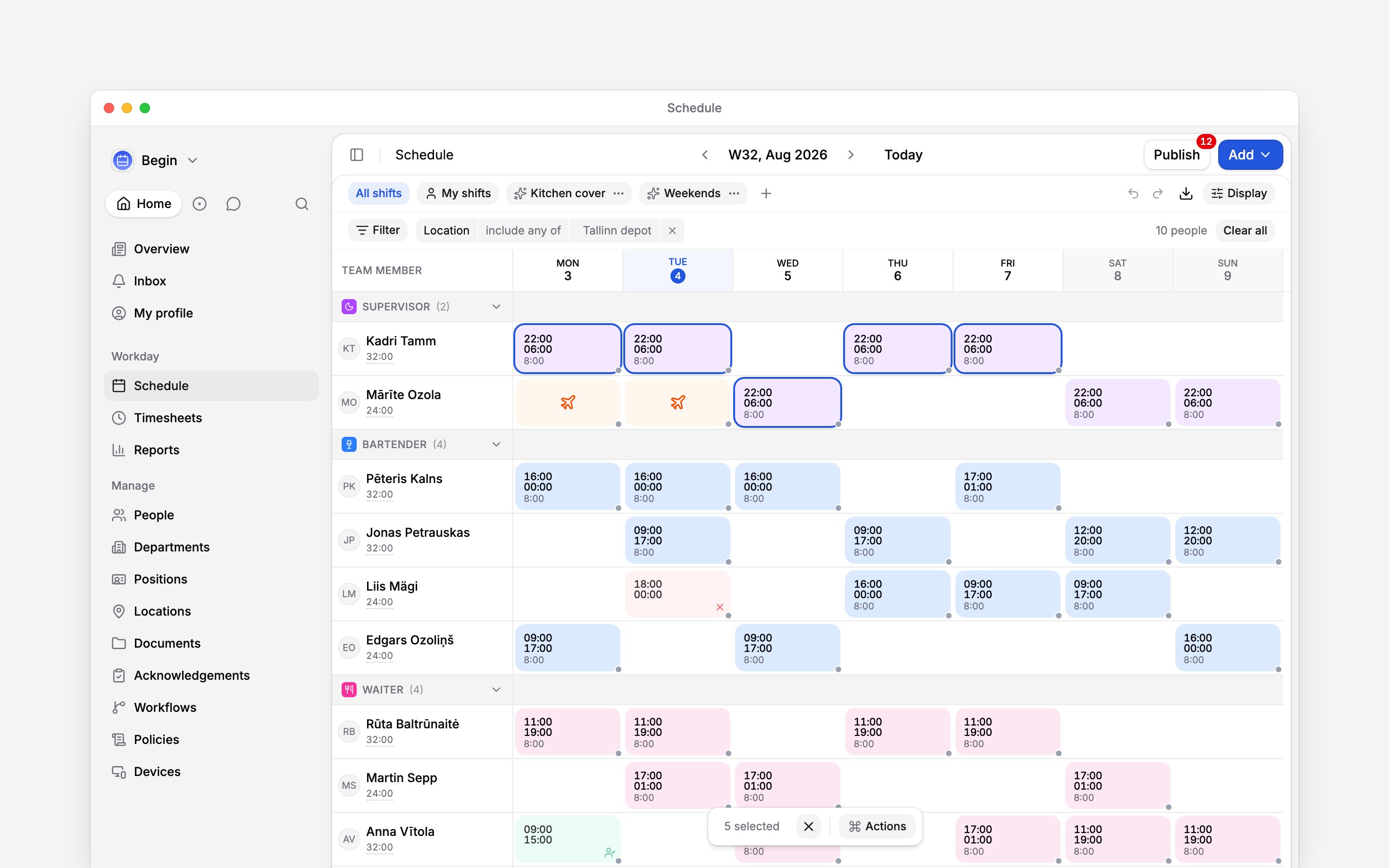
Hold Shift and click a shift to add it to the selection; click it again to drop it. To sweep a run of them, press on empty row background and drag a box across them.
Either Cmd / Ctrl + A or the count on the bar that appears selects everything matching the period and filters you have on, not only what has loaded on screen. Esc clears the selection.
A change that belongs on twenty shifts should cost one action, not twenty. Select the shifts, pick what to change, and Begin applies it to every one of them.
## Select what you want to change
Hold Shift and click a shift to add it to the selection; click it again to drop it. To sweep a run of them, press on empty row background and drag a box across them.
Either Cmd / Ctrl + A or the count on the bar that appears selects everything matching the period and filters you have on, not only what has loaded on screen. Esc clears the selection.
 ## Change the same field on many shifts
The bar's **Actions** button opens the list, and the command palette carries the same one. Assignee, position, location, type, status and colour each put the one value you pick on the whole selection. **Publish all**, **Unpublish all**, **Duplicate all** and **Delete all** act on it as it stands.
What is offered depends on what you selected: no location choice unless every block in it is a shift, no status unless your role can set one, and no **Time off** until your workspace has a time-off policy to book against.
Switching a selection to **Time off** books each absence against the policy the time-off form would open on. A block already booked against one keeps it, so a mixed selection changes no balance you had already spent.
A large selection runs in the background. Its progress row offers **Cancel** while it works and **Revert** once it has finished, and it counts anything it skipped because that shift had changed since you started.
Or ask **Begin AI** (Cmd / Ctrl + J):
Move all of Jonas Petrauskas's shifts next week one day later.
It moves every one of them in a single change, after a card you confirm unless your approval mode applies changes automatically.
## Repeat a week you have already built
Copy with Cmd / Ctrl + C, hover the person and day you want it on, and paste with Cmd / Ctrl + V. A paste lands on the row under the pointer, so the copy is what decides who ends up working it:
| To… | Use |
| --------------------------------------------------- | ------------------------- |
| Give the work to whoever's row you paste onto | **Copy all**, then paste |
| Keep every shift with the person who already had it | **Copy with assignments** |
| Roll the same dates into the month after this one | **Copy to next month** |
Copied open shifts always land on the row you paste onto. Dragging does the same job for one shift: drag it to another day, or onto another person's row to reassign it.
Or ask Begin AI:
Copy this week's shifts to next week.
It copies every block in the week, time off and availability included, not only the shifts.
## Put it back
Cmd / Ctrl + Z undoes the last change and Cmd /
Ctrl + Shift + Z redoes it. Both survive stepping between periods
with the arrows, so a copy made in one month can be undone from the next. Reloading the page clears
the history, and the clipboard with it.
Deleting or moving shifts the team has already seen reaches them at once. The confirmation says
how many of your selection are published, and a delete can still be undone.
Yes, if they are in your selection. Each one is copied as the same type. A copied shift is a
draft, like any new shift. A copied absence is not: it goes back through approval, so it lands
as **Needs review** where a workflow reviews that policy, and as **Approved** where none does.
**Copy to next month** keeps the date, not the weekday: the 15th goes to the 15th, whatever day
that falls on. A date the next month does not have, such as the 31st, lands on its last day.
**Context for an assistant answering questions about changing many shifts at once.** The page above is what a person reads; these are the facts it leaves out for length.
* **Where:** the progress row for a background action sits in the app sidebar rather than on the schedule. Dragging a shift that is part of a selection takes the whole selection with it.
* **Limits:** 100 blocks or fewer are applied at once; past 100 the work is queued and runs in the background. **Select all** shows the exact number up to 10,000 and a trailing plus beyond it. Undo holds the last 50 changes.
* **Not supported:** a background action is outside the undo history, so the keyboard shortcut will not take it back. **Revert** on its progress row is the way.
* **Begin AI:** one change across many shifts, and copying a period, each run as a step of their own. A change works out its own set from a period or a date range plus filters, up to 2,000 shifts in a call. A copy carries 300 blocks, takes every block type, and skips anything already at the target date. Editing shifts one at a time takes 300 in a call.
* **Often confused with:** **Duplicate all**, which clones each shift where it already sits and passes over one still running, where a paste puts the whole set on the day and row under the pointer.
## Next
How a draft week reaches the team.
The answer when you copy the same week every week.
## Still need help?
Email the Begin team and we'll get back to you.
Open the AI assistant and get instant answers based on these docs.
## Change the same field on many shifts
The bar's **Actions** button opens the list, and the command palette carries the same one. Assignee, position, location, type, status and colour each put the one value you pick on the whole selection. **Publish all**, **Unpublish all**, **Duplicate all** and **Delete all** act on it as it stands.
What is offered depends on what you selected: no location choice unless every block in it is a shift, no status unless your role can set one, and no **Time off** until your workspace has a time-off policy to book against.
Switching a selection to **Time off** books each absence against the policy the time-off form would open on. A block already booked against one keeps it, so a mixed selection changes no balance you had already spent.
A large selection runs in the background. Its progress row offers **Cancel** while it works and **Revert** once it has finished, and it counts anything it skipped because that shift had changed since you started.
Or ask **Begin AI** (Cmd / Ctrl + J):
Move all of Jonas Petrauskas's shifts next week one day later.
It moves every one of them in a single change, after a card you confirm unless your approval mode applies changes automatically.
## Repeat a week you have already built
Copy with Cmd / Ctrl + C, hover the person and day you want it on, and paste with Cmd / Ctrl + V. A paste lands on the row under the pointer, so the copy is what decides who ends up working it:
| To… | Use |
| --------------------------------------------------- | ------------------------- |
| Give the work to whoever's row you paste onto | **Copy all**, then paste |
| Keep every shift with the person who already had it | **Copy with assignments** |
| Roll the same dates into the month after this one | **Copy to next month** |
Copied open shifts always land on the row you paste onto. Dragging does the same job for one shift: drag it to another day, or onto another person's row to reassign it.
Or ask Begin AI:
Copy this week's shifts to next week.
It copies every block in the week, time off and availability included, not only the shifts.
## Put it back
Cmd / Ctrl + Z undoes the last change and Cmd /
Ctrl + Shift + Z redoes it. Both survive stepping between periods
with the arrows, so a copy made in one month can be undone from the next. Reloading the page clears
the history, and the clipboard with it.
Deleting or moving shifts the team has already seen reaches them at once. The confirmation says
how many of your selection are published, and a delete can still be undone.
Yes, if they are in your selection. Each one is copied as the same type. A copied shift is a
draft, like any new shift. A copied absence is not: it goes back through approval, so it lands
as **Needs review** where a workflow reviews that policy, and as **Approved** where none does.
**Copy to next month** keeps the date, not the weekday: the 15th goes to the 15th, whatever day
that falls on. A date the next month does not have, such as the 31st, lands on its last day.
**Context for an assistant answering questions about changing many shifts at once.** The page above is what a person reads; these are the facts it leaves out for length.
* **Where:** the progress row for a background action sits in the app sidebar rather than on the schedule. Dragging a shift that is part of a selection takes the whole selection with it.
* **Limits:** 100 blocks or fewer are applied at once; past 100 the work is queued and runs in the background. **Select all** shows the exact number up to 10,000 and a trailing plus beyond it. Undo holds the last 50 changes.
* **Not supported:** a background action is outside the undo history, so the keyboard shortcut will not take it back. **Revert** on its progress row is the way.
* **Begin AI:** one change across many shifts, and copying a period, each run as a step of their own. A change works out its own set from a period or a date range plus filters, up to 2,000 shifts in a call. A copy carries 300 blocks, takes every block type, and skips anything already at the target date. Editing shifts one at a time takes 300 in a call.
* **Often confused with:** **Duplicate all**, which clones each shift where it already sits and passes over one still running, where a paste puts the whole set on the day and row under the pointer.
## Next
How a draft week reaches the team.
The answer when you copy the same week every week.
## Still need help?
Email the Begin team and we'll get back to you.
Open the AI assistant and get instant answers based on these docs.