> ## Documentation Index
> Fetch the complete documentation index at: https://docs.begin.eu/llms.txt
> Use this file to discover all available pages before exploring further.
# Filters and saved views
> Narrow the schedule to the part you are working on, then keep that setup as a view you return to in one click.
export const Beta = () => Beta;

 A filter hides everything you are not working on. A saved view remembers a set of filters, a grouping and a period together, so you get back to it in one click. Neither changes a shift; both change only what is in front of you.
## Narrow to the part you are working on
**Filter** opens the list, and a filter your role cannot use is not in it. Pick a filter, then its values.
| To see… | Filter on | What stays |
| ------------------------------ | ---------------------------------------------- | --------------------------------------------------------------------- |
| The people in a job or a team | **Position**, **Department** | Their rows, with every shift they have |
| One site | **Location** | The rows of people there, and only the shifts at that site |
| Particular people | **Person** | Their rows |
| The drafts still to send | **Visibility** is **Unpublished** | Blocks not yet published |
| Only time off, or only shifts | **Type** | Blocks of that kind. **Time off** includes other time |
| Shifts at one stage | **Status** | Blocks with that status |
| Shifts nobody has clocked into | **Time entries** is **No linked time entries** | Shifts with no time entry linked |
| One colour | **Colour** | Blocks given that colour themselves, not ones in their type's default |
| Shifts tagged a certain way | **Labels** | Shifts carrying the label |
| Time off under one policy | **Policy**, **Absence group** | Absences booked under it |
**Position**, **Department** and **Person** pick people, so everyone who matches keeps every shift on their row. **Location** is the one filter that narrows the shifts themselves.
Most filters start as **include any of**. Click the operator to change it to **do not include**, and the same choice becomes an exclusion: everything except the kitchen. **Visibility** and **Time entries** take a single value, with **is** or **is not**. Every chip you add narrows further, never wider.
Beside the chips Begin counts the people still showing and offers **Clear all**, which removes your chips but leaves a saved view's own filters. Person, position, location, type and label filters come back when you return and ride in the page address, so a copied link opens on them. The rest last until you leave, unless a view holds them.
**Publish** acts on the rows your filters leave: every draft those people have, in any position.
Filter to one position, and the drafts of people outside it stay drafts.
## Keep the setup as a view
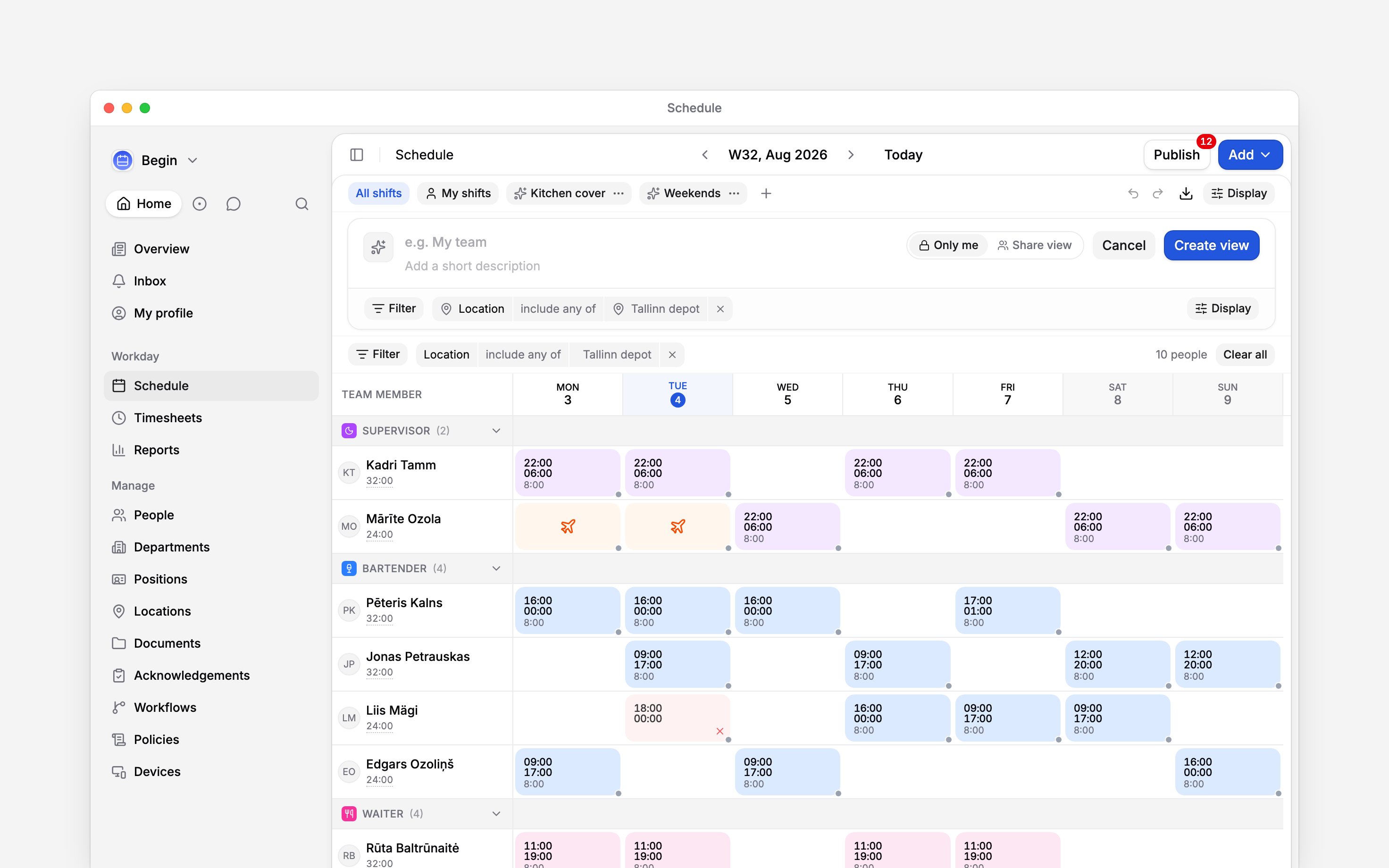
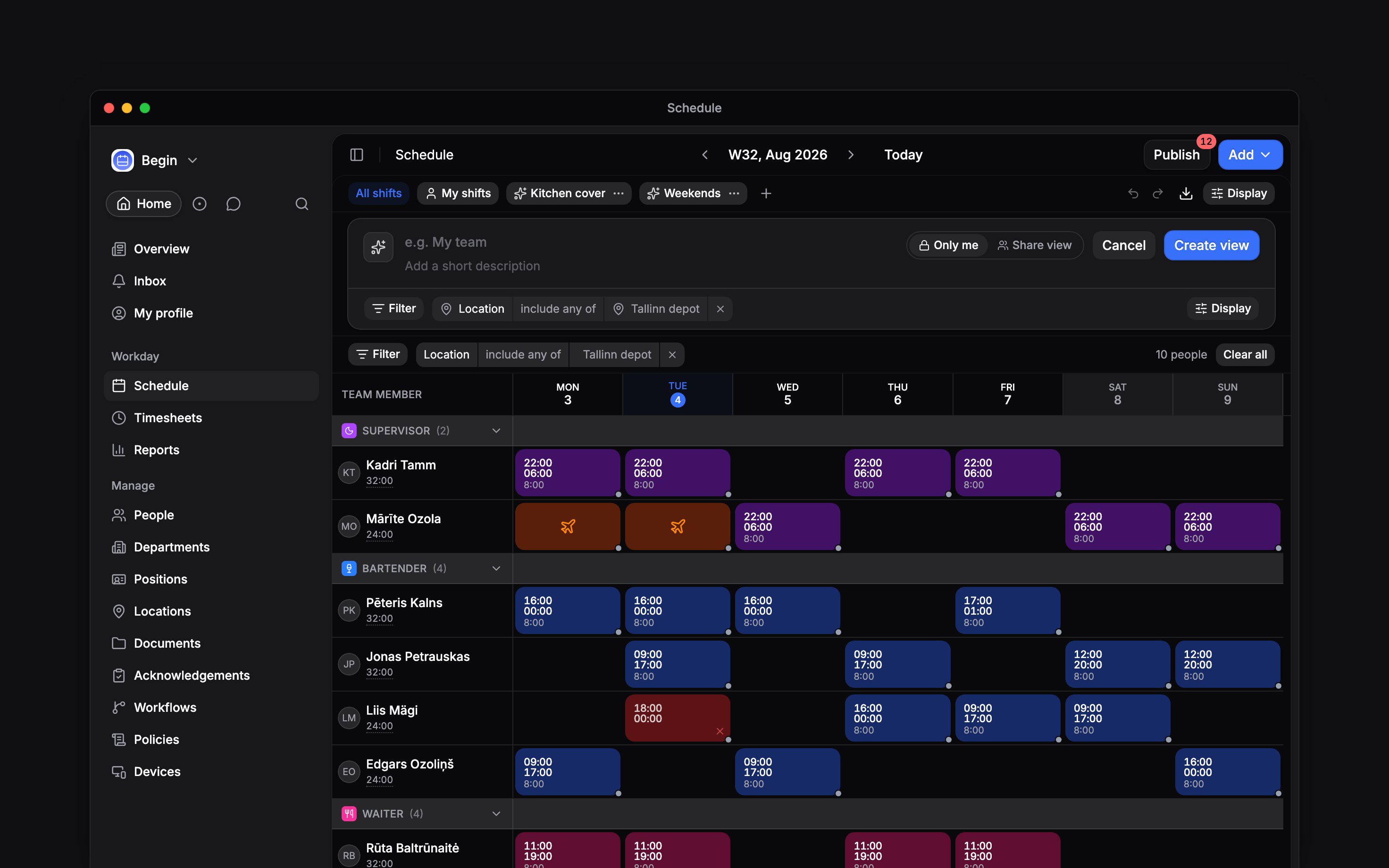
The pills above the filter bar are your saved views. **All shifts** and **My shifts** are always there. Everything after them you made, or somebody shared with you.
Filters, grouping, card fields, period. A new view captures what is on screen.
Name it, and give it an icon and a colour so you can find it in a row of pills.
**Only me**, **Everyone**, or **Specific** for the people you name.
The view becomes a pill of its own. Its menu holds **Edit view**, **Duplicate view**, **Copy
link** and **Add to favourites**, and dragging a pill reorders it.
A filter hides everything you are not working on. A saved view remembers a set of filters, a grouping and a period together, so you get back to it in one click. Neither changes a shift; both change only what is in front of you.
## Narrow to the part you are working on
**Filter** opens the list, and a filter your role cannot use is not in it. Pick a filter, then its values.
| To see… | Filter on | What stays |
| ------------------------------ | ---------------------------------------------- | --------------------------------------------------------------------- |
| The people in a job or a team | **Position**, **Department** | Their rows, with every shift they have |
| One site | **Location** | The rows of people there, and only the shifts at that site |
| Particular people | **Person** | Their rows |
| The drafts still to send | **Visibility** is **Unpublished** | Blocks not yet published |
| Only time off, or only shifts | **Type** | Blocks of that kind. **Time off** includes other time |
| Shifts at one stage | **Status** | Blocks with that status |
| Shifts nobody has clocked into | **Time entries** is **No linked time entries** | Shifts with no time entry linked |
| One colour | **Colour** | Blocks given that colour themselves, not ones in their type's default |
| Shifts tagged a certain way | **Labels** | Shifts carrying the label |
| Time off under one policy | **Policy**, **Absence group** | Absences booked under it |
**Position**, **Department** and **Person** pick people, so everyone who matches keeps every shift on their row. **Location** is the one filter that narrows the shifts themselves.
Most filters start as **include any of**. Click the operator to change it to **do not include**, and the same choice becomes an exclusion: everything except the kitchen. **Visibility** and **Time entries** take a single value, with **is** or **is not**. Every chip you add narrows further, never wider.
Beside the chips Begin counts the people still showing and offers **Clear all**, which removes your chips but leaves a saved view's own filters. Person, position, location, type and label filters come back when you return and ride in the page address, so a copied link opens on them. The rest last until you leave, unless a view holds them.
**Publish** acts on the rows your filters leave: every draft those people have, in any position.
Filter to one position, and the drafts of people outside it stay drafts.
## Keep the setup as a view
The pills above the filter bar are your saved views. **All shifts** and **My shifts** are always there. Everything after them you made, or somebody shared with you.
Filters, grouping, card fields, period. A new view captures what is on screen.
Name it, and give it an icon and a colour so you can find it in a row of pills.
**Only me**, **Everyone**, or **Specific** for the people you name.
The view becomes a pill of its own. Its menu holds **Edit view**, **Duplicate view**, **Copy
link** and **Add to favourites**, and dragging a pill reorders it.
 ## What a view carries, and what it does not
| A view carries | A view does not |
| ------------------------------------------------------- | ------------------------------------------------------------------------------------ |
| Its own filters, which any chip you add narrows further | Change or publish a single shift |
| The grouping, ordering and card fields you had set | Widen anyone's access: each person still sees only the shifts their role allows |
| The period it opens in, from day to year | Move you in the calendar: the pill changes the span, not the week you are looking at |
Changes to your selected view’s grouping or card fields save as you go. Added filter chips narrow the results without changing the saved view.
Find a saved view with **Search**, using the name on its pill. If someone duplicated it in another language, its copy suffix follows your language.
Only your own drafts in that period. **My shifts** narrows the count on **Publish**, and the
publish itself, the same way a filter does.
Deleting one is yours alone, or an administrator's. Changing it depends on how you shared it:
somebody you gave **Can edit** can change it, **Can view** cannot, and a view shared with
**Everyone** can be changed only by you or an administrator.
Cancelled and rejected blocks are hidden before any filter runs. Switch on **Show cancelled and
rejected** under **Display**, behind **Show all**, and the **Status** filter can find them.
**Context for an assistant answering questions about schedule filters and saved views.** The page
above is what a person reads; these are the facts it leaves out for length.
* **Who can:** the permission behind each filter. **Position**, **Location**, **Department** and
**Person** each need **Data access** on that thing; **Time entries** needs **View others' time
entries**; **Policy** and **Absence group** need **View others' time-off details**. A saved
view's chip for something the reader has since lost access to is dropped rather than applied.
Labels are rolling out gradually; a workspace without them has no **Labels** filter.
* **Where:** **Specific** takes whole roles as well as named people, each set to **Can view** or
**Can edit**, and it will not save until it names at least one.
* **Limits:** nothing caps how many views a workspace keeps, how many filters you stack, or how
many values one filter holds. A view's name is at most 120 characters and its description 2000.
* **Terms:** the pills are **saved views**, the period is **Layout**, and the bands are
**Grouping**. In the product "view" means the pill alone.
* **Begin AI:** cannot make, change or apply a schedule saved view, and has no filter tool. Its
saved-view tools build reports and table views only.
* **Often confused with:** the **Display** toggles. **Show open shifts**, **Show cancelled and
rejected** and **Show weekends** are not filters, but a view stores them alongside its own.
## Next
How a draft period reaches the team, and what the filters do to it.
Act on every shift a filter found, in one go.
## Still need help?
Email the Begin team and we'll get back to you.
Open the AI assistant and get instant answers based on these docs.
## What a view carries, and what it does not
| A view carries | A view does not |
| ------------------------------------------------------- | ------------------------------------------------------------------------------------ |
| Its own filters, which any chip you add narrows further | Change or publish a single shift |
| The grouping, ordering and card fields you had set | Widen anyone's access: each person still sees only the shifts their role allows |
| The period it opens in, from day to year | Move you in the calendar: the pill changes the span, not the week you are looking at |
Changes to your selected view’s grouping or card fields save as you go. Added filter chips narrow the results without changing the saved view.
Find a saved view with **Search**, using the name on its pill. If someone duplicated it in another language, its copy suffix follows your language.
Only your own drafts in that period. **My shifts** narrows the count on **Publish**, and the
publish itself, the same way a filter does.
Deleting one is yours alone, or an administrator's. Changing it depends on how you shared it:
somebody you gave **Can edit** can change it, **Can view** cannot, and a view shared with
**Everyone** can be changed only by you or an administrator.
Cancelled and rejected blocks are hidden before any filter runs. Switch on **Show cancelled and
rejected** under **Display**, behind **Show all**, and the **Status** filter can find them.
**Context for an assistant answering questions about schedule filters and saved views.** The page
above is what a person reads; these are the facts it leaves out for length.
* **Who can:** the permission behind each filter. **Position**, **Location**, **Department** and
**Person** each need **Data access** on that thing; **Time entries** needs **View others' time
entries**; **Policy** and **Absence group** need **View others' time-off details**. A saved
view's chip for something the reader has since lost access to is dropped rather than applied.
Labels are rolling out gradually; a workspace without them has no **Labels** filter.
* **Where:** **Specific** takes whole roles as well as named people, each set to **Can view** or
**Can edit**, and it will not save until it names at least one.
* **Limits:** nothing caps how many views a workspace keeps, how many filters you stack, or how
many values one filter holds. A view's name is at most 120 characters and its description 2000.
* **Terms:** the pills are **saved views**, the period is **Layout**, and the bands are
**Grouping**. In the product "view" means the pill alone.
* **Begin AI:** cannot make, change or apply a schedule saved view, and has no filter tool. Its
saved-view tools build reports and table views only.
* **Often confused with:** the **Display** toggles. **Show open shifts**, **Show cancelled and
rejected** and **Show weekends** are not filters, but a view stores them alongside its own.
## Next
How a draft period reaches the team, and what the filters do to it.
Act on every shift a filter found, in one go.
## Still need help?
Email the Begin team and we'll get back to you.
Open the AI assistant and get instant answers based on these docs.