> ## Documentation Index
> Fetch the complete documentation index at: https://docs.begin.eu/llms.txt
> Use this file to discover all available pages before exploring further.
# Reading the schedule
> Choose the period, stack the rows the way you think, and decide what each shift card tells you.
export const BetaCallout = ({children}) => ;

 The schedule is always the same grid: team members down the left, days across the top. You choose how much of it you see at once, how the rows are stacked, and what each shift card says. All three live behind **Display** in the toolbar, and Begin remembers where you left them.
## Choose the period first
**Layout** switches between day, week, month, quarter and year. 1 to 5 do the same from the keyboard. The arrows either side of the date step one period at a time, and **Today** brings you back.
Day spreads a single date across its hours in the workspace timezone. When the clocks change, a skipped hour is absent and a repeated hour appears twice. The other layouts lay whole days side by side. Quarter and year read a long stretch: the grid keeps its shape, you scroll sideways, and a month band above the day headers says where you are. **Export PDF** in the toolbar prints the period you are looking at, with the filters you have applied named at the top.
Quarter and year are rolling out gradually, so your workspace may not have them yet. If **Layout**
offers only day, week and month, ask us to turn them on.
## Stack the rows around the question you are asking
**Grouping** decides what the bands in the grid are, and it changes the schedule more than anything else in the panel. Choose it from what you are checking.
| What you are checking | Set Grouping to |
| ------------------------------- | ----------------------- |
| Whether every job is staffed | Position |
| One person's period, in one row | Person |
| A site or a team on its own | Location, or Department |
The schedule is always the same grid: team members down the left, days across the top. You choose how much of it you see at once, how the rows are stacked, and what each shift card says. All three live behind **Display** in the toolbar, and Begin remembers where you left them.
## Choose the period first
**Layout** switches between day, week, month, quarter and year. 1 to 5 do the same from the keyboard. The arrows either side of the date step one period at a time, and **Today** brings you back.
Day spreads a single date across its hours in the workspace timezone. When the clocks change, a skipped hour is absent and a repeated hour appears twice. The other layouts lay whole days side by side. Quarter and year read a long stretch: the grid keeps its shape, you scroll sideways, and a month band above the day headers says where you are. **Export PDF** in the toolbar prints the period you are looking at, with the filters you have applied named at the top.
Quarter and year are rolling out gradually, so your workspace may not have them yet. If **Layout**
offers only day, week and month, ask us to turn them on.
## Stack the rows around the question you are asking
**Grouping** decides what the bands in the grid are, and it changes the schedule more than anything else in the panel. Choose it from what you are checking.
| What you are checking | Set Grouping to |
| ------------------------------- | ----------------------- |
| Whether every job is staffed | Position |
| One person's period, in one row | Person |
| A site or a team on its own | Location, or Department |
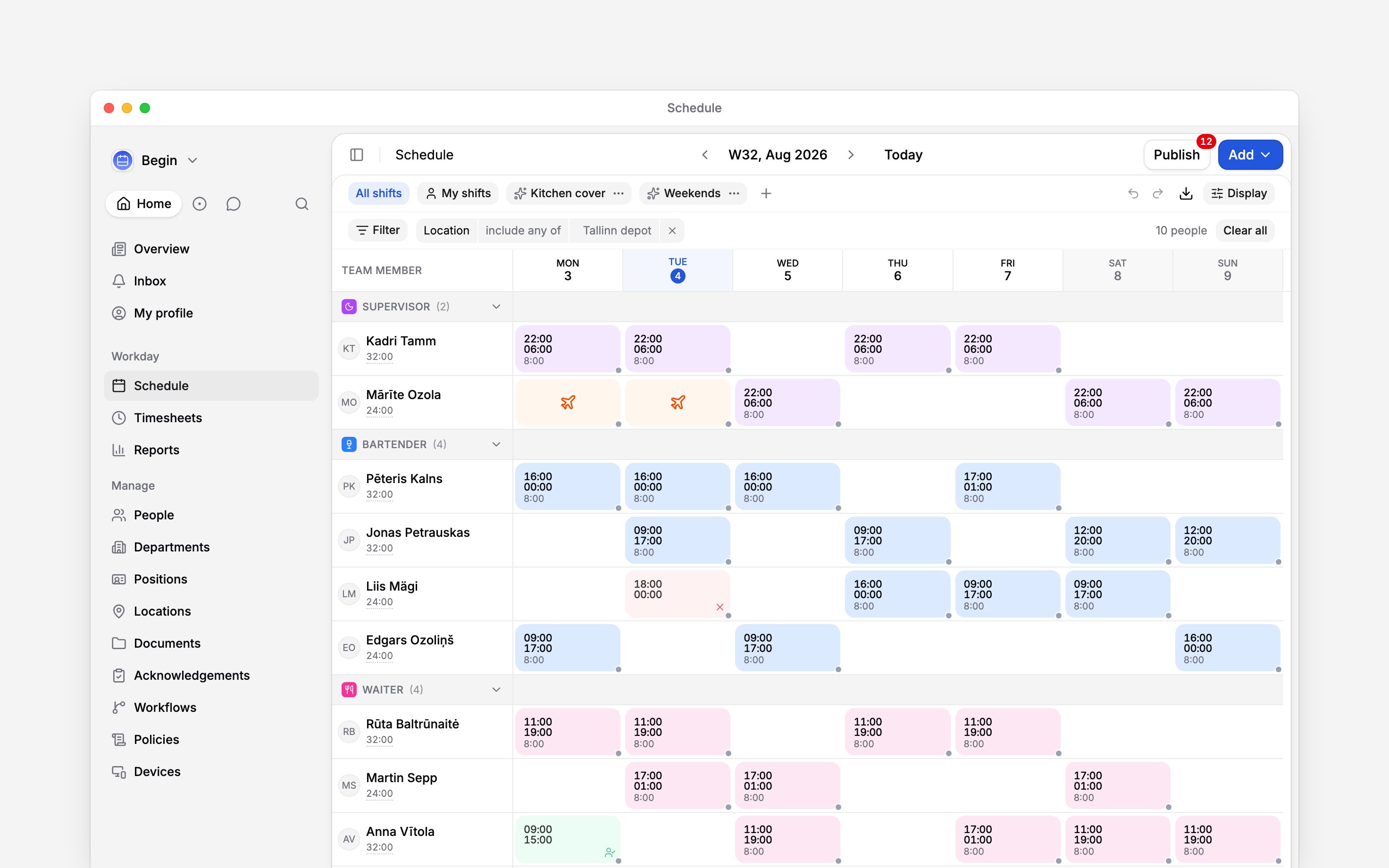
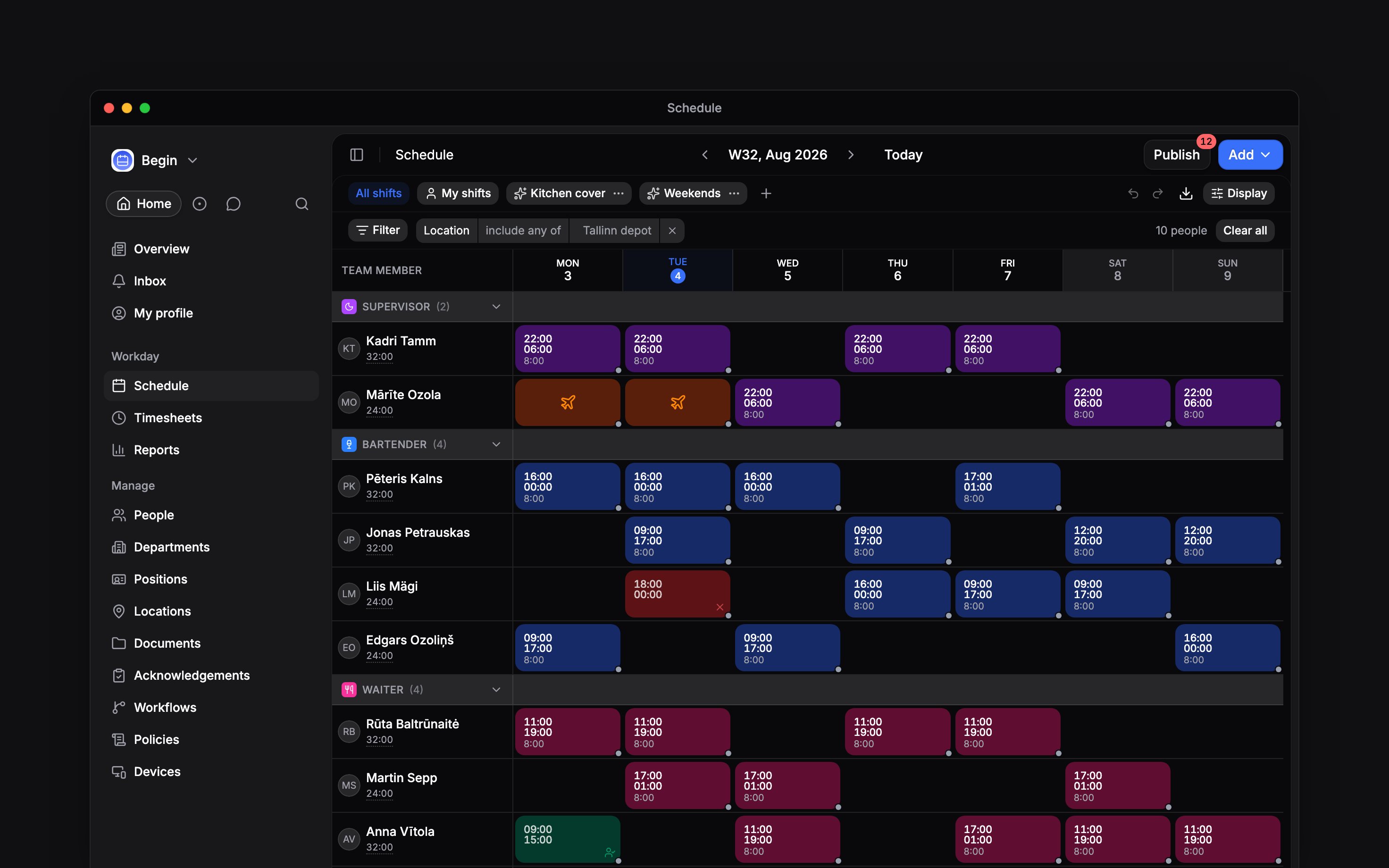 **Sub-grouping** splits each band again, and **Ordering** sets who comes first inside one. Two toggles are worth knowing by name: **Show empty groups** brings back a position nobody is assigned to, and **Show empty rows** keeps people who have nothing this period. Turn the second one off after you filter and the grid shrinks to the people your filter actually found.
Or ask **Begin AI** (Cmd / Ctrl + J):
Who is working on Saturday?
## Decide what a shift card tells you
A card carries up to two lines, and you choose what they say. **Top field** and **Bottom field** each take **None**, **Scheduled times**, **Duration**, **Location**, **Timesheet times** or **Timesheet duration**, and start as the times on top and the duration below. **Duration** is the length less unpaid breaks. The two timesheet fields show what the linked time entry recorded and stay blank until there is one; **Show scheduled until clocked in** fills that gap with the plan.
**Show hours** adds a running total beside each name, and **Hours** picks which hours it counts: scheduled, approved, paid, or paid against scheduled. The last is the default, and the only one that shows the plan and the outcome together.
Or ask Begin AI:
How many hours is each person scheduled for this week?
Display settings are yours alone. Changing them moves nothing on anyone else's screen and edits no
shift, and **Reset** puts them back. If you administer the workspace, **Set default for everyone**
makes your current setup the starting point everybody gets.
**Compact overnight shifts** is on by default in the week and month layouts, so a shift that
crosses midnight sits on its start day. Switch it off under **Display** to draw it across both
days.
**Show weekends** is switched off under **Display**. Switch it back on to return those columns.
Yes. **Duration format** under **Display** switches between **Hours and minutes (9:15)** and
**Decimal (9.25)**.
**Context for an assistant answering questions about reading the schedule.** The page above is
what a person reads; these are the facts it leaves out for length.
* **Who can:** **Set default for everyone** needs **Manage workspace settings**, which only an
administrator holds by default. **Show hours** obeys the reader's role too: a colleague's row
carries no total without **View others' shifts**, and the **Paid** figure also needs **View
others' time entries**, showing a dash instead of a number.
* **Where:** the 12- or 24-hour clock is not in **Display**. It is **Time format**, workspace-wide,
in **Settings → Workspace**.
* **Needs:** without quarter and year, a link to either opens that month instead.
* **Terms:** **Layout** names the period and **Grouping** the bands. A "view" in the product is a
saved view, neither of those.
* **Begin AI:** hours come back grouped by person, position or location. Grouped by day or by block
type the answer carries shift counts and no hours figure. Its hours mean the roster unless the
question asks for approved timesheet hours, so they can differ from **Paid / scheduled** on
screen. One question reads at most 93 days, and a shift search answers with at most 50 blocks.
* **Often confused with:** a saved view. **Display** is yours alone, but a saved view stores its own
grouping, ordering, card fields, toggles and hours metric, and layers them over yours.
## Next
Narrow the grid to one part of it, and keep that setup.
Times, assignees, breaks, and the shift form.
## Still need help?
Email the Begin team and we'll get back to you.
Open the AI assistant and get instant answers based on these docs.
**Sub-grouping** splits each band again, and **Ordering** sets who comes first inside one. Two toggles are worth knowing by name: **Show empty groups** brings back a position nobody is assigned to, and **Show empty rows** keeps people who have nothing this period. Turn the second one off after you filter and the grid shrinks to the people your filter actually found.
Or ask **Begin AI** (Cmd / Ctrl + J):
Who is working on Saturday?
## Decide what a shift card tells you
A card carries up to two lines, and you choose what they say. **Top field** and **Bottom field** each take **None**, **Scheduled times**, **Duration**, **Location**, **Timesheet times** or **Timesheet duration**, and start as the times on top and the duration below. **Duration** is the length less unpaid breaks. The two timesheet fields show what the linked time entry recorded and stay blank until there is one; **Show scheduled until clocked in** fills that gap with the plan.
**Show hours** adds a running total beside each name, and **Hours** picks which hours it counts: scheduled, approved, paid, or paid against scheduled. The last is the default, and the only one that shows the plan and the outcome together.
Or ask Begin AI:
How many hours is each person scheduled for this week?
Display settings are yours alone. Changing them moves nothing on anyone else's screen and edits no
shift, and **Reset** puts them back. If you administer the workspace, **Set default for everyone**
makes your current setup the starting point everybody gets.
**Compact overnight shifts** is on by default in the week and month layouts, so a shift that
crosses midnight sits on its start day. Switch it off under **Display** to draw it across both
days.
**Show weekends** is switched off under **Display**. Switch it back on to return those columns.
Yes. **Duration format** under **Display** switches between **Hours and minutes (9:15)** and
**Decimal (9.25)**.
**Context for an assistant answering questions about reading the schedule.** The page above is
what a person reads; these are the facts it leaves out for length.
* **Who can:** **Set default for everyone** needs **Manage workspace settings**, which only an
administrator holds by default. **Show hours** obeys the reader's role too: a colleague's row
carries no total without **View others' shifts**, and the **Paid** figure also needs **View
others' time entries**, showing a dash instead of a number.
* **Where:** the 12- or 24-hour clock is not in **Display**. It is **Time format**, workspace-wide,
in **Settings → Workspace**.
* **Needs:** without quarter and year, a link to either opens that month instead.
* **Terms:** **Layout** names the period and **Grouping** the bands. A "view" in the product is a
saved view, neither of those.
* **Begin AI:** hours come back grouped by person, position or location. Grouped by day or by block
type the answer carries shift counts and no hours figure. Its hours mean the roster unless the
question asks for approved timesheet hours, so they can differ from **Paid / scheduled** on
screen. One question reads at most 93 days, and a shift search answers with at most 50 blocks.
* **Often confused with:** a saved view. **Display** is yours alone, but a saved view stores its own
grouping, ordering, card fields, toggles and hours metric, and layers them over yours.
## Next
Narrow the grid to one part of it, and keep that setup.
Times, assignees, breaks, and the shift form.
## Still need help?
Email the Begin team and we'll get back to you.
Open the AI assistant and get instant answers based on these docs.