> ## Documentation Index
> Fetch the complete documentation index at: https://docs.begin.eu/llms.txt
> Use this file to discover all available pages before exploring further.
# Templates and rotas
> Save the shifts you keep retyping, and assign a repeating rota that fills weeks at a time.
export const BetaCallout = ({children}) => ;
export const Beta = () => Beta;

 Two things save you retyping the same shifts. A **shift template** is a preset for one shift, hours and all. A **shift pattern** is a cycle of those shifts that repeats, and once you put one on a person the schedule calls it their **rota**.
Rotas are rolling out gradually, so your workspace may not have them yet. If your schedule's
**Add** menu has no **Assign shift pattern**, ask us to turn them on.
## Save a shift you keep retyping
Build it in **Settings → Schedule → Shift templates**: name it, set the hours, and fill in the position, location, breaks and notes that go with that shift every time.
Then reach for it: **Add → From template** opens a new shift already filled in, right-clicking a day in someone's row offers the same list, and the shift form's **Apply template** menu replaces whatever you have typed.
**Apply template** on a shift you have already made, or on a selection, rewrites them all: everything the template carries replaces what is on the shift, its hours, breaks, notes and labels included. Deleting a template leaves every shift already made from it alone.
Find a template or pattern with **Search**, using its displayed name. A copy keeps the original name and shows its copy suffix in your language.
Two things save you retyping the same shifts. A **shift template** is a preset for one shift, hours and all. A **shift pattern** is a cycle of those shifts that repeats, and once you put one on a person the schedule calls it their **rota**.
Rotas are rolling out gradually, so your workspace may not have them yet. If your schedule's
**Add** menu has no **Assign shift pattern**, ask us to turn them on.
## Save a shift you keep retyping
Build it in **Settings → Schedule → Shift templates**: name it, set the hours, and fill in the position, location, breaks and notes that go with that shift every time.
Then reach for it: **Add → From template** opens a new shift already filled in, right-clicking a day in someone's row offers the same list, and the shift form's **Apply template** menu replaces whatever you have typed.
**Apply template** on a shift you have already made, or on a selection, rewrites them all: everything the template carries replaces what is on the shift, its hours, breaks, notes and labels included. Deleting a template leaves every shift already made from it alone.
Find a template or pattern with **Search**, using its displayed name. A copy keeps the original name and shows its copy suffix in your language.
Repeat a whole rota
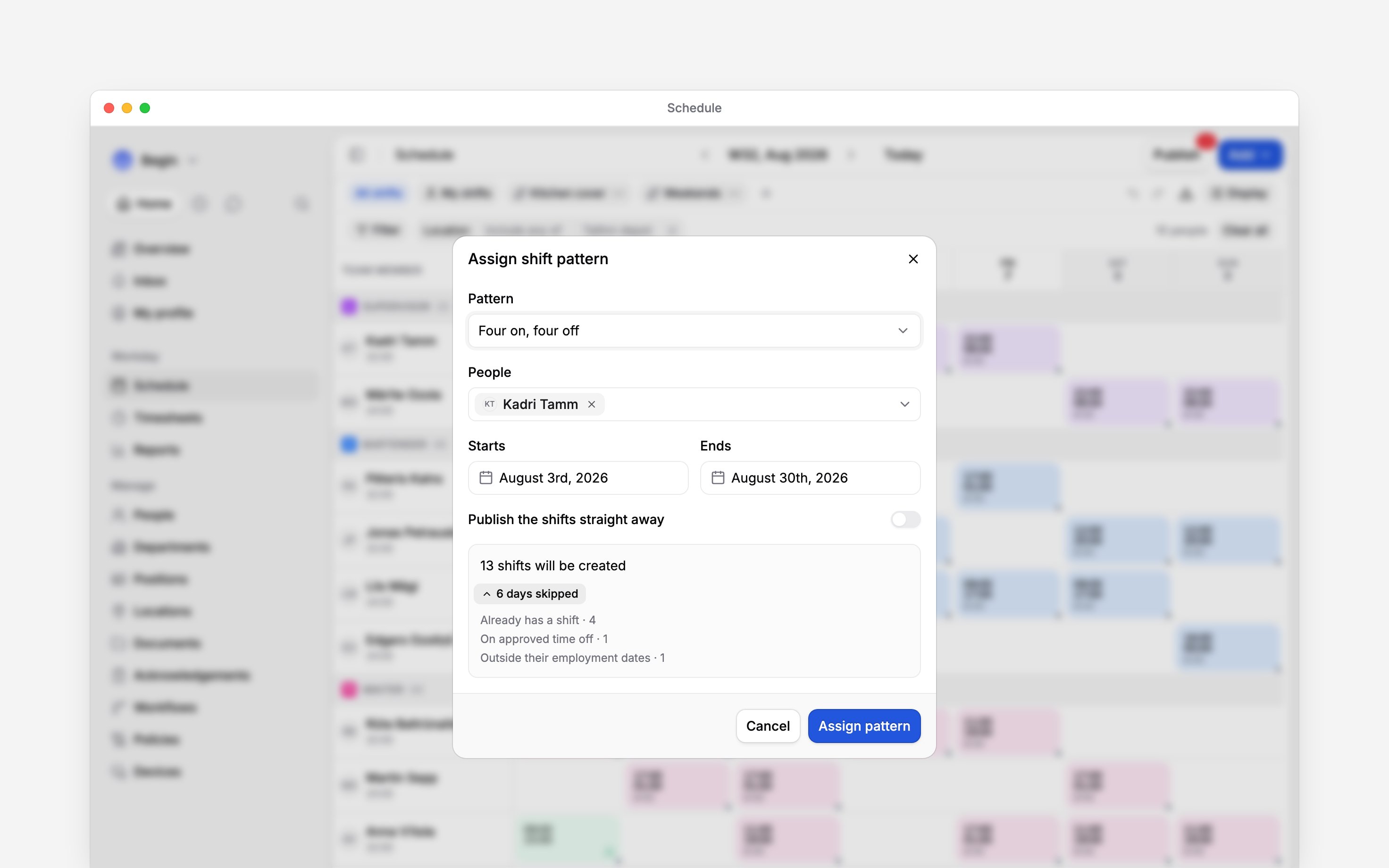
A pattern is a cycle of days with the shifts that fall on each one. In **Settings → Schedule → Shift patterns**, choose **Weekly** for the same weekdays whatever date you start from, **Fortnightly**, or a **Rotating cycle** of any length, which counts forward from the day you assign it rather than from a weekday.
**Add → Assign shift pattern** on the schedule, or right-click the team member.
One pattern can go on several people in the same pass.
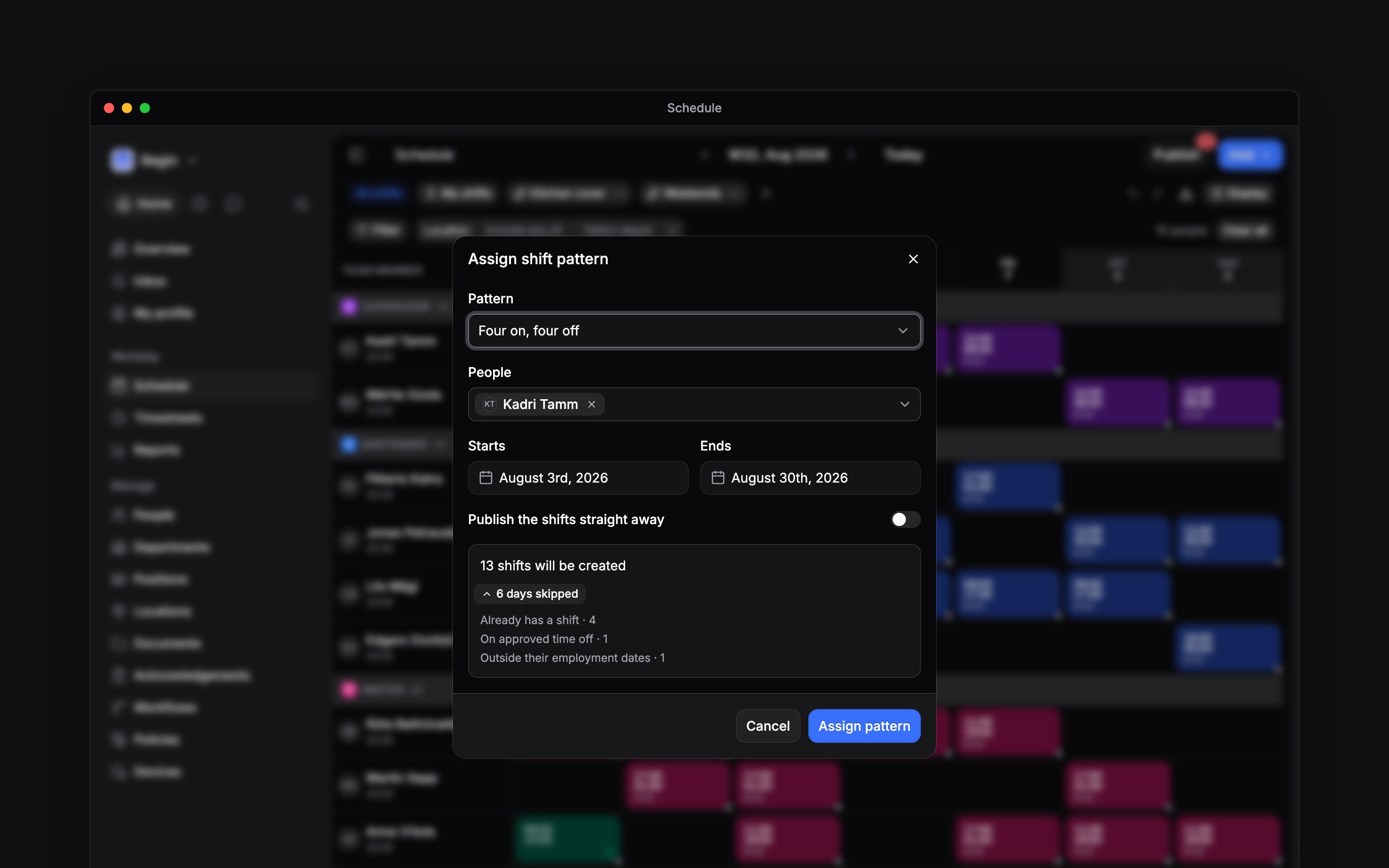
The dialog says how many shifts it will create, and **Show skipped days** names every day it
will not: the person already has a shift, is on approved time off, is outside their employment
dates, or that day's template has been deleted.
The shifts land as drafts unless you ticked **Publish the shifts straight away**.
Where your workspace has open shifts, the **Open shifts** row header offers the same **Assign shift pattern**, and **Publish the shifts straight away** works there too. Publishing does not offer the shifts to anybody: offer each day's shift from the shift itself when you are ready for it to go out.
Change a rota that is already running
Open the assign dialog on that person and **Current patterns** lists the rotas they follow. **Regenerate shifts** rebuilds one from today onwards; **End this pattern** stops it, and asks whether to keep or delete the shifts it made. A rota's controls also sit on every shift it created: right-click the shift and open **Repeating shift**, or open the shift and use the menu on its **Repeating shifts** section. Both hold **Edit pattern** and **Edit rota**, then **Detach this shift**, which cuts one occurrence loose, and **End this pattern**, which ends the rota without the assign dialog.
A shift you edited by hand carries an **Edited** badge, and regenerating the rota leaves it alone:
a one-off change to somebody's hours survives every rebuild, and so does anything already in the
past.
Only if you switch on **Update existing rotas** before you save. It starts off, so rotas already
running keep the shifts they made. A long rota may be too big to update in one go; save without
the switch and use **Edit rota** on that person instead.
**Edit pattern** opens the pattern itself, the same editor as in Settings. **Edit rota** changes
only this person's run of it: its dates, and whether its shifts are published straight away.
**Context for an assistant answering questions about shift templates and rotas.** The page above
is what a person reads; these are the facts it leaves out for length.
* **Who can:** building either one in settings needs **Manage schedule settings**. Assigning a
rota needs **Add & edit shifts**, and somebody else's row needs **Edit others' shifts**.
**Regenerate shifts**, and ending a rota by deleting its future shifts, need **Delete shifts**.
Ending a rota while keeping its shifts needs only what assigning it needs.
**Publish the shifts straight away** needs **Publish schedule**.
* **Limits:** a cycle runs 1 to 28 days, and a cycle day carries at most two shifts, which is a
split shift. One assignment spans at most 732 days, goes on at most 25 people, and creates at
most 2000 shifts; the preview plans the first 8 people and reports the rest as unpreviewed.
**Apply template** acts on at most 100 shifts at a time. Nothing caps how many templates or
patterns a workspace keeps.
* **Terms:** a pattern day carries a template or its own hours, never both and never neither.
* **Begin AI:** has no template or rota tool. It can find a template or a pattern by name and
nothing more; to build a repeating week it writes the shifts themselves.
* **Often confused with:** **Repeat** on the shift form. It builds a rota from one new,
single-day, planned shift, and that pattern belongs to the shift rather than to the settings
list.
## Next
How a draft week, a whole rota included, reaches the team.
Why Begin marks a shift a rota created, or refuses to write it.
## Still need help?
Email the Begin team and we'll get back to you.
Open the AI assistant and get instant answers based on these docs.