> ## Documentation Index
> Fetch the complete documentation index at: https://docs.begin.eu/llms.txt
> Use this file to discover all available pages before exploring further.
# Warnings and conflicts
> Read the marks Begin puts on a shift, and know which ones will stop you saving.
export const BetaCallout = ({children}) => ;

 Begin checks every shift as you build it: against the compliance rules your workspace has set, and against what is already on that person's calendar. Most of what comes back is information. Of those two checks, only a compliance rule can refuse a save.
Compliance rules are yours to set. They live in **Policies → Compliance**, and each one names the
people it is checked for. A workspace with none set sees no compliance marks on its schedule.
## Read the dot
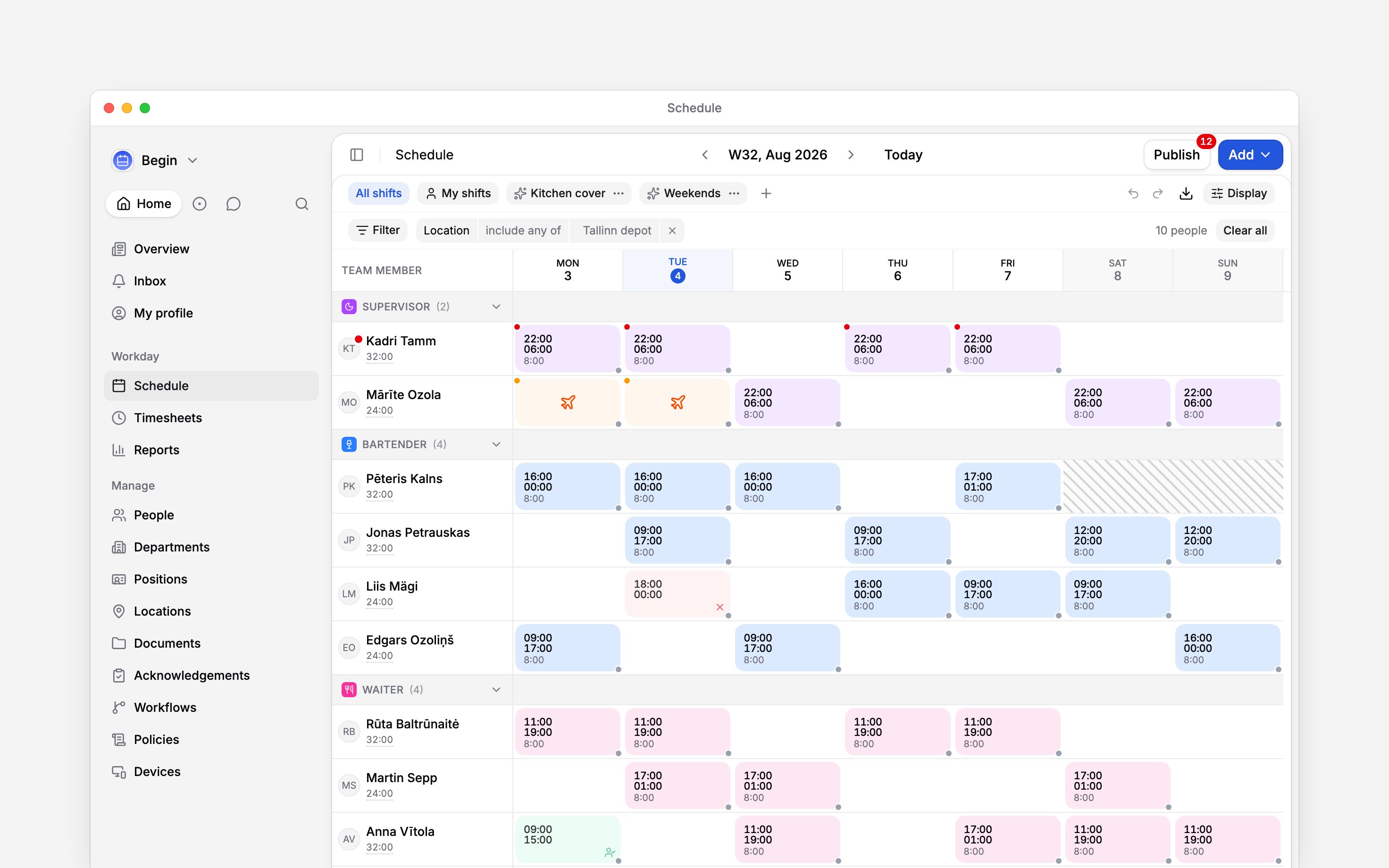
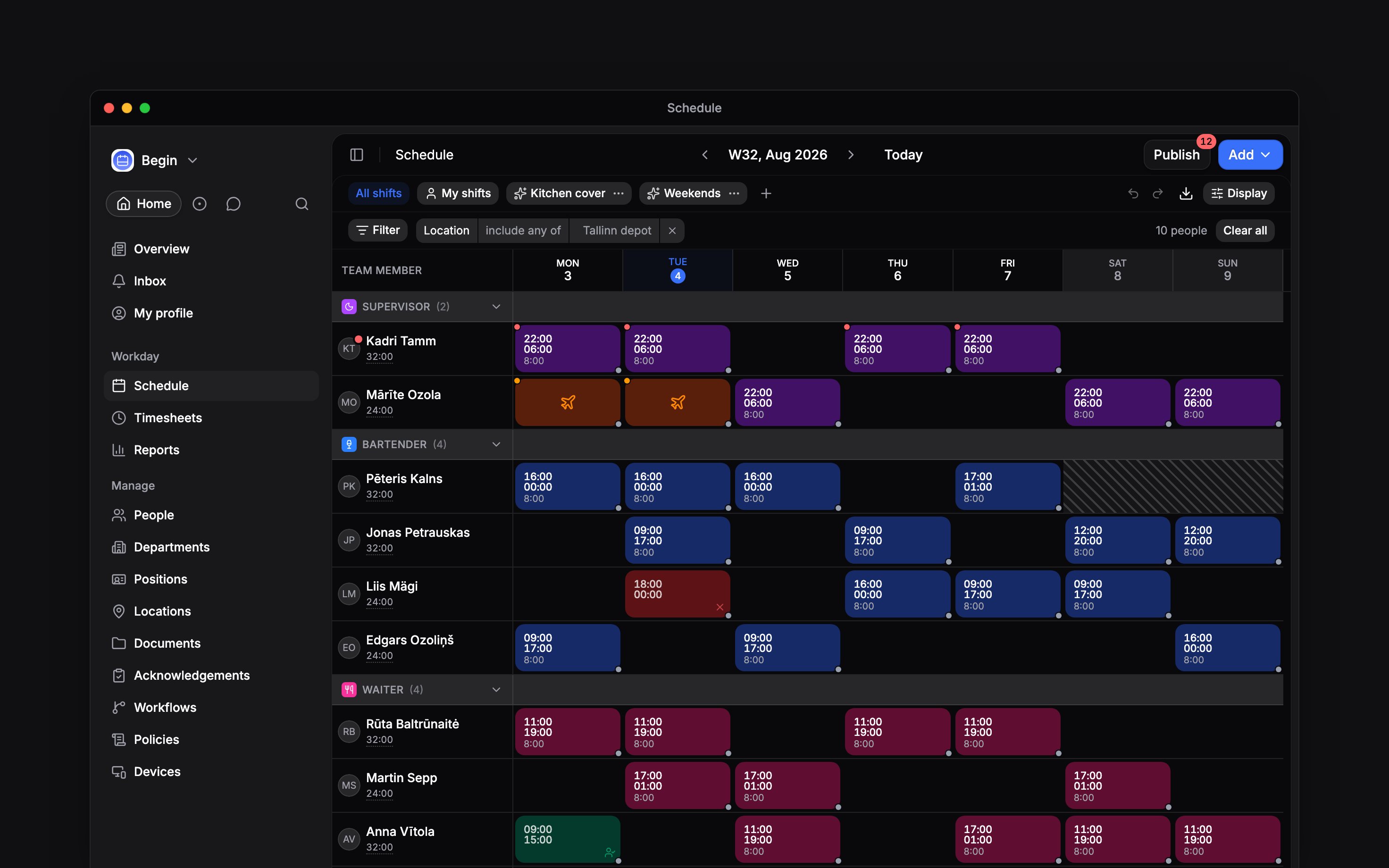
A small dot in a shift's top-left corner marks a broken rule, and so does one on a team member's avatar. Amber is a warning. Red is a rule that gates saving.
Hover the dot on the avatar to read every rule it covers, each with the figure against its limit, like **8h / 1h max**. No dots anywhere means one of two things: nothing is breaking a rule, or **Show compliance indicators** is switched off in **Display**.
Begin checks every shift as you build it: against the compliance rules your workspace has set, and against what is already on that person's calendar. Most of what comes back is information. Of those two checks, only a compliance rule can refuse a save.
Compliance rules are yours to set. They live in **Policies → Compliance**, and each one names the
people it is checked for. A workspace with none set sees no compliance marks on its schedule.
## Read the dot
A small dot in a shift's top-left corner marks a broken rule, and so does one on a team member's avatar. Amber is a warning. Red is a rule that gates saving.
Hover the dot on the avatar to read every rule it covers, each with the figure against its limit, like **8h / 1h max**. No dots anywhere means one of two things: nothing is breaking a rule, or **Show compliance indicators** is switched off in **Display**.
 ## Which ones stop you
| When you save | What it means | What clears it |
| ----------------------------------------------------------------- | ---------------------------------------- | -------------------------------------------------------------------- |
| It saves, dot and all | The rule only warns | Nothing has to. The dot stays as a record |
| **This shift breaks a compliance rule**, offering **Keep anyway** | The rule blocks, and you may override it | **Keep anyway** saves it untouched. Cancel and the editor stays open |
| The same warning with no **Keep anyway** | The rule cannot be overridden | Only changing the shift: its hours, its day, or who is on it |
Dragging a shift asks the same question. The move is refused first, the warning opens, and cancelling puts the shift back where it was.
A refusal naming a field instead, like **Select a position for this shift**, is not compliance: it is a schedule policy that requires a position, location or colour on the people it applies to. Fill it in and save again.
## Which ones only tell you
The shift editor's **Policies and compliance** section opens with **Overlapping time**: what the assignee already has in those hours, whether that is another shift, approved time off, an unavailable block, or time they have already clocked. The assignee list marks a busy person before you pick them, with the hours they are taken.
None of it refuses the save. Two overlapping records are legitimate often enough that blocking them would get in the way of ordinary corrections.
Two more marks read the same way. Diagonal hatching across a run of days means no employment contract covers them, so nothing you put there counts towards that person's hours.
A dot on a time-off block means too many people are away on those days for the cover you have set; it warns you, and never refuses the time off.
This dot is rolling out gradually, so your workspace may not show it yet. If it never appears, ask
us to turn it on.
Or ask **Begin AI** (Cmd / Ctrl + J):
Are there any scheduling conflicts next week?
It reads everyone's shifts and reports overlaps, and work booked over time off or an unavailable block. Open shifts are left out, because every check is against one person's other shifts. Rest between shifts is checked only when you ask for a minimum, and compliance limits are a separate question it answers one person at a time.
It still carries one dot, in the colour of the worst of them: red if any rule gates saving,
amber if every one only warns.
**Context for an assistant answering questions about the marks Begin puts on a shift.** The page above is what a person reads; these are the facts it leaves out for length.
* **Who can:** changing a compliance rule needs the **Management interface** grant on **Policies**; a default employee role holds only **Data access** there.
* **Where:** every rule set carries **When breached**, and that field decides the outcome: **Warn** is the amber dot, **Block** the red one offering **Keep anyway**, **Block — no override** the red one without it. **Applies to** is **Everyone** or **Specific people**, and only a set whose **Status** is **Active** is checked at all.
* **Limits:** a rule measures **Worked hours**, **Worked days**, **Shifts** or **Longest rest (hours)**, **At least** or **At most** a limit you set, **Per** day, week, shift, the rest after a shift, or a rolling window of days or weeks. **Country templates** offer a ready-made set for Estonia, Latvia, Lithuania and the European Union.
* **Begin AI:** its conflict check reads 93 days at most in one call, and every team member unless you name one. Given a minimum rest between 0.5 and 48 hours it also reports the shortest gap it found. Compliance is a separate pair of reads, one listing the rule sets and one evaluating a single member over a range; it can change neither.
* **Often confused with:** a cover clash, which sits on time off rather than on a shift. Where cover limits are not switched on, Begin AI never sees one.
## Next
The shift form the warnings appear in.
Absences, cover, and the clashes they cause.
## Still need help?
Email the Begin team and we'll get back to you.
Open the AI assistant and get instant answers based on these docs.
## Which ones stop you
| When you save | What it means | What clears it |
| ----------------------------------------------------------------- | ---------------------------------------- | -------------------------------------------------------------------- |
| It saves, dot and all | The rule only warns | Nothing has to. The dot stays as a record |
| **This shift breaks a compliance rule**, offering **Keep anyway** | The rule blocks, and you may override it | **Keep anyway** saves it untouched. Cancel and the editor stays open |
| The same warning with no **Keep anyway** | The rule cannot be overridden | Only changing the shift: its hours, its day, or who is on it |
Dragging a shift asks the same question. The move is refused first, the warning opens, and cancelling puts the shift back where it was.
A refusal naming a field instead, like **Select a position for this shift**, is not compliance: it is a schedule policy that requires a position, location or colour on the people it applies to. Fill it in and save again.
## Which ones only tell you
The shift editor's **Policies and compliance** section opens with **Overlapping time**: what the assignee already has in those hours, whether that is another shift, approved time off, an unavailable block, or time they have already clocked. The assignee list marks a busy person before you pick them, with the hours they are taken.
None of it refuses the save. Two overlapping records are legitimate often enough that blocking them would get in the way of ordinary corrections.
Two more marks read the same way. Diagonal hatching across a run of days means no employment contract covers them, so nothing you put there counts towards that person's hours.
A dot on a time-off block means too many people are away on those days for the cover you have set; it warns you, and never refuses the time off.
This dot is rolling out gradually, so your workspace may not show it yet. If it never appears, ask
us to turn it on.
Or ask **Begin AI** (Cmd / Ctrl + J):
Are there any scheduling conflicts next week?
It reads everyone's shifts and reports overlaps, and work booked over time off or an unavailable block. Open shifts are left out, because every check is against one person's other shifts. Rest between shifts is checked only when you ask for a minimum, and compliance limits are a separate question it answers one person at a time.
It still carries one dot, in the colour of the worst of them: red if any rule gates saving,
amber if every one only warns.
**Context for an assistant answering questions about the marks Begin puts on a shift.** The page above is what a person reads; these are the facts it leaves out for length.
* **Who can:** changing a compliance rule needs the **Management interface** grant on **Policies**; a default employee role holds only **Data access** there.
* **Where:** every rule set carries **When breached**, and that field decides the outcome: **Warn** is the amber dot, **Block** the red one offering **Keep anyway**, **Block — no override** the red one without it. **Applies to** is **Everyone** or **Specific people**, and only a set whose **Status** is **Active** is checked at all.
* **Limits:** a rule measures **Worked hours**, **Worked days**, **Shifts** or **Longest rest (hours)**, **At least** or **At most** a limit you set, **Per** day, week, shift, the rest after a shift, or a rolling window of days or weeks. **Country templates** offer a ready-made set for Estonia, Latvia, Lithuania and the European Union.
* **Begin AI:** its conflict check reads 93 days at most in one call, and every team member unless you name one. Given a minimum rest between 0.5 and 48 hours it also reports the shortest gap it found. Compliance is a separate pair of reads, one listing the rule sets and one evaluating a single member over a range; it can change neither.
* **Often confused with:** a cover clash, which sits on time off rather than on a shift. Where cover limits are not switched on, Begin AI never sees one.
## Next
The shift form the warnings appear in.
Absences, cover, and the clashes they cause.
## Still need help?
Email the Begin team and we'll get back to you.
Open the AI assistant and get instant answers based on these docs.