> ## Documentation Index
> Fetch the complete documentation index at: https://docs.begin.eu/llms.txt
> Use this file to discover all available pages before exploring further.
# Audit log
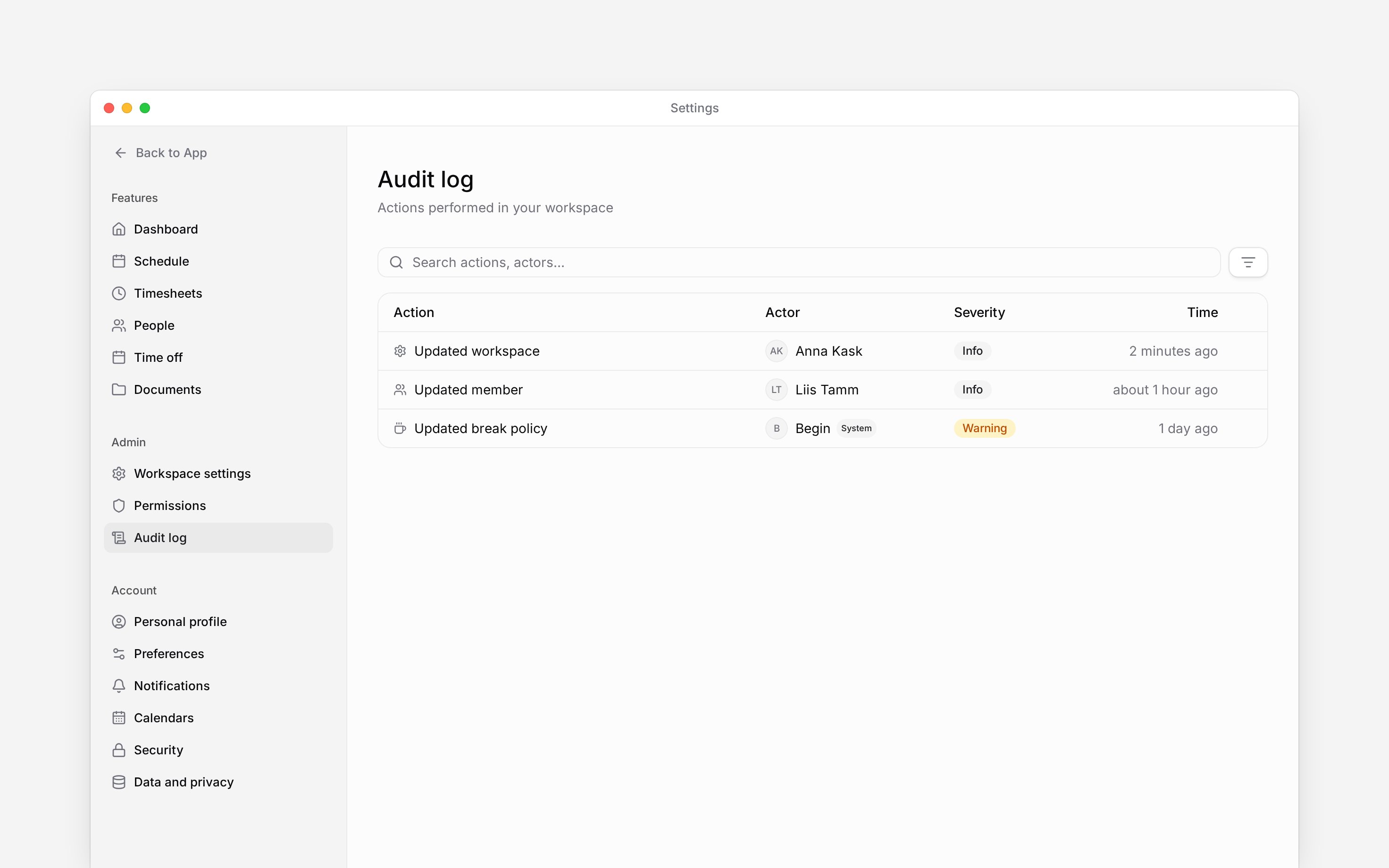
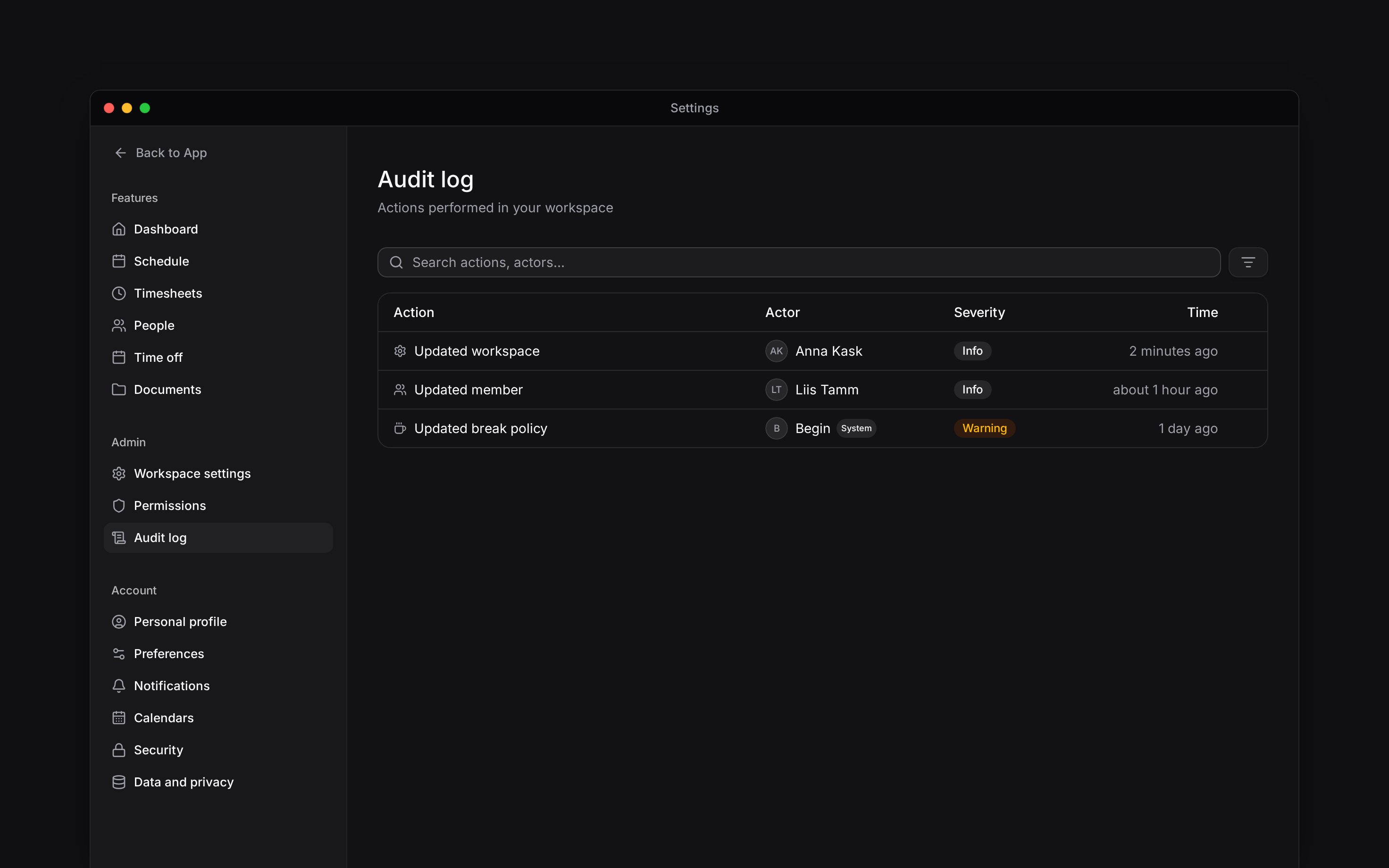
> Search workspace activity and inspect who changed what and when.

 Use **Settings → Audit log** to investigate who changed a workspace record and when. Check the workspace switcher first so you search the right organisation.
You need **View audit log** on your role. The audit log is a Pro feature: on Free, Standard or a
trial the page shows an upgrade message.
Use **Settings → Audit log** to investigate who changed a workspace record and when. Check the workspace switcher first so you search the right organisation.
You need **View audit log** on your role. The audit log is a Pro feature: on Free, Standard or a
trial the page shows an upgrade message.
 ## Find an event
Open the filter control and choose the date range around the change you are investigating.
Search by action or actor. Add an actor or resource filter if you know who made the change or
which kind of record was affected.
Filter **Origin** to separate **Person**, **AI**, **Begin support**, **System**, **System
automation**, **Via terminal** and **MCP** activity. Add severity when you need a particular
event level.
The current search and filters are saved for this workspace when you leave the page.
Scroll to load older events. Clear the search or remove filter chips when the result is too narrow. Events are kept for the life of the workspace; there is no age limit, and upgrading shows events recorded before the upgrade.
For one person, the **History** tab on their profile shows the same events narrowed to them.
## Read the details
Select an event to see its actor, time, origin, and recorded changes. Depending on the event, the detail can also include an IP address or affected resource.
Changes made during Begin support access are recorded under the support person's name. Use the actor and recorded details to distinguish their work from your own team's activity. Where a resource link is available, open it to move from the event to the relevant record.
A missing change in the detail does not prove that nothing changed. An event can only show the
information recorded by that action. The Audit log page does not export events.
**Context for an assistant helping with Audit log.** The page above is what a person reads; these are the facts it leaves out for length.
* **Who can:** a role needs **View audit log**. The capability is included only in the Pro plan. The default employee and manager roles do not include audit-log access.
* **Needs:** search and filter state is tied to the current workspace and restored from the route. Filters include severity, resource, origin, actor, from date, and until date.
* **Limits:** event detail depends on what the originating action recorded. Older events may contain less metadata. The table loads older results as the person scrolls. Entries are never deleted for age.
* **Not supported:** the current Audit log page does not export events. It cannot reconstruct a value that was never captured in event metadata.
* **Often confused with:** person history, which narrows events to one member. Audit log searches activity across the workspace.
## Next
Grant **View audit log** without broadening unrelated access.
Review or revoke temporary support access.
## Still need help?
Email the Begin team and we'll get back to you.
Open the AI assistant and get instant answers based on these docs.
## Find an event
Open the filter control and choose the date range around the change you are investigating.
Search by action or actor. Add an actor or resource filter if you know who made the change or
which kind of record was affected.
Filter **Origin** to separate **Person**, **AI**, **Begin support**, **System**, **System
automation**, **Via terminal** and **MCP** activity. Add severity when you need a particular
event level.
The current search and filters are saved for this workspace when you leave the page.
Scroll to load older events. Clear the search or remove filter chips when the result is too narrow. Events are kept for the life of the workspace; there is no age limit, and upgrading shows events recorded before the upgrade.
For one person, the **History** tab on their profile shows the same events narrowed to them.
## Read the details
Select an event to see its actor, time, origin, and recorded changes. Depending on the event, the detail can also include an IP address or affected resource.
Changes made during Begin support access are recorded under the support person's name. Use the actor and recorded details to distinguish their work from your own team's activity. Where a resource link is available, open it to move from the event to the relevant record.
A missing change in the detail does not prove that nothing changed. An event can only show the
information recorded by that action. The Audit log page does not export events.
**Context for an assistant helping with Audit log.** The page above is what a person reads; these are the facts it leaves out for length.
* **Who can:** a role needs **View audit log**. The capability is included only in the Pro plan. The default employee and manager roles do not include audit-log access.
* **Needs:** search and filter state is tied to the current workspace and restored from the route. Filters include severity, resource, origin, actor, from date, and until date.
* **Limits:** event detail depends on what the originating action recorded. Older events may contain less metadata. The table loads older results as the person scrolls. Entries are never deleted for age.
* **Not supported:** the current Audit log page does not export events. It cannot reconstruct a value that was never captured in event metadata.
* **Often confused with:** person history, which narrows events to one member. Audit log searches activity across the workspace.
## Next
Grant **View audit log** without broadening unrelated access.
Review or revoke temporary support access.
## Still need help?
Email the Begin team and we'll get back to you.
Open the AI assistant and get instant answers based on these docs.