> ## Documentation Index
> Fetch the complete documentation index at: https://docs.begin.eu/llms.txt
> Use this file to discover all available pages before exploring further.
# Organise absence groups
> Group leave policies, change their order and remove groups without deleting leave rules.

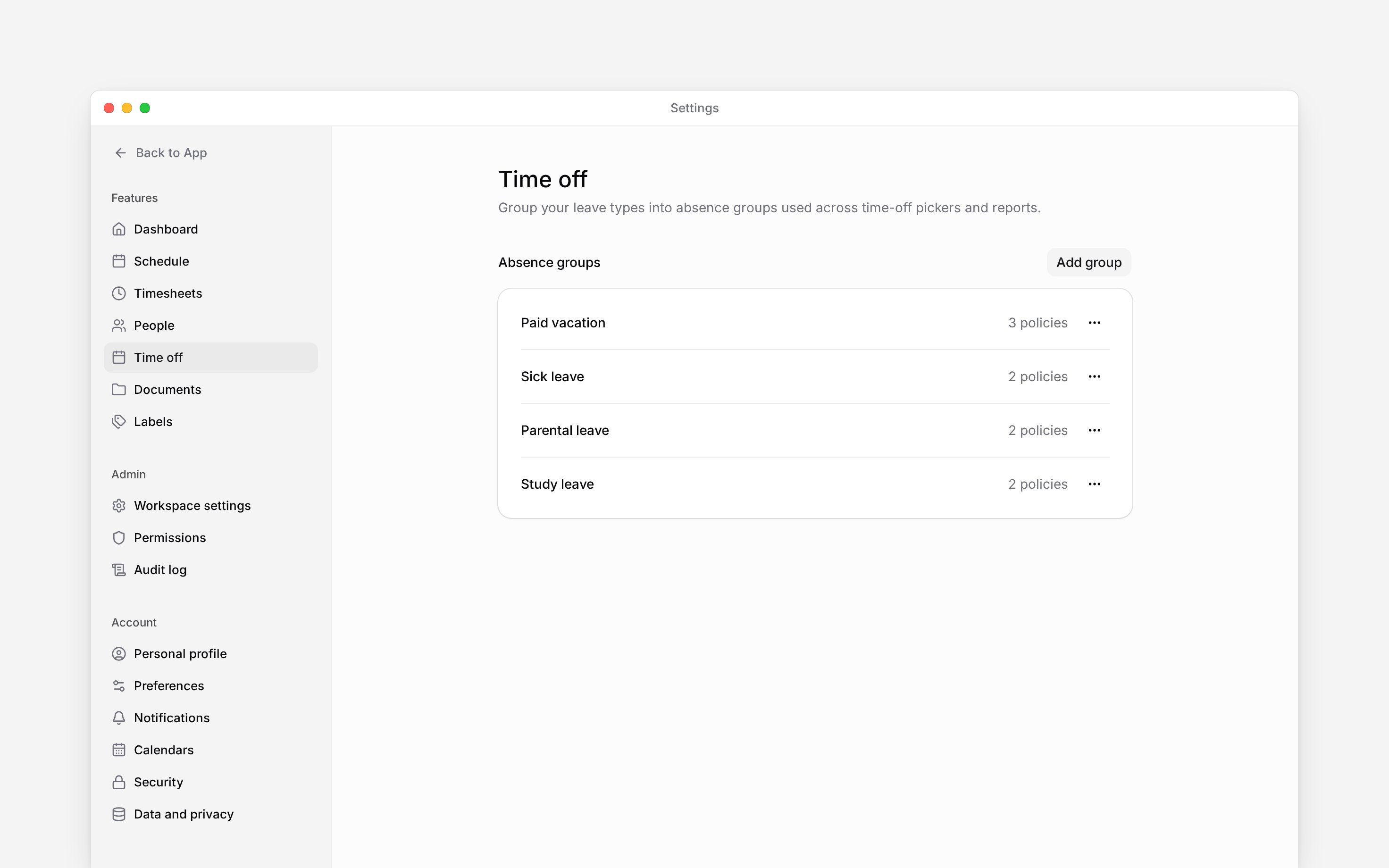
 Absence groups organise your time-off policies under names such as **Sick leave** or **Study leave**. Use them to make related policies easier to find. A group does not set an allowance, accrual rate or approval rule.
Open **Settings → Time off** with access to **Time off settings**. Adding, editing and deleting
groups also require the corresponding **Policies** permissions.
## Create and use a group
Under **Absence groups**, choose **Add group**. Enter a name, then choose **Add group** in the
dialog.
Open **Policies → Time off**, edit the relevant policy and choose its **Absence group**. Save
the policy.
Return to **Settings → Time off**. The group lists how many policies use it. Grouping also helps
you find related leave policies and balances elsewhere in Begin.
For example, put two sick-leave policies with different eligibility rules under **Sick leave**. Each policy keeps its own rules and assignments. Creating the group alone neither creates those policies nor grants anyone leave.
## Rename or reorder groups
Open the three-dot menu beside a group. Choose **Edit**, change its name and select **Save changes**. Choose **Move up** or **Move down** to change where it appears.
Default group names follow the reader's language where the product translates them. Once you rename a default group, your chosen name is used as written. Reordering changes presentation, not the order in which policies apply.
## Remove a group
Choose **Delete** from the group's menu. Read the confirmation, including the number of affected policies, then confirm.
The group disappears and its policies become **Uncategorized**. Their rules, existing requests and balances remain. To retire a leave policy itself, use the policy's own controls instead.
If you want to replace one group with another, move the policies to the new group before deleting the old one.
Absence groups organise your time-off policies under names such as **Sick leave** or **Study leave**. Use them to make related policies easier to find. A group does not set an allowance, accrual rate or approval rule.
Open **Settings → Time off** with access to **Time off settings**. Adding, editing and deleting
groups also require the corresponding **Policies** permissions.
## Create and use a group
Under **Absence groups**, choose **Add group**. Enter a name, then choose **Add group** in the
dialog.
Open **Policies → Time off**, edit the relevant policy and choose its **Absence group**. Save
the policy.
Return to **Settings → Time off**. The group lists how many policies use it. Grouping also helps
you find related leave policies and balances elsewhere in Begin.
For example, put two sick-leave policies with different eligibility rules under **Sick leave**. Each policy keeps its own rules and assignments. Creating the group alone neither creates those policies nor grants anyone leave.
## Rename or reorder groups
Open the three-dot menu beside a group. Choose **Edit**, change its name and select **Save changes**. Choose **Move up** or **Move down** to change where it appears.
Default group names follow the reader's language where the product translates them. Once you rename a default group, your chosen name is used as written. Reordering changes presentation, not the order in which policies apply.
## Remove a group
Choose **Delete** from the group's menu. Read the confirmation, including the number of affected policies, then confirm.
The group disappears and its policies become **Uncategorized**. Their rules, existing requests and balances remain. To retire a leave policy itself, use the policy's own controls instead.
If you want to replace one group with another, move the policies to the new group before deleting the old one.
 * **Boundary:** groups contain no targeting, accrual, balance or approval logic. Policy membership
remains the source of those rules.
* **Availability:** the settings route checks its own page
permission; mutation permissions are checked separately on Policies.
* **Limits:** the screen has
add, edit, move and delete controls, but no archive control. Removing a group clears its links
from policies in this workspace.
* **Often confused with:** label groups, which organise tags used
on worked and scheduled time.
## Next
Set leave allowances and request rules.
Check a person’s allowance and requests.
## Still need help?
Email the Begin team and we'll get back to you.
Open the AI assistant and get instant answers based on these docs.
* **Boundary:** groups contain no targeting, accrual, balance or approval logic. Policy membership
remains the source of those rules.
* **Availability:** the settings route checks its own page
permission; mutation permissions are checked separately on Policies.
* **Limits:** the screen has
add, edit, move and delete controls, but no archive control. Removing a group clears its links
from policies in this workspace.
* **Often confused with:** label groups, which organise tags used
on worked and scheduled time.
## Next
Set leave allowances and request rules.
Check a person’s allowance and requests.
## Still need help?
Email the Begin team and we'll get back to you.
Open the AI assistant and get instant answers based on these docs.