> ## Documentation Index
> Fetch the complete documentation index at: https://docs.begin.eu/llms.txt
> Use this file to discover all available pages before exploring further.
# Personalise your preferences
> Choose your language, start page and appearance, and hide contact details on your own account card.

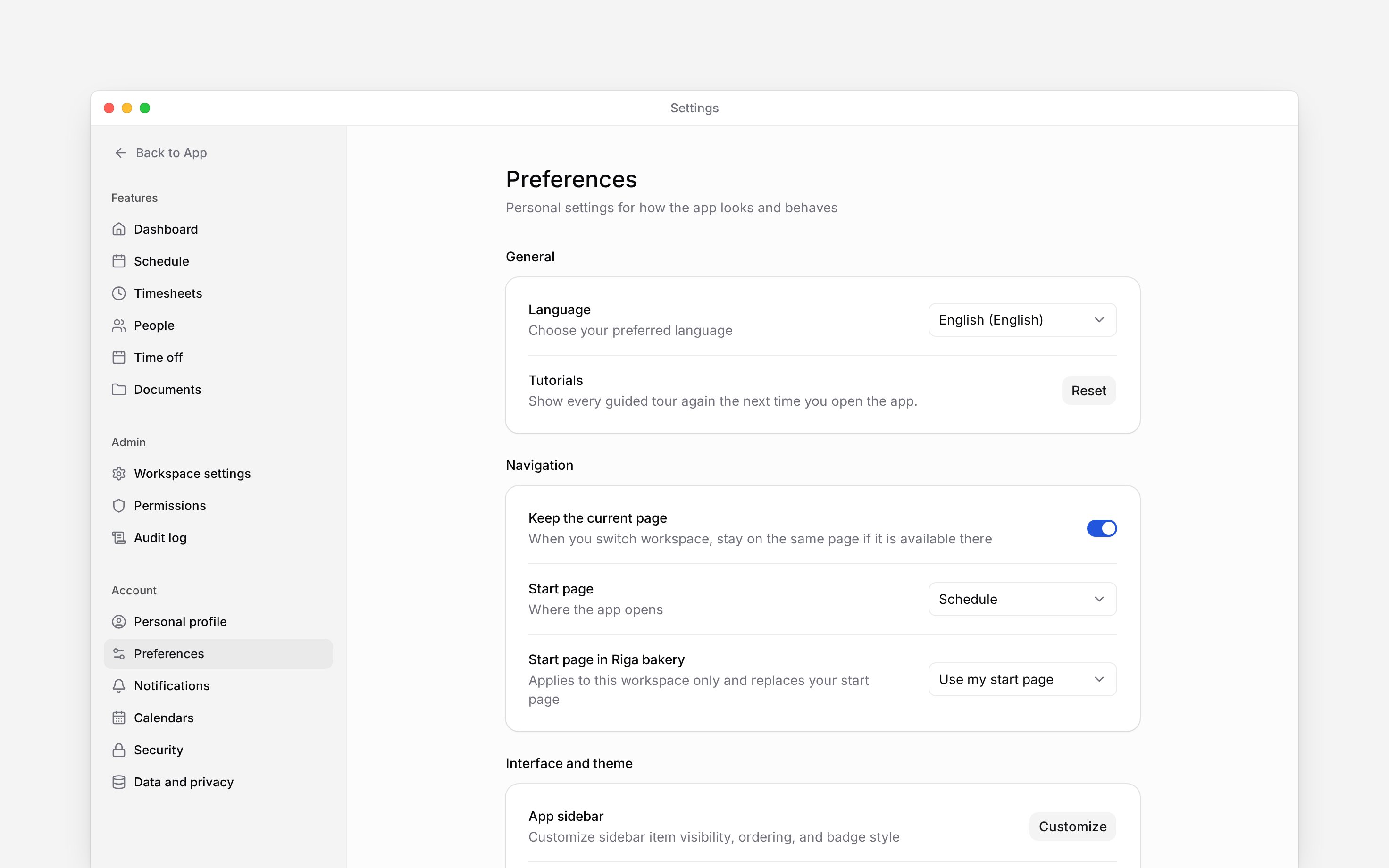
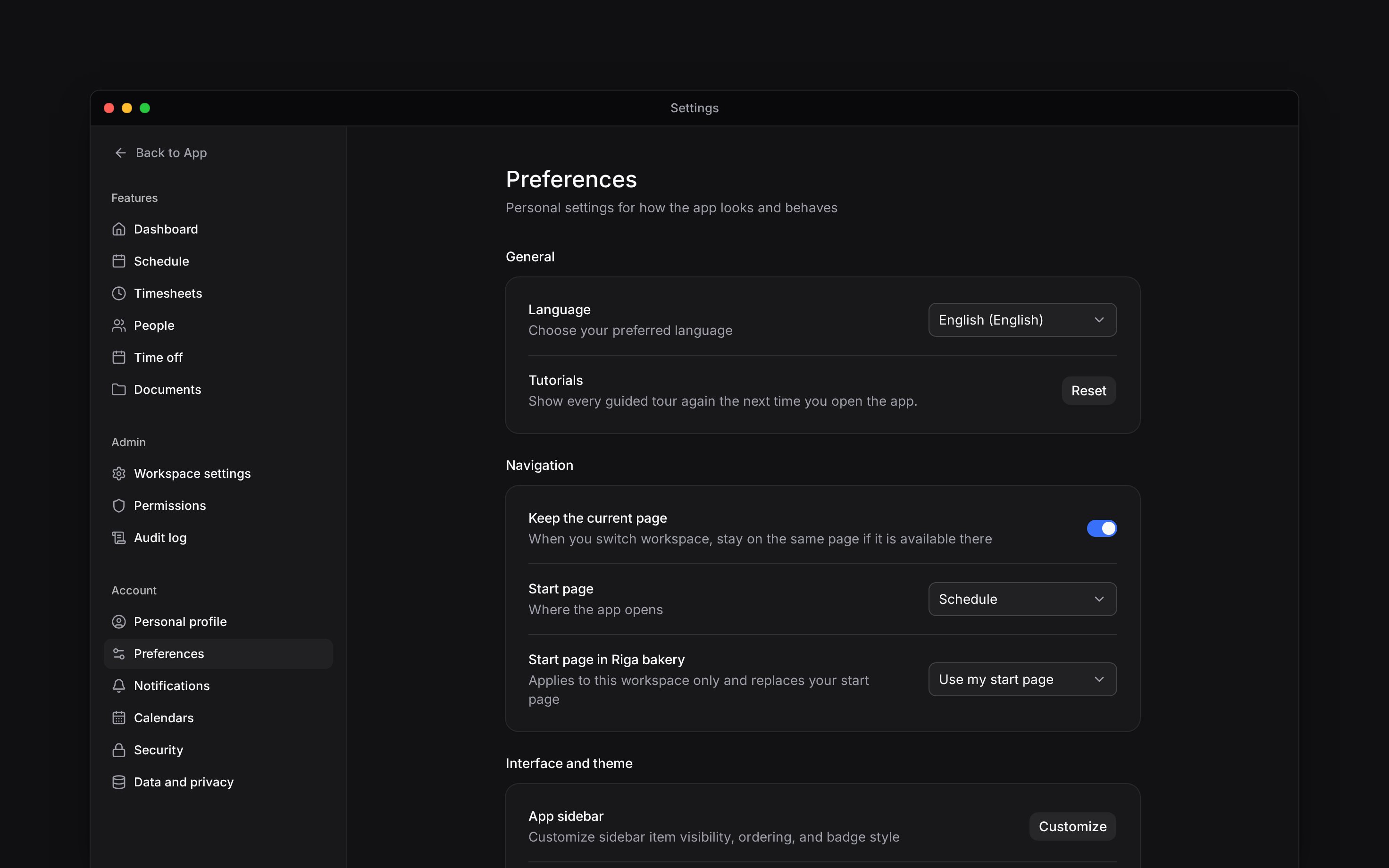
 Open **Settings → Preferences** to choose how Begin looks and behaves for you. Your choices do not change a colleague’s interface or the workspace’s regional defaults.
 ## Choose your language and start page
Select **Language** to switch the interface. Your employer’s workspace language can differ from your personal choice.
Choose your **Start page**, where Begin opens. For example, start with Schedule when you plan the team’s week. Only pages you can access appear as choices.
If you work in several workspaces, you can set a different start page for the current workspace. Choose **Use my start page** when you want one choice everywhere. The option to keep your current page while switching workspaces appears when you have more than one workspace.
## Make the interface comfortable
Use the sidebar customisation control to show, hide or reorder navigation items you can access. Hiding a page does not remove your permission to use it.
Adjust the theme, colour scheme, text size and contrast for readability. Pointer cursors and interface sounds are personal choices. **Hide labels in mobile navigation** changes the navigation text on small screens.
Choose **Reset** beside **Tutorials** to show the guided tours again the next time you open the app. This does not reset your work or other preferences.
## Hide contact details on your screen
Turn on **Hide my contact details** to keep your phone number and email off your own account card in the sidebar and mobile menu. This is useful when sharing your screen.
This switch does not hide your contact details from your employer or other people’s records. It
does not delete your email or phone number or change how you sign in.
The hide-account-contact preference controls the signed-in user’s navigation account card. It is not an access-control rule for the member profile. The workspace start-page override remains visible if an override is stored, even after the user has only one workspace left. Destination access is rechecked when switching.
## Next
Update the details held by your account.
Connect your work to your calendar.
## Still need help?
Email the Begin team and we'll get back to you.
Open the AI assistant and get instant answers based on these docs.
## Choose your language and start page
Select **Language** to switch the interface. Your employer’s workspace language can differ from your personal choice.
Choose your **Start page**, where Begin opens. For example, start with Schedule when you plan the team’s week. Only pages you can access appear as choices.
If you work in several workspaces, you can set a different start page for the current workspace. Choose **Use my start page** when you want one choice everywhere. The option to keep your current page while switching workspaces appears when you have more than one workspace.
## Make the interface comfortable
Use the sidebar customisation control to show, hide or reorder navigation items you can access. Hiding a page does not remove your permission to use it.
Adjust the theme, colour scheme, text size and contrast for readability. Pointer cursors and interface sounds are personal choices. **Hide labels in mobile navigation** changes the navigation text on small screens.
Choose **Reset** beside **Tutorials** to show the guided tours again the next time you open the app. This does not reset your work or other preferences.
## Hide contact details on your screen
Turn on **Hide my contact details** to keep your phone number and email off your own account card in the sidebar and mobile menu. This is useful when sharing your screen.
This switch does not hide your contact details from your employer or other people’s records. It
does not delete your email or phone number or change how you sign in.
The hide-account-contact preference controls the signed-in user’s navigation account card. It is not an access-control rule for the member profile. The workspace start-page override remains visible if an override is stored, even after the user has only one workspace left. Destination access is rechecked when switching.
## Next
Update the details held by your account.
Connect your work to your calendar.
## Still need help?
Email the Begin team and we'll get back to you.
Open the AI assistant and get instant answers based on these docs.