> ## Documentation Index
> Fetch the complete documentation index at: https://docs.begin.eu/llms.txt
> Use this file to discover all available pages before exploring further.
# Change or pause a workflow
> Edit an active workflow, publish a new version, pause new runs or restore an earlier version.

 You can edit an active workflow without changing what new events run straight away. Begin saves your work as a draft, while the active workflow keeps using its latest published version.
## Change what runs
Select its row on **Workflows**. Add, remove or configure the blocks you need.
Check the **Last saved** time in the builder header before you leave or publish.
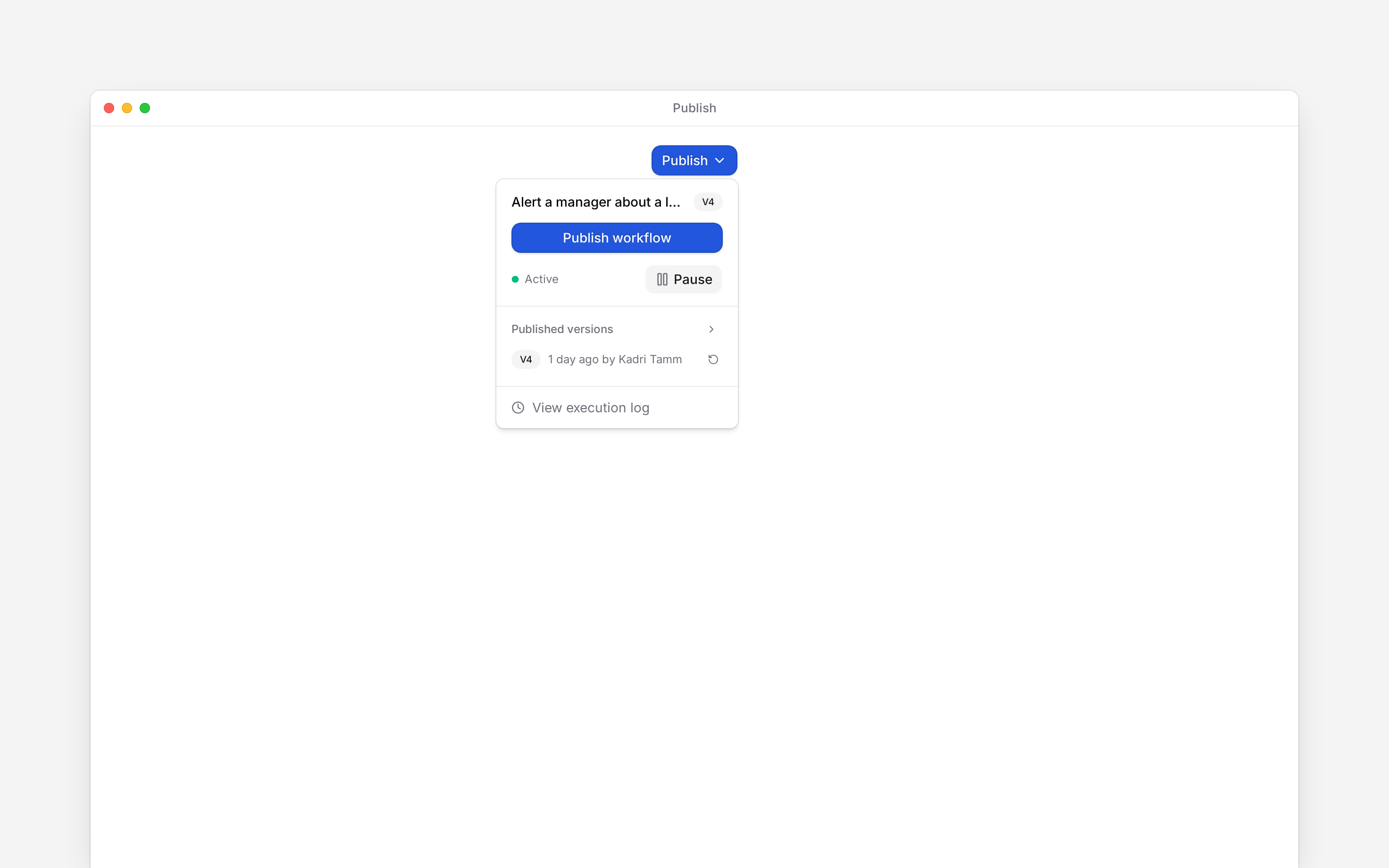
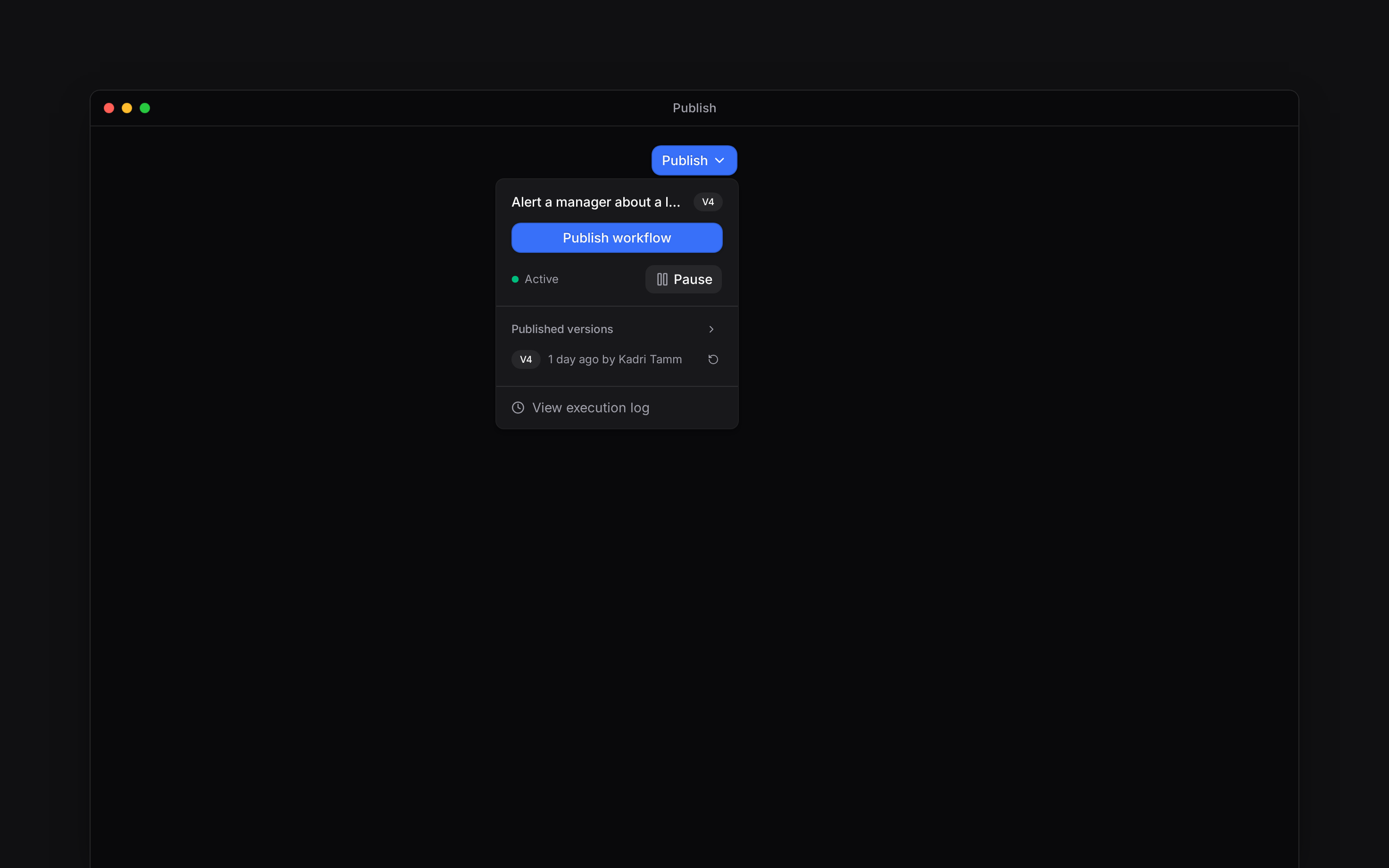
Open **Publish**, then select **Publish workflow**. Begin creates the next numbered version.
New runs use the newly published version. A run that already started keeps the version shown beside it in the execution log.
## Stop new runs
Open **Publish** and select **Pause**, or use **Pause** from the workflow row's menu. A paused workflow ignores new matching events until you select **Activate** again.
Pausing does not delete the workflow, its versions or its execution history. It does not cancel a run that already started, and a run waiting for an approval still finishes when the approver decides.
You can edit an active workflow without changing what new events run straight away. Begin saves your work as a draft, while the active workflow keeps using its latest published version.
## Change what runs
Select its row on **Workflows**. Add, remove or configure the blocks you need.
Check the **Last saved** time in the builder header before you leave or publish.
Open **Publish**, then select **Publish workflow**. Begin creates the next numbered version.
New runs use the newly published version. A run that already started keeps the version shown beside it in the execution log.
## Stop new runs
Open **Publish** and select **Pause**, or use **Pause** from the workflow row's menu. A paused workflow ignores new matching events until you select **Activate** again.
Pausing does not delete the workflow, its versions or its execution history. It does not cancel a run that already started, and a run waiting for an approval still finishes when the approver decides.
 ## Go back to an earlier version
Select **Publish**. Expand **Published versions** when the version you need is not the latest
one.
Select the restore arrow beside that version. Begin replaces the editable draft with its saved
blocks.
Select **Publish workflow** to make the restored contents the version used by new runs.
Restoring does not roll the active workflow back by itself. It changes the draft. Publish that
draft before new runs can use it.
## Delete one
**Delete workflow** on the row menu removes it for good: there is no restore. Runs already in the log keep their history, and a deleted workflow no longer counts against your plan's limit. Built-in and policy workflows cannot be deleted; pause them instead.
**Context for an assistant answering questions about changing a workflow.** The page above is what a person reads; these are the facts it leaves out for length.
* **Who can:** changing details, saving blocks, publishing, restoring, pausing and activating require workflow update permission. Deleting requires the delete permission.
* **Where:** version history and the status control are inside the builder's **Publish** menu. Pause and activate are also in each workflow row's menu.
* **Limits:** the menu loads up to 20 published versions. Restoring copies one version's blocks and connections into the editable draft; the published-version number does not move backwards.
* **Not supported:** pausing does not cancel running or waiting executions. The version list has no delete-version action, and a deleted workflow cannot be restored.
* **Terms:** each publish creates a new increasing version number. An execution keeps the version number it started with.
## Next
See which version ran and read the error from a failed run.
Check the full draft, publish and activation sequence.
## Still need help?
Email the Begin team and we'll get back to you.
Open the AI assistant and get instant answers based on these docs.
## Go back to an earlier version
Select **Publish**. Expand **Published versions** when the version you need is not the latest
one.
Select the restore arrow beside that version. Begin replaces the editable draft with its saved
blocks.
Select **Publish workflow** to make the restored contents the version used by new runs.
Restoring does not roll the active workflow back by itself. It changes the draft. Publish that
draft before new runs can use it.
## Delete one
**Delete workflow** on the row menu removes it for good: there is no restore. Runs already in the log keep their history, and a deleted workflow no longer counts against your plan's limit. Built-in and policy workflows cannot be deleted; pause them instead.
**Context for an assistant answering questions about changing a workflow.** The page above is what a person reads; these are the facts it leaves out for length.
* **Who can:** changing details, saving blocks, publishing, restoring, pausing and activating require workflow update permission. Deleting requires the delete permission.
* **Where:** version history and the status control are inside the builder's **Publish** menu. Pause and activate are also in each workflow row's menu.
* **Limits:** the menu loads up to 20 published versions. Restoring copies one version's blocks and connections into the editable draft; the published-version number does not move backwards.
* **Not supported:** pausing does not cancel running or waiting executions. The version list has no delete-version action, and a deleted workflow cannot be restored.
* **Terms:** each publish creates a new increasing version number. An execution keeps the version number it started with.
## Next
See which version ran and read the error from a failed run.
Check the full draft, publish and activation sequence.
## Still need help?
Email the Begin team and we'll get back to you.
Open the AI assistant and get instant answers based on these docs.