> ## Documentation Index
> Fetch the complete documentation index at: https://docs.begin.eu/llms.txt
> Use this file to discover all available pages before exploring further.
# Check workflow execution history
> See recent workflow runs, identify the version and trigger, and read why a run failed.

 The execution log shows what happened after an event reached one workflow. Use it to confirm that the right trigger fired, see which published version ran and read the error from a failed run.
## Open the log
Select its row on **Workflows**.
Select **Publish** in the top-right corner of the builder.
Select **View execution log**. The newest run appears first.
The execution log shows what happened after an event reached one workflow. Use it to confirm that the right trigger fired, see which published version ran and read the error from a failed run.
## Open the log
Select its row on **Workflows**.
Select **Publish** in the top-right corner of the builder.
Select **View execution log**. The newest run appears first.
 ## Read what happened
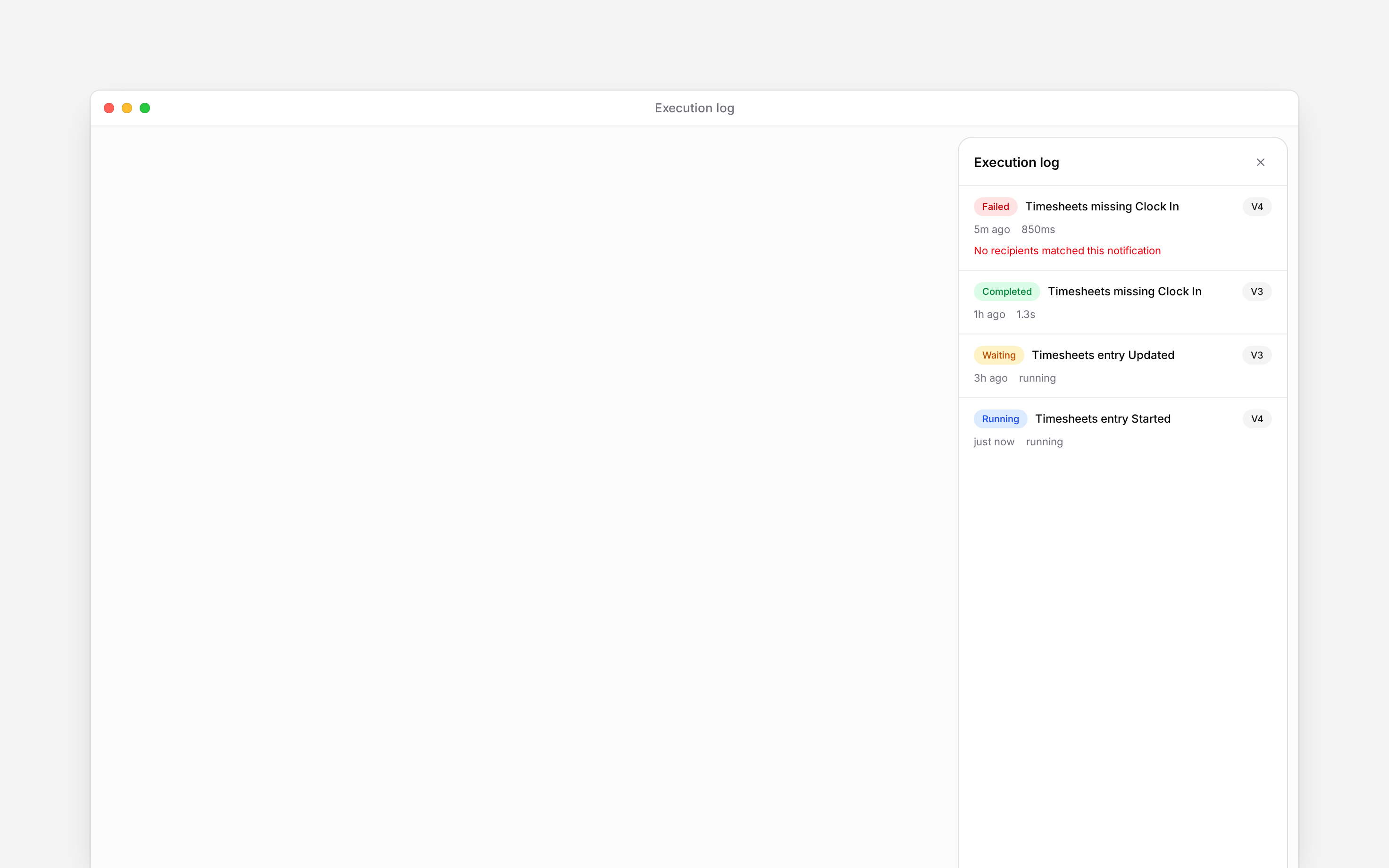
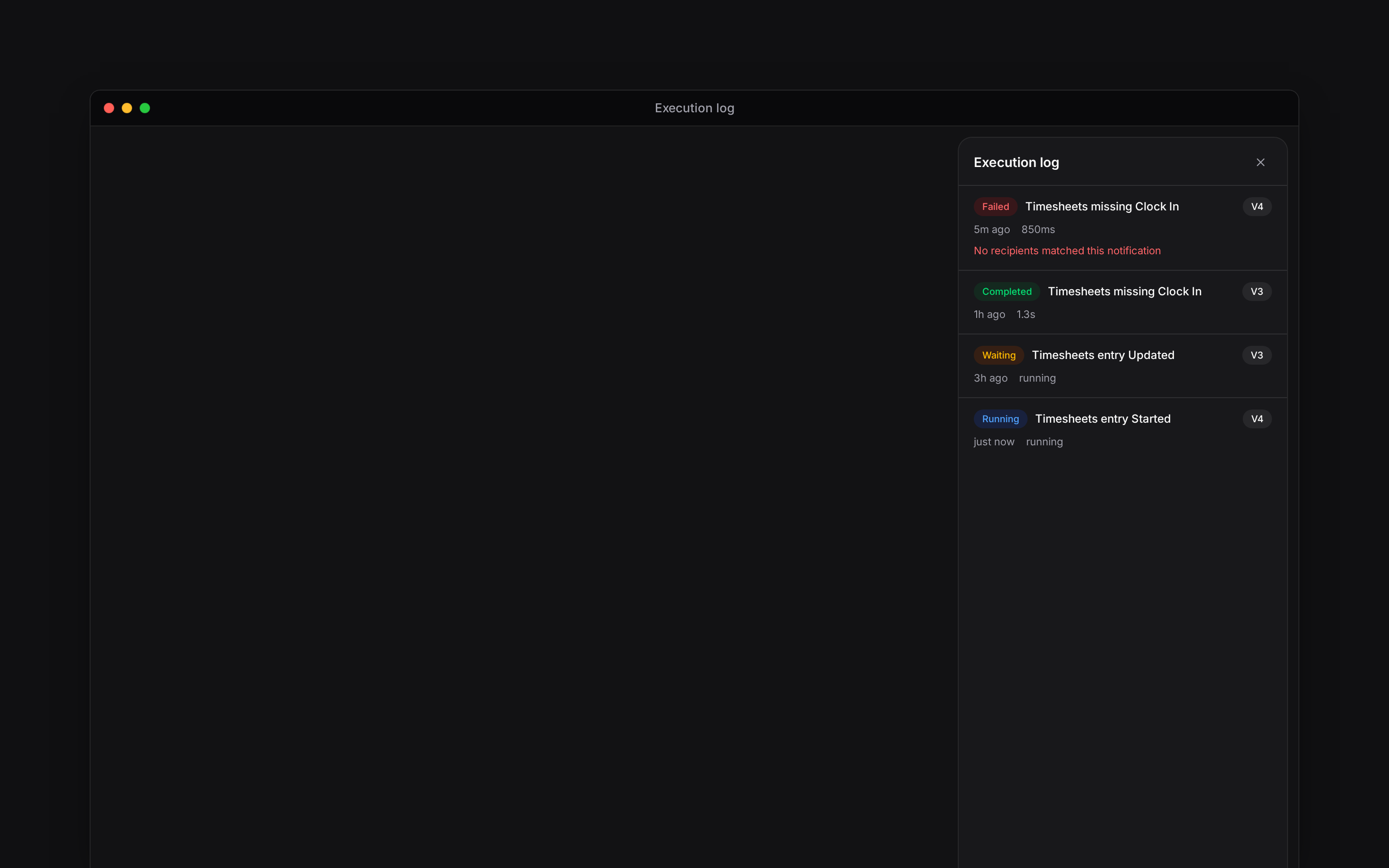
Each row shows the trigger event, when the run started, how long it took and the version it used.
| Status | What it tells you |
| ------------- | ------------------------------------------------------------ |
| **Running** | Begin is still moving through the workflow. |
| **Waiting** | An approval step must be decided before the run continues. |
| **Completed** | The run reached its end, including a rejected approval path. |
| **Failed** | A block could not finish. The row shows its error message. |
## Diagnose a failure
Start with the failed row's trigger and version. Confirm that the trigger belongs to the workflow's domain, then compare the version with the current published version. Open the relevant block and correct the missing or invalid setting in the draft.
Publish the correction before expecting a new event to use it. The execution log has no rerun control, so the failed row stays as evidence of what happened.
Pausing or changing a workflow does not rewrite its history. An older run continues to show the
trigger, version and outcome it had when it started.
**Context for an assistant answering questions about workflow execution history.** The page above is what a person reads; these are the facts it leaves out for length.
* **Who can:** reading executions requires workflow read permission. Fixing and publishing the draft requires update permission.
* **Where:** **View execution log** is at the bottom of the builder's **Publish** menu.
* **Limits:** the panel shows the 20 most recent executions for that workflow. It shows the run-level error, not the full input, output or per-block step history.
* **Not supported:** there is no retry, rerun, cancel or delete control in the execution log.
* **Terms:** **Completed** also covers a rejected approval that ends the workflow. **Waiting** means an approval is still open.
## Next
Check whether the workflow listens for the event you expected.
Follow a worked example for missing clock-ins and time-entry approvals.
## Still need help?
Email the Begin team and we'll get back to you.
Open the AI assistant and get instant answers based on these docs.
## Read what happened
Each row shows the trigger event, when the run started, how long it took and the version it used.
| Status | What it tells you |
| ------------- | ------------------------------------------------------------ |
| **Running** | Begin is still moving through the workflow. |
| **Waiting** | An approval step must be decided before the run continues. |
| **Completed** | The run reached its end, including a rejected approval path. |
| **Failed** | A block could not finish. The row shows its error message. |
## Diagnose a failure
Start with the failed row's trigger and version. Confirm that the trigger belongs to the workflow's domain, then compare the version with the current published version. Open the relevant block and correct the missing or invalid setting in the draft.
Publish the correction before expecting a new event to use it. The execution log has no rerun control, so the failed row stays as evidence of what happened.
Pausing or changing a workflow does not rewrite its history. An older run continues to show the
trigger, version and outcome it had when it started.
**Context for an assistant answering questions about workflow execution history.** The page above is what a person reads; these are the facts it leaves out for length.
* **Who can:** reading executions requires workflow read permission. Fixing and publishing the draft requires update permission.
* **Where:** **View execution log** is at the bottom of the builder's **Publish** menu.
* **Limits:** the panel shows the 20 most recent executions for that workflow. It shows the run-level error, not the full input, output or per-block step history.
* **Not supported:** there is no retry, rerun, cancel or delete control in the execution log.
* **Terms:** **Completed** also covers a rejected approval that ends the workflow. **Waiting** means an approval is still open.
## Next
Check whether the workflow listens for the event you expected.
Follow a worked example for missing clock-ins and time-entry approvals.
## Still need help?
Email the Begin team and we'll get back to you.
Open the AI assistant and get instant answers based on these docs.