> ## Documentation Index
> Fetch the complete documentation index at: https://docs.begin.eu/llms.txt
> Use this file to discover all available pages before exploring further.
# Allow Begin support access
> Grant temporary support access, check who has it, extend it and revoke it when the work is complete.

 Allow Begin support into your workspace when a problem needs investigation. Support enters with administrator access, and changes are logged under the support person's name.
 You need **Manage workspace settings** to grant, approve or revoke support access.
## Open access from Settings
Switch to the workspace that needs help, then open **Settings → Workspace settings**.
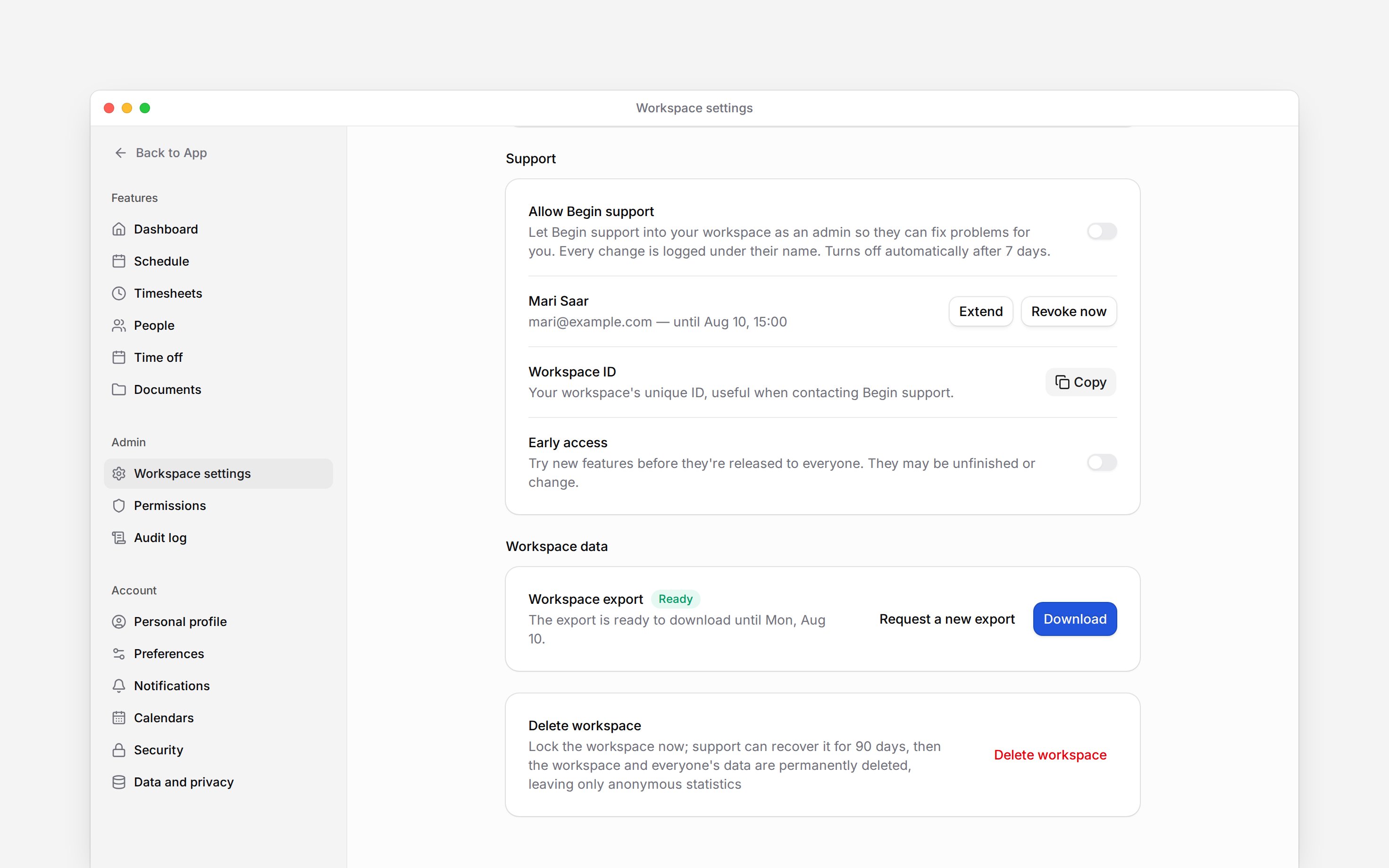
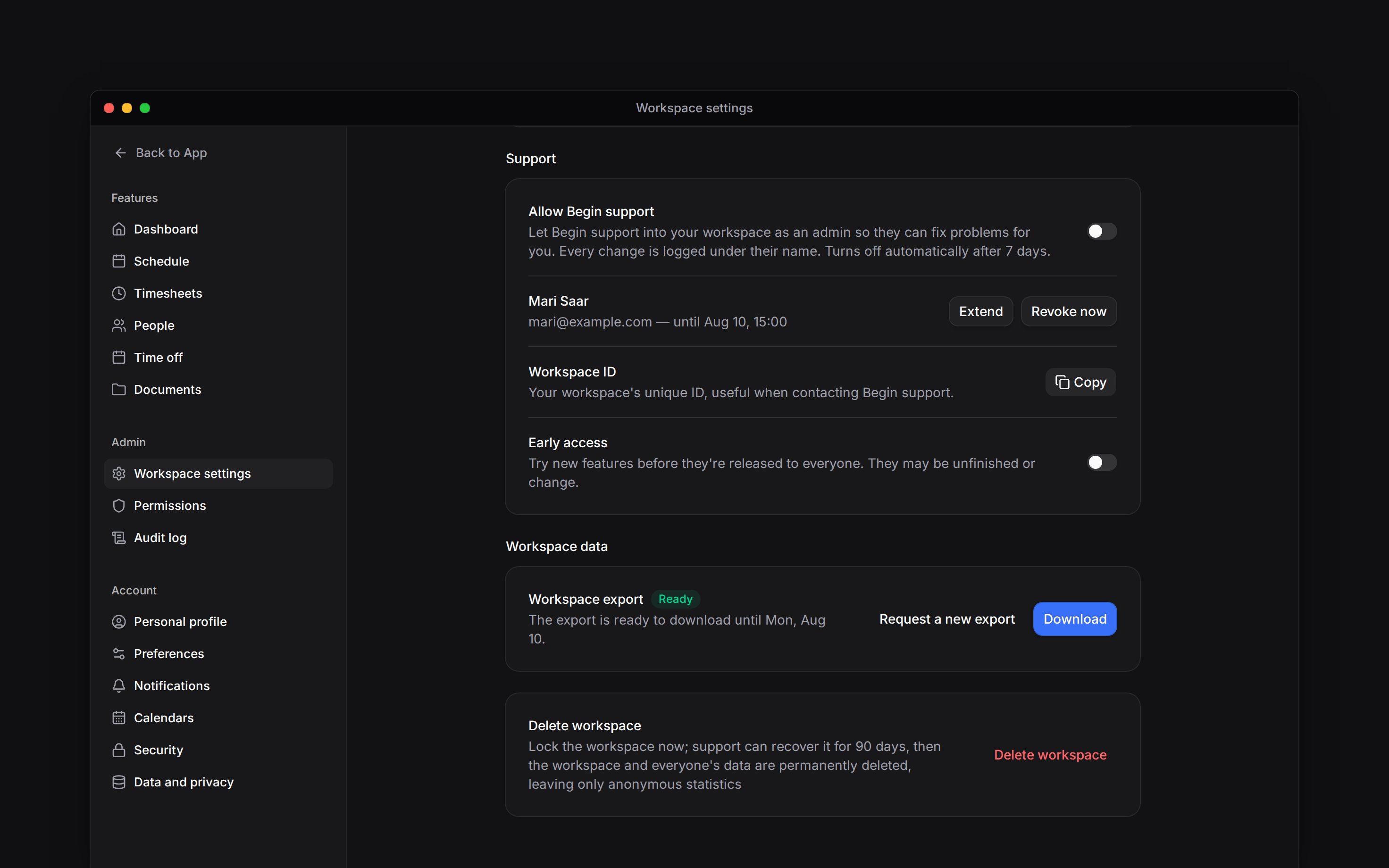
Find **Support** and turn on **Allow Begin support**. This opens access to authorised Begin
support staff for seven days.
Use the copy control beside **Workspace ID** in the same group and include it in your support
conversation. The ID identifies the workspace; copying it does not grant access.
Access closes automatically at the displayed expiry. You can close it earlier.
## Answer a request from a support person
Open the support access request in **Inbox**. Read the person's name, reason and requested duration before choosing **Allow access** or **Decline**.
Approving grants that person access for the requested period, up to 30 days. Leave **Also allow all Begin support for 7 days** off when you intend to approve only the named person. Select it only when the wider support team also needs access.
A request to extend access says so. The card reads **Begin support asked to extend access**, names how many more days are wanted and shows the date the current access ends. Approving moves that person's existing end date out rather than starting a second grant, so they keep one line in the list below.
A pending request shows an answer deadline. If it has expired, ask support to send a new request.
## Review and revoke access
Return to the **Support** group. **Begin support has access** shows the access expiry and, where applicable, the named holder. Expiry times use the workspace's timezone and time format.
Turn off **Allow Begin support**, or use **Revoke now**, to close the shared support window. With the shared switch off, review any named grants below it. Use **Extend** beside a person to give them more days without waiting to be asked, and **Revoke now** beside each person whose access should end.
Turning off the shared switch does not cancel separately approved access for a named person. To
end all support access, turn off the switch and revoke every remaining named grant.
Use [Audit log](/for-managers/settings/audit-log) to investigate the changes made during the visit. Filter **Origin** by **Begin support** to see only their changes.
* The shared window lasts seven days from being enabled. Named grants run from approval for the requested duration, capped at 30 days; they are independent of the shared window.
* Unanswered requests are scheduled to expire after 72 hours. The card is the source of the displayed answer deadline and current state.
* Granting requires an active customer membership with Manage workspace settings. Support cannot consent through its own support session.
* Named grant rows are hidden while the shared window is open because revoking one would not remove the access still granted by that window.
* Extending moves a named grant's end date rather than adding a second grant, whether the support person asked or an admin used **Extend**. The ceiling is 30 days from the moment of approval, and an extension never shortens access already granted.
* An extension whose grant was revoked or had lapsed while the request waited opens a fresh grant on approval, so an approval always grants something.
* Support grants and visits are audited. A named grant lists someone allowed to enter, not proof that they are currently viewing the workspace.
* Support sessions cannot request or download the owner-only workspace export.
## Next
Review recorded activity.
Choose who can manage workspace access.
## Still need help?
Email the Begin team and we'll get back to you.
Open the AI assistant and get instant answers based on these docs.
You need **Manage workspace settings** to grant, approve or revoke support access.
## Open access from Settings
Switch to the workspace that needs help, then open **Settings → Workspace settings**.
Find **Support** and turn on **Allow Begin support**. This opens access to authorised Begin
support staff for seven days.
Use the copy control beside **Workspace ID** in the same group and include it in your support
conversation. The ID identifies the workspace; copying it does not grant access.
Access closes automatically at the displayed expiry. You can close it earlier.
## Answer a request from a support person
Open the support access request in **Inbox**. Read the person's name, reason and requested duration before choosing **Allow access** or **Decline**.
Approving grants that person access for the requested period, up to 30 days. Leave **Also allow all Begin support for 7 days** off when you intend to approve only the named person. Select it only when the wider support team also needs access.
A request to extend access says so. The card reads **Begin support asked to extend access**, names how many more days are wanted and shows the date the current access ends. Approving moves that person's existing end date out rather than starting a second grant, so they keep one line in the list below.
A pending request shows an answer deadline. If it has expired, ask support to send a new request.
## Review and revoke access
Return to the **Support** group. **Begin support has access** shows the access expiry and, where applicable, the named holder. Expiry times use the workspace's timezone and time format.
Turn off **Allow Begin support**, or use **Revoke now**, to close the shared support window. With the shared switch off, review any named grants below it. Use **Extend** beside a person to give them more days without waiting to be asked, and **Revoke now** beside each person whose access should end.
Turning off the shared switch does not cancel separately approved access for a named person. To
end all support access, turn off the switch and revoke every remaining named grant.
Use [Audit log](/for-managers/settings/audit-log) to investigate the changes made during the visit. Filter **Origin** by **Begin support** to see only their changes.
* The shared window lasts seven days from being enabled. Named grants run from approval for the requested duration, capped at 30 days; they are independent of the shared window.
* Unanswered requests are scheduled to expire after 72 hours. The card is the source of the displayed answer deadline and current state.
* Granting requires an active customer membership with Manage workspace settings. Support cannot consent through its own support session.
* Named grant rows are hidden while the shared window is open because revoking one would not remove the access still granted by that window.
* Extending moves a named grant's end date rather than adding a second grant, whether the support person asked or an admin used **Extend**. The ceiling is 30 days from the moment of approval, and an extension never shortens access already granted.
* An extension whose grant was revoked or had lapsed while the request waited opens a fresh grant on approval, so an approval always grants something.
* Support grants and visits are audited. A named grant lists someone allowed to enter, not proof that they are currently viewing the workspace.
* Support sessions cannot request or download the owner-only workspace export.
## Next
Review recorded activity.
Choose who can manage workspace access.
## Still need help?
Email the Begin team and we'll get back to you.
Open the AI assistant and get instant answers based on these docs.