


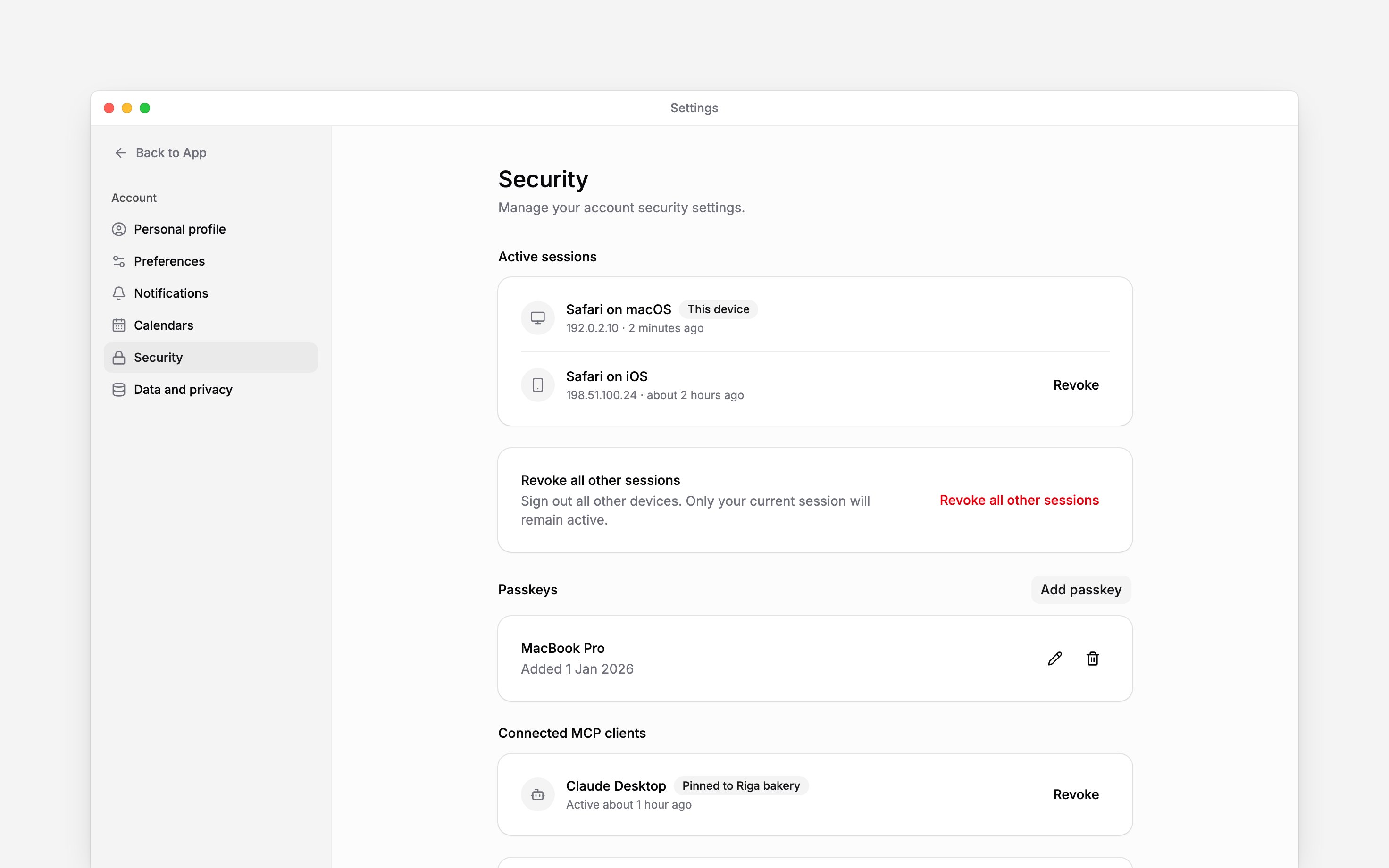
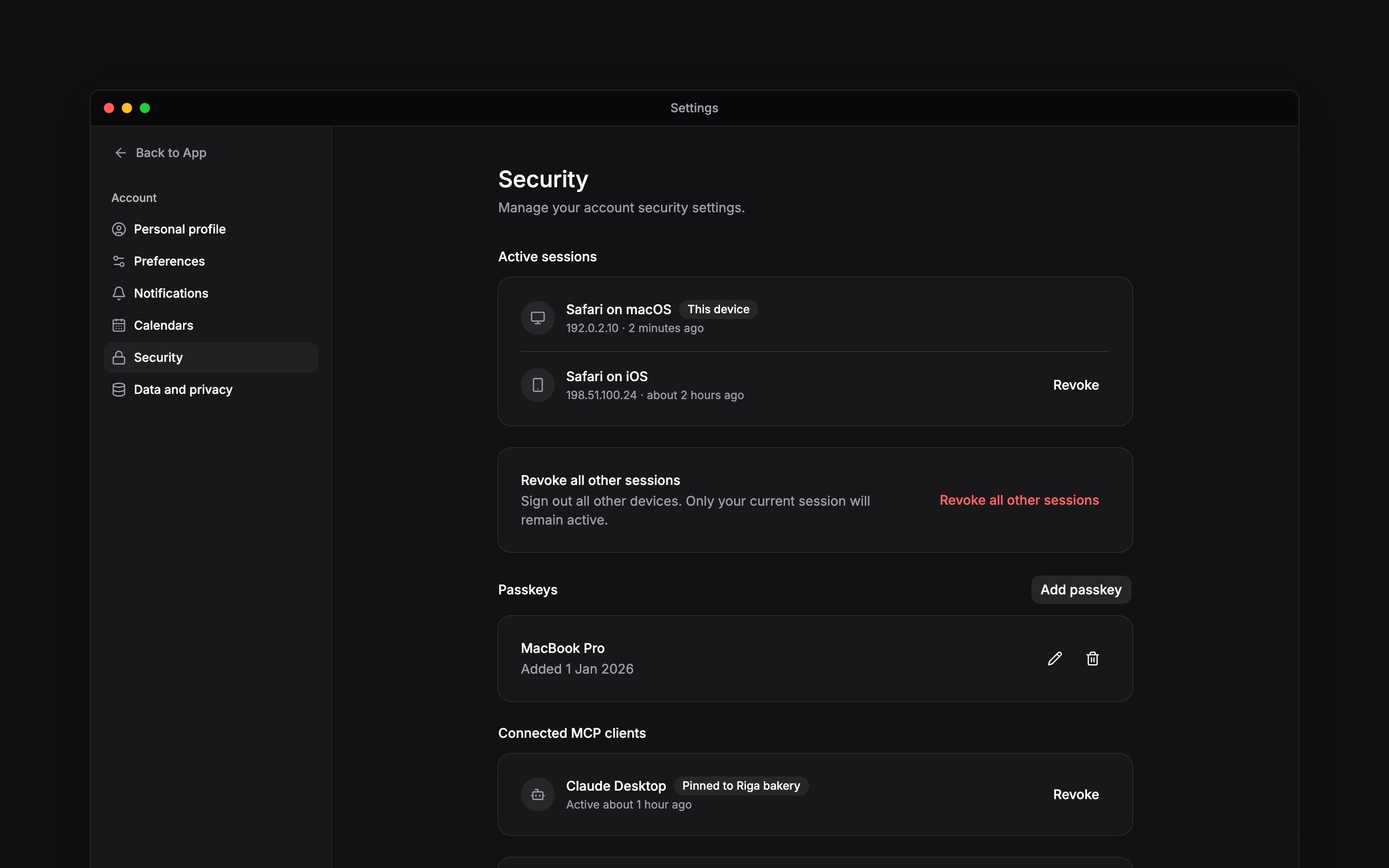
 Open Settings → Security to check where you are signed in, manage passkeys and remove external AI clients from your account. On a phone, open More → Profile & settings → Personal profile, then use the top-left settings navigation button and choose Security. You can manage your own security without asking an administrator.
Sign out other devices
Active sessions lists signed-in browsers and devices, their IP addresses and recent activity. This device marks the session you are using now. Choose Revoke beside an unfamiliar or unused session. To sign out everywhere else, choose Revoke all other sessions and confirm. Your current session stays signed in. If a phone or laptop is lost, revoke its session from a device you still control. Also remove any passkey you no longer want that device to use.Add and manage passkeys
1
Name the passkey
Choose Add passkey and use a name you will recognise, such as your device’s name.
2
Complete the device prompt
Follow the fingerprint, face, PIN or security-key prompt. If Begin asks you to verify your
account again, complete that check.
3
Check it was added
Confirm the new passkey appears in the list. You can rename it later to keep devices
recognisable.
Revoke connected AI clients
Connected MCP clients lists external tools authorised through Begin MCP. Check the client name and any workspace shown, then choose Revoke to disconnect it. You can also revoke all connected clients. Begin AI can do the same for you: ask it to revoke a client, or all of them, and confirm its card. Revocation takes effect immediately. It does not delete information the external tool has already received. To reconnect, follow the Begin MCP setup guide and authorise the client again.Next
Update your personal profile
Keep your sign-in contacts current.
Download your personal data
Download your personal records.
Still need help?
Contact support
Email the Begin team and we’ll get back to you.
Ask Begin AI
Open the AI assistant and get instant answers based on these docs.